> ## Documentation Index
> Fetch the complete documentation index at: https://lightdash-mintlify-cccf65ca.mintlify.site/llms.txt
> Use this file to discover all available pages before exploring further.
# SCIM Integration
**SCIM Integration is only available on Lightdash Enterprise plans.**
For more information on our plans, visit our [pricing page](https://www.lightdash.com/pricing).
## Summary
SCIM (System for Cross-domain Identity Management) is an open standard protocol for automating user provisioning. Lightdash supports any identity provider (IdP) that implements the SCIM 2.0 standard, including Azure, Okta, OneLogin, and others.
This document describes the steps required to integrate SCIM into your Enterprise instance, allowing your IdP to manage users and groups within your organization.
If you are self-hosting Lightdash, you must set the `SCIM_ENABLED` environment variable to `true` to enable SCIM:
```bash theme={null}
SCIM_ENABLED=true
```
**Important:** When using SCIM with SSO, you should also enable the `AUTH_ENABLE_OIDC_TO_EMAIL_LINKING` environment variable. This allows linking OIDC identity to an existing user by email. Without this setting, Lightdash will attempt to create a new user when they sign in via SSO, which will fail if the user was already provisioned via SCIM.
```bash theme={null}
AUTH_ENABLE_OIDC_TO_EMAIL_LINKING=true
```
## SCIM Setup within Lightdash
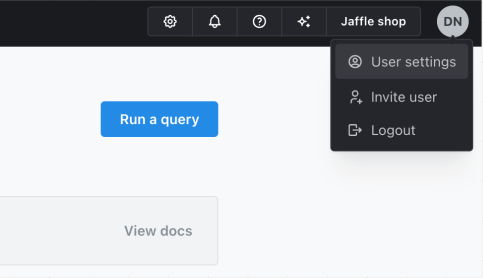
1. Sign into your Lightdash instance, click your initials at the top-right, and select **User Settings**.
 2. In the sidebar, select **SCIM Access Tokens**.
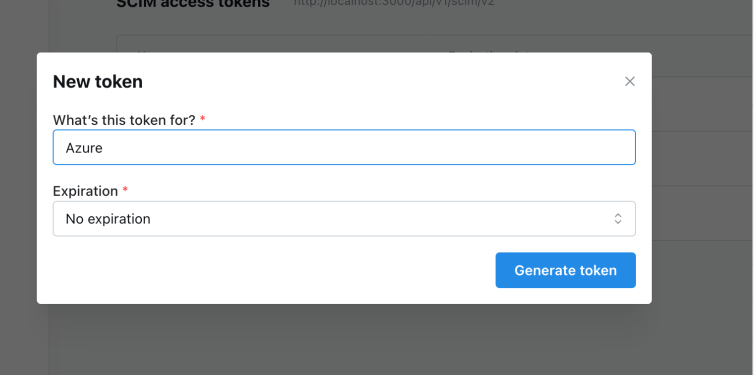
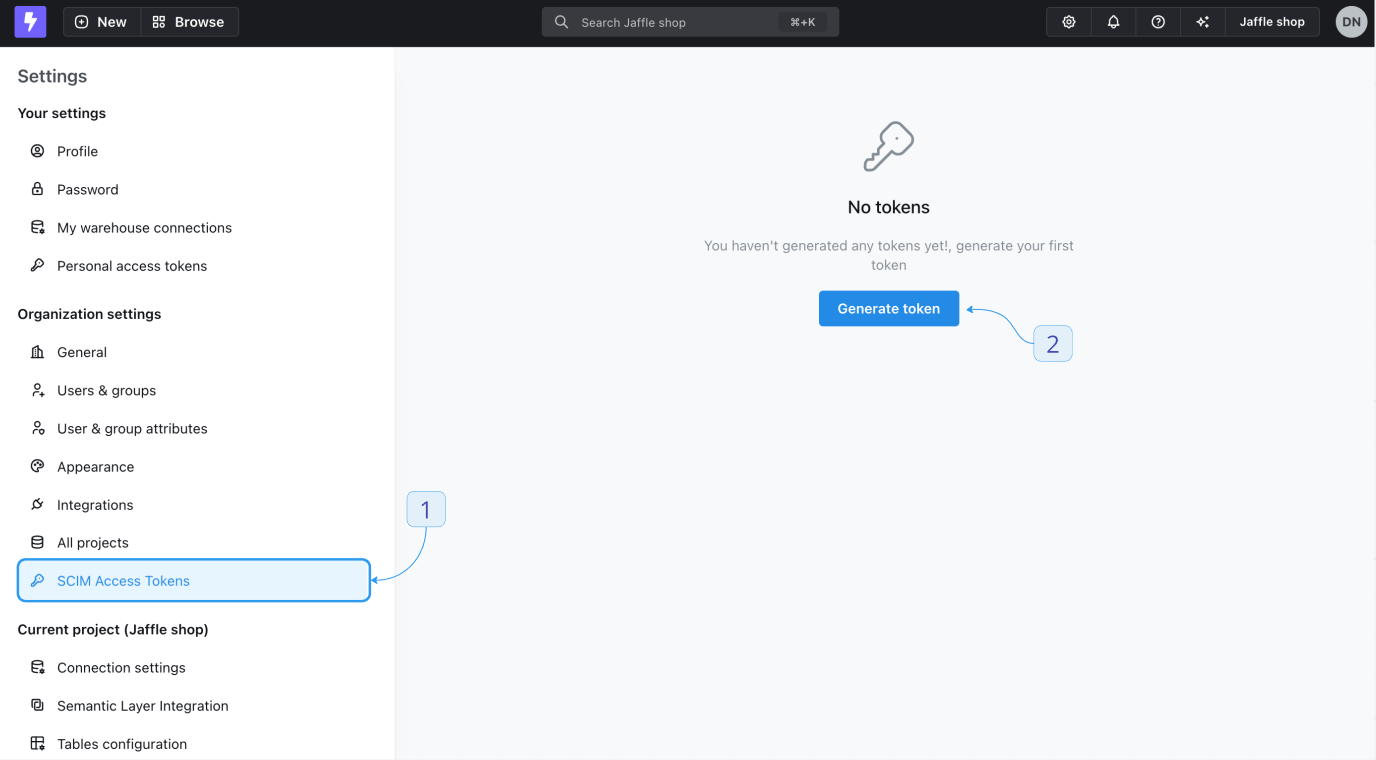 3. Click **Generate new token**.
* Give it a name and an optional expiration date.
3. Click **Generate new token**.
* Give it a name and an optional expiration date.
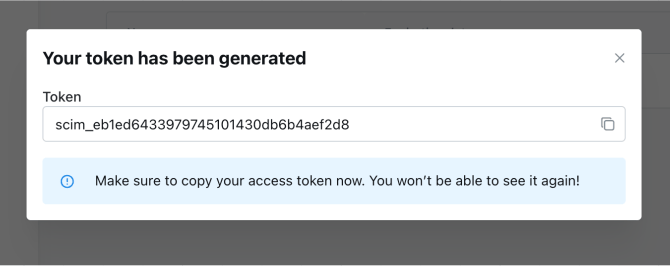
 4. Once generated, copy and save it in a safe place, as it cannot be viewed again once the modal is closed.
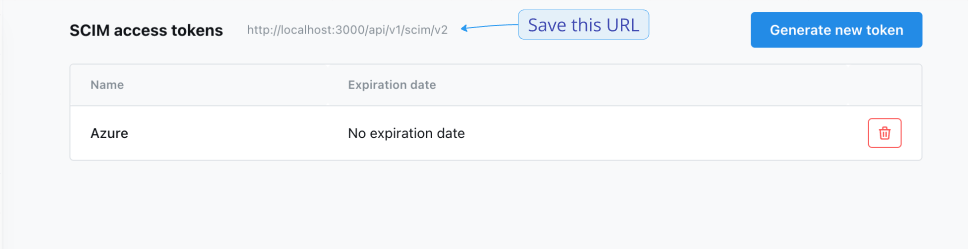
 5. Note: Now you will also be able to see your SCIM URL at the top of the page. You will need this when connecting an external SCIM service, such as Okta or Azure.
 ## Integration guides
You'll need administrative permissions to configure SCIM for your organization
### Step 1 - Add or Create Application in Okta
You can skip this step if you have Okta SSO already configured. An application will already be present.
1. Visit your Okta account and sign in.
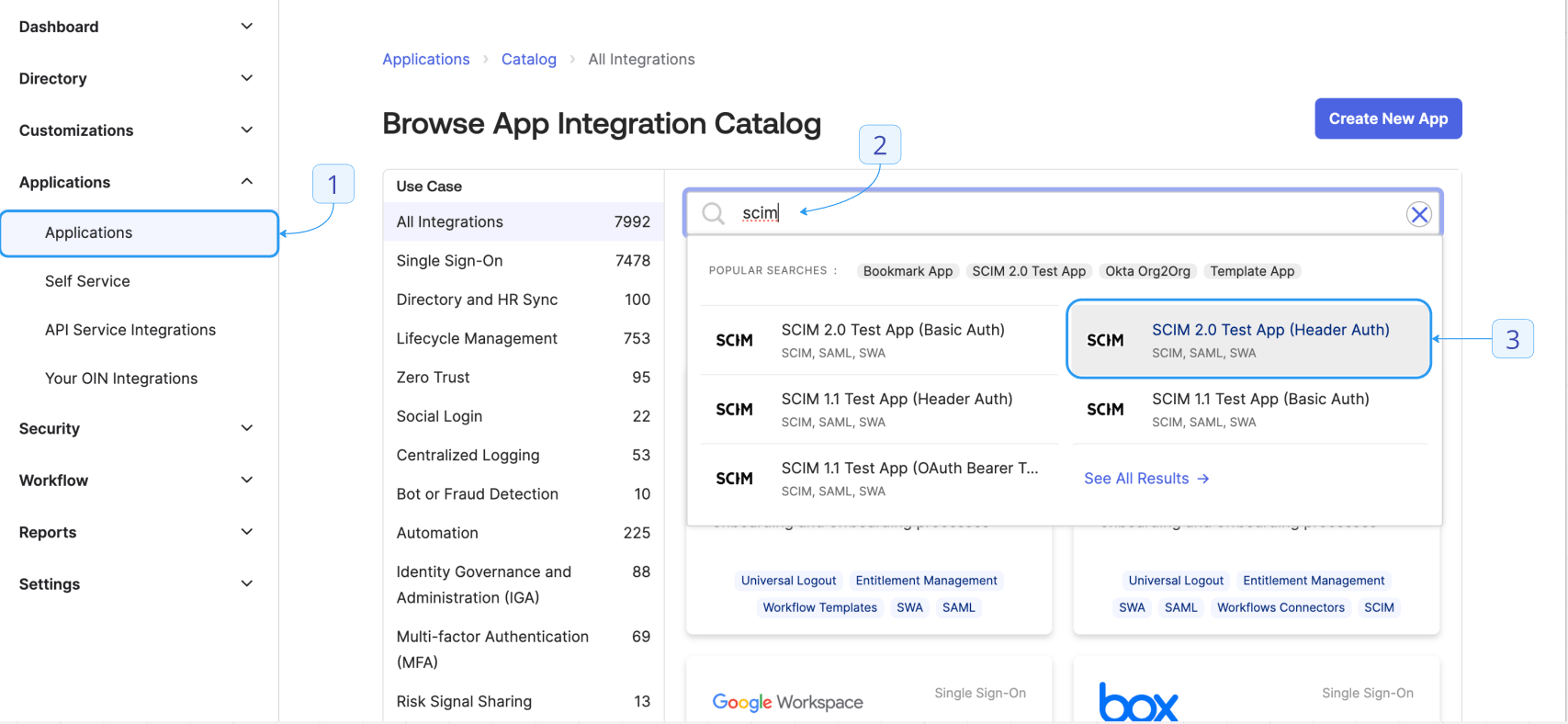
2. In the sidebar, click **Applications > Browse App Catalog**.
3. Search for "SCIM" and select **SCIM 2.0 Test App (Header Auth)**.
4. Click **+ Add Integration**.
## Integration guides
You'll need administrative permissions to configure SCIM for your organization
### Step 1 - Add or Create Application in Okta
You can skip this step if you have Okta SSO already configured. An application will already be present.
1. Visit your Okta account and sign in.
2. In the sidebar, click **Applications > Browse App Catalog**.
3. Search for "SCIM" and select **SCIM 2.0 Test App (Header Auth)**.
4. Click **+ Add Integration**.
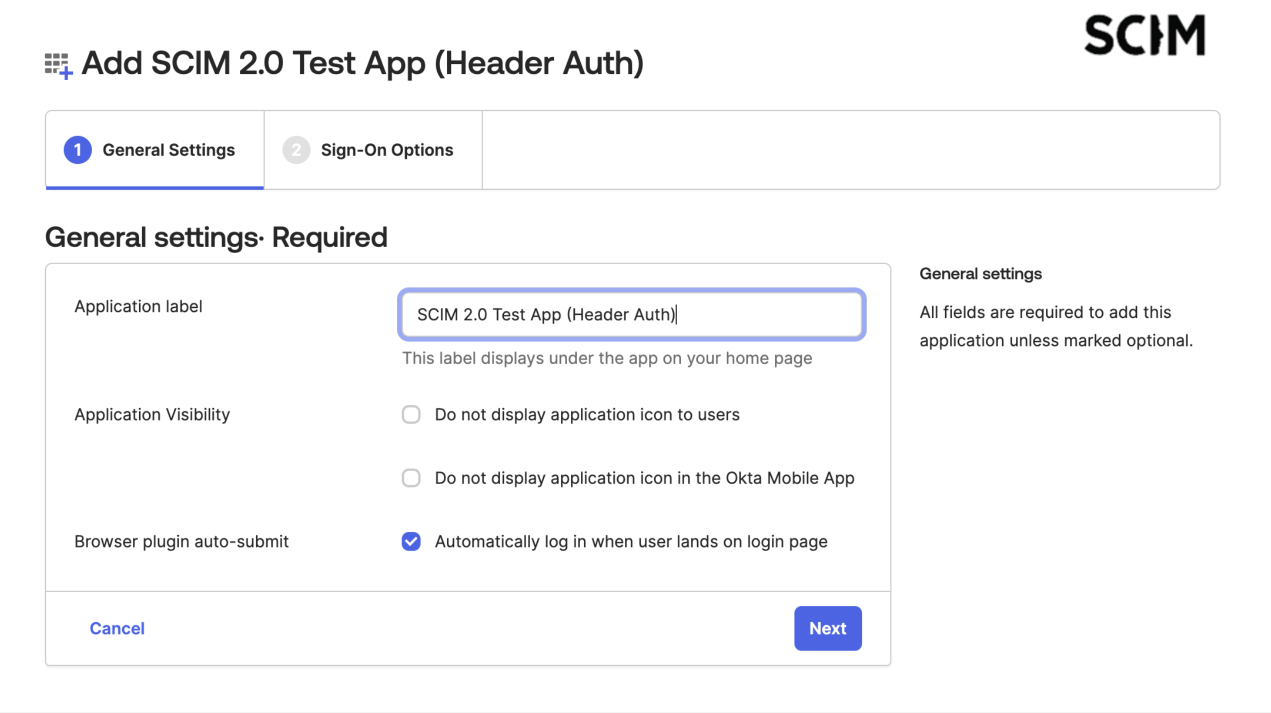
 5. Give it a friendly name and click **Next**.
 6. Change **Application username format** to email.
7. Save your configuration by clicking **Done**.
### Step 2 - Connect SCIM to Lightdash from Okta
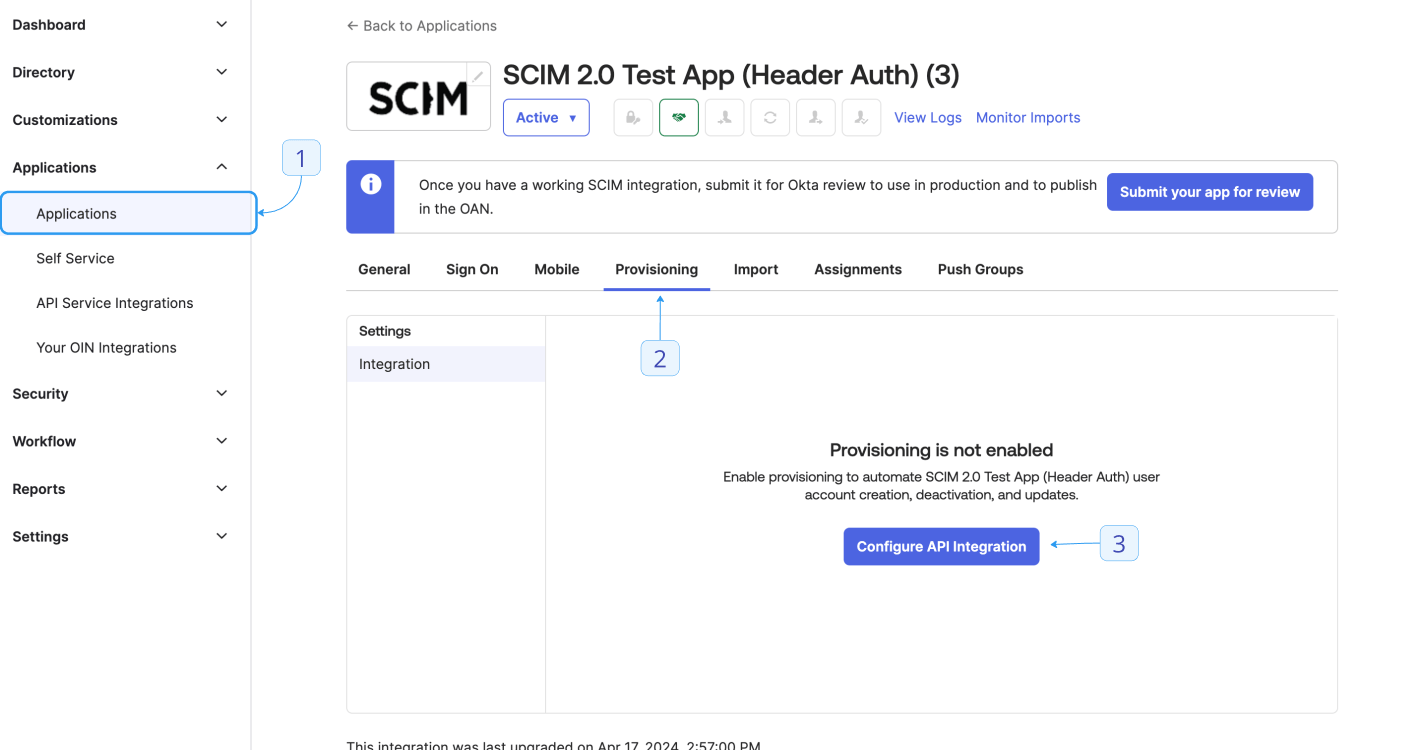
1. In the sidebar, click **Applications > Applications**.
2. Select your application and go to the **Provisioning** tab.
6. Change **Application username format** to email.
7. Save your configuration by clicking **Done**.
### Step 2 - Connect SCIM to Lightdash from Okta
1. In the sidebar, click **Applications > Applications**.
2. Select your application and go to the **Provisioning** tab.
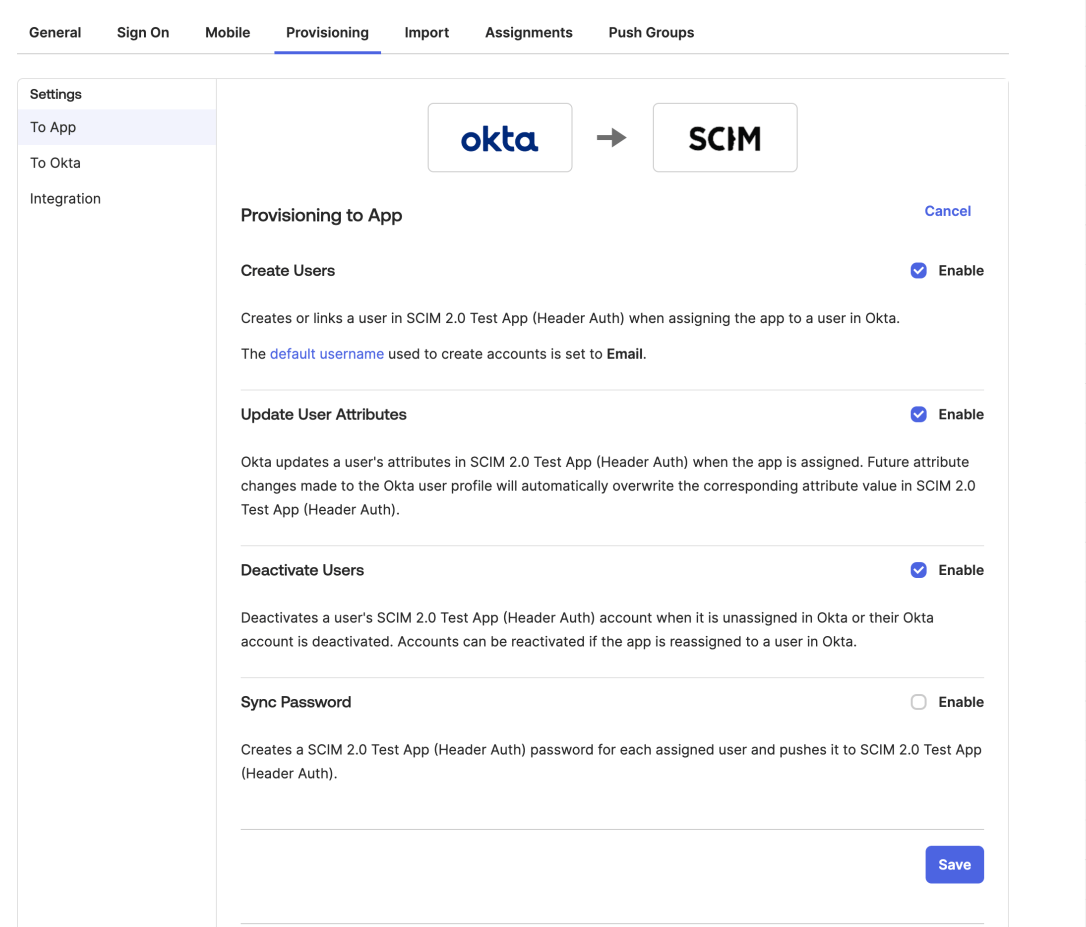 3. Select **Configure API Integration**.
 4. Check the **Enable API integration** checkbox.
5. Fill in the following fields:
* **Base URL**: `https://YOUR_APP_URL/api/v1/scim/v2/`
* **API Token**: `Bearer YOUR_SCIM_TOKEN` (See SCIM Setup within Lightdash above for generating a token)
6. Save your configuration.
7. More options should be available. In **Provisioning > To App**, select **Edit**.
* Enable **Create Users**.
* Enable **Update User Attributes**.
* Enable **Deactivate Users**.
* Click **Save**.
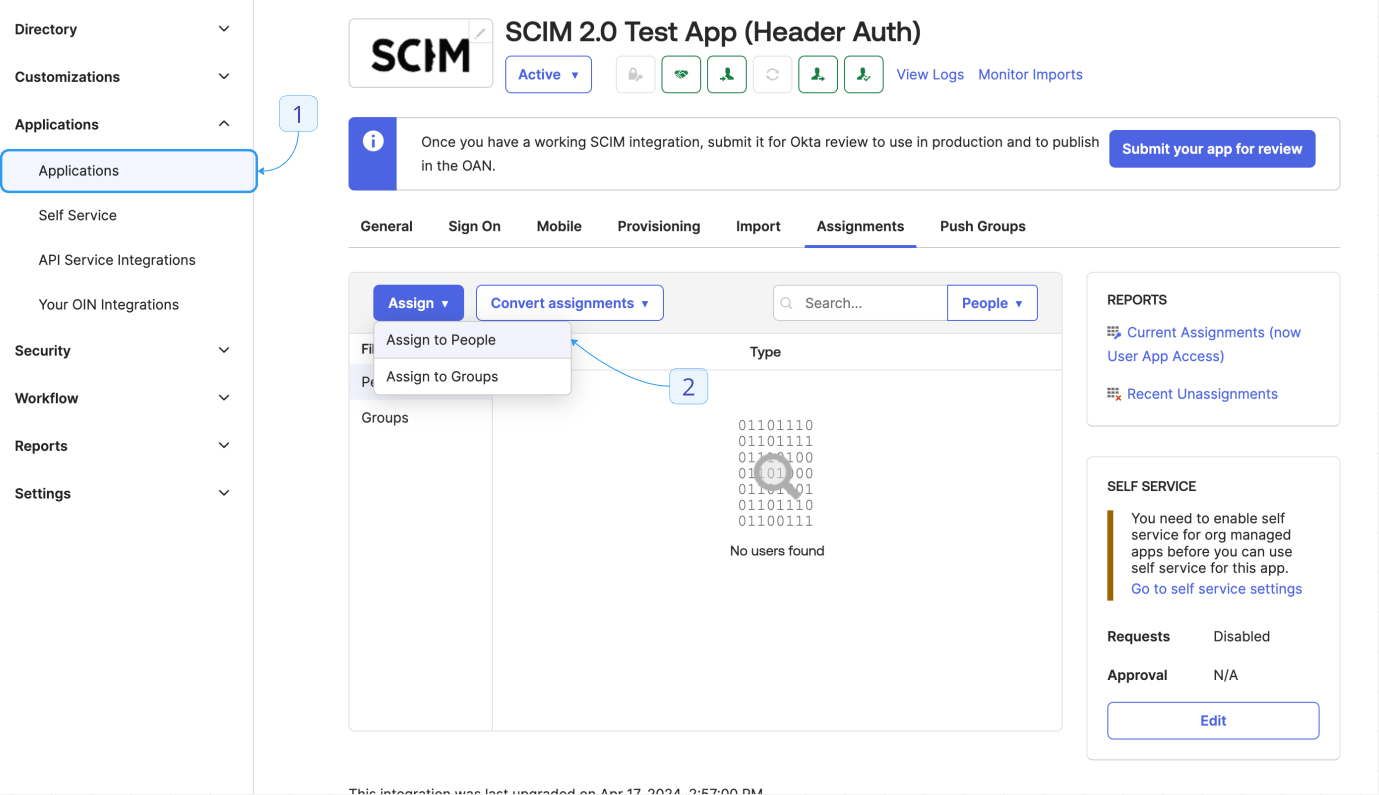
8. Test the integration by clicking **Assignments**. Select **Assign > Assign to people**. Choose a user and click **Assign > Save and Go Back**. This user should be created in your Lightdash instance.
4. Check the **Enable API integration** checkbox.
5. Fill in the following fields:
* **Base URL**: `https://YOUR_APP_URL/api/v1/scim/v2/`
* **API Token**: `Bearer YOUR_SCIM_TOKEN` (See SCIM Setup within Lightdash above for generating a token)
6. Save your configuration.
7. More options should be available. In **Provisioning > To App**, select **Edit**.
* Enable **Create Users**.
* Enable **Update User Attributes**.
* Enable **Deactivate Users**.
* Click **Save**.
8. Test the integration by clicking **Assignments**. Select **Assign > Assign to people**. Choose a user and click **Assign > Save and Go Back**. This user should be created in your Lightdash instance.
 **Lightdash will sync the active status from Okta to Lightdash.**
For example, if a user is provisioned as inactive or is deactivated in Okta, that user will still exist in Lightdash marked as inactive, meaning they will be unable to use the platform.
### Step 3 - Managing Roles in Okta (Optional)
#### Create Attributes for Role Management
1. Go to **Provisioning > Profile Editor**.
2. Click **Add attribute** to create attributes for organization and project roles.
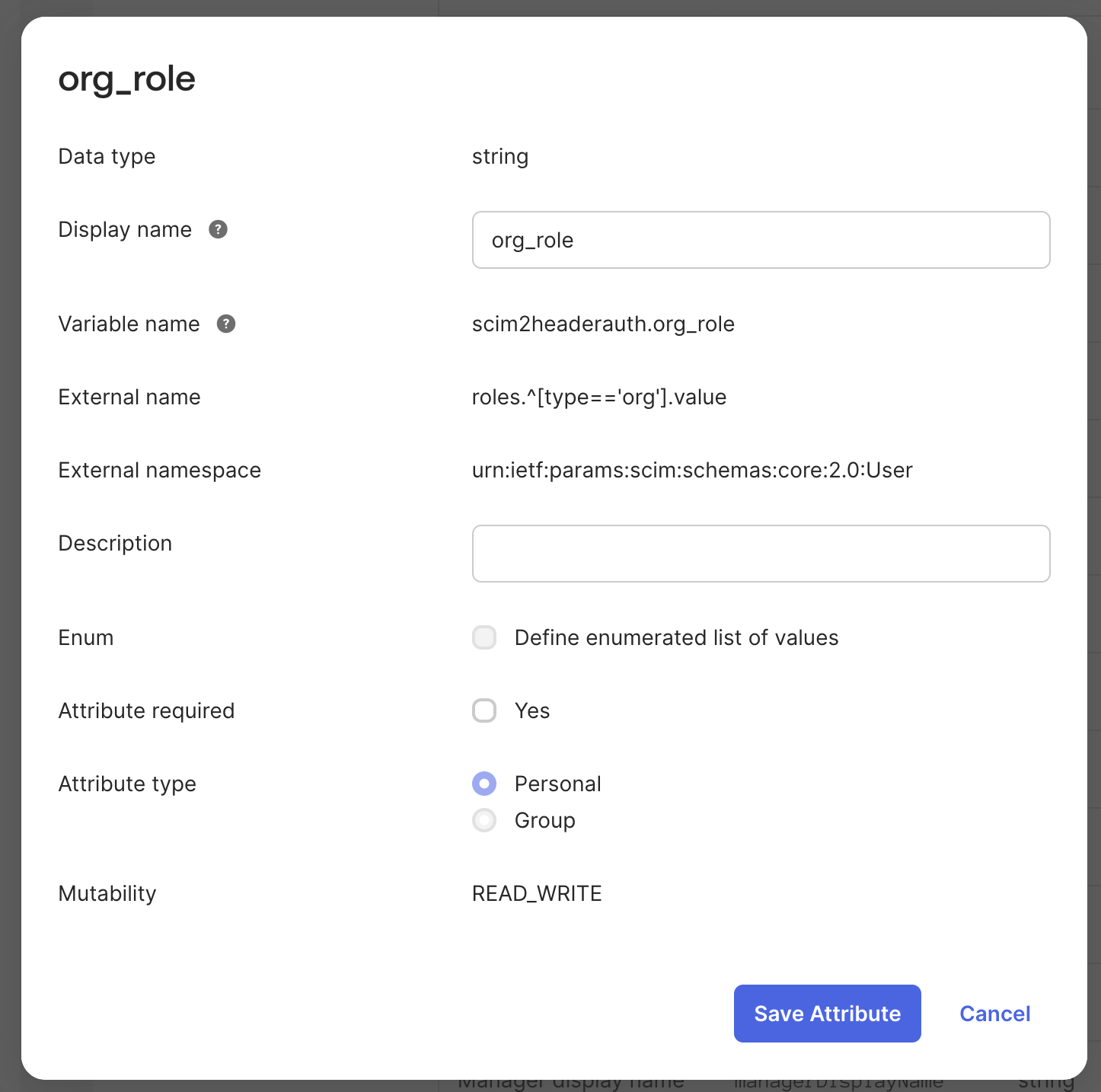
**For Organization Role:**
* **Variable name**: `org_role` (or your preferred name)
* **External name**: `roles.^[type=='org'].value`
* **External namespace**: `urn:ietf:params:scim:schemas:core:2.0:User`
**Lightdash will sync the active status from Okta to Lightdash.**
For example, if a user is provisioned as inactive or is deactivated in Okta, that user will still exist in Lightdash marked as inactive, meaning they will be unable to use the platform.
### Step 3 - Managing Roles in Okta (Optional)
#### Create Attributes for Role Management
1. Go to **Provisioning > Profile Editor**.
2. Click **Add attribute** to create attributes for organization and project roles.
**For Organization Role:**
* **Variable name**: `org_role` (or your preferred name)
* **External name**: `roles.^[type=='org'].value`
* **External namespace**: `urn:ietf:params:scim:schemas:core:2.0:User`
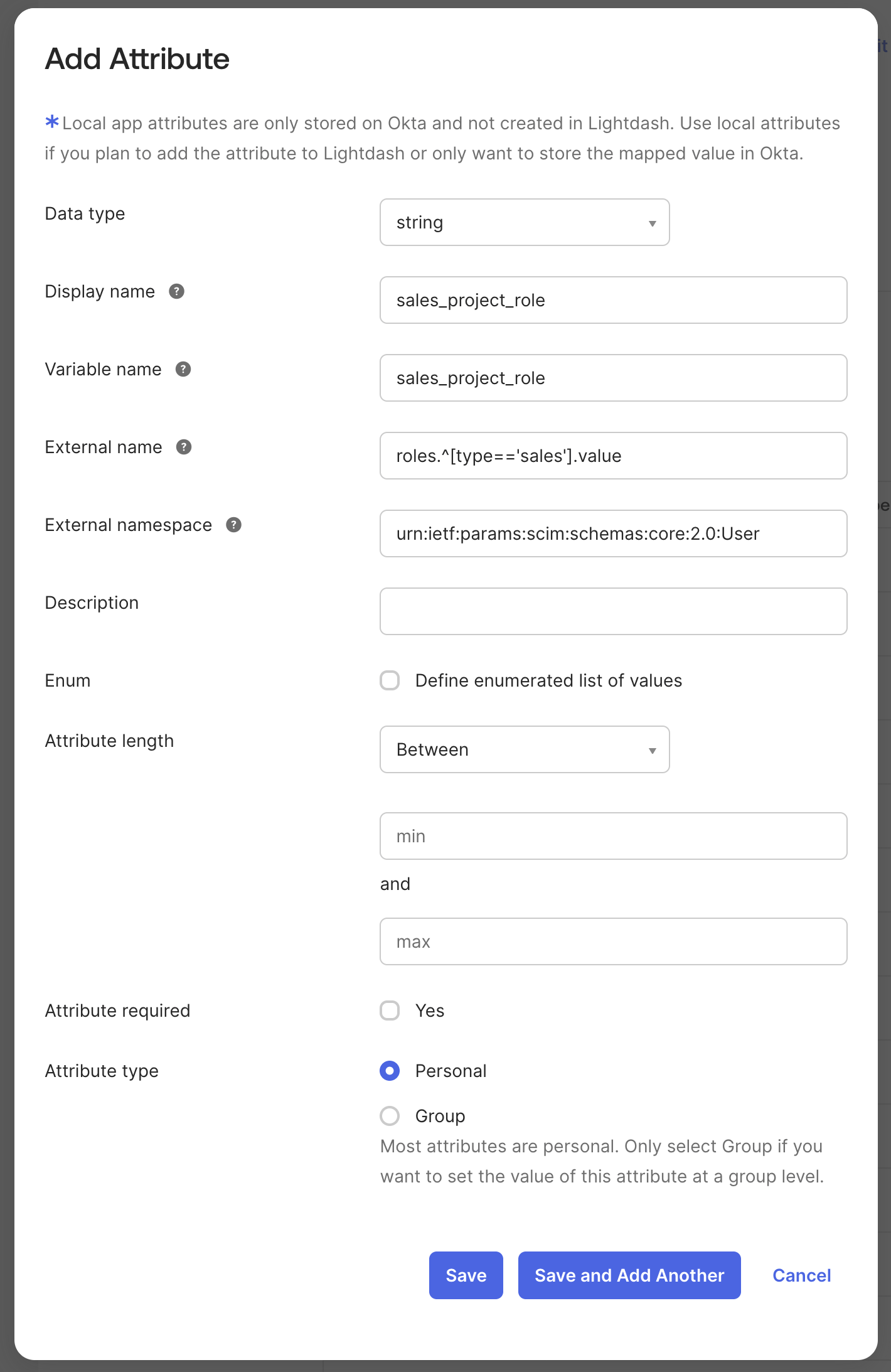
 **For Project Roles:**
* **Variable name**: `project_role` (or your preferred name)
* **External name**: `roles.^[type=='project_name'].value`
* **External namespace**: `urn:ietf:params:scim:schemas:core:2.0:User`
**Note**: Okta doesn't work as expected if using double quotes and other special characters in the project name when creating role attributes.
**For Project Roles:**
* **Variable name**: `project_role` (or your preferred name)
* **External name**: `roles.^[type=='project_name'].value`
* **External namespace**: `urn:ietf:params:scim:schemas:core:2.0:User`
**Note**: Okta doesn't work as expected if using double quotes and other special characters in the project name when creating role attributes.
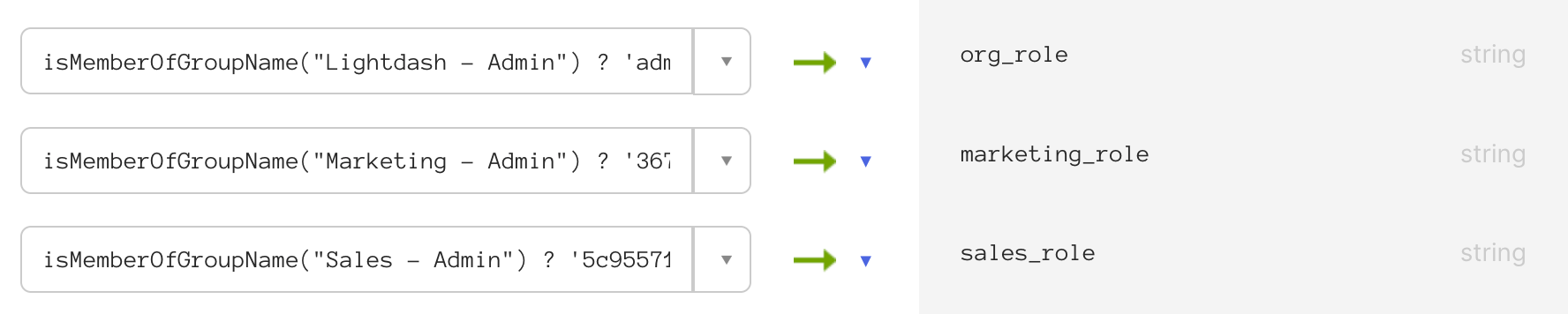
 #### Define Role Mappings
1. In the **Profile Editor**, go to **Mappings > Okta User to Lightdash**.
2. Configure mappings based on Okta group membership.
**For Organization Role Mapping:**
```
isMemberOfGroupName("Lightdash - Admin") ? 'admin' :
isMemberOfGroupName("Lightdash - Editor") ? 'editor' : 'member'
```
**For Project Role Mapping:**
```
isMemberOfGroupName("Marketing - Admin") ? '3675b69e-8324-4110-bdca-059031aa8da3:admin' :
isMemberOfGroupName("Marketing - Editor") ? '3675b69e-8324-4110-bdca-059031aa8da3:editor' :
'3675b69e-8324-4110-bdca-059031aa8da3:no-role'
```
Replace `3675b69e-8324-4110-bdca-059031aa8da3` with your actual project UUID and adjust group names to match your Okta groups.
#### Define Role Mappings
1. In the **Profile Editor**, go to **Mappings > Okta User to Lightdash**.
2. Configure mappings based on Okta group membership.
**For Organization Role Mapping:**
```
isMemberOfGroupName("Lightdash - Admin") ? 'admin' :
isMemberOfGroupName("Lightdash - Editor") ? 'editor' : 'member'
```
**For Project Role Mapping:**
```
isMemberOfGroupName("Marketing - Admin") ? '3675b69e-8324-4110-bdca-059031aa8da3:admin' :
isMemberOfGroupName("Marketing - Editor") ? '3675b69e-8324-4110-bdca-059031aa8da3:editor' :
'3675b69e-8324-4110-bdca-059031aa8da3:no-role'
```
Replace `3675b69e-8324-4110-bdca-059031aa8da3` with your actual project UUID and adjust group names to match your Okta groups.
 You'll need `Hybrid identity administrator` permissions to configure SCIM for your organization
The `email` attribute sent from Microsoft / Azure AD / Entra ID via SCIM is **not trusted**, since users can freely change it. Before configuring provisioning, review [Can the IdP-provided SCIM email be trusted?](#can-the-idp-provided-scim-email-be-trusted) and configure your IdP to use the immutable UPN (`userPrincipalName`) as the email claim.
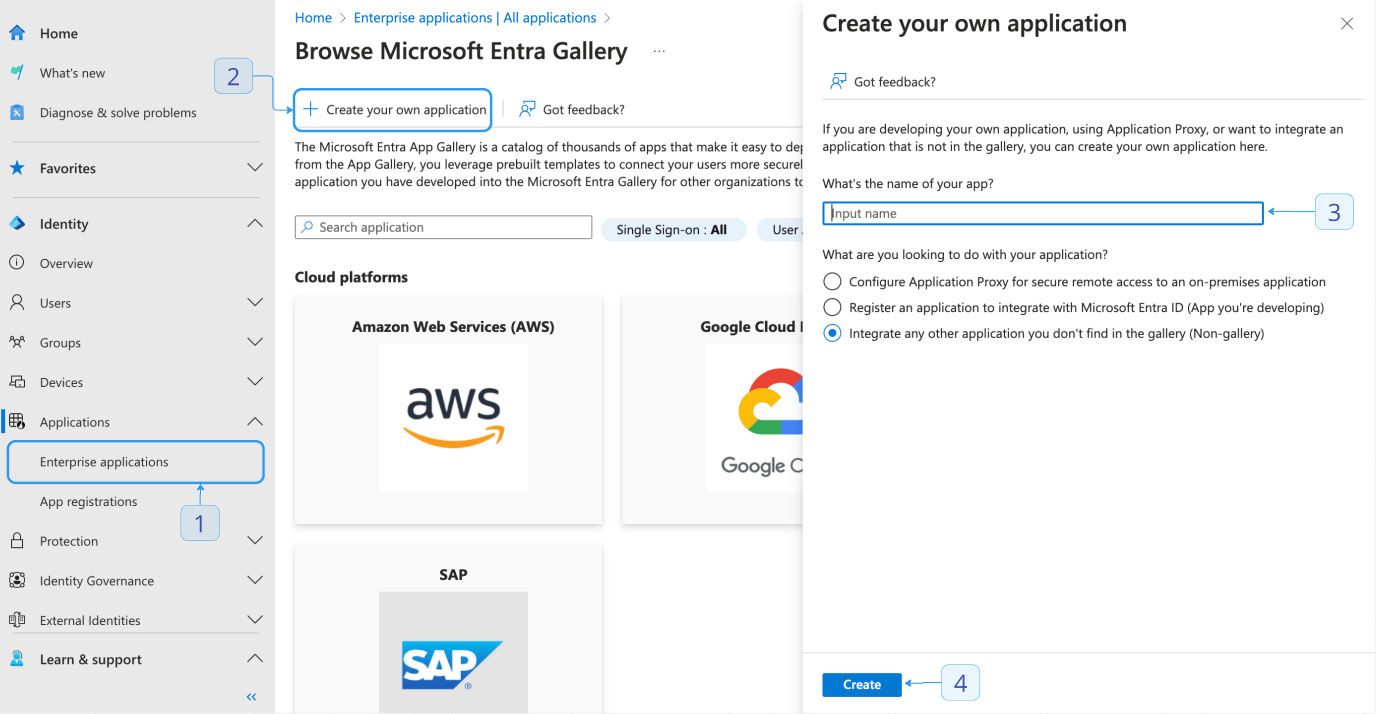
### Step 1 - Connect SCIM to Lightdash from Azure
1. Visit [Entra ID](https://entra.microsoft.com) and sign in.
2. In the sidebar, click **Enterprise applications**.
3. Select **+ New Registration**.
4. At the top of the page, select **+ Create Your own application**.
* Add a friendly title.
* Leave the default "Non-gallery" option selected.
5. Save your configuration by clicking **Create**.
You'll need `Hybrid identity administrator` permissions to configure SCIM for your organization
The `email` attribute sent from Microsoft / Azure AD / Entra ID via SCIM is **not trusted**, since users can freely change it. Before configuring provisioning, review [Can the IdP-provided SCIM email be trusted?](#can-the-idp-provided-scim-email-be-trusted) and configure your IdP to use the immutable UPN (`userPrincipalName`) as the email claim.
### Step 1 - Connect SCIM to Lightdash from Azure
1. Visit [Entra ID](https://entra.microsoft.com) and sign in.
2. In the sidebar, click **Enterprise applications**.
3. Select **+ New Registration**.
4. At the top of the page, select **+ Create Your own application**.
* Add a friendly title.
* Leave the default "Non-gallery" option selected.
5. Save your configuration by clicking **Create**.
 ### Step 2 - Assign users and groups to the application
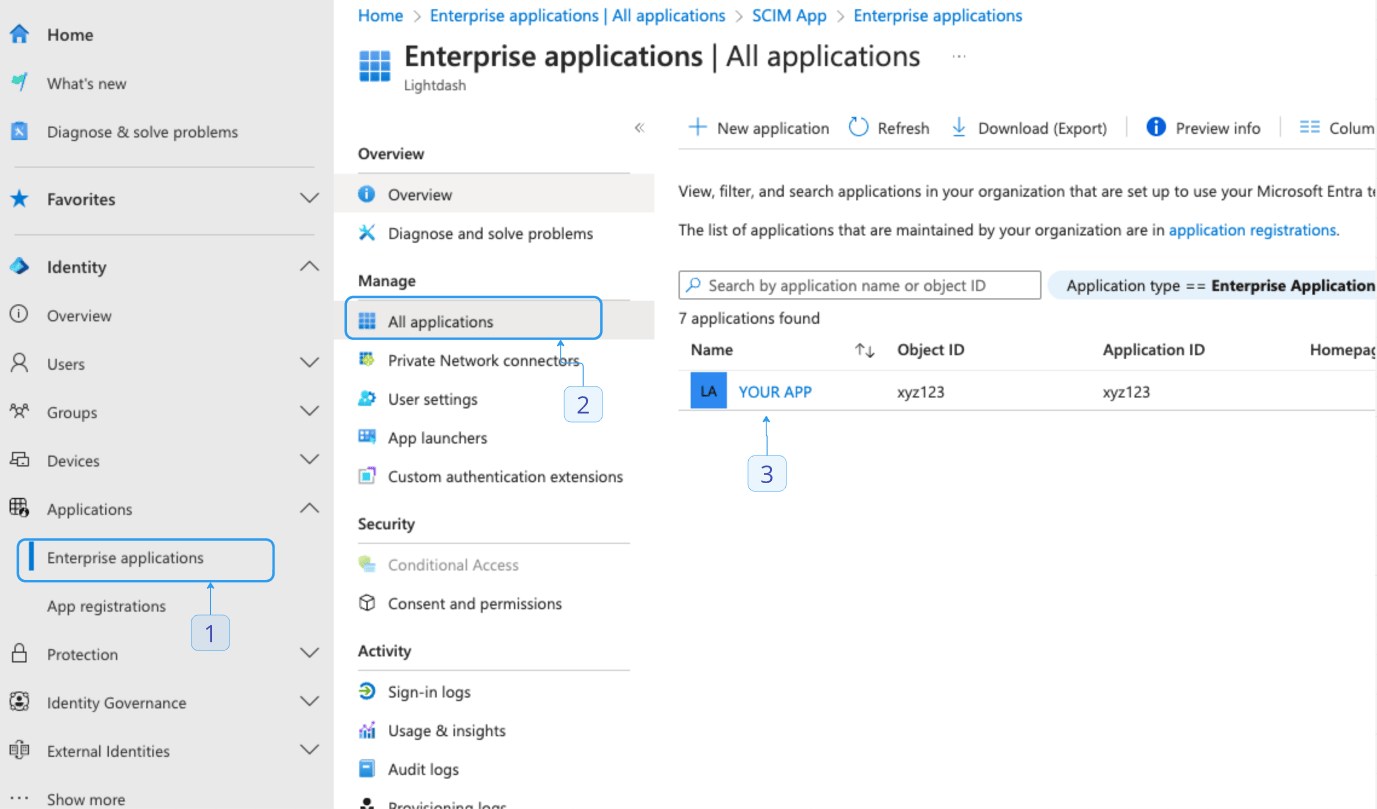
1. Navigate to **Enterprise applications** and select your application.
2. Select **Users and groups > + Add user/group**.
3. Click **None selected**, which will open a modal.
* Select any users and groups you want to provision and then close the modal with **Select**.
4. Click **Assign** to save.
### Step 2 - Assign users and groups to the application
1. Navigate to **Enterprise applications** and select your application.
2. Select **Users and groups > + Add user/group**.
3. Click **None selected**, which will open a modal.
* Select any users and groups you want to provision and then close the modal with **Select**.
4. Click **Assign** to save.
 ### Step 3 - Configure SCIM provisioning in Azure
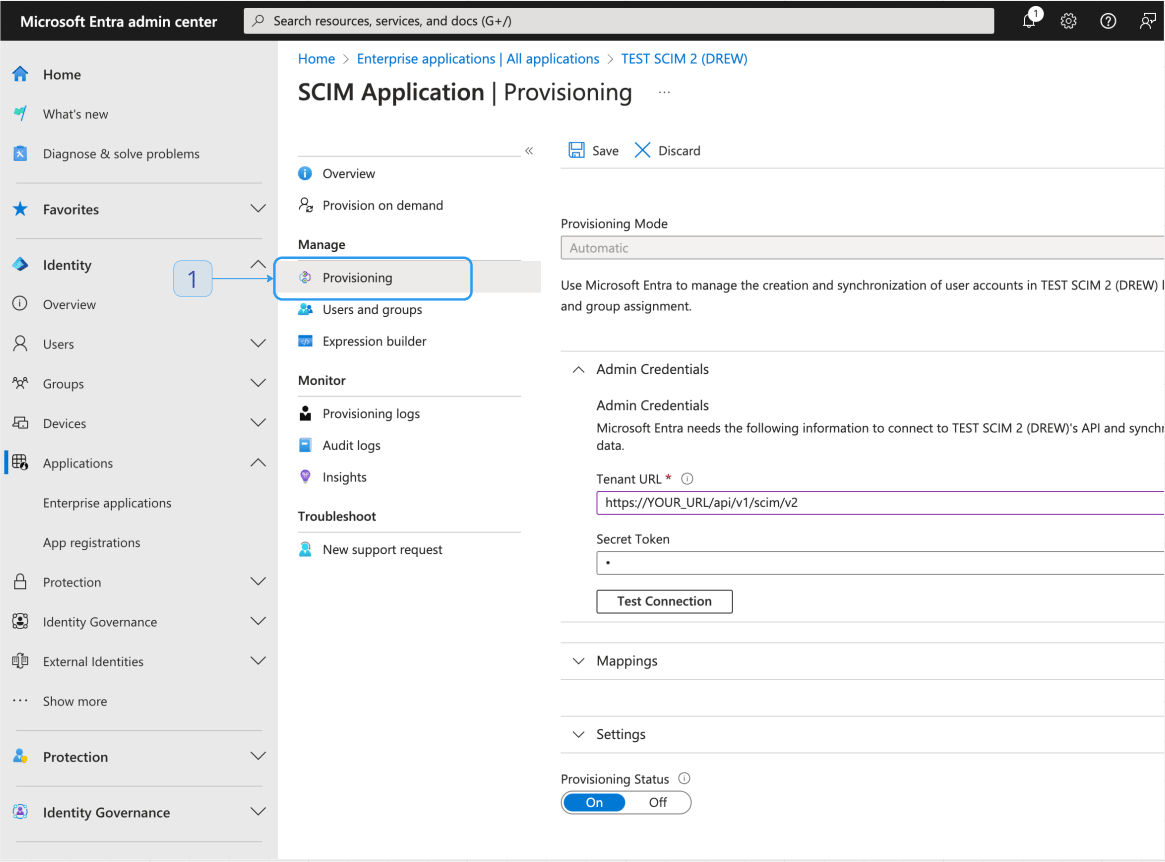
1. Navigate to **Enterprise applications** and select your application.
2. Select **Provision > Connect your application**.
3. Set Tenant URL and secret token based on the values in the Lightdash SCIM settings page.
4. Test connection, to confirm values are correct.
5. Click **Create** to save.
### Step 3 - Configure SCIM provisioning in Azure
1. Navigate to **Enterprise applications** and select your application.
2. Select **Provision > Connect your application**.
3. Set Tenant URL and secret token based on the values in the Lightdash SCIM settings page.
4. Test connection, to confirm values are correct.
5. Click **Create** to save.
 ### Step 4 - Start provisioning
1. Navigate to **Enterprise applications** and select your application.
2. Select **Provision**.
3. Click **Start provisioning** to save.
4. After a few minutes, your users and groups will be synced.
**Lightdash will sync the active status from Azure to Lightdash.**
For example, if a user is provisioned as inactive or is deactivated in Azure, that user will still exist in Lightdash marked as inactive, meaning they will be unable to use the platform.
## API docs
You can find the full API docs and examples for SCIM [here](https://docs.lightdash.com/api-reference/scim/list-users).
## SCIM behavior and implementation details
* `userName` is mapped to the user's primary email in Lightdash. Make sure your identity provider sets `userName` to the user's primary email (and, if sending an `emails` array, the primary email should match).
* When a user is updated to be inactive (`active: false`) via SCIM, Lightdash will mark the user as inactive, lower their organization role to `member`, and remove their access from all projects and groups. If you later reactivate the user, you'll need to re-assign their group and project access via SCIM or in Lightdash.
* An organization must always have at least one `admin`. Any SCIM request that would leave the organization with no admins (for example, demoting or deactivating the sole remaining admin) will be rejected with an error.
* A user can only have one role per organization and per project.
* A user must have an organization role.
* On creation, if no `roles` are provided, the organization role will default to `member`.
* On edit (PUT/PATCH), if no `roles` are provided, no changes are made to the user's roles.
* A user's project role will be removed if there is no entry for it in the SCIM request, or if there is a value `:no-role`. This allows for explicit role removal from projects.
* To reduce data pollution, roles for preview projects cannot be managed via SCIM, as those projects are intended to be short‑lived.
### Can the IdP-provided SCIM email be trusted?
In most cases, the email attribute sent via SCIM is trustworthy. However, confirm this with your IdP as some allow users to change their email address. If reliability isn’t guaranteed, use a stable, non-user-editable identifier instead (e.g., OIDC sub, SAML NameID, or Microsoft Entra ID UPN).
See provider‑specific guidance below.
##### Microsoft / Azure AD / Entra ID
The `email` field is not trusted. Users with Microsoft have a UPN (userPrincipalName) which is their immutable sign-in identifier. However, the `email` field is just a contact email that users can freely change themselves.
**References**:
* [https://www.crowdstrike.com/en-us/blog/noauth-microsoft-azure-ad-vulnerability/](https://www.crowdstrike.com/en-us/blog/noauth-microsoft-azure-ad-vulnerability/)
* [https://learn.microsoft.com/en-us/entra/identity-platform/migrate-off-email-claim-authorization](https://learn.microsoft.com/en-us/entra/identity-platform/migrate-off-email-claim-authorization)
* [https://www.bleepingcomputer.com/news/security/microsoft-fixes-azure-ad-auth-flaw-enabling-account-takeover/](https://www.bleepingcomputer.com/news/security/microsoft-fixes-azure-ad-auth-flaw-enabling-account-takeover/)
##### Using UPN as email claim in OIDC
1. Navigate to App Registrations: In the left-hand navigation pane, select "Azure Active Directory," then "App registrations."
2. Select Your Application: Find and select the application you want to update.
3. Open the Manifest: In the application settings, select "Manifest" to open the JSON editor for the application manifest.
4. Edit the Manifest: Make the necessary changes to the manifest. For example, to map the UPN to the email claim, you can add the following to the optionalClaims section:
```json theme={null}
{
"optionalClaims": {
"idToken": [
{
"name": "email",
"source": "userPrincipalName",
"essential": true
}
]
}
}
```
## User Role Provisioning
Lightdash supports provisioning user roles through SCIM, allowing identity providers to specify and manage user roles (admin, member, etc.) when provisioning users. This makes it easier to manage user permissions directly from your identity provider without requiring additional steps in Lightdash.
We support the standard SCIM 2.0 `roles` attribute as defined in [RFC 7643](https://datatracker.ietf.org/doc/html/rfc7643#section-7). Use this to provision a user's organization and project roles.
### Role types
Lightdash defines two role scopes: Organization and Project. Organization roles can be set to member, viewer, interactive viewer, editor, developer, or admin. Project roles can be viewer, interactive viewer, editor, developer, admin, or a [custom role](/references/workspace/custom-roles).
The project role values are a combination of the project id and the role identifier.
Examples:
```
[
{
schemas: [ScimSchemaType.ROLE],
id: 'member',
value: 'member',
display: 'Member',
type: 'Organization',
supported: true,
},
{
schemas: [ScimSchemaType.ROLE],
id: '3675b69e-8324-4110-bdca-059031aa8da3:viewer',
value: '3675b69e-8324-4110-bdca-059031aa8da3:viewer',
display: 'Jaffle shop - Viewer',
type: 'Project - Jaffle shop',
supported: true,
},
{
schemas: [ScimSchemaType.ROLE],
id: '3675b69e-8324-4110-bdca-059031aa8da3:da116e0f-2b96-4af4-93b7-b2636a26853d',
value:
'3675b69e-8324-4110-bdca-059031aa8da3:da116e0f-2b96-4af4-93b7-b2636a26853d',
display: 'Jaffle shop - my custom role',
type: 'Project - Jaffle shop',
supported: true,
},
]
```
### Configuring available roles in your Identity Provider (IdP)
The SCIM roles model is currently an [IETF draft](https://datatracker.ietf.org/doc/draft-ietf-scim-roles-entitlements), so native support to auto-discover roles via a `/Roles` endpoint varies by provider and connector.
* Okta: Does not natively auto-populate role picklists by consuming a SCIM `/Roles` endpoint. You can still provision `roles` [manually](https://help.okta.com/en-us/content/topics/users-groups-profiles/usgp-add-custom-user-attributes.htm) or implement custom sync using [Okta Workflows](https://help.okta.com/wf/en-us/content/topics/workflows/workflows-main.htm) or a [custom app](https://help.okta.com/en-us/content/topics/apps/apps_app_integration_wizard.htm).
* Microsoft Entra ID (Azure AD): Does not currently auto-discover roles from `/Roles`. Use [manual configuration](https://learn.microsoft.com/azure/active-directory/app-provisioning/customize-application-attributes) of allowed roles.
* Google Cloud Identity / Workspace: No native auto-consumption of `/Roles`. Use [manual configuration](https://support.google.com/cloudidentity/answer/6208725) of allowed roles.
* SailPoint (IdentityNow/IdentityIQ): Supports SCIM roles harvesting; with the right connector configuration, it can ingest roles from custom endpoints like `/Roles`.
* Other IGA/IM tools (e.g., OneLogin): Some support importing roles from SCIM apps; use depends on the specific connector.
How to tell if your IdP supports it:
* Check your IdP/connector documentation for SCIM “roles” or explicit mention of the roles draft.
* Inspect provisioning or discovery logs: if the IdP issues `GET /Roles` during discovery, it likely supports it.
* If the connector supports custom discovery endpoints or schema extensions, you may be able to add `/Roles` even if it’s not built-in.
If your IdP doesn’t support `/Roles`, use the manual configuration documented in your IdP. Remember: only the `value` is required by Lightdash.
### Lightdash Extension Schema (deprecated)
This section describes a legacy Lightdash-specific SCIM extension and is deprecated. New integrations should use the standard SCIM `roles` attribute [RFC 7643](https://datatracker.ietf.org/doc/html/rfc7643#section-7). The extension will be removed in a future release.
To set user roles, Lightdash provides an extension schema that can be included in SCIM requests:
```
urn:lightdash:params:scim:schemas:extension:2.0:User
```
The extension schema supports the following properties:
\| Property | Description | Required | Default | | `role` | The user's role in the organization | No | `member` \[1] |
When mapping attributes in Azure or Okta, you must prefix the property with the complete schema name. For example, to set the `role` property, you must use `urn:lightdash:params:scim:schemas:extension:2.0:User:role` as the attribute path.
## Group role provisioning
In SCIM, you cannot assign a role attribute directly to a Group resource. Groups only contain members.
Organizations typically choose one of the following patterns:
1. No groups in Lightdash
* Do not manage groups in Lightdash. Any groups created via the Lightdash UI should be removed by SCIM during its periodic sync (this may require configuration in your IdP's SCIM app, such as enabling group deprovisioning or group push/provisioning for groups).
* Provision users with organization and project roles via SCIM.
2. Manage group project roles in Lightdash and provision group memberships via SCIM
* Manage group project roles directly in Lightdash.
* Provision users with organization roles and group memberships via SCIM (do not assign project roles directly to users via SCIM).
* Users should not have direct project access as they inherit access through their organization role and group membership.
* During its periodic sync, SCIM will remove any project roles that were assigned to users via the Lightdash UI.
## Rotating a SCIM access token
To maintain security, you may want to rotate your SCIM access tokens periodically. Follow these steps to rotate an existing token.
Requirements for Rotation
* **Token UUID**: To rotate a token, you’ll need its unique identifier (UUID), which you can find on the tokens page in your organization settings.
* **Expiration Date**: You must specify a new expiration date when rotating a token. Tokens without an expiration cannot be rotated.
* **Time Interval**: Tokens can only be rotated once per hour.
Use the following curl command to rotate a SCIM access token. Replace `` with the UUID of the token you wish to rotate, and `` with your [personal access token](/references/workspace/personal-tokens). This process will invalidate the previous token and return a new token with the specified expiration date.
```bash theme={null}
curl --location --request PATCH 'https://my.lightdash.com/api/v1/scim/organization-access-tokens//rotate' \
--header 'Content-Type: application/json' \
--header 'Authorization: ApiKey ' \
--data '{
"expiresAt": "2025-12-13T16:10:04.976Z"
}'
```
Example response:
```json theme={null}
{
"status": "ok",
"results": {
"uuid": "bf677698-502e-4ed6-aa90-02a17999c379",
"organizationUuid": "172a2270-000f-42be-9c68-c4752c23ae51",
"description": "rotate token",
"createdAt": "2024-11-18T13:50:21.241Z",
"expiresAt": "2025-12-13T16:10:04.976Z",
"lastUsedAt": "2024-11-18T14:24:41.367Z",
"rotatedAt": "2024-11-18T15:15:24.361Z",
"token": "scim_204b5ccaf4d11e656efbf1f68986028a"
}
}
```
To get a token metadata, use the following curl command:
```bash theme={null}
curl --location 'http://localhost:3000/api/v1/scim/organization-access-tokens/' \
--header 'Authorization: ApiKey '
```
Example response:
```json theme={null}
{
"status": "ok",
"results": {
"uuid": "bf677698-502e-4ed6-aa90-02a17999c379",
"organizationUuid": "172a2270-000f-42be-9c68-c4752c23ae51",
"description": "Okta SCIM token",
"createdAt": "2024-11-18T13:50:21.241Z",
"expiresAt": "2025-12-13T16:10:04.976Z",
"lastUsedAt": "2024-11-18T14:24:41.367Z",
"rotatedAt": "2024-11-18T14:10:51.460Z"
}
}
```
To list all tokens, use the following curl command:
```bash theme={null}
curl --location 'http://localhost:3000/api/v1/scim/organization-access-tokens' \
--header 'Authorization: ApiKey '
```
Example response:
```json theme={null}
{
"status": "ok",
"results": [
{
"uuid": "bf677698-502e-4ed6-aa90-02a17999c379",
"organizationUuid": "172a2270-000f-42be-9c68-c4752c23ae51",
"description": "Okta SCIM token",
"createdAt": "2024-11-18T13:50:21.241Z",
"expiresAt": "2025-12-13T16:10:04.976Z",
"lastUsedAt": "2024-11-18T14:24:41.367Z",
"rotatedAt": "2024-11-18T14:10:51.460Z"
}
]
}
```
### Step 4 - Start provisioning
1. Navigate to **Enterprise applications** and select your application.
2. Select **Provision**.
3. Click **Start provisioning** to save.
4. After a few minutes, your users and groups will be synced.
**Lightdash will sync the active status from Azure to Lightdash.**
For example, if a user is provisioned as inactive or is deactivated in Azure, that user will still exist in Lightdash marked as inactive, meaning they will be unable to use the platform.
## API docs
You can find the full API docs and examples for SCIM [here](https://docs.lightdash.com/api-reference/scim/list-users).
## SCIM behavior and implementation details
* `userName` is mapped to the user's primary email in Lightdash. Make sure your identity provider sets `userName` to the user's primary email (and, if sending an `emails` array, the primary email should match).
* When a user is updated to be inactive (`active: false`) via SCIM, Lightdash will mark the user as inactive, lower their organization role to `member`, and remove their access from all projects and groups. If you later reactivate the user, you'll need to re-assign their group and project access via SCIM or in Lightdash.
* An organization must always have at least one `admin`. Any SCIM request that would leave the organization with no admins (for example, demoting or deactivating the sole remaining admin) will be rejected with an error.
* A user can only have one role per organization and per project.
* A user must have an organization role.
* On creation, if no `roles` are provided, the organization role will default to `member`.
* On edit (PUT/PATCH), if no `roles` are provided, no changes are made to the user's roles.
* A user's project role will be removed if there is no entry for it in the SCIM request, or if there is a value `:no-role`. This allows for explicit role removal from projects.
* To reduce data pollution, roles for preview projects cannot be managed via SCIM, as those projects are intended to be short‑lived.
### Can the IdP-provided SCIM email be trusted?
In most cases, the email attribute sent via SCIM is trustworthy. However, confirm this with your IdP as some allow users to change their email address. If reliability isn’t guaranteed, use a stable, non-user-editable identifier instead (e.g., OIDC sub, SAML NameID, or Microsoft Entra ID UPN).
See provider‑specific guidance below.
##### Microsoft / Azure AD / Entra ID
The `email` field is not trusted. Users with Microsoft have a UPN (userPrincipalName) which is their immutable sign-in identifier. However, the `email` field is just a contact email that users can freely change themselves.
**References**:
* [https://www.crowdstrike.com/en-us/blog/noauth-microsoft-azure-ad-vulnerability/](https://www.crowdstrike.com/en-us/blog/noauth-microsoft-azure-ad-vulnerability/)
* [https://learn.microsoft.com/en-us/entra/identity-platform/migrate-off-email-claim-authorization](https://learn.microsoft.com/en-us/entra/identity-platform/migrate-off-email-claim-authorization)
* [https://www.bleepingcomputer.com/news/security/microsoft-fixes-azure-ad-auth-flaw-enabling-account-takeover/](https://www.bleepingcomputer.com/news/security/microsoft-fixes-azure-ad-auth-flaw-enabling-account-takeover/)
##### Using UPN as email claim in OIDC
1. Navigate to App Registrations: In the left-hand navigation pane, select "Azure Active Directory," then "App registrations."
2. Select Your Application: Find and select the application you want to update.
3. Open the Manifest: In the application settings, select "Manifest" to open the JSON editor for the application manifest.
4. Edit the Manifest: Make the necessary changes to the manifest. For example, to map the UPN to the email claim, you can add the following to the optionalClaims section:
```json theme={null}
{
"optionalClaims": {
"idToken": [
{
"name": "email",
"source": "userPrincipalName",
"essential": true
}
]
}
}
```
## User Role Provisioning
Lightdash supports provisioning user roles through SCIM, allowing identity providers to specify and manage user roles (admin, member, etc.) when provisioning users. This makes it easier to manage user permissions directly from your identity provider without requiring additional steps in Lightdash.
We support the standard SCIM 2.0 `roles` attribute as defined in [RFC 7643](https://datatracker.ietf.org/doc/html/rfc7643#section-7). Use this to provision a user's organization and project roles.
### Role types
Lightdash defines two role scopes: Organization and Project. Organization roles can be set to member, viewer, interactive viewer, editor, developer, or admin. Project roles can be viewer, interactive viewer, editor, developer, admin, or a [custom role](/references/workspace/custom-roles).
The project role values are a combination of the project id and the role identifier.
Examples:
```
[
{
schemas: [ScimSchemaType.ROLE],
id: 'member',
value: 'member',
display: 'Member',
type: 'Organization',
supported: true,
},
{
schemas: [ScimSchemaType.ROLE],
id: '3675b69e-8324-4110-bdca-059031aa8da3:viewer',
value: '3675b69e-8324-4110-bdca-059031aa8da3:viewer',
display: 'Jaffle shop - Viewer',
type: 'Project - Jaffle shop',
supported: true,
},
{
schemas: [ScimSchemaType.ROLE],
id: '3675b69e-8324-4110-bdca-059031aa8da3:da116e0f-2b96-4af4-93b7-b2636a26853d',
value:
'3675b69e-8324-4110-bdca-059031aa8da3:da116e0f-2b96-4af4-93b7-b2636a26853d',
display: 'Jaffle shop - my custom role',
type: 'Project - Jaffle shop',
supported: true,
},
]
```
### Configuring available roles in your Identity Provider (IdP)
The SCIM roles model is currently an [IETF draft](https://datatracker.ietf.org/doc/draft-ietf-scim-roles-entitlements), so native support to auto-discover roles via a `/Roles` endpoint varies by provider and connector.
* Okta: Does not natively auto-populate role picklists by consuming a SCIM `/Roles` endpoint. You can still provision `roles` [manually](https://help.okta.com/en-us/content/topics/users-groups-profiles/usgp-add-custom-user-attributes.htm) or implement custom sync using [Okta Workflows](https://help.okta.com/wf/en-us/content/topics/workflows/workflows-main.htm) or a [custom app](https://help.okta.com/en-us/content/topics/apps/apps_app_integration_wizard.htm).
* Microsoft Entra ID (Azure AD): Does not currently auto-discover roles from `/Roles`. Use [manual configuration](https://learn.microsoft.com/azure/active-directory/app-provisioning/customize-application-attributes) of allowed roles.
* Google Cloud Identity / Workspace: No native auto-consumption of `/Roles`. Use [manual configuration](https://support.google.com/cloudidentity/answer/6208725) of allowed roles.
* SailPoint (IdentityNow/IdentityIQ): Supports SCIM roles harvesting; with the right connector configuration, it can ingest roles from custom endpoints like `/Roles`.
* Other IGA/IM tools (e.g., OneLogin): Some support importing roles from SCIM apps; use depends on the specific connector.
How to tell if your IdP supports it:
* Check your IdP/connector documentation for SCIM “roles” or explicit mention of the roles draft.
* Inspect provisioning or discovery logs: if the IdP issues `GET /Roles` during discovery, it likely supports it.
* If the connector supports custom discovery endpoints or schema extensions, you may be able to add `/Roles` even if it’s not built-in.
If your IdP doesn’t support `/Roles`, use the manual configuration documented in your IdP. Remember: only the `value` is required by Lightdash.
### Lightdash Extension Schema (deprecated)
This section describes a legacy Lightdash-specific SCIM extension and is deprecated. New integrations should use the standard SCIM `roles` attribute [RFC 7643](https://datatracker.ietf.org/doc/html/rfc7643#section-7). The extension will be removed in a future release.
To set user roles, Lightdash provides an extension schema that can be included in SCIM requests:
```
urn:lightdash:params:scim:schemas:extension:2.0:User
```
The extension schema supports the following properties:
\| Property | Description | Required | Default | | `role` | The user's role in the organization | No | `member` \[1] |
When mapping attributes in Azure or Okta, you must prefix the property with the complete schema name. For example, to set the `role` property, you must use `urn:lightdash:params:scim:schemas:extension:2.0:User:role` as the attribute path.
## Group role provisioning
In SCIM, you cannot assign a role attribute directly to a Group resource. Groups only contain members.
Organizations typically choose one of the following patterns:
1. No groups in Lightdash
* Do not manage groups in Lightdash. Any groups created via the Lightdash UI should be removed by SCIM during its periodic sync (this may require configuration in your IdP's SCIM app, such as enabling group deprovisioning or group push/provisioning for groups).
* Provision users with organization and project roles via SCIM.
2. Manage group project roles in Lightdash and provision group memberships via SCIM
* Manage group project roles directly in Lightdash.
* Provision users with organization roles and group memberships via SCIM (do not assign project roles directly to users via SCIM).
* Users should not have direct project access as they inherit access through their organization role and group membership.
* During its periodic sync, SCIM will remove any project roles that were assigned to users via the Lightdash UI.
## Rotating a SCIM access token
To maintain security, you may want to rotate your SCIM access tokens periodically. Follow these steps to rotate an existing token.
Requirements for Rotation
* **Token UUID**: To rotate a token, you’ll need its unique identifier (UUID), which you can find on the tokens page in your organization settings.
* **Expiration Date**: You must specify a new expiration date when rotating a token. Tokens without an expiration cannot be rotated.
* **Time Interval**: Tokens can only be rotated once per hour.
Use the following curl command to rotate a SCIM access token. Replace `` with the UUID of the token you wish to rotate, and `` with your [personal access token](/references/workspace/personal-tokens). This process will invalidate the previous token and return a new token with the specified expiration date.
```bash theme={null}
curl --location --request PATCH 'https://my.lightdash.com/api/v1/scim/organization-access-tokens//rotate' \
--header 'Content-Type: application/json' \
--header 'Authorization: ApiKey ' \
--data '{
"expiresAt": "2025-12-13T16:10:04.976Z"
}'
```
Example response:
```json theme={null}
{
"status": "ok",
"results": {
"uuid": "bf677698-502e-4ed6-aa90-02a17999c379",
"organizationUuid": "172a2270-000f-42be-9c68-c4752c23ae51",
"description": "rotate token",
"createdAt": "2024-11-18T13:50:21.241Z",
"expiresAt": "2025-12-13T16:10:04.976Z",
"lastUsedAt": "2024-11-18T14:24:41.367Z",
"rotatedAt": "2024-11-18T15:15:24.361Z",
"token": "scim_204b5ccaf4d11e656efbf1f68986028a"
}
}
```
To get a token metadata, use the following curl command:
```bash theme={null}
curl --location 'http://localhost:3000/api/v1/scim/organization-access-tokens/' \
--header 'Authorization: ApiKey '
```
Example response:
```json theme={null}
{
"status": "ok",
"results": {
"uuid": "bf677698-502e-4ed6-aa90-02a17999c379",
"organizationUuid": "172a2270-000f-42be-9c68-c4752c23ae51",
"description": "Okta SCIM token",
"createdAt": "2024-11-18T13:50:21.241Z",
"expiresAt": "2025-12-13T16:10:04.976Z",
"lastUsedAt": "2024-11-18T14:24:41.367Z",
"rotatedAt": "2024-11-18T14:10:51.460Z"
}
}
```
To list all tokens, use the following curl command:
```bash theme={null}
curl --location 'http://localhost:3000/api/v1/scim/organization-access-tokens' \
--header 'Authorization: ApiKey '
```
Example response:
```json theme={null}
{
"status": "ok",
"results": [
{
"uuid": "bf677698-502e-4ed6-aa90-02a17999c379",
"organizationUuid": "172a2270-000f-42be-9c68-c4752c23ae51",
"description": "Okta SCIM token",
"createdAt": "2024-11-18T13:50:21.241Z",
"expiresAt": "2025-12-13T16:10:04.976Z",
"lastUsedAt": "2024-11-18T14:24:41.367Z",
"rotatedAt": "2024-11-18T14:10:51.460Z"
}
]
}
```