> ## Documentation Index
> Fetch the complete documentation index at: https://lightdash-mintlify-cccf65ca.mintlify.site/llms.txt
> Use this file to discover all available pages before exploring further.
# Roles and permissions
## Roles in your Lightdash instance
* Everybody in your organization will join as an `Organization Member` unless specified. For example, if I invite someone to a project as an editor, they will become an organization member with `editor` access to that project. If I invite someone to the ***organization*** as a `viewer`, then they will be an `organization viewer` (instead of an `organization member`).
* Only Organization Admins can create new projects (and will be the Project Admin for those projects). Organization Developers can create preview projects only. Editors, Interactive Viewers, Viewers, and Members cannot create projects.
* Admins have access to all content (even content they haven't been explicitly invited to).
### Project Roles
Project Admins can invite users to their project and assign users or [groups](/references/workspace/groups) to roles in that project. Note that projects may also be accessible by users with organization roles.
| Action | Project Admin | Project Developer | Project Editor | Project Interactive Viewer | Project Viewer |
| :------------------------------------------------------: | :-------------------------------------------: | :-------------------------------------------: | :-------------------------------------------: | :-------------------------------------------: | :-------------------------------------------: |
| View charts and dashboards | | | | | |
| Export visible results to CSV | | | | | |
| Export visible results to Google Sheets | | | | | |
| Export all results to CSV (override the visible limit) | | | | | |
| Export all results to Google Sheets (override the limit) | | | | | |
| View comments | | | | | |
| Create comments | | | | | |
| Create new query from tables explore | | | | | |
| View underlying data | | | | | |
| Create and edit scheduled deliveries | | | | | |
| Create and edit Syncs | | | | | |
| Create and edit charts and dashboards | | | | | |
| Use the SQL runner | | | | | |
| Create and explore custom SQL dimensions | | | | | |
| Create virtual views | | | | | |
| Manage project access and permissions | | | | | |
| Delete project | | | | | |
| Create a preview project | | | | | |
| Download content as code (CLI) | | | | | |
| Upload content as code (CLI) | | | | | |
| Rename models, dimensions, and metrics (CLI and UI) | | | | | |
### Organization Roles
Organization Admins can assign roles to organization members, which gives access to all projects in the organization.
| Action | Organization Admin | Organization Developer | Organization Editor | Organization Interactive Viewer | Organization Viewer | Organization Member |
| :-------------------------------------------------: | :-------------------------------------------: | :-------------------------------------------: | :-------------------------------------------: | :-------------------------------------------: | :-------------------------------------------: | :-------------------------------------------: |
| Create Personal access tokens | | | | | | |
| View content in **all** projects | | | | | | |
| Edit content in **all** projects | | | | | | |
| Create new projects | | | | | | |
| Create a preview from a project | | | | | | |
| Update **all** project connections | | | | | | |
| Admin for **all** projects | | | | | | |
| Invite users to organization | | | | | | |
| Manage organization access and permissions | | | | | | |
| Download content as code (CLI) | | | | | | |
| Upload content as code (CLI) | | | | | | |
| Rename models, dimensions, and metrics (CLI and UI) | | | | | | |
### Space Roles
There are three space roles: `Full Access`, `Can Edit`, `Can View`
| Action | Full Access | Can Edit | Can View |
| :------------------: | :-------------------------------------------: | :-------------------------------------------: | :-------------------------------------------: |
| View space content | | | |
| Manage space content | | | |
| Manage space access | | | |
| Manage space details | | | |
Users with `Full Access` to a space can restrict and increase a user’s inherited project permissions in a space (e.g. you can make project editors into `can view` in a space). Space permissions determine which users can edit space contents (charts and dashboards), view the contents in a space, and change a space's settings:
* A user needs to have at least the `Can view` access level to a space to see that the space exists and to see the charts and dashboards inside it.
* A user needs to have the `Can edit` access level to a space to edit the content in the space (add/delete/rename charts and dashboards).
* A user needs to have the `Full access` access level to a space to manage access to the space and to edit the space details (name, description, etc.).
Space permissions don't otherwise control what users can do, or which data they can use to build their own content.
This means:
* a project viewer who has `Can edit` space permissions cannot get access to build or edit charts because Viewers don't have access to the Explore view
* an interactive viewer who is given `Can edit` space permissions can save content in that space but not in any other space (unless given `edit` access to another space)
* an editor who is given `Can view` space permissions cannot edit the content in that space, but they can create/edit content in other parts of the project (unless they're given `Can view` access).
#### Adjusting space permissions
You can adjust an individual user's permissions, or the permissions of a group in a Space.
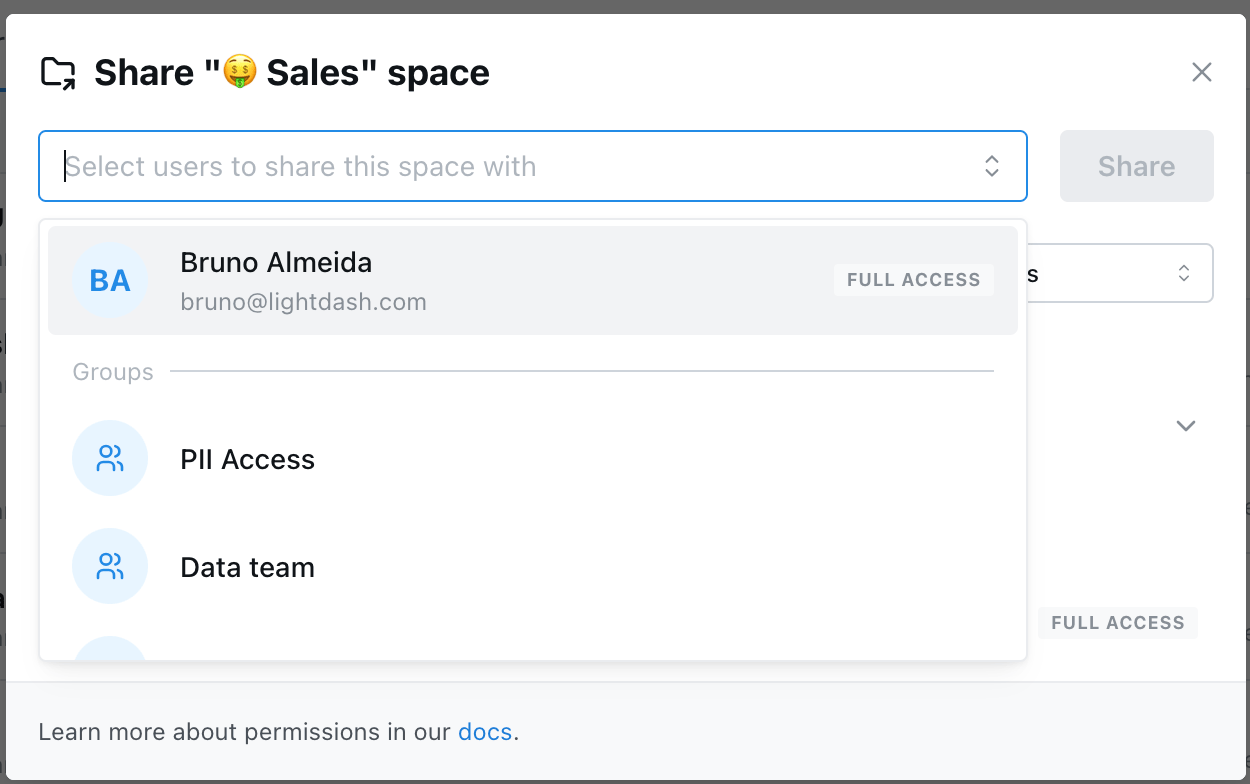 If a user is part of multiple groups that have been given access to the space, the user will inherit the highest level of access from their groups.
E.g. Priyanka is a `Project Interactive Viewer`. She is a member of the `Finance` group and the `Design` group. The `Finance` group is given `Can View` access to the space. The `Design` group is given `Can Edit` access to the space. Priyanka has `Can Edit` access to the space (inherited from the `Design` group).
You can override a user's group access by adjusting their specific user access.
E.g. Priyanka is a `Project Interactive Viewer`. She is a member of the `Design` group. The `Design` group is given `Can Edit` access to the space. I set Priyanka's user access in the space to be `Can View`. Priyanka has `Can View` access to the space (her assigned user access to the space overrides her group access).
## Allowed email domains to join organization automatically
Organization admins can add allowed email domains to their organization settings so that anyone with those email domains can automatically join their organization (without explicitly inviting them).
To update your organization's allowed email domains setting, go to the **General** section of your **Organization settings**.
If a user is part of multiple groups that have been given access to the space, the user will inherit the highest level of access from their groups.
E.g. Priyanka is a `Project Interactive Viewer`. She is a member of the `Finance` group and the `Design` group. The `Finance` group is given `Can View` access to the space. The `Design` group is given `Can Edit` access to the space. Priyanka has `Can Edit` access to the space (inherited from the `Design` group).
You can override a user's group access by adjusting their specific user access.
E.g. Priyanka is a `Project Interactive Viewer`. She is a member of the `Design` group. The `Design` group is given `Can Edit` access to the space. I set Priyanka's user access in the space to be `Can View`. Priyanka has `Can View` access to the space (her assigned user access to the space overrides her group access).
## Allowed email domains to join organization automatically
Organization admins can add allowed email domains to their organization settings so that anyone with those email domains can automatically join their organization (without explicitly inviting them).
To update your organization's allowed email domains setting, go to the **General** section of your **Organization settings**.
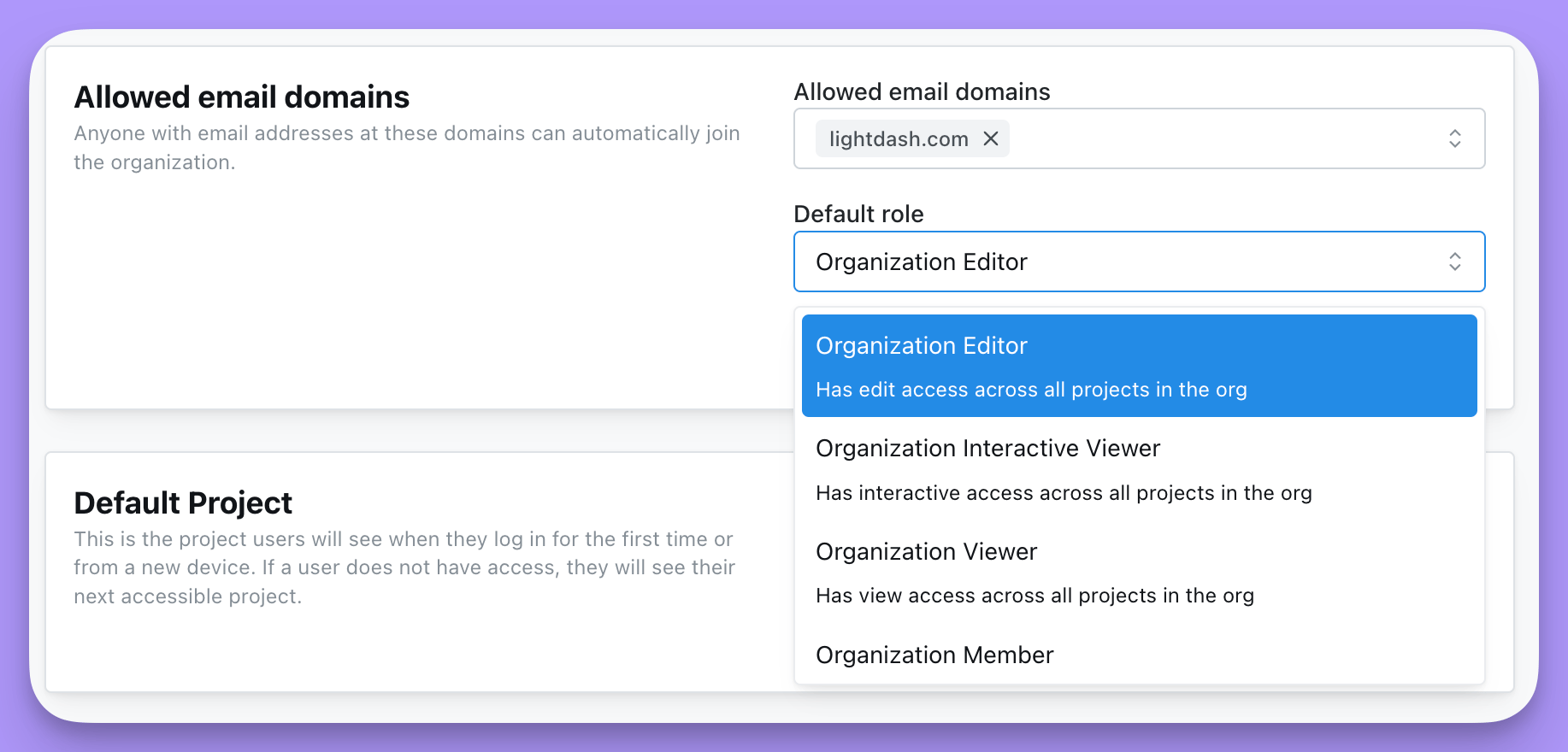
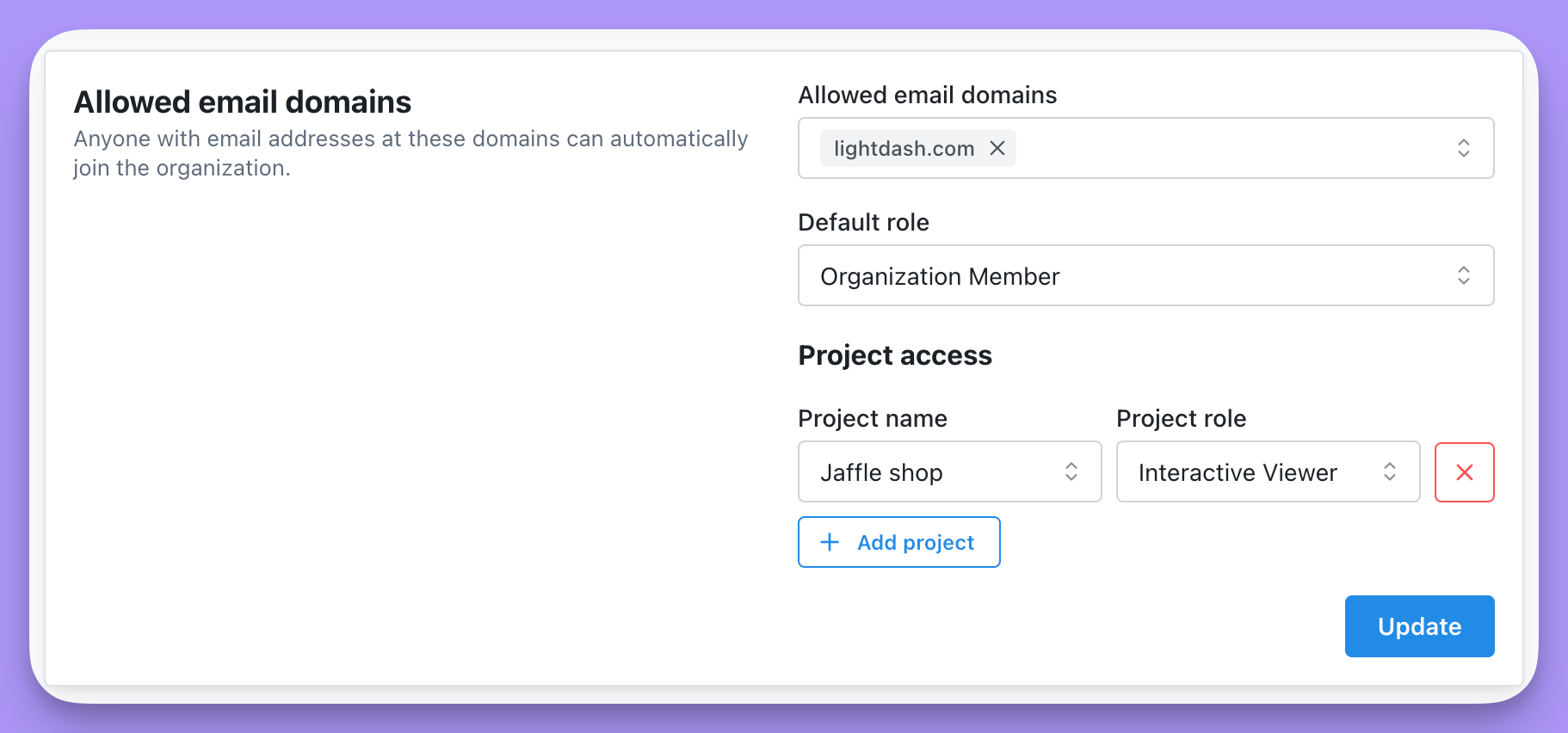
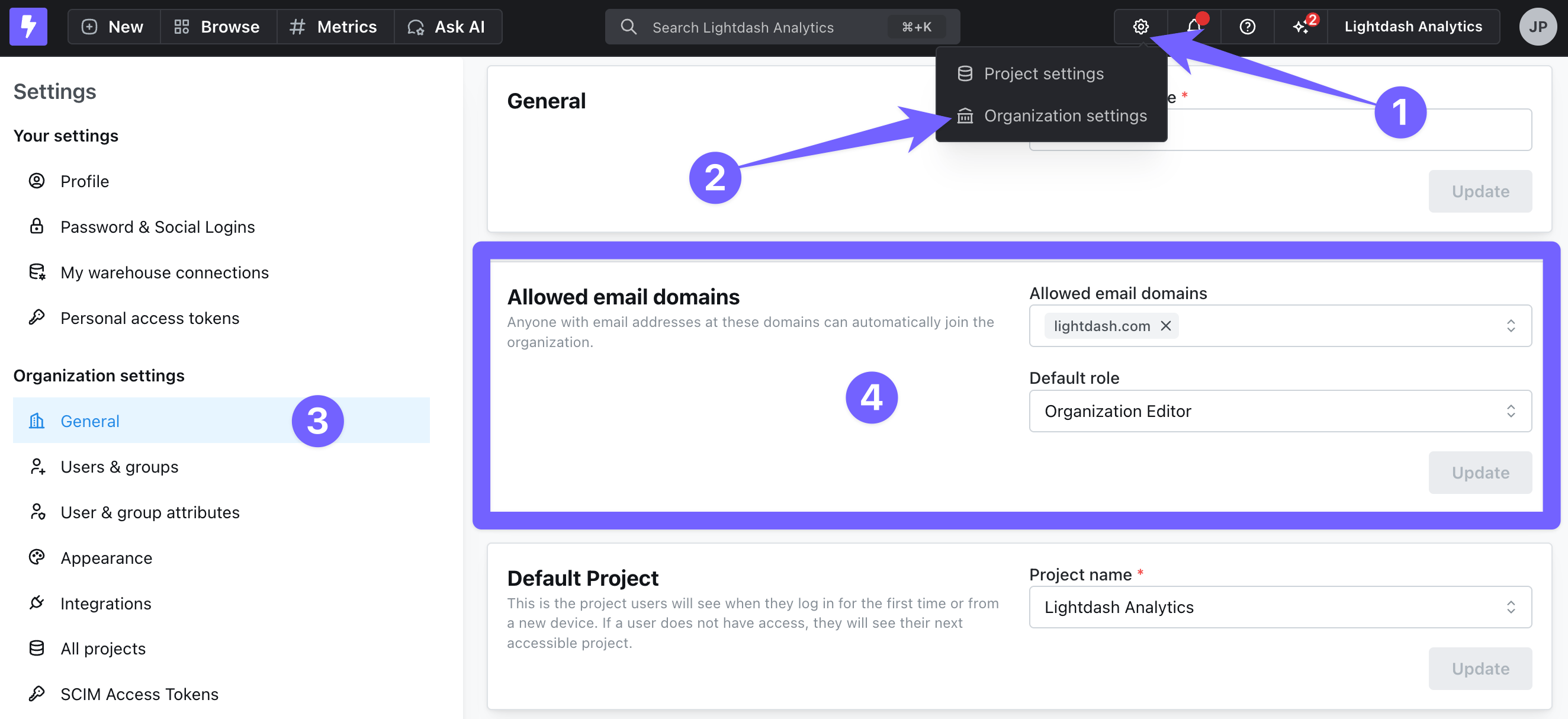 In the **Allowed email domains** panel, enter the email domain(s) you want to be able to automatically join your organization (e.g. here, we've added `lightdash.com`). Generic email domains like `gmail.com` or `hotmail.com` are not accepted.
You can then select the access that you want these users to have by default. The organization **Admin** can always update a user's permissions after they've joined!
In the **Allowed email domains** panel, enter the email domain(s) you want to be able to automatically join your organization (e.g. here, we've added `lightdash.com`). Generic email domains like `gmail.com` or `hotmail.com` are not accepted.
You can then select the access that you want these users to have by default. The organization **Admin** can always update a user's permissions after they've joined!
 If you want to add default permissions that are different across each project, you can select the organization role of **Organization member**, then set the project access for each project.
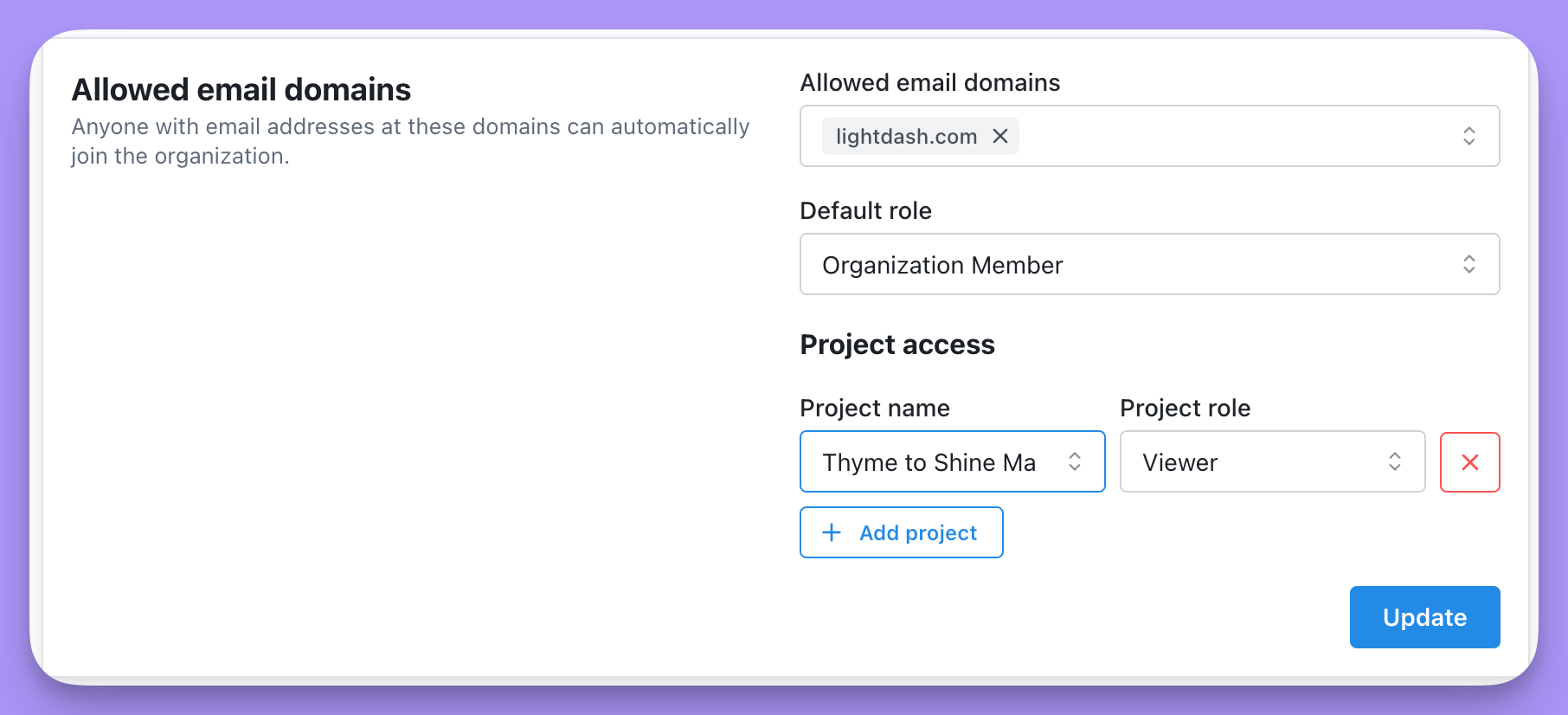 Once you've selected the default roles for your allowed email domains, make sure to click **Update** to save your changes.
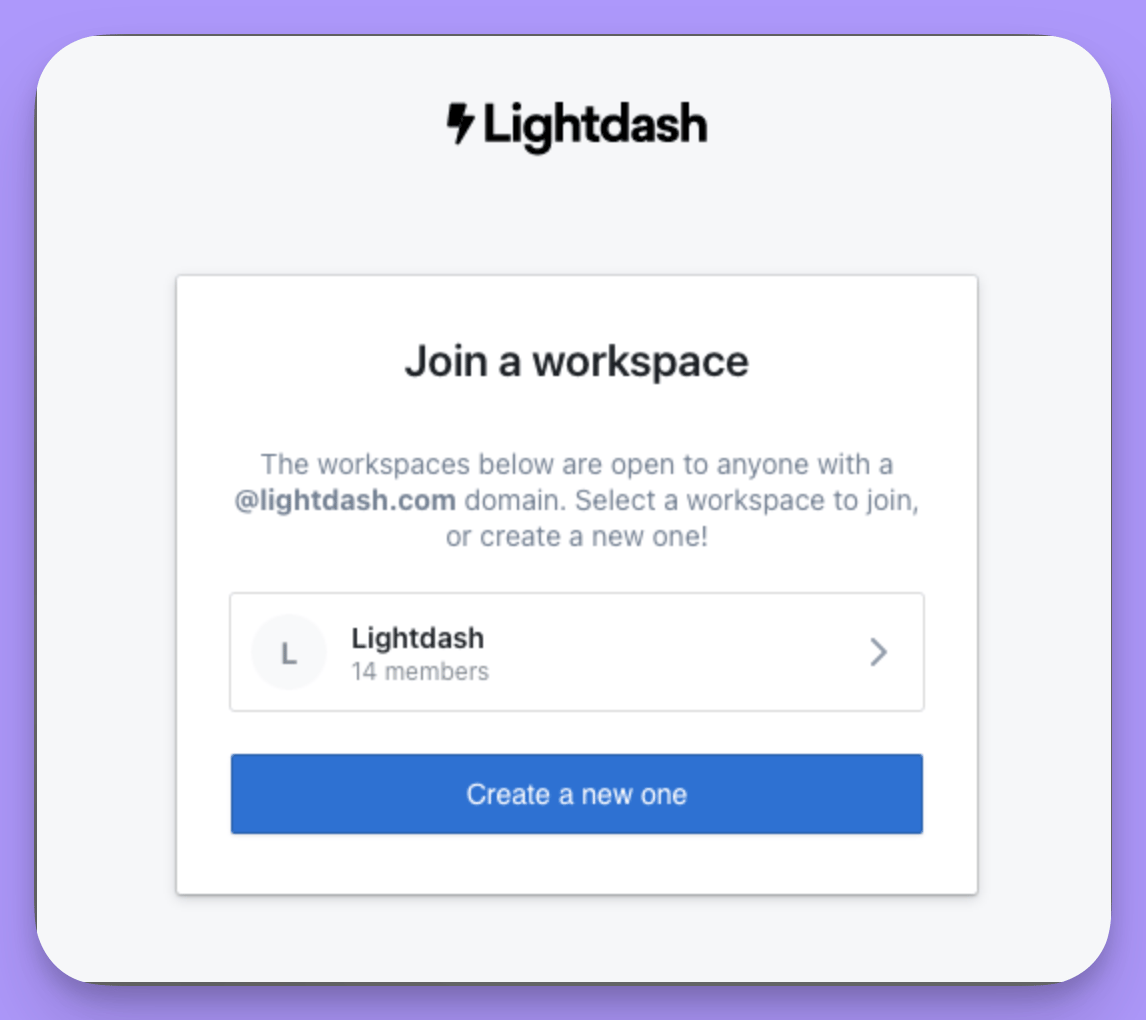
 Now, when a user tries to join Lightdash, they will be prompted to join your workspace if they have one of your allowed email domains.
 ### Setting a Default Project
In the **Organization settings** you can set a default project. This is the project users will see when they log in for the first time or from a new device. If a user does not have access, they will see their next accessible project.
### Setting a Default Project
In the **Organization settings** you can set a default project. This is the project users will see when they log in for the first time or from a new device. If a user does not have access, they will see their next accessible project.