> ## Documentation Index
> Fetch the complete documentation index at: https://lightdash-mintlify-cccf65ca.mintlify.site/llms.txt
> Use this file to discover all available pages before exploring further.
# Project compilation history
> View the history of your project compilations to track changes, monitor deployments, and troubleshoot compilation issues.
Project compilation logs provide a comprehensive history of when your Lightdash project was compiled, allowing administrators and project managers to monitor project changes, track deployments, and identify any compilation issues.
## Accessing project compilation logs
To view the compilation logs for your project:
1. Click on the `settings` icon in the navigation bar
2. Navigate to `project settings`
3. Select `compilation history` from the menu
 ## Understanding compilation log entries
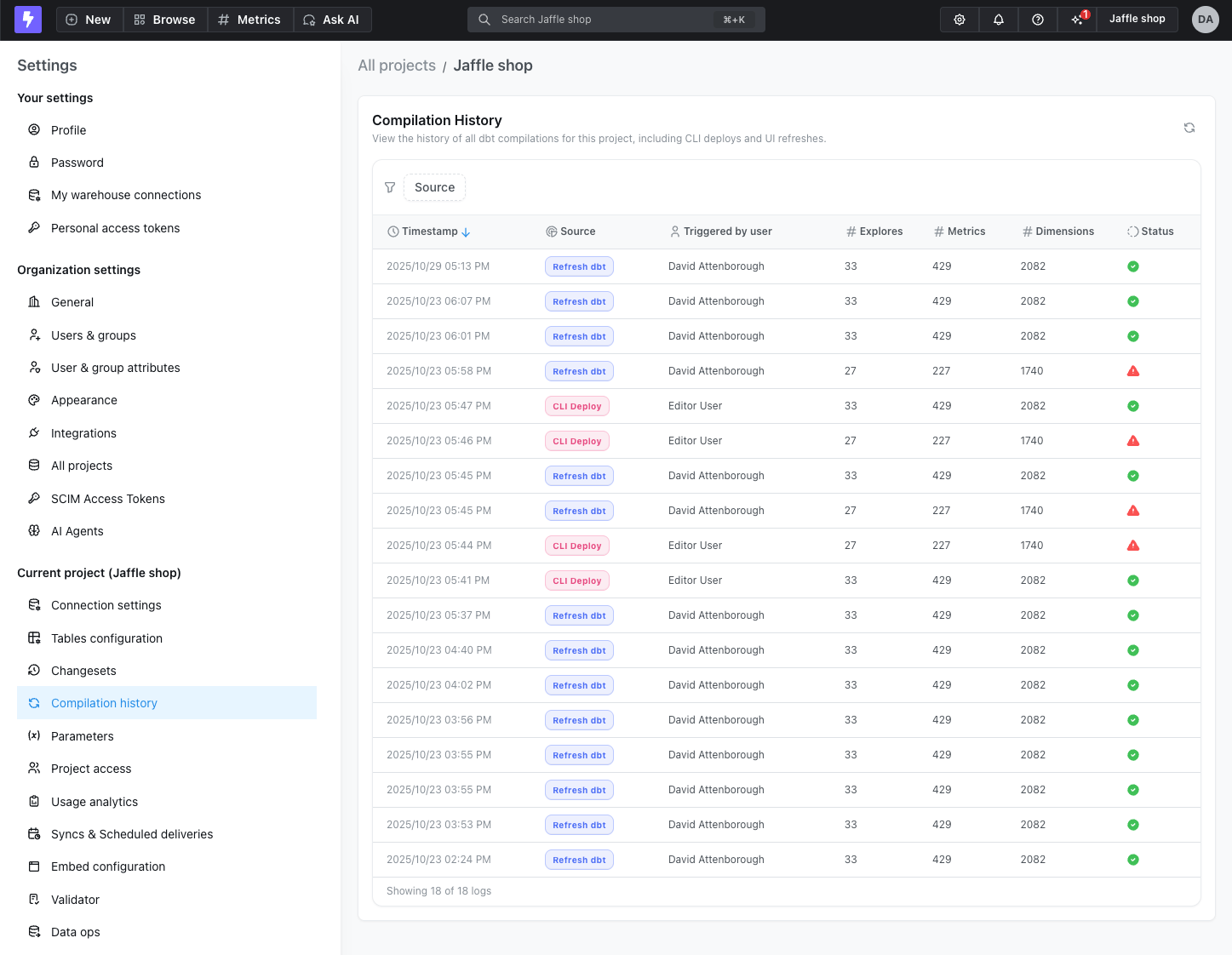
The compilation history displays a list of all project compilations, showing when each compilation occurred, who triggered it, and the source (such as `Refresh dbt`, `CLI Deploy`).
### Viewing compilation details
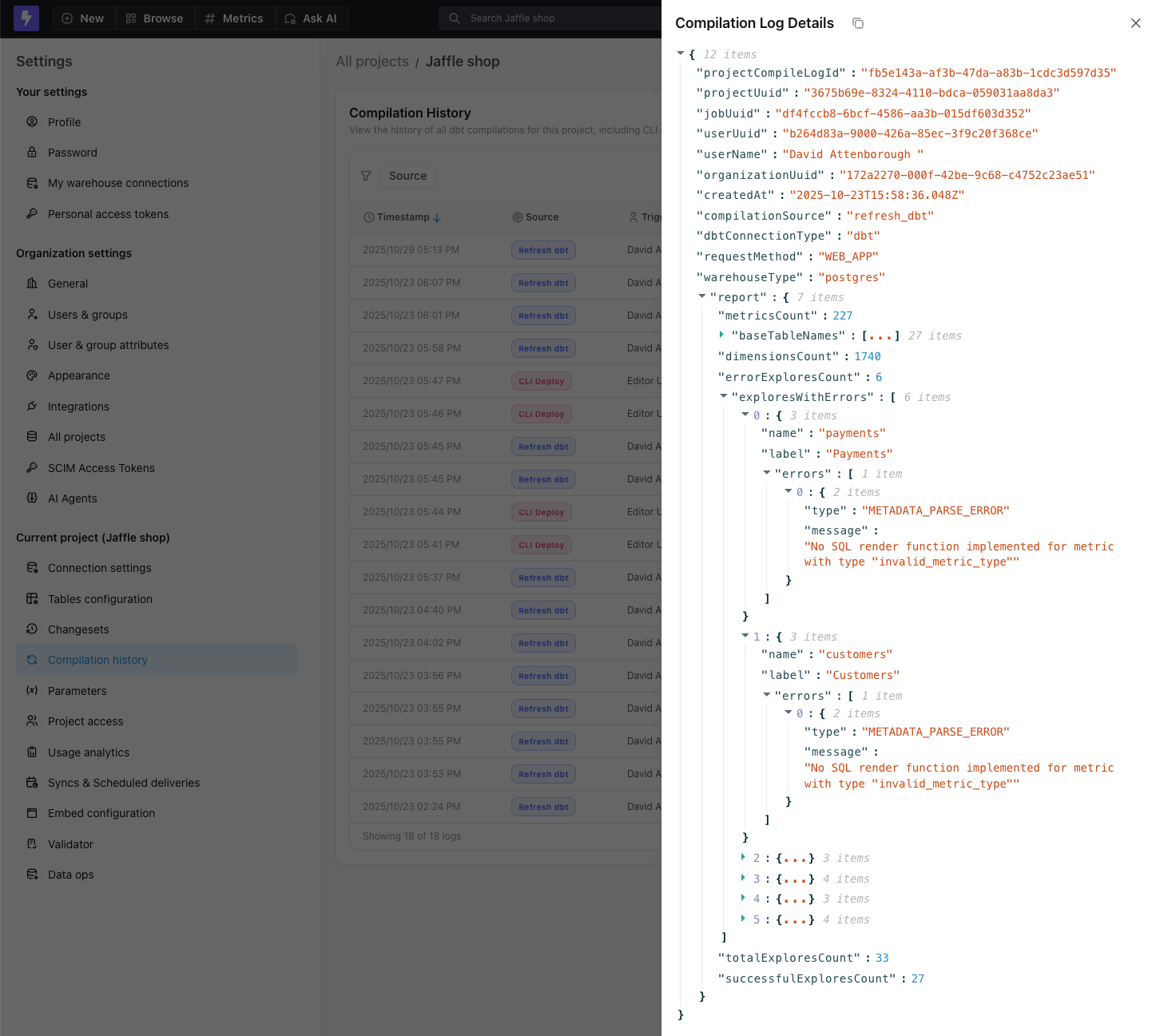
Click on any log entry to view detailed information about that compilation, including:
* **User and trigger**: Who initiated the compilation and how it was triggered
* **Compilation report**:
* Total counts of metrics, dimensions, and explores in your project
* List of dbt models included
* Number of successful explores vs. explores with errors
* Detailed error messages for any failed explores
## Understanding compilation log entries
The compilation history displays a list of all project compilations, showing when each compilation occurred, who triggered it, and the source (such as `Refresh dbt`, `CLI Deploy`).
### Viewing compilation details
Click on any log entry to view detailed information about that compilation, including:
* **User and trigger**: Who initiated the compilation and how it was triggered
* **Compilation report**:
* Total counts of metrics, dimensions, and explores in your project
* List of dbt models included
* Number of successful explores vs. explores with errors
* Detailed error messages for any failed explores
 ## Viewing logs during dbt refresh
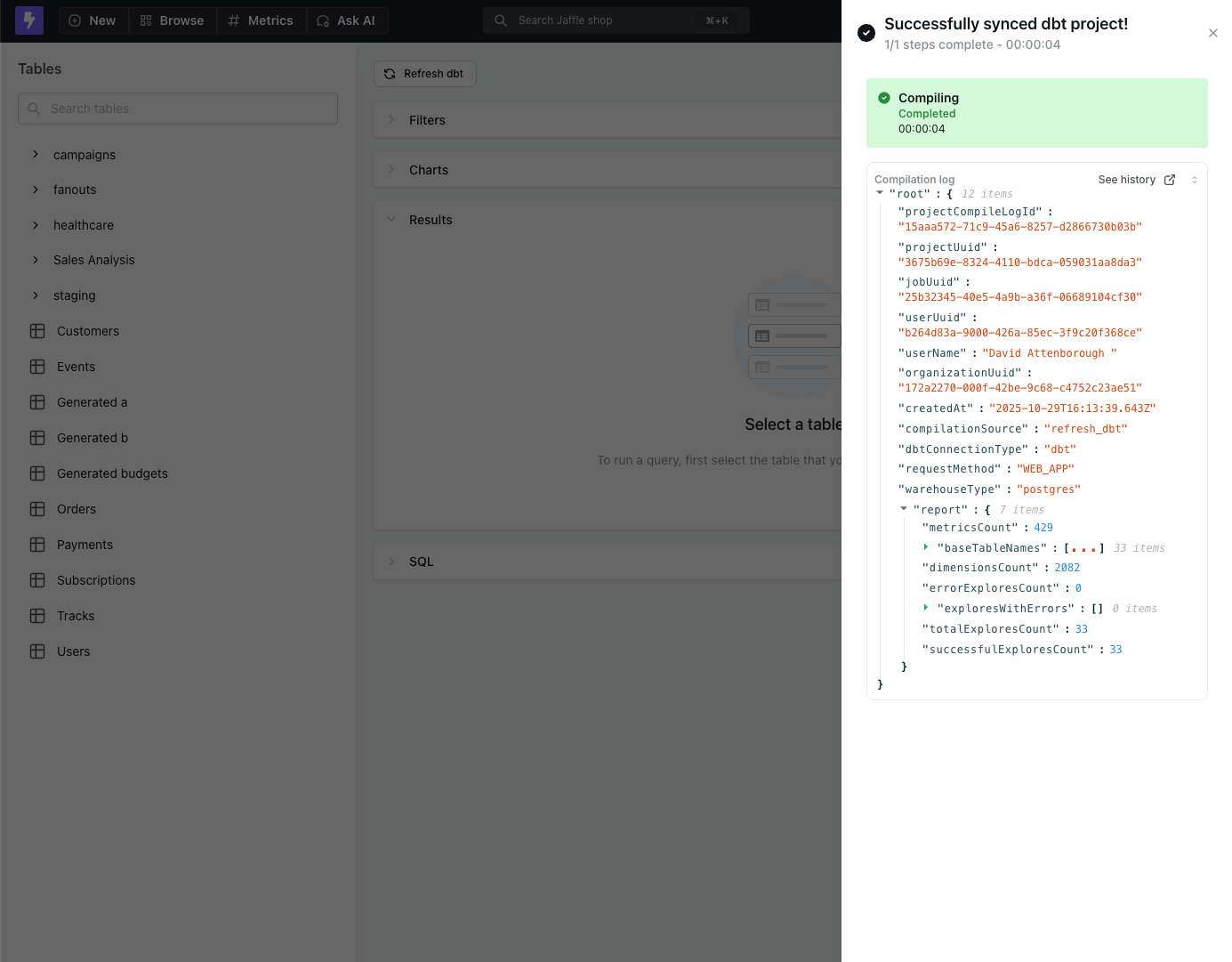
When you use the `Refresh dbt` button in the UI, the compilation log is displayed as the job finalizes. After the refresh completes, you can view the full compilation details directly in the job notification.
## Viewing logs during dbt refresh
When you use the `Refresh dbt` button in the UI, the compilation log is displayed as the job finalizes. After the refresh completes, you can view the full compilation details directly in the job notification.
 ## Common use cases
### Troubleshooting compilation failures
When a compilation fails, use the logs to:
1. Identify when the failure occurred
2. See which user or process triggered the compilation
3. Review error messages and stack traces
4. Compare with previous successful compilations to identify what changed
### Monitoring deployment activity
Track when your project is deployed to production:
* Monitor deployment frequency
* Identify who is making changes
* Verify that automated deployments are running as expected
* Audit changes for compliance requirements
### Understanding project changes over time
Use compilation logs to:
* Track the evolution of your semantic layer
* See when new metrics or dimensions were added
* Monitor the pace of project development
* Identify patterns in how your team works
## Permissions
Only users with admin or project admin permissions can access compilation logs. See [roles and permissions](/references/workspace/roles) for more information about access levels.
## Common use cases
### Troubleshooting compilation failures
When a compilation fails, use the logs to:
1. Identify when the failure occurred
2. See which user or process triggered the compilation
3. Review error messages and stack traces
4. Compare with previous successful compilations to identify what changed
### Monitoring deployment activity
Track when your project is deployed to production:
* Monitor deployment frequency
* Identify who is making changes
* Verify that automated deployments are running as expected
* Audit changes for compliance requirements
### Understanding project changes over time
Use compilation logs to:
* Track the evolution of your semantic layer
* See when new metrics or dimensions were added
* Monitor the pace of project development
* Identify patterns in how your team works
## Permissions
Only users with admin or project admin permissions can access compilation logs. See [roles and permissions](/references/workspace/roles) for more information about access levels.