> ## Documentation Index
> Fetch the complete documentation index at: https://lightdash-mintlify-cccf65ca.mintlify.site/llms.txt
> Use this file to discover all available pages before exploring further.
# Tables reference
> You can run queries against the tables in your Lightdash project.
Tables in Lightdash are built from dbt models (either one, or many joined together).
## Adding Tables to your project
Tables come from dbt models that have been defined in your dbt project's `schema.yml` files.
If your dbt model has been defined in a YAML file, and has at least one column documented, it will appear in Lightdash as a table.
For example, if we had this in our `schema.yml` files in dbt, we'd see a Table called **Users** in Lightdash.
```yaml theme={null}
models:
- name: users
columns:
- name: user_id
description: "The unique identified for each user"
```
You can read more about [adding Tables to Lightdash here](/get-started/develop-in-lightdash/adding-tables-to-lightdash).
## Table configuration
You can customize how Tables look in Lightdash by adding configuration to your YAML file. Here's an example of most the properties you can use when defining a Table:
```yaml theme={null}
models:
- name: users
meta:
label: 'App Users'
order_fields_by: 'label'
groups: ['mobile', 'engagement']
sql_filter: ${date_dimension} >= '2025-01-01'
primary_key: user_id
sets:
event_fields:
fields:
- user_id
- event_type
joins:
- join: events
sql_on: ${users.user_id} = ${events.user_id}
fields: [event_fields*]
relationship: one-to-many
required_attributes:
product_team: 'Mobile'
explores:
users_pii:
required_attributes:
has_pii_access: true
joins:
- join: users_pii
sql_on: ${users.user_id} = ${users_pii.user_id}
relationship: one-to-one
```
```yaml theme={null}
models:
- name: users
config:
meta:
label: 'App Users'
order_fields_by: 'label'
groups: ['mobile', 'engagement']
sql_filter: ${date_dimension} >= '2025-01-01'
primary_key: user_id
sets:
event_fields:
fields:
- user_id
- event_type
joins:
- join: events
sql_on: ${users.user_id} = ${events.user_id}
fields: [event_fields*]
relationship: one-to-many
required_attributes:
product_team: 'Mobile'
explores:
users_pii:
required_attributes:
has_pii_access: true
joins:
- join: users_pii
sql_on: ${users.user_id} = ${users_pii.user_id}
relationship: one-to-one
```
```yaml theme={null}
type: model
name: users
label: 'App Users'
order_fields_by: 'label'
groups: ['mobile', 'engagement']
sql_filter: ${date_dimension} >= '2025-01-01'
primary_key: user_id
sets:
event_fields:
fields:
- user_id
- event_type
joins:
- join: events
sql_on: ${users.user_id} = ${events.user_id}
fields: [event_fields*]
relationship: one-to-many
required_attributes:
product_team: 'Mobile'
explores:
users_pii:
required_attributes:
has_pii_access: true
joins:
- join: users_pii
sql_on: ${users.user_id} = ${users_pii.user_id}
relationship: one-to-one
```
### Table properties
| Property | Value | Note |
| :------------------------------------------------------------------- | :----------------- | :------------------------------------------------------------------------------------------------------------------------------------------------------------ |
| label | string | Custom label. This is what you'll see in Lightdash instead of the Table name. |
| [order\_fields\_by](#order-fields-by) | `index` or `label` | How the fields will be sorted in the sidebar. [Read about the order rules.](#order-fields-by) |
| [joins](/references/joins) | array | Join logic to join other data models to the Table. [Read about joins.](/references/joins) |
| [metrics](/references/metrics#2-using-the-model-meta-tag) | object | Model metrics. [Read about model metrics](/references/metrics#2-using-the-model-meta-tag) |
| [groups](#groups) | array of strings | Group tables in the sidebar, with up to 5 levels of nesting. [Read about groups.](#groups) |
| group\_label | string | **Deprecated:** use [`groups`](#groups) instead. Group tables in the sidebar. |
| [sql\_from](#sql-from) | string | Overrides dbt model relation\_name |
| [sql\_filter](#sql-filter-row-level-security) | string | A permanent filter that will always be applied when querying this table directly. [`Read about sql_filter.`](#sql-filter) |
| [sql\_where](#sql-filter-row-level-security) | string | Alias for `sql_filter` |
| [required\_attributes](#required-attributes) | object | Limits access to users with those attributes (AND logic). [Read about user attributes](/references/workspace/user-attributes) |
| [any\_attributes](#any-attributes) | object | Limits access to users with those attributes (OR logic). [Read about user attributes](/references/workspace/user-attributes) |
| group\_details | object | Describes the groups for dimensions and metrics |
| [default\_filters](#default-filters) | array | Dimension filters that will be applied when no other filter on those dimension exists. [`Read about default_filters`](#default-filters) |
| [default\_show\_underlying\_values](#default-show-underlying-values) | array | Default fields shown in "View underlying data" for all metrics in this model. [Read about default\_show\_underlying\_values](#default-show-underlying-values) |
| [explores](#explores) | object | Allows you to define multiple table explores in Lightdash from a single dbt model. |
| [parameters](#parameters-configuration) | object | Model-level parameters that can be referenced in SQL properties. [Read about parameters](#parameters-configuration) |
| [sets](#sets) | object | Allows you to define a reference to a collection of fields. This reference can be re-used throughout the model. |
| [case\_sensitive](#case-sensitive) | boolean | If set to `false`, string filters on dimensions in this table will be case insensitive by default. Defaults to `true`. |
### Adding a new dbt model
If you've added a new dbt model to your project, you need to do `dbt run` + `dbt refresh` before it will appear in Lightdash.
Lightdash gets information about your data models from dbt. But it gets information about the data ***generated*** by those data models from your data warehouse.
This means that if you add a new dbt model to your project or update a model so that you're making changes to the table it generates, then you need to do two things before your changes will appear in Lightdash:
1. **Materialize the new table or changes using dbt run.** You want the data in your data warehouse to be the new table you're expecting. So you need to do `dbt run` to update the table from the data model you just changed.
2. **Click Refresh dbt in Lightdash or run `lightdash refresh` in the CLI.** This will re-sync your dbt project in Lightdash so that changes you made to your dbt models are shown in Lightdash (e.g. adding a new table or column).
### Order fields by
By default, the fields in your sidebar for any table will appear alphabetically (`order_fields_by: "label"`). Sometimes, you might not want your fields to appear alphabetically, but instead, in the same order as they are in your YAML file. You can achieve this by setting the `order_fields_by` parameter in your table's meta tag to `index`, like this:
```yaml theme={null}
models:
- name: users
meta:
order_fields_by: 'index'
columns:
- name: user_id
- name: user_name
- name: user_email
```
```yaml theme={null}
models:
- name: users
config:
meta:
order_fields_by: 'index'
columns:
- name: user_id
- name: user_name
- name: user_email
```
```yaml theme={null}
type: model
name: users
order_fields_by: 'index'
dimensions:
- name: user_id
- name: user_name
- name: user_email
```
So, in the example above, the fields in the sidebar for "My Table" would appear in the order:
* user\_id
* user\_name
* user\_email
Instead of being listed alphabetically.
Here are some other things worth mentioning about the `order_fields_by` parameter:
* By default, `order_fields_by` is set to `label`, which means that your fields will appear in the table listed alphabetically.
* Since metrics can be declared in multiple places within your YAML (as a dbt metric, in the model `meta` tag, under a dimension's `meta`), we force the following order on metrics if you set `order_fields_by` to `index`:
* dbt metrics appear first
* then, metrics defined in the model's `meta`
* then, metrics defined in the dimensions' `meta`
* Group labels inherit the index of the first dimension that use them.
### Groups
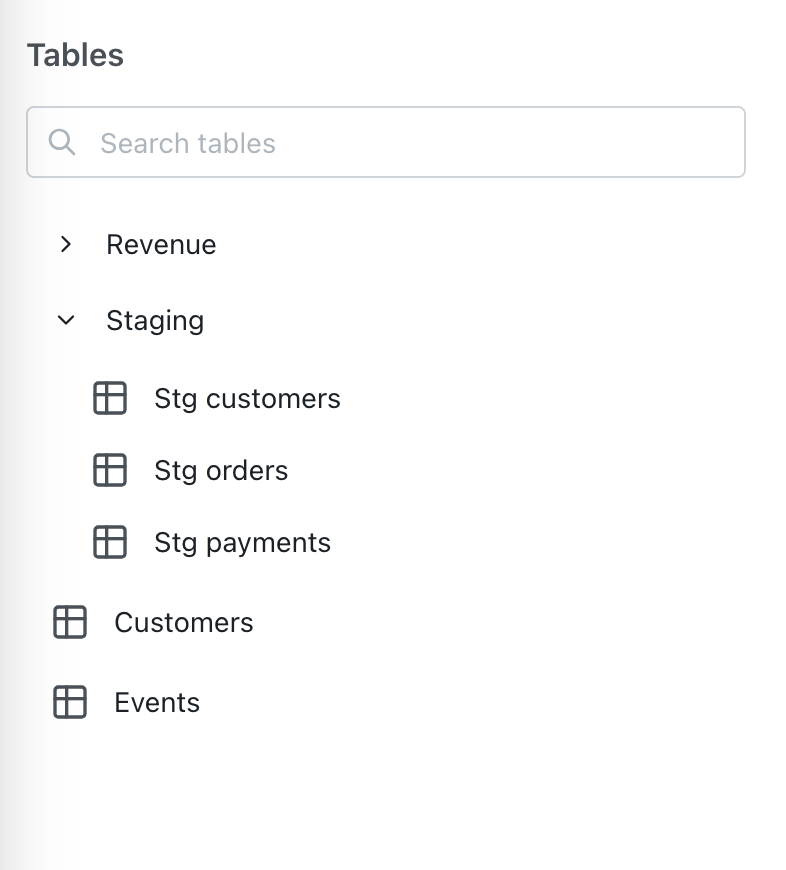
Use `groups` to organize tables into nested groups in the sidebar. You can nest up to **5 levels deep** by passing an array of group keys, ordered from outermost to innermost.
```yaml theme={null}
models:
- name: users
meta:
groups: ['mobile', 'engagement']
```
In the example above, the `users` table is placed under the `mobile` group, and within it, the `engagement` subgroup.
Group keys are referenced project-wide. Define their display labels and (optional) descriptions in your [`lightdash.config.yml`](/references/lightdash-config-yml#table-groups-configuration) file under `table_groups`:
```yaml theme={null}
# lightdash.config.yml
table_groups:
mobile:
label: 'Mobile App'
description: 'Tables related to the mobile app'
engagement:
label: 'Engagement'
```
If a group key is not defined in `table_groups`, the key itself is used as the label.
The tables in your sidebar will appear in the following order:
* Grouped tables appear first, with groups sorted alphabetically by label
* Ungrouped tables appear after the grouped tables, alphabetically
* Tables within each group are also ordered alphabetically
The `groups` property replaces the legacy `group_label` property. `group_label` still works for backwards compatibility but is deprecated — migrate to `groups` for nested group support.
 ### SQL from
`sql_from` is a configuration option that **overrides the default dbt model relation name** when generating SQL queries in Lightdash.
For example, you might use this if you want your Lightdash explore to query from a specific materialized view, a different schema, or include additional SQL logic in the FROM clause while still maintaining the dbt model structure for dimensions and metrics.
```yaml theme={null}
models:
- name: sales
meta:
sql_from: my_schema.my_sales_view
```
```yaml theme={null}
models:
- name: sales
config:
meta:
sql_from: my_schema.my_sales_view
```
```yaml theme={null}
type: model
name: sales
sql_from: my_schema.my_sales_view
```
### SQL filter (row-level security)
`sql_filter` adds a filter to the table that cannot be removed in Lightdash. It is automatically added to the compiled SQL when running queries.
For example:
```yaml theme={null}
models:
- name: sales
meta:
sql_filter: ${TABLE}.sales_region = 'EMEA'
```
```yaml theme={null}
models:
- name: sales
config:
meta:
sql_filter: ${TABLE}.sales_region = 'EMEA'
```
```yaml theme={null}
type: model
name: sales
sql_filter: ${TABLE}.sales_region = 'EMEA'
```
Any queries that I run using the `Sales` table in Lightdash will always have a filter for `sales_region = 'EMEA'` in their compiled SQL
```yaml theme={null}
select [...]
from lightdash.prod.sales
where sales_region = 'EMEA'
```
##### Row-level security using user attributes
Using `sql_filter` with [user attributes](/references/workspace/user-attributes) allows you to set up [row-level security in your tables](/references/workspace/user-attributes#row-filtering-with-sql%5Ffilter). You can reference user attributes in your `sql_filter` using `${lightdash.attributes.my_attribute_name}`
For example:
```yaml theme={null}
models:
- name: sales
meta:
sql_filter: ${TABLE}.sales_region IN (${lightdash.attributes.sales_region})
```
```yaml theme={null}
models:
- name: sales
config:
meta:
sql_filter: ${TABLE}.sales_region IN (${lightdash.attributes.sales_region})
```
```yaml theme={null}
type: model
name: sales
sql_filter: ${TABLE}.sales_region IN (${lightdash.attributes.sales_region})
```
##### `sql_filter` will only be applied when querying tables directly.
For example:
* Table A is joined to Table B
* Table B has a `sql_filter` applied to it
* A user queries Table A and adds a field from the joined table (Table B) to their query
* the `sql_filter` from Table B will **not** be applied to the query (you would need to add this as a `sql_filter` to Table A directly for it to apply)
##### If you reference a dimension from a joined table in your `sql_filter`, the referenced table will always be joined in your queries.
For example:
* You have Table A which is joined to Table B
* In Table A, you've added a `sql_filter: ${TABLE}.sales_region = 'EMEA' OR ${table_b}.sales_region IS NULL`
* Table B will always be joined to Table A in your queries (even if there are no fields from Table B selected in your results table)
### Required attributes
Lightdash can use [user attributes](/references/workspace/user-attributes) to limit some tables to some users.
In the example below, only users with `is_admin` attribute `true` can use the `payments` table. Users without access to this table will not see it on the `tables page` or the `explore page` when joined to other tables.
```yaml theme={null}
models:
- name: payments
meta:
required_attributes:
is_admin: "true"
```
```yaml theme={null}
models:
- name: payments
config:
meta:
required_attributes:
is_admin: "true"
```
```yaml theme={null}
type: model
name: payments
required_attributes:
is_admin: "true"
```
If a user without access to this table runs a query that contains this table, they will get a `Forbidden` error.
### Any attributes
While `required_attributes` uses AND logic (all conditions must match), `any_attributes` uses OR logic — a user only needs to match **at least one** condition.
```yaml theme={null}
models:
- name: payments
meta:
any_attributes:
department: ["sales", "finance"]
role: "analyst"
```
```yaml theme={null}
models:
- name: payments
config:
meta:
any_attributes:
department: ["sales", "finance"]
role: "analyst"
```
```yaml theme={null}
type: model
name: payments
any_attributes:
department: ["sales", "finance"]
role: "analyst"
```
You can combine `required_attributes` and `any_attributes` on the same table. When both are set, both checks must pass. See [user attributes](/references/workspace/user-attributes#combining-required_attributes-and-any_attributes) for details.
## Defining primary keys
You can specify a primary key for your model to uniquely identify each row. This is important for tables as it helps Lightdash understand the relationships between tables and prevent data duplication, especially when dealing with SQL fanouts in joins.
The primary key can be defined in two ways:
### Single column primary key
If your table has a single column that uniquely identifies each row, you can define it as a string:
```yaml theme={null}
models:
- name: users
meta:
primary_key: user_id
```
```yaml theme={null}
models:
- name: users
config:
meta:
primary_key: user_id
```
```yaml theme={null}
type: model
name: users
primary_key: user_id
```
### Complex primary key
If your table requires multiple columns to uniquely identify each row, you can define the primary key as an array of strings:
```yaml theme={null}
models:
- name: order_items
meta:
primary_key: [order_id, item_id]
```
```yaml theme={null}
models:
- name: order_items
config:
meta:
primary_key: [order_id, item_id]
```
```yaml theme={null}
type: model
name: order_items
primary_key: [order_id, item_id]
```
Using a properly defined primary key helps Lightdash optimize queries and provide accurate results when working with joined tables. It's especially important for preventing metric inflation in SQL joins where duplicate rows can lead to incorrect aggregations.
## Default show underlying values
You can set a default `show_underlying_values` configuration at the model level that applies to all metrics in that model. This is useful when you want consistent underlying data visibility across all metrics without repeating the same configuration for each metric.
Individual metrics can override the model-level default by specifying their own `show_underlying_values`.
```yaml theme={null}
models:
- name: payments
meta:
default_show_underlying_values:
- orders.customer_id
- unique_payment_count
metrics:
total_revenue:
type: sum
sql: ${TABLE}.revenue
# Uses the model default: orders.customer_id, unique_payment_count
average_revenue:
type: average
sql: ${TABLE}.revenue
show_underlying_values:
- custom_field # Overrides the model default
```
```yaml theme={null}
models:
- name: payments
config:
meta:
default_show_underlying_values:
- orders.customer_id
- unique_payment_count
metrics:
total_revenue:
type: sum
sql: ${TABLE}.revenue
# Uses the model default: orders.customer_id, unique_payment_count
average_revenue:
type: average
sql: ${TABLE}.revenue
show_underlying_values:
- custom_field # Overrides the model default
```
```yaml theme={null}
type: model
name: payments
default_show_underlying_values:
- orders.customer_id
- unique_payment_count
metrics:
total_revenue:
type: sum
sql: ${TABLE}.revenue
# Uses the model default: orders.customer_id, unique_payment_count
average_revenue:
type: average
sql: ${TABLE}.revenue
show_underlying_values:
- custom_field # Overrides the model default
```
The list of fields must be dimension names (or metrics if you'd like to include them) from the base table or from any joined tables. To reference a field from a joined table, prefix the field name with the joined table name, like this: `my_joined_table_name.my_dimension`.
The order that the fields are listed in `default_show_underlying_values` is the order that they'll appear in on the "View underlying data" table.
## Default filters
Use `default_filters` to define filters on Dimensions that will be applied when no other user-defined filter on those Dimensions exists. Default filters will apply to tables on load and can be populated with a pre-determined value. Use them to suggest to users the kind of filters they might want to consider, or provide a default filtered view of a table that can be changed if needed.
An optional `required` flag can be added, and if this flag is set to `required: true`, the filter for this field cannot be removed from the UI but users can still modify the operator and value to adjust how this filter is applied to the data. This ensures the filter is always applied in some form, while giving users flexibility to change the date range or other values. This can be particularly useful if you have a large table and want to force users to filter on a partitioned date.
In contrast, when `required: false` (or omitted), the filter is pre-populated but fully editable — users can change the field, operator, value, or remove it entirely.
`default_filters` and `required_filters` can only target **dimensions** (including visible `additional_dimensions`). Hidden dimensions (`hidden: true`) are not valid targets and will fail compilation.
Below you can see there is a default filter with the optional required flag, that will have show the last 14 days of data by default.
```yaml theme={null}
models:
- name: orders
meta:
default_filters:
- date: 'inThePast 14 days'
required: true
columns:
- name: date
description: 'Order date'
meta:
dimension:
type: date
```
```yaml theme={null}
models:
- name: orders
config:
meta:
default_filters:
- date: 'inThePast 14 days'
required: true
columns:
- name: date
description: 'Order date'
config:
meta:
dimension:
type: date
```
```yaml theme={null}
type: model
name: orders
default_filters:
- date: 'inThePast 14 days'
required: true
dimensions:
- name: date
description: 'Order date'
type: date
```
Note: Required filters are not a security feature. For secure data access control, use [user attributes](/references/workspace/user-attributes).
### If you have many filters in your list, they will be joined using `AND`
```yaml theme={null}
- name: orders
meta:
default_filters:
- date: 'inThePast 14 days'
- status: "completed"
columns:
- name: date
description: 'Order date'
meta:
dimension:
type: date
- name: status
description: 'Order status - completed, pending, cancelled'
meta:
dimension:
type: string
```
```yaml theme={null}
- name: orders
config:
meta:
default_filters:
- date: 'inThePast 14 days'
- status: "completed"
columns:
- name: date
description: 'Order date'
config:
meta:
dimension:
type: date
- name: status
description: 'Order status - completed, pending, cancelled'
config:
meta:
dimension:
type: string
```
```yaml theme={null}
type: model
name: orders
default_filters:
- date: 'inThePast 14 days'
- status: "completed"
dimensions:
- name: date
description: 'Order date'
type: date
- name: status
description: 'Order status - completed, pending, cancelled'
type: string
```
In the example above, the `orders` table will have a default filter of `date` in the past 14 days **and** `status` completed. Both can be removed by the user, as the `required` flag is not present.
Note that we do also support a *legacy* structure for defining required filters, see below:
```yaml theme={null}
models:
- name: orders
meta:
required_filters:
- date: 'inThePast 14 days'
columns:
- name: date
description: 'Order date'
meta:
dimension:
type: date
```
```yaml theme={null}
models:
- name: orders
config:
meta:
required_filters:
- date: 'inThePast 14 days'
columns:
- name: date
description: 'Order date'
config:
meta:
dimension:
type: date
```
```yaml theme={null}
type: model
name: orders
required_filters:
- date: 'inThePast 14 days'
dimensions:
- name: date
description: 'Order date'
type: date
```
### Available filter types
| Operator | Description | Example (as code) | Supported Types |
| :-------------------------- | :--------------------------------------- | :------------------------------------------------ | :------------------- |
| is | Value is equal to | `user_name: "katie"` | String, Number, Date |
| is not | Value is not equal to | `user_name: "!katie"` | String, Number, Date |
| between | Value is between two values (inclusive) | `age: "between 18 and 65"` | Number, Date |
| | | `order_date: "between 2024-01-01 and 2024-12-31"` | Number, Date |
| contains | String contains value | `user_name: "%katie%"` | String |
| does not contain | String does not contain value | `user_name: "!%katie%"` | String |
| starts with | String starts with value | `user_name: "katie%"` | String |
| ends with | String ends with value | `user_name: "%katie"` | String |
| is greater than | Number is greater than value | `num_orders: "> 4"` | Number |
| is greater than or equal to | Number is greater than or equal to value | `num_orders: ">= 4"` | Number |
| is less than | Number is less than value | `num_orders: "< 4"` | Number |
| is less than or equal to | Number is less than or equal to value | `num_orders: "<= 4"` | Number |
| in the past | Date is before x (days / months / years) | `date: "inThePast 14 days"` | Date |
| in the next | Date is after x (days / months / years) | `date: "inTheNext 30 days"` | Date |
| is null | Value is NULL | `status: "null"` | All |
| is not null | Value is not NULL | `status: "!null"` | All |
| is empty | Value is empty string | `notes: "empty"` | String |
| is not empty | Value is not empty string | `notes: "!empty"` | String |
| is \[boolean] | Boolean value is true | `is_complete: "true"` | Boolean |
| is not \[boolean] | Boolean value is false or null | `is_complete: "!true"` | Boolean |
| in list | Value is in a list of values | `status: ["active", "pending", "approved"]` | String, Number |
### Filter examples
**Between operator (numeric):**
```yaml theme={null}
default_filters:
- age: 'between 18 and 65'
- price: 'between 0.5 and 99.9'
- temperature: 'between -10 and 10'
```
**Between operator (dates):**
```yaml theme={null}
default_filters:
- order_date: 'between 2024-01-01 and 2024-12-31'
- created_at: 'between 2024-01-01T00:00:00 and 2024-12-31T23:59:59'
```
**Multiple values (list):**
Use an array to filter by multiple values. This generates a SQL `IN` clause, e.g. `WHERE status IN ('active', 'pending', 'approved')`.
```yaml theme={null}
default_filters:
- status:
- 'active'
- 'pending'
- 'approved'
- country:
- 'US'
- 'CA'
- 'UK'
```
**Pattern matching:**
```yaml theme={null}
default_filters:
- product_name: '%shirt%' # Contains "shirt"
- email: 'admin%' # Starts with "admin"
- domain: '%@gmail.com' # Ends with "@gmail.com"
- product_name: '!%test%' # Does not contain "test"
```
**Date intervals:**
```yaml theme={null}
default_filters:
- created_date: 'inThePast 7 days'
- expiry_date: 'inTheNext 30 days'
- signup_date: 'inThePast 1 years'
```
Available intervals: `milliseconds`, `seconds`, `minutes`, `hours`, `days`, `weeks`, `months`, `years`
**Complex example with multiple filters:**
```yaml theme={null}
models:
- name: orders
meta:
default_filters:
- status:
- 'completed'
- 'shipped'
- order_date: 'between 2024-01-01 and 2024-12-31'
- revenue: '>= 100'
- country: '!test'
- customer_email: '!%@test.com%'
```
```yaml theme={null}
models:
- name: orders
config:
meta:
default_filters:
- status:
- 'completed'
- 'shipped'
- order_date: 'between 2024-01-01 and 2024-12-31'
- revenue: '>= 100'
- country: '!test'
- customer_email: '!%@test.com%'
```
```yaml theme={null}
type: model
name: orders
default_filters:
- status:
- 'completed'
- 'shipped'
- order_date: 'between 2024-01-01 and 2024-12-31'
- revenue: '>= 100'
- country: '!test'
- customer_email: '!%@test.com%'
```
### Filter notes
* **Case insensitivity**: Keywords like `between`, `AND`, `null`, `empty` are case-insensitive
* **Quotes**: Use quotes for strings with spaces or special characters
* **Escaping**: Use `^` to escape special characters (`%`, `_`, `,`, `!`, `^`)
* **AND logic**: Multiple filters are automatically joined with AND
* **Priority**: Default filters only apply when no user-specified filter exists for that dimension
* **Supported fields**: `default_filters` and `required_filters` apply to dimensions only (not metrics)
* **Hidden fields**: Hidden dimensions (`hidden: true`) cannot be used in `default_filters`/`required_filters`
## Case sensitive
You can control whether string filters are case sensitive or case insensitive at the table level. By default, all string filters are case sensitive (`case_sensitive: true`). When set to `false`, string filters on all dimensions in this table will ignore case differences when matching values.
This setting affects the following string filter operators: `equals`, `not equals`, `starts with`, `ends with`, `includes`, and `doesn't include`.
```yaml theme={null}
models:
- name: customers
meta:
case_sensitive: false
```
```yaml theme={null}
models:
- name: customers
config:
meta:
case_sensitive: false
```
```yaml theme={null}
type: model
name: customers
case_sensitive: false
```
With `case_sensitive: false`, filtering for "john" on any string dimension would match "John", "JOHN", "john", etc.
Table-level `case_sensitive` settings override the project-level default. Dimension-level settings override both. See [Dimensions reference](/references/dimensions#case-sensitive) for dimension-level configuration and [lightdash.config.yml reference](/references/lightdash-config-yml#defaults-configuration) for project-level defaults.
## Parameters configuration
The `parameters` section allows you to define model-level parameters that can be referenced in various parts of your model's SQL properties. These parameters are scoped to the specific model where they're defined.
```yaml theme={null}
models:
- name: orders
meta:
parameters:
region:
label: "Region"
description: "Filter data by region"
options:
- "EMEA"
- "AMER"
- "APAC"
default: ["EMEA", "AMER"]
multiple: true
min_order_value:
label: "Minimum Order Value"
description: "Filter for minimum order value"
type: "number"
options:
- 100
- 500
- 1000
default: 500
department:
label: "Department"
description: "Filter data by department"
options_from_dimension:
model: "employees"
dimension: "department"
```
```yaml theme={null}
models:
- name: orders
config:
meta:
parameters:
region:
label: "Region"
description: "Filter data by region"
options:
- "EMEA"
- "AMER"
- "APAC"
default: ["EMEA", "AMER"]
multiple: true
min_order_value:
label: "Minimum Order Value"
description: "Filter for minimum order value"
type: "number"
options:
- 100
- 500
- 1000
default: 500
department:
label: "Department"
description: "Filter data by department"
options_from_dimension:
model: "employees"
dimension: "department"
```
```yaml theme={null}
type: model
name: orders
parameters:
region:
label: "Region"
description: "Filter data by region"
options:
- "EMEA"
- "AMER"
- "APAC"
default: ["EMEA", "AMER"]
multiple: true
min_order_value:
label: "Minimum Order Value"
description: "Filter for minimum order value"
type: "number"
options:
- 100
- 500
- 1000
default: 500
department:
label: "Department"
description: "Filter data by department"
options_from_dimension:
model: "employees"
dimension: "department"
```
Each parameter is defined as a key-value pair where the key is the parameter name (must be alphanumeric with underscores or hyphens) and the value is an object with the following properties:
| Property | Required | Value | Description |
| :----------------------- | :------- | :------------------------------------------ | :--------------------------------------------------------------------------------------------------------- |
| `label` | Yes | string | A user-friendly label for the parameter as it will be displayed in the UI. |
| `description` | No | string | A description of the parameter. |
| `type` | No | "string" or "number" | The type of the parameter. Defaults to "string" if not specified. |
| `options` | No | Array of strings or numbers | A list of possible values for the parameter. |
| `default` | No | string, number, or Array of strings/numbers | The default value(s) for the parameter. |
| `multiple` | No | boolean | Whether the parameter input will be a multi-select. |
| `allow_custom_values` | No | boolean | Whether users can input custom values beyond predefined options. |
| `options_from_dimension` | No | Object | Get parameter options from a dimension in a model. Requires `model` and `dimension` arguments (see below). |
If using `options_from_dimension`, the object requires the following properties:
| Property | Required | Value | Description |
| :---------- | :------- | :----- | :---------------------------------- |
| `model` | Yes | string | The model containing the dimension. |
| `dimension` | Yes | string | The dimension to get options from. |
### Using model-level parameters
Model-level parameters are referenced with the model name included in the syntax: `${lightdash.parameters.model_name.parameter_name}` or the shorter alias `${ld.parameters.model_name.parameter_name}`.
For example, to reference a parameter named `region` from the current model:
```yaml theme={null}
${lightdash.parameters.orders.region}
```
Or using the shorter alias:
```yaml theme={null}
${ld.parameters.orders.region}
```
#### Using parameters from joined tables
You can also reference model-level parameters from joined tables. This is particularly useful when you want to use parameters defined in one model while working in another:
```yaml theme={null}
models:
- name: orders
meta:
joins:
- join: customers
sql_on: |
${orders.customer_id} = ${customers.customer_id}
AND ${customers.status} = ${ld.parameters.customers.customer_status}
```
```yaml theme={null}
models:
- name: orders
config:
meta:
joins:
- join: customers
sql_on: |
${orders.customer_id} = ${customers.customer_id}
AND ${customers.status} = ${ld.parameters.customers.customer_status}
```
```yaml theme={null}
type: model
name: orders
joins:
- join: customers
sql_on: |
${orders.customer_id} = ${customers.customer_id}
AND ${customers.status} = ${ld.parameters.customers.customer_status}
```
In this example, the join condition references a model-level parameter `customer_status` that is defined in the `customers` model, even though we're configuring the `orders` model.
See the [Parameters guide](/guides/developer/using-parameters) for more examples and information on how to use parameters.
## Explores
You can define multiple table explores from a single table using the `explores` config. This will allow you to list the same dbt model multiple times in the list of Tables in Lightdash. You can use it to show different versions of a table, join different tables to the base table, customize table visibility, etc.
Below is an advanced example of using Explores. This will result in three total tables using the `deals` model at the base.
* **Deals** will not have any joins or limitations
* **Deals w/Accounts** will join to the `accounts` table and show all Accounts fields, but only people with the `is_exec` user attribute can see it
* **Deals w/Accounts (no Names)** will join to the `accounts` table and only show Industry and Segment dimensions, it has no access restrictions
```yaml theme={null}
models:
- name: deals
meta:
primary_key: deal_id
explores:
deals_accounts:
required_attributes:
is_exec: "true"
label: 'Deals w/Accounts'
description: The deals table with the Accounts table details included
joins:
- join: accounts
relationship: many-to-one
sql_on: ${deals.account_id} = ${accounts.account_id}
deals_accounts_no_names:
label: 'Deals w/Accounts (no Names)'
description: The deals table with the Accounts table details included
joins:
- join: accounts
relationship: many-to-one
sql_on: ${deals.account_id} = ${accounts.account_id}
fields: [industry, segment, unique_accounts, unique_smb_accounts, unique_midmarket_accounts, unique_enterprise_accounts]
```
```yaml theme={null}
models:
- name: deals
config:
meta:
primary_key: deal_id
explores:
deals_accounts:
required_attributes:
is_exec: "true"
label: 'Deals w/Accounts'
description: The deals table with the Accounts table details included
joins:
- join: accounts
relationship: many-to-one
sql_on: ${deals.account_id} = ${accounts.account_id}
deals_accounts_no_names:
label: 'Deals w/Accounts (no Names)'
description: The deals table with the Accounts table details included
joins:
- join: accounts
relationship: many-to-one
sql_on: ${deals.account_id} = ${accounts.account_id}
fields: [industry, segment, unique_accounts, unique_smb_accounts, unique_midmarket_accounts, unique_enterprise_accounts]
```
```yaml theme={null}
type: model
name: deals
primary_key: deal_id
explores:
deals_accounts:
required_attributes:
is_exec: "true"
label: 'Deals w/Accounts'
description: The deals table with the Accounts table details included
joins:
- join: accounts
relationship: many-to-one
sql_on: ${deals.account_id} = ${accounts.account_id}
deals_accounts_no_names:
label: 'Deals w/Accounts (no Names)'
description: The deals table with the Accounts table details included
joins:
- join: accounts
relationship: many-to-one
sql_on: ${deals.account_id} = ${accounts.account_id}
fields: [industry, segment, unique_accounts, unique_smb_accounts, unique_midmarket_accounts, unique_enterprise_accounts]
```
All the [table configuration options](#table-configuration) can be used under the `explores` tag.
[Read this guide to learn more about explores](https://docs.lightdash.com/guides/explores)
## Sets
Sometimes you may find that you're redeclaring the same set of fields for things like joins and show\_underlying\_values. In this case, you can define a `set`. A `set` allows you to associate those fields to a single value. That reference can then be used any place you would normally define fields.
```yaml theme={null}
# Define a set
sets:
my_set:
fields:
- user_id
- user_name
- created_at
# Referencing the set
fields: [my_set*]
# Lightdash resolves to
fields: [user_id, user_name, created_at]
```
### Expand
The expand operator (ex. `my_set*`) tells Lightdash to look up the set being referenced and resolve it to the associated collection of fields. When Lightdash compiles your model, it will replace set reference names with the actual fields.
```yaml theme={null}
models:
- name: orders_model
meta:
sets:
my_user_fields:
fields:
- user_id
- user_name
columns:
- name: revenue
meta:
metrics:
sum_revenue:
type: sum
show_underlying_values:
- my_user_fields* # Reference to the set we defined
```
```yaml theme={null}
models:
- name: orders_model
config:
meta:
sets:
my_user_fields:
fields:
- user_id
- user_name
columns:
- name: revenue
config:
meta:
metrics:
sum_revenue:
type: sum
show_underlying_values:
- my_user_fields* # Reference to the set we defined
```
```yaml theme={null}
type: model
name: orders_model
sets:
my_user_fields:
fields:
- user_id
- user_name
dimensions:
- name: revenue
metrics:
sum_revenue:
type: sum
sql: ${TABLE}.revenue
show_underlying_values:
- my_user_fields* # Reference to the set we defined
```
### Exclusions
In the instance where you want to leverage some, but not all fields in a `set`, you can use the excludes operator (ex. `-field_name`). The exclusion needs to be used in conjunction with an expand operator. This tells Lightdash to expand a given `set` while omitting any field name using the exclusion operator.
```yaml theme={null}
models:
- name: orders_model
meta:
sets:
my_user_fields:
fields:
- user_id
- user_name
columns:
- name: revenue
meta:
metrics:
sum_revenue:
type: sum
show_underlying_values:
- my_user_fields*
- -user_id # Expand `my_user_fields` and exclude `user_id`
```
```yaml theme={null}
models:
- name: orders_model
config:
meta:
sets:
my_user_fields:
fields:
- user_id
- user_name
columns:
- name: revenue
config:
meta:
metrics:
sum_revenue:
type: sum
show_underlying_values:
- my_user_fields*
- -user_id # Expand `my_user_fields` and exclude `user_id`
```
```yaml theme={null}
type: model
name: orders_model
sets:
my_user_fields:
fields:
- user_id
- user_name
dimensions:
- name: revenue
metrics:
sum_revenue:
type: sum
sql: ${TABLE}.revenue
show_underlying_values:
- my_user_fields*
- -user_id # Expand `my_user_fields` and exclude `user_id`
```
### Joins
Within a model, you may join with other model tables. The sets you define can reference those joined fields as well! Use dot notation to reference a joined table:
```yaml theme={null}
models:
- name: purchases
columns: <...>
meta:
sets:
revenue_fields:
fields:
- purchase_date
- purchase_amount
- user.user_name # Referencing the joined table
joins:
- join: user
sql_on: ${users.user_id} = ${purchases.user_id}
relationship: one-to-many
metrics:
revenue:
type: sum
show_underlying_values:
- revenue_fields*
```
```yaml theme={null}
models:
- name: purchases
columns: <...>
config:
meta:
sets:
revenue_fields:
fields:
- purchase_date
- purchase_amount
- user.user_name # Referencing the joined table
joins:
- join: user
sql_on: ${users.user_id} = ${purchases.user_id}
relationship: one-to-many
metrics:
revenue:
type: sum
show_underlying_values:
- revenue_fields*
```
```yaml theme={null}
type: model
name: purchases
sets:
revenue_fields:
fields:
- purchase_date
- purchase_amount
- user.user_name # Referencing the joined table
joins:
- join: user
sql_on: ${users.user_id} = ${purchases.user_id}
relationship: one-to-many
metrics:
revenue:
type: sum
sql: ${TABLE}.revenue
show_underlying_values:
- revenue_fields*
```
Remember, in order to include fields from another table in your set, you need ensure that you have joined the table the set originates from before defining the `set`.
### SQL from
`sql_from` is a configuration option that **overrides the default dbt model relation name** when generating SQL queries in Lightdash.
For example, you might use this if you want your Lightdash explore to query from a specific materialized view, a different schema, or include additional SQL logic in the FROM clause while still maintaining the dbt model structure for dimensions and metrics.
```yaml theme={null}
models:
- name: sales
meta:
sql_from: my_schema.my_sales_view
```
```yaml theme={null}
models:
- name: sales
config:
meta:
sql_from: my_schema.my_sales_view
```
```yaml theme={null}
type: model
name: sales
sql_from: my_schema.my_sales_view
```
### SQL filter (row-level security)
`sql_filter` adds a filter to the table that cannot be removed in Lightdash. It is automatically added to the compiled SQL when running queries.
For example:
```yaml theme={null}
models:
- name: sales
meta:
sql_filter: ${TABLE}.sales_region = 'EMEA'
```
```yaml theme={null}
models:
- name: sales
config:
meta:
sql_filter: ${TABLE}.sales_region = 'EMEA'
```
```yaml theme={null}
type: model
name: sales
sql_filter: ${TABLE}.sales_region = 'EMEA'
```
Any queries that I run using the `Sales` table in Lightdash will always have a filter for `sales_region = 'EMEA'` in their compiled SQL
```yaml theme={null}
select [...]
from lightdash.prod.sales
where sales_region = 'EMEA'
```
##### Row-level security using user attributes
Using `sql_filter` with [user attributes](/references/workspace/user-attributes) allows you to set up [row-level security in your tables](/references/workspace/user-attributes#row-filtering-with-sql%5Ffilter). You can reference user attributes in your `sql_filter` using `${lightdash.attributes.my_attribute_name}`
For example:
```yaml theme={null}
models:
- name: sales
meta:
sql_filter: ${TABLE}.sales_region IN (${lightdash.attributes.sales_region})
```
```yaml theme={null}
models:
- name: sales
config:
meta:
sql_filter: ${TABLE}.sales_region IN (${lightdash.attributes.sales_region})
```
```yaml theme={null}
type: model
name: sales
sql_filter: ${TABLE}.sales_region IN (${lightdash.attributes.sales_region})
```
##### `sql_filter` will only be applied when querying tables directly.
For example:
* Table A is joined to Table B
* Table B has a `sql_filter` applied to it
* A user queries Table A and adds a field from the joined table (Table B) to their query
* the `sql_filter` from Table B will **not** be applied to the query (you would need to add this as a `sql_filter` to Table A directly for it to apply)
##### If you reference a dimension from a joined table in your `sql_filter`, the referenced table will always be joined in your queries.
For example:
* You have Table A which is joined to Table B
* In Table A, you've added a `sql_filter: ${TABLE}.sales_region = 'EMEA' OR ${table_b}.sales_region IS NULL`
* Table B will always be joined to Table A in your queries (even if there are no fields from Table B selected in your results table)
### Required attributes
Lightdash can use [user attributes](/references/workspace/user-attributes) to limit some tables to some users.
In the example below, only users with `is_admin` attribute `true` can use the `payments` table. Users without access to this table will not see it on the `tables page` or the `explore page` when joined to other tables.
```yaml theme={null}
models:
- name: payments
meta:
required_attributes:
is_admin: "true"
```
```yaml theme={null}
models:
- name: payments
config:
meta:
required_attributes:
is_admin: "true"
```
```yaml theme={null}
type: model
name: payments
required_attributes:
is_admin: "true"
```
If a user without access to this table runs a query that contains this table, they will get a `Forbidden` error.
### Any attributes
While `required_attributes` uses AND logic (all conditions must match), `any_attributes` uses OR logic — a user only needs to match **at least one** condition.
```yaml theme={null}
models:
- name: payments
meta:
any_attributes:
department: ["sales", "finance"]
role: "analyst"
```
```yaml theme={null}
models:
- name: payments
config:
meta:
any_attributes:
department: ["sales", "finance"]
role: "analyst"
```
```yaml theme={null}
type: model
name: payments
any_attributes:
department: ["sales", "finance"]
role: "analyst"
```
You can combine `required_attributes` and `any_attributes` on the same table. When both are set, both checks must pass. See [user attributes](/references/workspace/user-attributes#combining-required_attributes-and-any_attributes) for details.
## Defining primary keys
You can specify a primary key for your model to uniquely identify each row. This is important for tables as it helps Lightdash understand the relationships between tables and prevent data duplication, especially when dealing with SQL fanouts in joins.
The primary key can be defined in two ways:
### Single column primary key
If your table has a single column that uniquely identifies each row, you can define it as a string:
```yaml theme={null}
models:
- name: users
meta:
primary_key: user_id
```
```yaml theme={null}
models:
- name: users
config:
meta:
primary_key: user_id
```
```yaml theme={null}
type: model
name: users
primary_key: user_id
```
### Complex primary key
If your table requires multiple columns to uniquely identify each row, you can define the primary key as an array of strings:
```yaml theme={null}
models:
- name: order_items
meta:
primary_key: [order_id, item_id]
```
```yaml theme={null}
models:
- name: order_items
config:
meta:
primary_key: [order_id, item_id]
```
```yaml theme={null}
type: model
name: order_items
primary_key: [order_id, item_id]
```
Using a properly defined primary key helps Lightdash optimize queries and provide accurate results when working with joined tables. It's especially important for preventing metric inflation in SQL joins where duplicate rows can lead to incorrect aggregations.
## Default show underlying values
You can set a default `show_underlying_values` configuration at the model level that applies to all metrics in that model. This is useful when you want consistent underlying data visibility across all metrics without repeating the same configuration for each metric.
Individual metrics can override the model-level default by specifying their own `show_underlying_values`.
```yaml theme={null}
models:
- name: payments
meta:
default_show_underlying_values:
- orders.customer_id
- unique_payment_count
metrics:
total_revenue:
type: sum
sql: ${TABLE}.revenue
# Uses the model default: orders.customer_id, unique_payment_count
average_revenue:
type: average
sql: ${TABLE}.revenue
show_underlying_values:
- custom_field # Overrides the model default
```
```yaml theme={null}
models:
- name: payments
config:
meta:
default_show_underlying_values:
- orders.customer_id
- unique_payment_count
metrics:
total_revenue:
type: sum
sql: ${TABLE}.revenue
# Uses the model default: orders.customer_id, unique_payment_count
average_revenue:
type: average
sql: ${TABLE}.revenue
show_underlying_values:
- custom_field # Overrides the model default
```
```yaml theme={null}
type: model
name: payments
default_show_underlying_values:
- orders.customer_id
- unique_payment_count
metrics:
total_revenue:
type: sum
sql: ${TABLE}.revenue
# Uses the model default: orders.customer_id, unique_payment_count
average_revenue:
type: average
sql: ${TABLE}.revenue
show_underlying_values:
- custom_field # Overrides the model default
```
The list of fields must be dimension names (or metrics if you'd like to include them) from the base table or from any joined tables. To reference a field from a joined table, prefix the field name with the joined table name, like this: `my_joined_table_name.my_dimension`.
The order that the fields are listed in `default_show_underlying_values` is the order that they'll appear in on the "View underlying data" table.
## Default filters
Use `default_filters` to define filters on Dimensions that will be applied when no other user-defined filter on those Dimensions exists. Default filters will apply to tables on load and can be populated with a pre-determined value. Use them to suggest to users the kind of filters they might want to consider, or provide a default filtered view of a table that can be changed if needed.
An optional `required` flag can be added, and if this flag is set to `required: true`, the filter for this field cannot be removed from the UI but users can still modify the operator and value to adjust how this filter is applied to the data. This ensures the filter is always applied in some form, while giving users flexibility to change the date range or other values. This can be particularly useful if you have a large table and want to force users to filter on a partitioned date.
In contrast, when `required: false` (or omitted), the filter is pre-populated but fully editable — users can change the field, operator, value, or remove it entirely.
`default_filters` and `required_filters` can only target **dimensions** (including visible `additional_dimensions`). Hidden dimensions (`hidden: true`) are not valid targets and will fail compilation.
Below you can see there is a default filter with the optional required flag, that will have show the last 14 days of data by default.
```yaml theme={null}
models:
- name: orders
meta:
default_filters:
- date: 'inThePast 14 days'
required: true
columns:
- name: date
description: 'Order date'
meta:
dimension:
type: date
```
```yaml theme={null}
models:
- name: orders
config:
meta:
default_filters:
- date: 'inThePast 14 days'
required: true
columns:
- name: date
description: 'Order date'
config:
meta:
dimension:
type: date
```
```yaml theme={null}
type: model
name: orders
default_filters:
- date: 'inThePast 14 days'
required: true
dimensions:
- name: date
description: 'Order date'
type: date
```
Note: Required filters are not a security feature. For secure data access control, use [user attributes](/references/workspace/user-attributes).
### If you have many filters in your list, they will be joined using `AND`
```yaml theme={null}
- name: orders
meta:
default_filters:
- date: 'inThePast 14 days'
- status: "completed"
columns:
- name: date
description: 'Order date'
meta:
dimension:
type: date
- name: status
description: 'Order status - completed, pending, cancelled'
meta:
dimension:
type: string
```
```yaml theme={null}
- name: orders
config:
meta:
default_filters:
- date: 'inThePast 14 days'
- status: "completed"
columns:
- name: date
description: 'Order date'
config:
meta:
dimension:
type: date
- name: status
description: 'Order status - completed, pending, cancelled'
config:
meta:
dimension:
type: string
```
```yaml theme={null}
type: model
name: orders
default_filters:
- date: 'inThePast 14 days'
- status: "completed"
dimensions:
- name: date
description: 'Order date'
type: date
- name: status
description: 'Order status - completed, pending, cancelled'
type: string
```
In the example above, the `orders` table will have a default filter of `date` in the past 14 days **and** `status` completed. Both can be removed by the user, as the `required` flag is not present.
Note that we do also support a *legacy* structure for defining required filters, see below:
```yaml theme={null}
models:
- name: orders
meta:
required_filters:
- date: 'inThePast 14 days'
columns:
- name: date
description: 'Order date'
meta:
dimension:
type: date
```
```yaml theme={null}
models:
- name: orders
config:
meta:
required_filters:
- date: 'inThePast 14 days'
columns:
- name: date
description: 'Order date'
config:
meta:
dimension:
type: date
```
```yaml theme={null}
type: model
name: orders
required_filters:
- date: 'inThePast 14 days'
dimensions:
- name: date
description: 'Order date'
type: date
```
### Available filter types
| Operator | Description | Example (as code) | Supported Types |
| :-------------------------- | :--------------------------------------- | :------------------------------------------------ | :------------------- |
| is | Value is equal to | `user_name: "katie"` | String, Number, Date |
| is not | Value is not equal to | `user_name: "!katie"` | String, Number, Date |
| between | Value is between two values (inclusive) | `age: "between 18 and 65"` | Number, Date |
| | | `order_date: "between 2024-01-01 and 2024-12-31"` | Number, Date |
| contains | String contains value | `user_name: "%katie%"` | String |
| does not contain | String does not contain value | `user_name: "!%katie%"` | String |
| starts with | String starts with value | `user_name: "katie%"` | String |
| ends with | String ends with value | `user_name: "%katie"` | String |
| is greater than | Number is greater than value | `num_orders: "> 4"` | Number |
| is greater than or equal to | Number is greater than or equal to value | `num_orders: ">= 4"` | Number |
| is less than | Number is less than value | `num_orders: "< 4"` | Number |
| is less than or equal to | Number is less than or equal to value | `num_orders: "<= 4"` | Number |
| in the past | Date is before x (days / months / years) | `date: "inThePast 14 days"` | Date |
| in the next | Date is after x (days / months / years) | `date: "inTheNext 30 days"` | Date |
| is null | Value is NULL | `status: "null"` | All |
| is not null | Value is not NULL | `status: "!null"` | All |
| is empty | Value is empty string | `notes: "empty"` | String |
| is not empty | Value is not empty string | `notes: "!empty"` | String |
| is \[boolean] | Boolean value is true | `is_complete: "true"` | Boolean |
| is not \[boolean] | Boolean value is false or null | `is_complete: "!true"` | Boolean |
| in list | Value is in a list of values | `status: ["active", "pending", "approved"]` | String, Number |
### Filter examples
**Between operator (numeric):**
```yaml theme={null}
default_filters:
- age: 'between 18 and 65'
- price: 'between 0.5 and 99.9'
- temperature: 'between -10 and 10'
```
**Between operator (dates):**
```yaml theme={null}
default_filters:
- order_date: 'between 2024-01-01 and 2024-12-31'
- created_at: 'between 2024-01-01T00:00:00 and 2024-12-31T23:59:59'
```
**Multiple values (list):**
Use an array to filter by multiple values. This generates a SQL `IN` clause, e.g. `WHERE status IN ('active', 'pending', 'approved')`.
```yaml theme={null}
default_filters:
- status:
- 'active'
- 'pending'
- 'approved'
- country:
- 'US'
- 'CA'
- 'UK'
```
**Pattern matching:**
```yaml theme={null}
default_filters:
- product_name: '%shirt%' # Contains "shirt"
- email: 'admin%' # Starts with "admin"
- domain: '%@gmail.com' # Ends with "@gmail.com"
- product_name: '!%test%' # Does not contain "test"
```
**Date intervals:**
```yaml theme={null}
default_filters:
- created_date: 'inThePast 7 days'
- expiry_date: 'inTheNext 30 days'
- signup_date: 'inThePast 1 years'
```
Available intervals: `milliseconds`, `seconds`, `minutes`, `hours`, `days`, `weeks`, `months`, `years`
**Complex example with multiple filters:**
```yaml theme={null}
models:
- name: orders
meta:
default_filters:
- status:
- 'completed'
- 'shipped'
- order_date: 'between 2024-01-01 and 2024-12-31'
- revenue: '>= 100'
- country: '!test'
- customer_email: '!%@test.com%'
```
```yaml theme={null}
models:
- name: orders
config:
meta:
default_filters:
- status:
- 'completed'
- 'shipped'
- order_date: 'between 2024-01-01 and 2024-12-31'
- revenue: '>= 100'
- country: '!test'
- customer_email: '!%@test.com%'
```
```yaml theme={null}
type: model
name: orders
default_filters:
- status:
- 'completed'
- 'shipped'
- order_date: 'between 2024-01-01 and 2024-12-31'
- revenue: '>= 100'
- country: '!test'
- customer_email: '!%@test.com%'
```
### Filter notes
* **Case insensitivity**: Keywords like `between`, `AND`, `null`, `empty` are case-insensitive
* **Quotes**: Use quotes for strings with spaces or special characters
* **Escaping**: Use `^` to escape special characters (`%`, `_`, `,`, `!`, `^`)
* **AND logic**: Multiple filters are automatically joined with AND
* **Priority**: Default filters only apply when no user-specified filter exists for that dimension
* **Supported fields**: `default_filters` and `required_filters` apply to dimensions only (not metrics)
* **Hidden fields**: Hidden dimensions (`hidden: true`) cannot be used in `default_filters`/`required_filters`
## Case sensitive
You can control whether string filters are case sensitive or case insensitive at the table level. By default, all string filters are case sensitive (`case_sensitive: true`). When set to `false`, string filters on all dimensions in this table will ignore case differences when matching values.
This setting affects the following string filter operators: `equals`, `not equals`, `starts with`, `ends with`, `includes`, and `doesn't include`.
```yaml theme={null}
models:
- name: customers
meta:
case_sensitive: false
```
```yaml theme={null}
models:
- name: customers
config:
meta:
case_sensitive: false
```
```yaml theme={null}
type: model
name: customers
case_sensitive: false
```
With `case_sensitive: false`, filtering for "john" on any string dimension would match "John", "JOHN", "john", etc.
Table-level `case_sensitive` settings override the project-level default. Dimension-level settings override both. See [Dimensions reference](/references/dimensions#case-sensitive) for dimension-level configuration and [lightdash.config.yml reference](/references/lightdash-config-yml#defaults-configuration) for project-level defaults.
## Parameters configuration
The `parameters` section allows you to define model-level parameters that can be referenced in various parts of your model's SQL properties. These parameters are scoped to the specific model where they're defined.
```yaml theme={null}
models:
- name: orders
meta:
parameters:
region:
label: "Region"
description: "Filter data by region"
options:
- "EMEA"
- "AMER"
- "APAC"
default: ["EMEA", "AMER"]
multiple: true
min_order_value:
label: "Minimum Order Value"
description: "Filter for minimum order value"
type: "number"
options:
- 100
- 500
- 1000
default: 500
department:
label: "Department"
description: "Filter data by department"
options_from_dimension:
model: "employees"
dimension: "department"
```
```yaml theme={null}
models:
- name: orders
config:
meta:
parameters:
region:
label: "Region"
description: "Filter data by region"
options:
- "EMEA"
- "AMER"
- "APAC"
default: ["EMEA", "AMER"]
multiple: true
min_order_value:
label: "Minimum Order Value"
description: "Filter for minimum order value"
type: "number"
options:
- 100
- 500
- 1000
default: 500
department:
label: "Department"
description: "Filter data by department"
options_from_dimension:
model: "employees"
dimension: "department"
```
```yaml theme={null}
type: model
name: orders
parameters:
region:
label: "Region"
description: "Filter data by region"
options:
- "EMEA"
- "AMER"
- "APAC"
default: ["EMEA", "AMER"]
multiple: true
min_order_value:
label: "Minimum Order Value"
description: "Filter for minimum order value"
type: "number"
options:
- 100
- 500
- 1000
default: 500
department:
label: "Department"
description: "Filter data by department"
options_from_dimension:
model: "employees"
dimension: "department"
```
Each parameter is defined as a key-value pair where the key is the parameter name (must be alphanumeric with underscores or hyphens) and the value is an object with the following properties:
| Property | Required | Value | Description |
| :----------------------- | :------- | :------------------------------------------ | :--------------------------------------------------------------------------------------------------------- |
| `label` | Yes | string | A user-friendly label for the parameter as it will be displayed in the UI. |
| `description` | No | string | A description of the parameter. |
| `type` | No | "string" or "number" | The type of the parameter. Defaults to "string" if not specified. |
| `options` | No | Array of strings or numbers | A list of possible values for the parameter. |
| `default` | No | string, number, or Array of strings/numbers | The default value(s) for the parameter. |
| `multiple` | No | boolean | Whether the parameter input will be a multi-select. |
| `allow_custom_values` | No | boolean | Whether users can input custom values beyond predefined options. |
| `options_from_dimension` | No | Object | Get parameter options from a dimension in a model. Requires `model` and `dimension` arguments (see below). |
If using `options_from_dimension`, the object requires the following properties:
| Property | Required | Value | Description |
| :---------- | :------- | :----- | :---------------------------------- |
| `model` | Yes | string | The model containing the dimension. |
| `dimension` | Yes | string | The dimension to get options from. |
### Using model-level parameters
Model-level parameters are referenced with the model name included in the syntax: `${lightdash.parameters.model_name.parameter_name}` or the shorter alias `${ld.parameters.model_name.parameter_name}`.
For example, to reference a parameter named `region` from the current model:
```yaml theme={null}
${lightdash.parameters.orders.region}
```
Or using the shorter alias:
```yaml theme={null}
${ld.parameters.orders.region}
```
#### Using parameters from joined tables
You can also reference model-level parameters from joined tables. This is particularly useful when you want to use parameters defined in one model while working in another:
```yaml theme={null}
models:
- name: orders
meta:
joins:
- join: customers
sql_on: |
${orders.customer_id} = ${customers.customer_id}
AND ${customers.status} = ${ld.parameters.customers.customer_status}
```
```yaml theme={null}
models:
- name: orders
config:
meta:
joins:
- join: customers
sql_on: |
${orders.customer_id} = ${customers.customer_id}
AND ${customers.status} = ${ld.parameters.customers.customer_status}
```
```yaml theme={null}
type: model
name: orders
joins:
- join: customers
sql_on: |
${orders.customer_id} = ${customers.customer_id}
AND ${customers.status} = ${ld.parameters.customers.customer_status}
```
In this example, the join condition references a model-level parameter `customer_status` that is defined in the `customers` model, even though we're configuring the `orders` model.
See the [Parameters guide](/guides/developer/using-parameters) for more examples and information on how to use parameters.
## Explores
You can define multiple table explores from a single table using the `explores` config. This will allow you to list the same dbt model multiple times in the list of Tables in Lightdash. You can use it to show different versions of a table, join different tables to the base table, customize table visibility, etc.
Below is an advanced example of using Explores. This will result in three total tables using the `deals` model at the base.
* **Deals** will not have any joins or limitations
* **Deals w/Accounts** will join to the `accounts` table and show all Accounts fields, but only people with the `is_exec` user attribute can see it
* **Deals w/Accounts (no Names)** will join to the `accounts` table and only show Industry and Segment dimensions, it has no access restrictions
```yaml theme={null}
models:
- name: deals
meta:
primary_key: deal_id
explores:
deals_accounts:
required_attributes:
is_exec: "true"
label: 'Deals w/Accounts'
description: The deals table with the Accounts table details included
joins:
- join: accounts
relationship: many-to-one
sql_on: ${deals.account_id} = ${accounts.account_id}
deals_accounts_no_names:
label: 'Deals w/Accounts (no Names)'
description: The deals table with the Accounts table details included
joins:
- join: accounts
relationship: many-to-one
sql_on: ${deals.account_id} = ${accounts.account_id}
fields: [industry, segment, unique_accounts, unique_smb_accounts, unique_midmarket_accounts, unique_enterprise_accounts]
```
```yaml theme={null}
models:
- name: deals
config:
meta:
primary_key: deal_id
explores:
deals_accounts:
required_attributes:
is_exec: "true"
label: 'Deals w/Accounts'
description: The deals table with the Accounts table details included
joins:
- join: accounts
relationship: many-to-one
sql_on: ${deals.account_id} = ${accounts.account_id}
deals_accounts_no_names:
label: 'Deals w/Accounts (no Names)'
description: The deals table with the Accounts table details included
joins:
- join: accounts
relationship: many-to-one
sql_on: ${deals.account_id} = ${accounts.account_id}
fields: [industry, segment, unique_accounts, unique_smb_accounts, unique_midmarket_accounts, unique_enterprise_accounts]
```
```yaml theme={null}
type: model
name: deals
primary_key: deal_id
explores:
deals_accounts:
required_attributes:
is_exec: "true"
label: 'Deals w/Accounts'
description: The deals table with the Accounts table details included
joins:
- join: accounts
relationship: many-to-one
sql_on: ${deals.account_id} = ${accounts.account_id}
deals_accounts_no_names:
label: 'Deals w/Accounts (no Names)'
description: The deals table with the Accounts table details included
joins:
- join: accounts
relationship: many-to-one
sql_on: ${deals.account_id} = ${accounts.account_id}
fields: [industry, segment, unique_accounts, unique_smb_accounts, unique_midmarket_accounts, unique_enterprise_accounts]
```
All the [table configuration options](#table-configuration) can be used under the `explores` tag.
[Read this guide to learn more about explores](https://docs.lightdash.com/guides/explores)
## Sets
Sometimes you may find that you're redeclaring the same set of fields for things like joins and show\_underlying\_values. In this case, you can define a `set`. A `set` allows you to associate those fields to a single value. That reference can then be used any place you would normally define fields.
```yaml theme={null}
# Define a set
sets:
my_set:
fields:
- user_id
- user_name
- created_at
# Referencing the set
fields: [my_set*]
# Lightdash resolves to
fields: [user_id, user_name, created_at]
```
### Expand
The expand operator (ex. `my_set*`) tells Lightdash to look up the set being referenced and resolve it to the associated collection of fields. When Lightdash compiles your model, it will replace set reference names with the actual fields.
```yaml theme={null}
models:
- name: orders_model
meta:
sets:
my_user_fields:
fields:
- user_id
- user_name
columns:
- name: revenue
meta:
metrics:
sum_revenue:
type: sum
show_underlying_values:
- my_user_fields* # Reference to the set we defined
```
```yaml theme={null}
models:
- name: orders_model
config:
meta:
sets:
my_user_fields:
fields:
- user_id
- user_name
columns:
- name: revenue
config:
meta:
metrics:
sum_revenue:
type: sum
show_underlying_values:
- my_user_fields* # Reference to the set we defined
```
```yaml theme={null}
type: model
name: orders_model
sets:
my_user_fields:
fields:
- user_id
- user_name
dimensions:
- name: revenue
metrics:
sum_revenue:
type: sum
sql: ${TABLE}.revenue
show_underlying_values:
- my_user_fields* # Reference to the set we defined
```
### Exclusions
In the instance where you want to leverage some, but not all fields in a `set`, you can use the excludes operator (ex. `-field_name`). The exclusion needs to be used in conjunction with an expand operator. This tells Lightdash to expand a given `set` while omitting any field name using the exclusion operator.
```yaml theme={null}
models:
- name: orders_model
meta:
sets:
my_user_fields:
fields:
- user_id
- user_name
columns:
- name: revenue
meta:
metrics:
sum_revenue:
type: sum
show_underlying_values:
- my_user_fields*
- -user_id # Expand `my_user_fields` and exclude `user_id`
```
```yaml theme={null}
models:
- name: orders_model
config:
meta:
sets:
my_user_fields:
fields:
- user_id
- user_name
columns:
- name: revenue
config:
meta:
metrics:
sum_revenue:
type: sum
show_underlying_values:
- my_user_fields*
- -user_id # Expand `my_user_fields` and exclude `user_id`
```
```yaml theme={null}
type: model
name: orders_model
sets:
my_user_fields:
fields:
- user_id
- user_name
dimensions:
- name: revenue
metrics:
sum_revenue:
type: sum
sql: ${TABLE}.revenue
show_underlying_values:
- my_user_fields*
- -user_id # Expand `my_user_fields` and exclude `user_id`
```
### Joins
Within a model, you may join with other model tables. The sets you define can reference those joined fields as well! Use dot notation to reference a joined table:
```yaml theme={null}
models:
- name: purchases
columns: <...>
meta:
sets:
revenue_fields:
fields:
- purchase_date
- purchase_amount
- user.user_name # Referencing the joined table
joins:
- join: user
sql_on: ${users.user_id} = ${purchases.user_id}
relationship: one-to-many
metrics:
revenue:
type: sum
show_underlying_values:
- revenue_fields*
```
```yaml theme={null}
models:
- name: purchases
columns: <...>
config:
meta:
sets:
revenue_fields:
fields:
- purchase_date
- purchase_amount
- user.user_name # Referencing the joined table
joins:
- join: user
sql_on: ${users.user_id} = ${purchases.user_id}
relationship: one-to-many
metrics:
revenue:
type: sum
show_underlying_values:
- revenue_fields*
```
```yaml theme={null}
type: model
name: purchases
sets:
revenue_fields:
fields:
- purchase_date
- purchase_amount
- user.user_name # Referencing the joined table
joins:
- join: user
sql_on: ${users.user_id} = ${purchases.user_id}
relationship: one-to-many
metrics:
revenue:
type: sum
sql: ${TABLE}.revenue
show_underlying_values:
- revenue_fields*
```
Remember, in order to include fields from another table in your set, you need ensure that you have joined the table the set originates from before defining the `set`.