> ## Documentation Index
> Fetch the complete documentation index at: https://lightdash-mintlify-cccf65ca.mintlify.site/llms.txt
> Use this file to discover all available pages before exploring further.
# Metrics reference
A metric is a value that describes or summarizes features from a collection of data points. For example: count of total number of user IDs, or sum of revenue.
In Lightdash, metrics are used to summarize dimensions or, sometimes, other metrics.
## Adding metrics to your project using the `meta` tag.
### 1. Using the column `meta` tag
To add a metric to Lightdash using the `meta` tag, you define it in your dbt project under the dimension name you're trying to describe/summarize.
```yaml theme={null}
models:
- name: orders_model
columns:
- name: user_id # dimension your metric is aggregating
meta:
metrics:
distinct_user_ids: # name of your metric
type: count_distinct # metric type
- name: revenue # dimension your metric is aggregating
meta:
metrics:
sum_revenue: # name of your metric
type: sum # metric type
```
```yaml theme={null}
models:
- name: orders_model
columns:
- name: user_id # dimension your metric is aggregating
config:
meta:
metrics:
distinct_user_ids: # name of your metric
type: count_distinct # metric type
- name: revenue # dimension your metric is aggregating
config:
meta:
metrics:
sum_revenue: # name of your metric
type: sum # metric type
```
```yaml theme={null}
type: model
name: orders_model
dimensions:
- name: user_id # dimension your metric is aggregating
- name: revenue # dimension your metric is aggregating
metrics:
distinct_user_ids: # name of your metric
type: count_distinct # metric type
sql: ${TABLE}.user_id
sum_revenue: # name of your metric
type: sum # metric type
sql: ${TABLE}.revenue
```
Once you've got the hang of what these metrics look like, read more about the [metric types you can use below.](#metric-types)
### 2. Using the model `meta` tag
Sometimes a metric references multiple columns, in these cases you can define the metric at the model level:
```yaml theme={null}
models:
- name: orders_model
meta:
metrics:
revenue_per_user:
type: number
sql: ${sum_revenue} / ${distinct_user_ids}
sum_total_paid:
type: sum
sql: ${revenue} + ${taxes_paid}
```
```yaml theme={null}
models:
- name: orders_model
config:
meta:
metrics:
revenue_per_user:
type: number
sql: ${sum_revenue} / ${distinct_user_ids}
sum_total_paid:
type: sum
sql: ${revenue} + ${taxes_paid}
```
```yaml theme={null}
type: model
name: orders_model
metrics:
revenue_per_user:
type: number
sql: ${sum_revenue} / ${distinct_user_ids}
sum_total_paid:
type: sum
sql: ${revenue} + ${taxes_paid}
```
**Non-aggregate metrics** (`number`, `boolean`, etc.) can only reference other metrics in `sql:` since they are inserted directly into the generated SQL query without being wrapped in an aggregate function.
**Aggregate metrics** (`sum`, `count_distinct`, etc.) can only reference dimensions since they are wrapped in an aggregate function before being added to the generated SQL query. Wrapping an aggregate function in another aggregate function will cause an error.
**Post calculation metrics** (`percent_of_previous`, `percent_of_total`, `running_total`) are computed after other metrics. They can reference aggregate and non-aggregate metrics only (they cannot reference dimensions or other post calculation metrics).
Read on to learn more about aggregate vs non-aggregate metrics!
## Metric Categories
Each metric type falls into one of these categories. The metric categories tell you whether the metric type is an aggregation and what type of fields the metric can reference:
### Aggregate metrics
Aggregate metric types perform (surprise, surprise) aggregations. Sums and averages are examples of aggregate metrics: they are measurements summarizing a collection of data points.
Aggregate metrics can *only* reference dimensions, not other metrics.
### Non-aggregate metrics
Non-aggregate metrics are metric types that, you guessed it, do *not* perform aggregations.
Numbers and booleans are examples of non-aggregate metrics. These metric types perform a calculation on a single data point, so they can only reference aggregate metrics. They *cannot* reference dimensions.
### Post calculation metrics
Post calculation metrics are computed after aggregate and non-aggregate metrics in the query. Because they run after the main aggregations, they can use window functions. Post calculation metrics:
* Can only reference aggregate and non-aggregate metrics (they cannot reference dimensions or other post calculation metrics)
* Can be referenced in table calculations like any other metric
* Do not support the `filters` YML property
**Experimental:** Post calculation metrics are currently in the Experimental phase. Learn what this means in our Feature Maturity Levels guide: [Feature Maturity Levels](/references/workspace/feature-maturity-levels).
## Metric configuration
You can customize your metrics in your dbt model's YAML file. Here's an example of the properties used in defining a metric:
```yaml theme={null}
models:
- name: sales_stats
meta:
joins:
- join: web_sessions
sql_on: ${web_sessions.date} = ${sales_stats.date}
group_details:
product_details:
label: Product Details
description: 'Fields that have information about the products in the basket.'
item_details:
label: Item Details
description: 'Fields that have information about the items in the basket.'
columns:
- name: revenue
description: 'Total estimated revenue in GBP based on forecasting done by the finance team.'
meta:
metrics:
total_revenue:
label: 'Total revenue GBP'
type: SUM
description: 'Total revenue in GBP'
sql: 'IF(${revenue} IS NULL, 10, ${revenue})'
groups: ['product_details', 'item_details'] # this would add the metric to a nested group: `product details` --> `item details`
hidden: false
format: '[$£]#,##0.00' # GBP rounded to two decimal points
show_underlying_values:
- revenue
- forecast_date
- web_sessions.session_id # field from joined table
filters:
- is_adjusted: true
```
```yaml theme={null}
models:
- name: sales_stats
config:
meta:
joins:
- join: web_sessions
sql_on: ${web_sessions.date} = ${sales_stats.date}
group_details:
product_details:
label: Product Details
description: 'Fields that have information about the products in the basket.'
item_details:
label: Item Details
description: 'Fields that have information about the items in the basket.'
columns:
- name: revenue
description: 'Total estimated revenue in GBP based on forecasting done by the finance team.'
config:
meta:
metrics:
total_revenue:
label: 'Total revenue GBP'
type: SUM
description: 'Total revenue in GBP'
sql: 'IF(${revenue} IS NULL, 10, ${revenue})'
groups: ['product_details', 'item_details'] # this would add the metric to a nested group: `product details` --> `item details`
hidden: false
format: '[$£]#,##0.00' # GBP rounded to two decimal points
show_underlying_values:
- revenue
- forecast_date
- web_sessions.session_id # field from joined table
filters:
- is_adjusted: true
```
```yaml theme={null}
type: model
name: sales_stats
joins:
- join: web_sessions
sql_on: ${web_sessions.date} = ${sales_stats.date}
group_details:
product_details:
label: Product Details
description: 'Fields that have information about the products in the basket.'
item_details:
label: Item Details
description: 'Fields that have information about the items in the basket.'
dimensions:
- name: revenue
description: 'Total estimated revenue in GBP based on forecasting done by the finance team.'
metrics:
total_revenue:
label: 'Total revenue GBP'
type: SUM
description: 'Total revenue in GBP'
sql: 'IF(${revenue} IS NULL, 10, ${revenue})'
groups: ['product_details', 'item_details'] # this would add the metric to a nested group: `product details` --> `item details`
hidden: false
format: '[$£]#,##0.00' # GBP rounded to two decimal points
show_underlying_values:
- revenue
- forecast_date
- web_sessions.session_id # field from joined table
filters:
- is_adjusted: true
```
Here are all of the properties you can customize:
| Property | Required | Value | Description |
| :-------------------------------------------------- | :------: | :----------------------- | :---------------------------------------------------------------------------------------------------------------------------------------------------------------------------------------------------------------------------------------------------------------------------------------------- |
| label | No | string | Custom label. This is what you'll see in Lightdash instead of the metric name. |
| [type](#metric-types) | Yes | metric type | Metrics must be one of the supported types. |
| [description](#description) | No | string | Description of the metric that appears in Lightdash. A default description is created by Lightdash if this isn't included |
| [sql](#custom-sql-in-aggregate-metrics) | No | string | Custom SQL used to define the metric. |
| hidden | No | boolean | If set to true, the metric is hidden from Lightdash. By default, this is set to false if you don't include this property. |
| [compact](#compact) | No | string | This option will compact the number value (e.g. 1,500 to 1.50K). Currently supports one of the following: \['thousands', 'millions', 'billions', 'trillions', 'kilobytes', 'megabytes', 'gigabytes', 'terabytes', 'petabytes', 'kibibytes', 'mebibytes', 'gibibytes', 'tebibytes', 'pebibytes'] |
| [format](#format) | No | string | This option will format the output value on the results table and CSV export. Supports spreadsheet-style formatting (e.g. #,##0.00). Use [this website](https://customformats.com) to help build your custom format. |
| [separator](#separator) | No | string | This option controls the grouping and decimal characters used when rendering numbers (e.g. `1.234.567,50` for European locales). One of: `default`, `commaPeriod`, `spacePeriod`, `periodComma`, `noSeparatorPeriod`, `apostrophePeriod`. |
| [groups](#groups) | No | string or string\[] | If you set this property, the metric will be grouped in the sidebar with other metrics with the same group label. |
| [urls](/references/dimensions#urls) | No | array | Adding urls to a metric allows your users to click metric values in the UI and take actions, like opening an external tool with a url, or open at a website. You can use liquid templates to customise the link based on the value of the dimension. |
| [richText](#rich-text) | No | string | Rich text template for displaying formatted content in table cells. Supports Markdown, HTML, and LiquidJS templating. |
| [show\_underlying\_values](#show-underlying-values) | No | Array of dimension names | You can limit which dimensions or metrics are shown for a field when a user clicks View underlying data. The list must only include dimension/metric names from the base model or from any joined models. If not defined, we show all model dimensions. |
| [filters](#filters) | No | array | You can add filter logic to limit the values included in the metric calculation. You can add many filters. See which filter types are supported [here](#filters). |
| [tags](#tags) | No | string\[] | An array of string tags for categorizing and filtering metrics programmatically. Tags can be used by AI agents, API filters, and other backend workflows. See [tags](#tags). |
## Metric types
| Type | Category | Description |
| :-------------------------------------------- | :------------------------------ | :------------------------------------------------------------------------------ |
| [percentile](#percentile) | Aggregate | Generates a percentile of values within a column |
| [median](#median) | Aggregate | Generates the 50th percentile of values within a column |
| [average](#average) | Aggregate | Generates an average (mean) of values within a column |
| [boolean](#boolean) | Non-aggregate | For fields that will show if something is true or false |
| [count](#count) | Aggregate | Counts the total number of values in the dimension |
| [count\_distinct](#count%5Fdistinct) | Aggregate | Counts the total unique number of values in the dimension |
| [date](#date) | Non-aggregate | For adding calculations to metrics that return dates. |
| [max](#max) | Aggregate | Generates the maximum value within a numeric column |
| [min](#min) | Aggregate | Generates the minimum value within a numeric column |
| [number](#number) | Non-aggregate | For adding calculations to metrics that return numbers. |
| [string](#string) | Non-aggregate | For metrics that contain letters or special characters |
| [sum](#sum) | Aggregate | Generates a sum of values within a column |
| [sum\_distinct](#sum_distinct) | Aggregate (Beta) | Generates a sum of values, deduplicating by specified keys |
| [average\_distinct](#average_distinct) | Aggregate (Beta) | Generates an average of values, deduplicating by specified keys |
| [percent\_of\_previous](#percent_of_previous) | Post calculation (Experimental) | Current value as a percentage of the previous row's value |
| [percent\_of\_total](#percent_of_total) | Post calculation (Experimental) | Current value as a percentage of the total across the result set (or partition) |
| [running\_total](#running_total) | Post calculation (Experimental) | Cumulative total |
### percentile
Takes the percentile of the values in the given field. Like SQL's `PERCENTILE_CONT` function.
The `percentile` metric can be used on any numeric dimension or, [for custom SQL](#using-custom-sql-in-aggregate-metrics), any valid SQL expression that gives a numeric table column.
For example, this creates a metric `median_price` by taking the 50% percentile of the `item_price` dimension:
```yaml theme={null}
columns:
- name: item_price
meta:
metrics:
median_price:
type: percentile
percentile: 50
```
```yaml theme={null}
columns:
- name: item_price
config:
meta:
metrics:
median_price:
type: percentile
percentile: 50
```
```yaml theme={null}
type: model
name: my_model
dimensions:
- name: item_price
metrics:
median_price:
type: percentile
percentile: 50
sql: ${TABLE}.item_price
```
### median
Takes the 50th percentile of the values in the given field. Like SQL's `PERCENTILE_CONT(0.5)` function.
The `median` metric can be used on any numeric dimension or, [for custom SQL](#using-custom-SQL-in-aggregate-metrics), any valid SQL expression that gives a numeric table column.
For example, this creates a metric `median_price` by taking the 50% percentile of the `item_price` dimension:
```yaml theme={null}
columns:
- name: item_price
meta:
metrics:
median_price:
type: median
```
```yaml theme={null}
columns:
- name: item_price
config:
meta:
metrics:
median_price:
type: median
```
```yaml theme={null}
type: model
name: my_model
dimensions:
- name: item_price
metrics:
median_price:
type: median
sql: ${TABLE}.item_price
```
### average
Takes the average (mean) of the values in the given field. Like SQL's `AVG` function.
The `average` metric can be used on any numeric dimension or, [for custom SQL](#using-custom-SQL-in-aggregate-metrics), any valid SQL expression that gives a numeric table column.
For example, this creates a metric `avg_price` by taking the average of the `item_price` dimension:
```yaml theme={null}
columns:
- name: item_price
meta:
metrics:
avg_price:
type: average
```
```yaml theme={null}
columns:
- name: item_price
config:
meta:
metrics:
avg_price:
type: average
```
```yaml theme={null}
type: model
name: my_model
dimensions:
- name: item_price
metrics:
avg_price:
type: average
sql: ${TABLE}.item_price
```
### boolean
Tells you whether something is True or False.
The `boolean` metric can be used on any valid SQL expression that gives you a `TRUE` or `FALSE` value. It can only be used on aggregations, which means either aggregate metrics *or* [custom SQL that references other metrics](#using-custom-sql-in-non-aggregate-metrics). You cannot build a `boolean` metric by referencing other unaggregated dimensions from your model.
`boolean` metrics don't do any aggregations; they just reference other aggregations.
For example, the `avg_price` metric below is an average of all of the `item_price` values in our product table. A second metric called `is_avg_price_above_20` is a `boolean` type metric. The `is_avg_price_above_20` metric has a custom SQL expression that tells us whether the `avg_price` value is greater than 20.
```yaml theme={null}
columns:
- name: item_price
meta:
metrics:
avg_price:
type: average
is_avg_price_above_20:
type: boolean
sql: 'IF(${avg_price} > 20, TRUE, FALSE)'
```
```yaml theme={null}
columns:
- name: item_price
config:
meta:
metrics:
avg_price:
type: average
is_avg_price_above_20:
type: boolean
sql: 'IF(${avg_price} > 20, TRUE, FALSE)'
```
```yaml theme={null}
type: model
name: my_model
dimensions:
- name: item_price
metrics:
avg_price:
type: average
sql: ${TABLE}.item_price
is_avg_price_above_20:
type: boolean
sql: 'IF(${avg_price} > 20, TRUE, FALSE)'
```
### count
Does a table count, like SQL’s `COUNT` function.
The `count` metric can be used on any dimension or, [for custom SQL](#using-custom-SQL-in-aggregate-metrics), any valid SQL expression that gives a set of values.
For example, this creates a metric `number_of_users` by counting the number of `user_id` values in the table:
```yaml theme={null}
columns:
- name: user_id
meta:
metrics:
number_of_users:
type: count
```
```yaml theme={null}
columns:
- name: user_id
config:
meta:
metrics:
number_of_users:
type: count
```
```yaml theme={null}
type: model
name: my_model
dimensions:
- name: user_id
metrics:
number_of_users:
type: count
sql: ${TABLE}.user_id
```
### count\_distinct
Counts the number of distinct values in a given field. It's like SQL’s `COUNT DISTINCT` function.
The `count_distinct` metric can be used on any dimension or, [for custom SQL](#using-custom-SQL-in-aggregate-metrics), any valid SQL expression that gives a set of values.
For example, this creates a metric `number_of_unique_users` by counting the number of unique `user_id` values in the table:
```yaml theme={null}
columns:
- name: user_id
meta:
metrics:
number_of_unique_users:
type: count_distinct
```
```yaml theme={null}
columns:
- name: user_id
config:
meta:
metrics:
number_of_unique_users:
type: count_distinct
```
```yaml theme={null}
type: model
name: my_model
dimensions:
- name: user_id
metrics:
number_of_unique_users:
type: count_distinct
sql: ${TABLE}.user_id
```
### date
Gives you a date value from an expression.
The `date` metric can be used on any valid SQL expression that gives you a date value. It can only be used on aggregations, which means either aggregate metrics *or* [custom SQL that references other metrics](#using-custom-sql-in-non-aggregate-metrics). You cannot build a `date` metric by referencing other unaggregated dimensions from your model.
**`Creating a max or min date metric with type: date`**
If you want to create a metric of a maximum or minimum date, you can't use `type: max` or of `type: min` metrics because these are only compatible with numeric type fields. Instead, you can calculate a maximum or minimum date by defining a metric of `type: date` and using some custom sql, like this:
```yaml theme={null}
columns:
- name: created_at_date
meta:
dimension:
type: date
metrics:
max_created_at_date:
type: date
sql: MAX(${TABLE}.created_at_date)
```
```yaml theme={null}
columns:
- name: created_at_date
config:
meta:
dimension:
type: date
metrics:
max_created_at_date:
type: date
sql: MAX(${TABLE}.created_at_date)
```
```yaml theme={null}
type: model
name: my_model
dimensions:
- name: created_at_date
type: date
metrics:
max_created_at_date:
type: date
sql: MAX(${TABLE}.created_at_date)
```
### max
Max gives you the largest value in a given numeric field. It's like SQL’s `MAX` function.
The `max` metric can be used on any numeric dimension or, [for custom SQL](#using-custom-SQL-in-aggregate-metrics), any valid SQL expression that gives a numeric value.
Because `type: max` metrics only work with numerical fields, you can't use them to find a maximum date. Instead, you can use the `MAX()` function in the `sql` parameter of a metric of `type: date` to get a maximum date (you can see an [example of this in the date section](#date).
For example, this creates a metric `max_delivery_cost` by looking at the `delivery_cost` dimension and taking the largest value it finds:
```yaml theme={null}
columns:
- name: delivery_cost
meta:
metrics:
max_delivery_cost:
type: max
```
```yaml theme={null}
columns:
- name: delivery_cost
config:
meta:
metrics:
max_delivery_cost:
type: max
```
```yaml theme={null}
type: model
name: my_model
dimensions:
- name: delivery_cost
metrics:
max_delivery_cost:
type: max
sql: ${TABLE}.delivery_cost
```
### min
Min gives you the smallest value in a given numeric field. It's like SQL’s `MIN` function.
The `min` metric can be used on any numeric dimension or, [for custom SQL](#using-custom-SQL-in-aggregate-metrics), any valid SQL expression that gives a numeric value.
Because `type: min` metrics only work with numerical fields, you can't use them to find a minimum date. Instead, you can use the `MIN()` function in the `sql` parameter of a metric of `type: date` to get a minimum date (you can see an [example of this in the date section](#date).
For example, this creates a metric `min_delivery_cost` by looking at the `delivery_cost` dimension and taking the smallest value it finds:
```yaml theme={null}
columns:
- name: delivery_cost
meta:
metrics:
min_delivery_cost:
type: min
```
```yaml theme={null}
columns:
- name: delivery_cost
config:
meta:
metrics:
min_delivery_cost:
type: min
```
```yaml theme={null}
type: model
name: my_model
dimensions:
- name: delivery_cost
metrics:
min_delivery_cost:
type: min
sql: ${TABLE}.delivery_cost
```
### number
Used with numbers or integers. A `number` metric doesn't perform any aggregation but can be used to perform simple transformations on other metrics.
The `number` metric can be used on any valid SQL expression that gives you a numeric or integer value. It can only be used on aggregations, which means either aggregate metrics *or* [custom SQL that references other metrics](#using-custom-sql-in-non-aggregate-metrics). You cannot build a `number` metric by referencing other unaggregated dimensions from your model.
For example, this creates a metric called `total_gross_profit_margin_percentage` based on the `total_sale_price` and `total_gross_profit_margin` aggregate metrics:
```yaml theme={null}
columns:
- name: sale_price
meta:
metrics:
total_sale_price:
type: sum
- name: gross_profit_margin
meta:
metrics:
total_gross_profit_margin:
type: sum
total_gross_profit_margin_percentage:
type: number
sql: '(${total_gross_profit_margin}/ NULLIF(${total_sale_price},0))'
```
```yaml theme={null}
columns:
- name: sale_price
config:
meta:
metrics:
total_sale_price:
type: sum
- name: gross_profit_margin
config:
meta:
metrics:
total_gross_profit_margin:
type: sum
total_gross_profit_margin_percentage:
type: number
sql: '(${total_gross_profit_margin}/ NULLIF(${total_sale_price},0))'
```
```yaml theme={null}
type: model
name: my_model
dimensions:
- name: sale_price
- name: gross_profit_margin
metrics:
total_sale_price:
type: sum
sql: ${TABLE}.sale_price
total_gross_profit_margin:
type: sum
sql: ${TABLE}.gross_profit_margin
total_gross_profit_margin_percentage:
type: number
sql: '(${total_gross_profit_margin}/ NULLIF(${total_sale_price},0))'
```
The example above also uses the NULLIF() SQL function to avoid division-by-zero errors.
### sum
Adds up the values in a given field. Like SQL's `SUM` function.
The `sum` metric can be used on any numeric dimension or, [for custom SQL](#using-custom-SQL-in-aggregate-metrics), any valid SQL expression that gives a numeric table column.
For example, this creates a metric `total_revenue` by adding up the values in the `revenue` dimension:
```yaml theme={null}
columns:
- name: revenue
meta:
metrics:
total_revenue:
type: sum
```
```yaml theme={null}
columns:
- name: revenue
config:
meta:
metrics:
total_revenue:
type: sum
```
```yaml theme={null}
type: model
name: my_model
dimensions:
- name: revenue
metrics:
total_revenue:
type: sum
sql: ${TABLE}.revenue
```
### sum\_distinct
**Beta:** `sum_distinct` is currently in Beta. Learn what this means in our Feature Maturity Levels guide: [Feature Maturity Levels](/references/workspace/feature-maturity-levels).
Adds up the values in a given field while deduplicating data based on one or more specified distinct keys. This is useful when you have wide tables where values are repeated across rows and you need to sum unique values only.
Lightdash already supports [SQL fanout protection](/references/joins#handling-fanouts) to remove duplicates when joining tables together. `sum_distinct` allows you to remove duplicates from wide tables where deduplication cannot be handled at the join level.
The `sum_distinct` metric requires:
* `sql`: The field to sum
* `distinct_keys`: An array of one or more fields to deduplicate by
The metric orders by the value being summed and takes the first occurrence for each unique combination of distinct keys. If there are different values for the same distinct key combination, the first one encountered will be used.
**Example: Summing order shipping costs**
Consider a model containing `order_id`, `order_item_id`, and `order_shipping_cost`:
| order\_id | order\_item\_id | order\_shipping\_cost |
| --------- | --------------- | --------------------- |
| 1 🟦 | 1 | 10 |
| 1 🟦 | 2 | 10 |
| 2 🟩 | 3 | 20 |
| 2 🟩 | 4 | 20 |
| 2 🟩 | 5 | 20 |
| 2 🟩 | 6 | 30 |
To sum shipping costs for all orders, you need to deduplicate by `order_id`:
* When `order_id` is the distinct key, the first `order_shipping_cost` in ascending order is taken for each order
* Order 1 🟦 contributes **10**
* Order 2 🟩 contributes **20** (the first value when ordered ascending)
* The `order_shipping_cost` of **30** for order 2 is ignored
* **Total: 30**
If the value you are aggregating is truly distinct based on the distinct key (e.g., each order has only one shipping cost), this won't be a problem. However, if there are multiple different values for the same distinct key, only the first value in ascending order will be used.
```yaml theme={null}
models:
- name: order_line_items
meta:
metrics:
total_shipping_cost:
type: sum_distinct
sql: ${order_shipping_cost}
distinct_keys: [order_id]
description: >
Total shipping cost correctly deduped. Each order's shipping cost is
summed once, regardless of how many line items the order has.
format: usd
round: 2
```
```yaml theme={null}
models:
- name: order_line_items
config:
meta:
metrics:
total_shipping_cost:
type: sum_distinct
sql: ${order_shipping_cost}
distinct_keys: [order_id]
description: >
Total shipping cost correctly deduped. Each order's shipping cost is
summed once, regardless of how many line items the order has.
format: usd
round: 2
```
```yaml theme={null}
type: model
name: order_line_items
metrics:
total_shipping_cost:
type: sum_distinct
sql: ${TABLE}.order_shipping_cost
distinct_keys: [order_id]
description: >
Total shipping cost correctly deduped. Each order's shipping cost is
summed once, regardless of how many line items the order has.
format: usd
round: 2
```
**Using multiple distinct keys**
When you need to deduplicate by a combination of fields, you can specify multiple distinct keys. A row is considered unique only when the entire combination of key values is unique.
For example, warehouse processing fees are charged per warehouse per order. If there are two items from the same warehouse in the same order, the fee should not be counted twice:
| order\_id | order\_item\_id | item\_warehouse\_location | warehouse\_processing\_fee\_per\_order |
| --------- | --------------- | ------------------------- | -------------------------------------- |
| 🟦 1 | 1 | US | 2.5 |
| 🟦 1 | 2 | US | 2.5 |
| 🟩 2 | 3 | US | 2.5 |
| 🟩 2 | 4 | Canada | 3.0 |
| 🟩 2 | 5 | Canada | 3.0 |
| 🟩 2 | 6 | UK | 4.0 |
With `distinct_keys: [order_id, item_warehouse_location]`:
* Order 1 🟦: One unique warehouse (US) → 2.5
* Order 2 🟩: Three unique warehouses (US, Canada, UK) → 2.5 + 3.0 + 4.0 = 9.5
* **Total: 12.0**
```yaml theme={null}
columns:
- name: warehouse_processing_fee_per_order
description: warehouse processing fee per order
meta:
dimension:
type: number
metrics:
total_processing_fee:
type: sum_distinct
distinct_keys: [order_id, item_warehouse_location]
description: >
Processing fees are charged per warehouse per order.
If there are two items from the same warehouse the fee
should not be counted twice.
```
```yaml theme={null}
columns:
- name: warehouse_processing_fee_per_order
description: warehouse processing fee per order
config:
meta:
dimension:
type: number
metrics:
total_processing_fee:
type: sum_distinct
distinct_keys: [order_id, item_warehouse_location]
description: >
Processing fees are charged per warehouse per order.
If there are two items from the same warehouse the fee
should not be counted twice.
```
```yaml theme={null}
type: model
name: order_line_items
metrics:
total_processing_fee:
type: sum_distinct
sql: ${TABLE}.warehouse_processing_fee_per_order
distinct_keys: [order_id, item_warehouse_location]
description: >
Processing fees are charged per warehouse per order.
If there are two items from the same warehouse the fee
should not be counted twice.
```
**How selected dimensions interact with `distinct_keys`**
Deduplication is always performed globally on the `distinct_keys` you defined on the metric, regardless of which dimensions you select in a query.
* If a selected dimension is also a `distinct_key`, the metric is grouped by that dimension and you get one deduplicated value per group.
* If a selected dimension is **not** one of the`distinct_keys`, it does not affect deduplication. The globally deduplicated value is repeated across every row that shares the same `distinct_keys` value.
For example, with `distinct_keys: [order_id]`:
* Selecting `order_id` returns one deduplicated shipping cost per order.
* Selecting an unrelated dimension such as `item_warehouse_location` returns the same global deduplicated total alongside each item\_warehouse\_location row, because `item_warehouse_location` is independent of the `order_id` grain.
If you want a per-group total that varies with an unrelated dimension, add that dimension to `distinct_keys` so it becomes part of the dedup grain.
### average\_distinct
**Beta:** `average_distinct` is currently in Beta. Learn what this means in our Feature Maturity Levels guide: [Feature Maturity Levels](/references/workspace/feature-maturity-levels).
Calculates the average of values in a given field while deduplicating data based on one or more specified distinct keys. This works the same way as [`sum_distinct`](#sum_distinct), but computes an average instead of a sum.
Lightdash already supports [SQL fanout protection](/references/joins#handling-fanouts) to remove duplicates when joining tables together. `average_distinct` allows you to remove duplicates from wide tables where deduplication cannot be handled at the join level.
The `average_distinct` metric requires:
* `sql`: The field to average
* `distinct_keys`: An array of one or more fields to deduplicate by
The metric orders by the value being averaged and takes the first occurrence for each unique combination of distinct keys. If there are different values for the same distinct key combination, the first one encountered will be used.
**Example: Averaging order shipping costs**
Consider a model containing `order_id`, `order_item_id`, and `order_shipping_cost`:
| order\_id | order\_item\_id | order\_shipping\_cost |
| --------- | --------------- | --------------------- |
| 1 🟦 | 1 | 10 |
| 1 🟦 | 2 | 10 |
| 2 🟩 | 3 | 20 |
| 2 🟩 | 4 | 20 |
| 2 🟩 | 5 | 20 |
| 2 🟩 | 6 | 30 |
To calculate the average shipping cost per order, you need to deduplicate by `order_id`:
* When `order_id` is the distinct key, the first `order_shipping_cost` in ascending order is taken for each order
* Order 1 🟦 contributes **10**
* Order 2 🟩 contributes **20** (the first value when ordered ascending)
* The `order_shipping_cost` of **30** for order 2 is ignored
* **Average: (10 + 20) / 2 = 15**
Without `average_distinct`, a naive `AVG` on this table would give `(10 + 10 + 20 + 20 + 20 + 30) / 6 = 18.33`, which is incorrect because duplicate rows inflate the result.
If the value you are aggregating is truly distinct based on the distinct key (e.g., each order has only one shipping cost), this won't be a problem. However, if there are multiple different values for the same distinct key, only the first value in ascending order will be used.
```yaml theme={null}
models:
- name: order_line_items
meta:
metrics:
avg_shipping_cost:
type: average_distinct
sql: ${order_shipping_cost}
distinct_keys: [order_id]
description: >
Average shipping cost per order, correctly deduped. Each order's
shipping cost is counted once, regardless of how many line items
the order has.
format: usd
round: 2
```
```yaml theme={null}
models:
- name: order_line_items
config:
meta:
metrics:
avg_shipping_cost:
type: average_distinct
sql: ${order_shipping_cost}
distinct_keys: [order_id]
description: >
Average shipping cost per order, correctly deduped. Each order's
shipping cost is counted once, regardless of how many line items
the order has.
format: usd
round: 2
```
```yaml theme={null}
type: model
name: order_line_items
metrics:
avg_shipping_cost:
type: average_distinct
sql: ${TABLE}.order_shipping_cost
distinct_keys: [order_id]
description: >
Average shipping cost per order, correctly deduped. Each order's
shipping cost is counted once, regardless of how many line items
the order has.
format: usd
round: 2
```
**Using multiple distinct keys**
When you need to deduplicate by a combination of fields, you can specify multiple distinct keys. A row is considered unique only when the entire combination of key values is unique.
For example, warehouse processing fees are charged per warehouse per order. To find the average processing fee per warehouse-order combination:
| order\_id | order\_item\_id | item\_warehouse\_location | warehouse\_processing\_fee\_per\_order |
| --------- | --------------- | ------------------------- | -------------------------------------- |
| 🟦 1 | 1 | US | 2.5 |
| 🟦 1 | 2 | US | 2.5 |
| 🟩 2 | 3 | US | 2.5 |
| 🟩 2 | 4 | Canada | 3.0 |
| 🟩 2 | 5 | Canada | 3.0 |
| 🟩 2 | 6 | UK | 4.0 |
With `distinct_keys: [order_id, item_warehouse_location]`:
* Order 1 🟦, US → 2.5
* Order 2 🟩, US → 2.5
* Order 2 🟩, Canada → 3.0
* Order 2 🟩, UK → 4.0
* **Average: (2.5 + 2.5 + 3.0 + 4.0) / 4 = 3.0**
```yaml theme={null}
columns:
- name: warehouse_processing_fee_per_order
description: warehouse processing fee per order
meta:
dimension:
type: number
metrics:
avg_processing_fee:
type: average_distinct
distinct_keys: [order_id, item_warehouse_location]
description: >
Average processing fee per warehouse-order combination.
Deduplicates so each warehouse-order pair is counted once.
```
```yaml theme={null}
columns:
- name: warehouse_processing_fee_per_order
description: warehouse processing fee per order
config:
meta:
dimension:
type: number
metrics:
avg_processing_fee:
type: average_distinct
distinct_keys: [order_id, item_warehouse_location]
description: >
Average processing fee per warehouse-order combination.
Deduplicates so each warehouse-order pair is counted once.
```
```yaml theme={null}
type: model
name: order_line_items
metrics:
avg_processing_fee:
type: average_distinct
sql: ${TABLE}.warehouse_processing_fee_per_order
distinct_keys: [order_id, item_warehouse_location]
description: >
Average processing fee per warehouse-order combination.
Deduplicates so each warehouse-order pair is counted once.
```
`average_distinct` follows the same rules as `sum_distinct` for how selected dimensions interact with `distinct_keys`. See [How selected dimensions interact with `distinct_keys`](#sum_distinct) for details.
### string
Used with fields that include letters or special characters.
The `string` metric can be used on any valid SQL expression that gives you a string value. It can only be used on aggregations, which means either aggregate metrics *or* [custom SQL that references other metrics](#using-custom-sql-in-non-aggregate-metrics). You cannot build a `string` metric by referencing other unaggregated dimensions from your model.
`string` metrics are rarely used because most SQL aggregate functions don't return strings. One common exception is MySQL’s `GROUP_CONCAT` function.
For example, this creates a metric `product_name_group` by combining the unique values of a dimension called `product_name`:
```yaml theme={null}
columns:
- name: product_name
meta:
metrics:
product_name_group:
type: string
sql: 'GROUP_CONCAT(${TABLE}.product_name)'
```
```yaml theme={null}
columns:
- name: product_name
config:
meta:
metrics:
product_name_group:
type: string
sql: 'GROUP_CONCAT(${TABLE}.product_name)'
```
```yaml theme={null}
type: model
name: my_model
dimensions:
- name: product_name
metrics:
product_name_group:
type: string
sql: 'GROUP_CONCAT(${TABLE}.product_name)'
```
### percent\_of\_previous
Returns the current value as a percentage of the previous row's value for a referenced metric.
For example, to calculate the percent of the previous value of total revenue:
```yaml theme={null}
models:
- name: orders_model
meta:
metrics:
total_revenue:
type: sum
revenue_percent_of_previous:
type: percent_of_previous
sql: ${total_revenue}
format: '0.00%'
```
```yaml theme={null}
models:
- name: orders_model
config:
meta:
metrics:
total_revenue:
type: sum
revenue_percent_of_previous:
type: percent_of_previous
sql: ${total_revenue}
format: '0.00%'
```
```yaml theme={null}
type: model
name: orders_model
metrics:
total_revenue:
type: sum
sql: ${TABLE}.revenue
revenue_percent_of_previous:
type: percent_of_previous
sql: ${total_revenue}
format: '0.00%'
```
Note: If the previous value is 0 or NULL, the result will be NULL to avoid division-by-zero.
**This is a post calculation metric** which is computed after other metrics. It can only reference aggregate and non-aggregate metrics (and cannot reference dimensions or other post calculation metrics).
### percent\_of\_total
Returns the current value as a percentage of the total across the result set (or partition) for a referenced metric.
For example, to calculate each row's percent of total revenue:
```yaml theme={null}
models:
- name: orders_model
meta:
metrics:
total_revenue:
type: sum
revenue_percent_of_total:
type: percent_of_total
sql: ${total_revenue}
format: '0.00%'
```
```yaml theme={null}
models:
- name: orders_model
config:
meta:
metrics:
total_revenue:
type: sum
revenue_percent_of_total:
type: percent_of_total
sql: ${total_revenue}
format: '0.00%'
```
```yaml theme={null}
type: model
name: orders_model
metrics:
total_revenue:
type: sum
sql: ${TABLE}.revenue
revenue_percent_of_total:
type: percent_of_total
sql: ${total_revenue}
format: '0.00%'
```
**This is a post calculation metric** which is computed after other metrics. It can only reference aggregate and non-aggregate metrics (and cannot reference dimensions or other post calculation metrics).
### running\_total
Returns the cumulative total of a referenced metric according to the query's grouping and sort order.
For example, to calculate a running total of revenue:
```yaml theme={null}
models:
- name: orders_model
meta:
metrics:
total_revenue:
type: sum
running_total_revenue:
type: running_total
sql: ${total_revenue}
```
```yaml theme={null}
models:
- name: orders_model
config:
meta:
metrics:
total_revenue:
type: sum
running_total_revenue:
type: running_total
sql: ${total_revenue}
```
```yaml theme={null}
type: model
name: orders_model
metrics:
total_revenue:
type: sum
sql: ${TABLE}.revenue
running_total_revenue:
type: running_total
sql: ${total_revenue}
```
**This is a post calculation metric** which is computed after other metrics. It can only reference aggregate and non-aggregate metrics (and cannot reference dimensions or other post calculation metrics).
## Description
We add default descriptions to all of the metrics you include in your model. But, you can override these using the description parameter when you define your metric.
```yaml theme={null}
metrics:
num_user_ids:
type: count
description: 'Total number of user IDs. NOTE: this is NOT counting unique user IDs'
```
## Format
You can use the `format` parameter to have your metrics show in a particular format in Lightdash. Lightdash supports spreadsheet-style format expressions for all metric types.
To help you build your format expression, we recommend using [https://customformats.com/](https://customformats.com/).
```yaml theme={null}
metrics:
total_us_revenue:
type: sum
description: 'Total revenue in USD, with two decimal places, compacted to thousands'
format: '$#,##0.00," K"' # 505,430 will appear as '$505.43 K'
percent_of_total_global_revenue:
type: number
description: 'Percent of total global revenue coming from US revenue.'
sql: ${total_us_revenue} / ${total_global_revenue}
format: '0.00%' # 0.67895243 will appear as '67.89%
```
### Example format expressions
| Description | Format Expression | Raw Value | Formatted Output |
| :--------------------------------------------- | :-------------------- | :------------------- | :-------------------- |
| **Adds "km" suffix to the value** | `#,##0.00" km"` | 100000.00 | 100,000.00 km |
| | | 15000.25 | 15,000.25 km |
| | | 500 | 500.00 km |
| **Format date with 12-hour clock** | `m/d/yyyy h:mm AM/PM` | 2023-09-05T15:45:00Z | 9/5/2023 3:45 PM |
| | | 2024-01-20T08:30:00Z | 1/20/2024 8:30 AM |
| **Display the full name of the day** | `dddd` | 2023-09-05T15:45:00Z | Tuesday |
| | | 2024-01-20T08:30:00Z | Saturday |
| **Format positive, negative, and zero values** | `"⬆️ "0;"⬇️ "0;0` | -500 | ⬇️ 500 |
| | | 200 | ⬆️ 200 |
| | | 0 | 0 |
| **Text formatting** | `"Delivered in "@` | 2 weeks | Delivered in 2 weeks |
| | | 18 hours | Delivered in 18 hours |
| **Percentage formatting** | `#,##0.00%` | 0.6758 | 67.58% |
| | | 0.1 | 10.00% |
| | | 0.002 | 0.20% |
| **No formatting** | `0` | 12345232 | 12345232 |
| | | 56.7856 | 57 |
| **Currency formatting (USD)** | `[$]#,##0.00` | 15430.75436 | \$15,430.75 |
| | | 1234.50 | \$1,234.50 |
| **Currency formatting (GBP)** | `[$£]#,##0.00` | 15430.75436 | £15,430.75 |
| | | 1234.50 | £1,234.50 |
| **Compact currency in thousands** | `[$]#,##0,"K"` | 15430.75436 | \$15K |
| | | 15430.75436 | \$15.43K |
| **Compact currency in millions** | `[$$]#,##0.00,,"M"` | 13334567 | \$13.33M |
| | | 120000000 | \$120.00M |
Spreadsheet-style format expressions are the recommended way of adding formatting to your metrics in Lightdash. There are legacy formatting options, listed below, which are less flexible than the spreadsheet-style formatting.
If you use both legacy and spreadsheet-style formatting options for a single metric, Lightdash will ignore the legacy `format` and `round` options and only apply the spreadsheet-style formatting expression.
#### Format (legacy)
```yaml theme={null}
models:
- name: sales_stats
columns:
- name: revenue
description: 'Total estimated revenue in GBP based on forecasting done by the finance team.'
meta:
metrics:
total_revenue:
label: 'Total revenue GBP'
type: SUM
format: 'gbp'
```
These are the options:
| Option | Equivalent format expression | Description | Raw value | Displayed value |
| :------ | :--------------------------- | :---------------------------------------------------------------------------------- | :-------- | :-------------- |
| km | `'#,##0.00" km"'` | Adds the suffix `km` to your value | 10 | 10 km |
| mi | `'#,##0.00" mi"'` | Adds the suffix `mile` to your value | 10 | 10 mi |
| usd | `'[\$]#,##0.00'` | Adds the `$` symbol to your number value | 10 | \$10.00 |
| gbp | `'[\$£]#,##0.00'` | Adds the `£` symbol to your number value | 10 | £10.00 |
| eur | `'[\$€]#,##0.00'` | Adds the `€` symbol to your number value | 10 | €10.00 |
| jpy | `'[\$¥]#,##0.00'` | Adds the `¥` symbol to your number value | 10 | ¥10 |
| percent | `'#,##0.00%'` | Adds the `%` symbol and multiplies your value by 100 | 0.1 | %10 |
| id | `'0'` | Removes commas and spaces from number or string types so that they appear like IDs. | 12389572 | 12389572 |
#### Round (legacy)
You can round values to appear with a certain number of decimal points.
```yaml theme={null}
models:
- name: sales
columns:
- name: revenue
meta:
metrics:
total_revenue:
type: sum
round: 0 # equivalent format expression: '#,##0.0'
```
## Compact
You can compact values in your YAML. For example, if I wanted all of my revenue values to be shown in thousands (e.g. `1,500` appears as `1.50K`), then I would write something like this in my .yml:
```yaml theme={null}
models:
- name: sales
columns:
- name: revenue
meta:
dimension:
compact: thousands # You can also use 'K'
```
| Value | Alias | Equivalent format expression | Example output |
| :-------- | :------------------- | :---------------------------------------- | :------------- |
| thousands | "K" and "thousand" | `'#,##0," K"'` or `'#,##0.00," K"'` | 1K |
| millions | "M" and "million" | `'#,##0,," M"'` or `'#,##0.00,," M"'` | 1M |
| billions | "B" and "billion" | `'#,##0,,," B"'` or `'#,##0.00,,," B"'` | 1B |
| trillions | "T" and "trillion" | `'#,##0,,,," T"'` or `'#,##0.00,,,," T"'` | 1T |
| kilobytes | "KB" and "kilobyte" | | 1KB |
| megabytes | "MB" and "megabyte" | | 1MB |
| gigabytes | "GB" and "gigabyte" | | 1GB |
| terabytes | "TB" and "terabyte" | | 1TB |
| petabytes | "PB" and "petabyte" | | 1PB |
| kibibytes | "KiB" and "kibibyte" | | 1KiB |
| mebibytes | "MiB" and "mebibyte" | | 1MiB |
| gibibytes | "GiB" and "gibibyte" | | 1GiB |
| tebibytes | "TiB" and "tebibyte" | | 1TiB |
| pebibytes | "PiB" and "pebibyte" | | 1PiB |
## Separator
You can use the `separator` property to control the grouping and decimal characters used when rendering numbers, so values display correctly for non-US locales (e.g. `1.234.567,50` in Europe or `1'234'567.50` in Switzerland).
`separator` only changes the separator characters. It composes with `format` (including spreadsheet-style `format` expressions), `compact`, `round`, and `currency`, which still control the overall shape of the number.
```yaml theme={null}
models:
- name: sales
columns:
- name: revenue
meta:
metrics:
total_revenue:
type: sum
format: '[$€]#,##0.00'
separator: periodComma # 1.234.567,50 €
```
These are the supported values:
| Value | Example output | Description |
| :------------------ | :------------- | :------------------------------------------------------------------------------------------ |
| `default` | `1,234,567.50` | Uses the Lightdash default (comma thousands, period decimal). Same as omitting `separator`. |
| `commaPeriod` | `1,234,567.50` | Comma thousands separator, period decimal separator. |
| `spacePeriod` | `1 234 567.50` | Space thousands separator, period decimal separator. |
| `periodComma` | `1.234.567,50` | Period thousands separator, comma decimal separator. |
| `noSeparatorPeriod` | `1234567.50` | No thousands separator, period decimal separator. |
| `apostrophePeriod` | `1'234'567.50` | Apostrophe thousands separator, period decimal separator (Swiss). |
## Custom SQL in aggregate metrics
You can include custom SQL in your metric definition to build more advanced metrics using the sql parameter. Inside the sql parameter, you can reference any other dimension from the given model and any joined models. You **can’t reference other metrics.**
You can reference dimensions from the same model like this: `sql: "${dimension_in_this_model}"`
Or from joined models like this: `sql: "${other_model.dimension_in_other_model}"`
```yaml theme={null}
metrics:
num_unique_7d_web_active_user_ids:
type: count_distinct # metric type
sql: 'IF(${is_7d_web_active}, ${user_id}, NULL)'
num_unique_paid_user_ids:
type: count_distinct
sql: 'IF(${subscriptions.is_active}, ${user_id}, NULL)'
```
### Referencing time intervals in custom SQL
You can reference specific time intervals of dimensions in custom SQL for aggregate metrics. When a dimension has time intervals defined, you can reference the specific interval by appending the interval name to the dimension name.
```yaml theme={null}
max_month:
type: max
sql: ${session_start_month}
```
In this example, the metric references `${session_start_month}`, which is the `MONTH` time interval of the `session_start` dimension. This allows you to perform aggregations on specific time interval versions of your dimensions.
## Using custom SQL in non-aggregate metrics
In non-aggregate metrics, you can reference any other metric from the given model and any joined models. You **can’t reference other dimensions.**
You can reference metrics from the same model like this: `sql: "${metric_in_this_model}"`Or from joined models like this: `sql: "${other_model.metric_in_other_model}"`
```yaml theme={null}
metrics:
num_unique_users:
type: count_distinct
is_num_unique_users_above_100:
type: boolean
sql: 'IF(${num_unique_users} > 100, TRUE, FALSE)'
percentage_user_growth_daily:
type: number
sql: '(${num_unique_users} - ${growth_model.num_unique_users_lag_1d}) / NULLIF(${growth_model.num_unique_users_lag_1d}, 0)'
```
## Show underlying values
By default, we show all of the dimensions from the Table when you click `View underlying data`. If you have fields from a joined table included in your results table, then we'll also show you all of the fields from the joined Table.
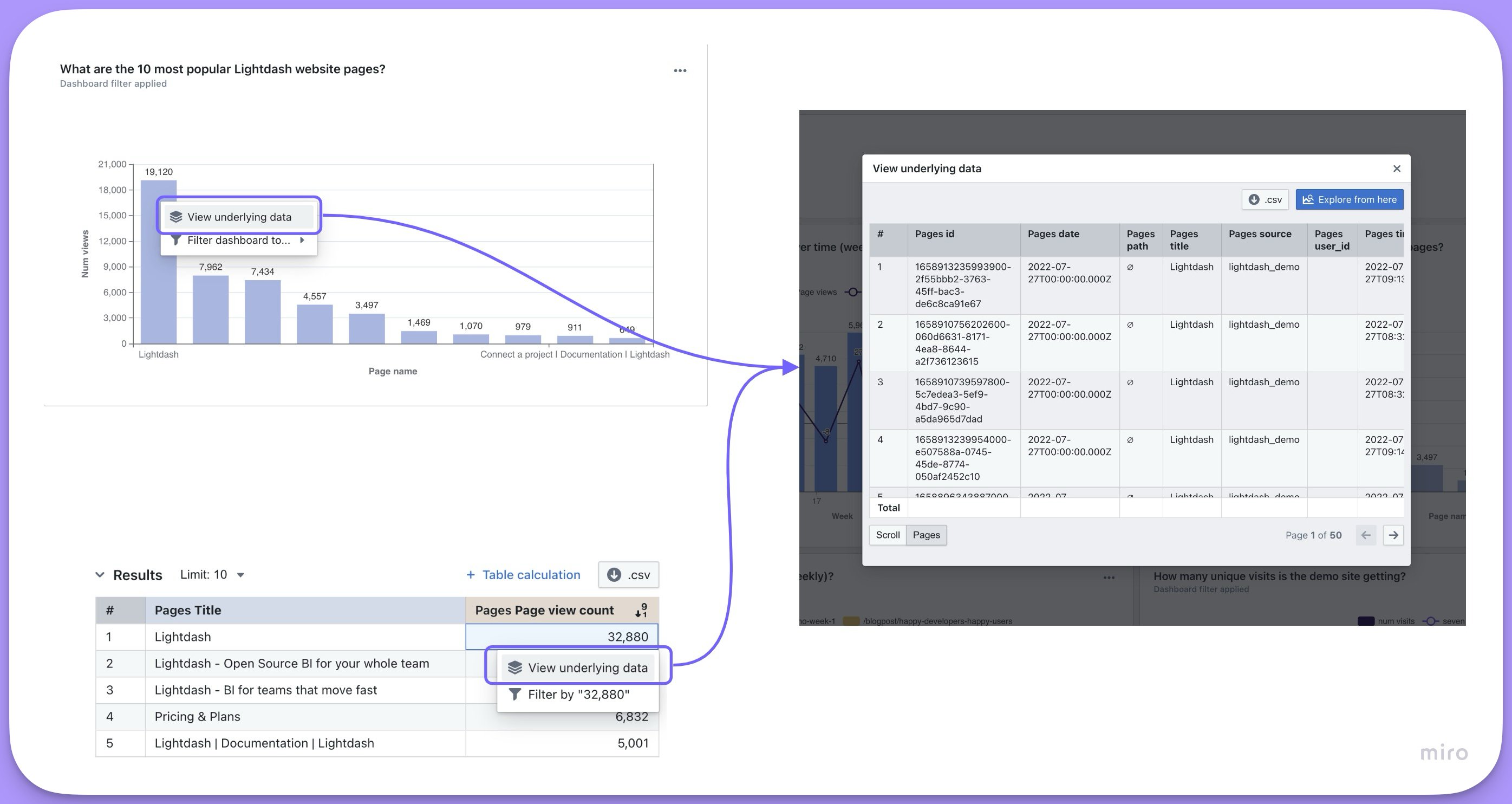 You can limit which dimensions are shown, as well as add metrics to be included, for a field when a user clicks `View underlying data` by adding the list of dimensions and/or metrics to your `.yml` files.
Hidden dimensions (with `hidden: true`) cannot be included in drilldowns. If you need a dimension to appear in drilldowns but not in the Explore sidebar, consider using [groups](/references/dimensions#groups) to organize dimensions instead.
```yaml theme={null}
models:
- name: sales_stats
meta:
joins:
- join: web_sessions
sql_on: ${web_sessions.date} = ${sales_stats.date}
columns:
- name: user_id
description: 'Unique ID for users.'
meta:
dimension:
type: string
metrics:
count_users:
type: count_distinct
show_underlying_values:
- revenue_gbp_total_est
- actual_date
- web_sessions.session_id # field from joined table
```
### Default show underlying values
You can set a default `show_underlying_values` configuration at the model level using `default_show_underlying_values`. This applies to all metrics in that model, and individual metrics can override it by specifying their own `show_underlying_values`.
See [default\_show\_underlying\_values in the Tables reference](/references/tables#default-show-underlying-values) for full details and examples.
The list of fields must be made of dimension names (or metrics if you'd like to include them) from the base table or from any joined tables. To reference a field from a joined table, you just need to prefix the field name with the joined table name, like this: `my_joined_table_name.my_dimension`.
The order that the fields are listed in `show_underlying_values` is the order that they'll appear in on the `view underlying data` table.
### Referencing time intervals in show underlying values
You can reference specific time intervals of dimensions in the `show_underlying_values` list. When a dimension has time intervals defined, you can reference the specific interval by appending the interval name to the dimension name (e.g., `session_start_month`, `session_end_quarter`).
```yaml theme={null}
count:
type: count
show_underlying_values:
- session_start_month
- session_end_quarter
```
In this example, `session_start_month` and `session_end_quarter` reference the `MONTH` and `QUARTER` time intervals of the `session_start` and `session_end` dimensions respectively.
## Groups
You can group your dimensions and metrics in the sidebar using the `groups` parameter.
To do this, you need to set up `group_details` in the model's configuration. Then, you can use these groups to organize metrics and dimensions. You can create nested groups up to 2 levels.
```yaml theme={null}
models:
- name: baskets
meta:
group_details:
product_details:
label: Product Details
description: 'Fields that have information about the products in the basket.'
item_details:
label: Item Details
description: 'Fields that have information about the items in the basket.'
columns:
- name: basket_item_id
description: 'ID for the product item within the basket.'
meta:
dimension:
groups: ['product_details', 'item_details'] # this would add the dimension to a nested group: `product details` --> `item details`
metrics:
count_total_basket_items:
type: count_distinct
groups: ['product_details', 'item_details'] # this would add the metric to a nested group: `product details` --> `item details`
- name: product_name
description: 'Full name of the product.'
meta:
dimension:
label: 'Product name'
groups: ['product_details'] # this would add the dimension under the group label: `product_details`
metrics:
count_total_product_types:
type: count_distinct
groups: ['product_details'] # this would add the metric under the group label: `product_details`
```
```yaml theme={null}
models:
- name: baskets
config:
meta:
group_details:
product_details:
label: Product Details
description: 'Fields that have information about the products in the basket.'
item_details:
label: Item Details
description: 'Fields that have information about the items in the basket.'
columns:
- name: basket_item_id
description: 'ID for the product item within the basket.'
config:
meta:
dimension:
groups: ['product_details', 'item_details'] # this would add the dimension to a nested group: `product details` --> `item details`
metrics:
count_total_basket_items:
type: count_distinct
groups: ['product_details', 'item_details'] # this would add the metric to a nested group: `product details` --> `item details`
- name: product_name
description: 'Full name of the product.'
config:
meta:
dimension:
label: 'Product name'
groups: ['product_details'] # this would add the dimension under the group label: `product_details`
metrics:
count_total_product_types:
type: count_distinct
groups: ['product_details'] # this would add the metric under the group label: `product_details`
```
```yaml theme={null}
type: model
name: baskets
group_details:
product_details:
label: Product Details
description: 'Fields that have information about the products in the basket.'
item_details:
label: Item Details
description: 'Fields that have information about the items in the basket.'
dimensions:
- name: basket_item_id
description: 'ID for the product item within the basket.'
groups: ['product_details', 'item_details'] # this would add the dimension to a nested group: `product details` --> `item details`
- name: product_name
description: 'Full name of the product.'
label: 'Product name'
groups: ['product_details'] # this would add the dimension under the group label: `product_details`
metrics:
count_total_basket_items:
type: count_distinct
sql: ${TABLE}.basket_item_id
groups: ['product_details', 'item_details'] # this would add the metric to a nested group: `product details` --> `item details`
count_total_product_types:
type: count_distinct
sql: ${TABLE}.product_name
groups: ['product_details'] # this would add the metric under the group label: `product_details`
```
## Rich text
The `richText` property allows you to define custom HTML/Markdown templates for displaying metric values in table cells. This enables sophisticated data presentation with formatting, styling, conditional logic, and external integrations.
Rich text only affects UI display in table cells. It has no impact on value formatting, CSV exports, or the underlying data values.
### Conditional formatting example
Use Liquid control flow tags for conditional display based on metric values:
```yaml theme={null}
columns:
- name: customer_lifetime_value
meta:
metrics:
average_clv:
type: average
richText: |
{% raw %}{% if value.raw >= 100 %}
### 📈 ${ value.formatted }
**Excellent** Average CLV
{% elsif value.raw >= 50 %}
### 📊 ${ value.formatted }
**Good** Average CLV
{% else %}
### ⚠️ ${ value.formatted }
**Low** Average CLV
{% endif %}{% endraw %}
```
```yaml theme={null}
columns:
- name: customer_lifetime_value
config:
meta:
metrics:
average_clv:
type: average
richText: |
{% raw %}{% if value.raw >= 100 %}
### 📈 ${ value.formatted }
**Excellent** Average CLV
{% elsif value.raw >= 50 %}
### 📊 ${ value.formatted }
**Good** Average CLV
{% else %}
### ⚠️ ${ value.formatted }
**Low** Average CLV
{% endif %}{% endraw %}
```
```yaml theme={null}
metrics:
average_clv:
type: average
sql: ${TABLE}.customer_lifetime_value
richText: |
{% raw %}{% if value.raw >= 100 %}
### 📈 ${ value.formatted }
**Excellent** Average CLV
{% elsif value.raw >= 50 %}
### 📊 ${ value.formatted }
**Good** Average CLV
{% else %}
### ⚠️ ${ value.formatted }
**Low** Average CLV
{% endif %}{% endraw %}
```
### Liquid templating in rich text
Use templates to configure values dynamically at runtime based on query results.
**Available liquid tags**
| Tag | Description |
| :------------------------------------------ | :------------------------------------------------------------------------------------------ |
| `${ value.formatted }` | The exact value of the dimension as seen in the Lightdash UI. For example `$1,427.20` |
| `${ value.raw }` | The raw value of the dimension returned from the underlying SQL query. For example `1427.2` |
| `${ row.table_name.column_name.formatted }` | The exact value of the column as seen in the Lightdash UI. For example `$1,427.20` |
| `${ row.table_name.column_name.raw }` | The raw value of the dimension returned from the underlying SQL query. For example `1427.2` |
**Available liquid filters**
Filters can be used to make small transformations of your values:
* `url_encode`: Encode a string as URL safe, for example it replaces spaces with `%20`.
```liquid theme={null}
${ value.formatted | url_encode }
```
* `downcase`: Convert a string to lowercase.
```liquid theme={null}
${ value.formatted | downcase }
```
* `append`: Append one string to another.
```liquid theme={null}
${ value.formatted | append: ".html" }
```
There are [many more filters available in the Liquid documentation](https://liquidjs.com/filters/overview.html).
## Filters
Filters are applied to metrics any time that metric is used in Lightdash. Filters can only be used with [aggregate metric types](#metric-categories).
For example, we could add a filter to our users count to make sure it didn't include user IDs with closed accounts, like this:
```yaml theme={null}
models:
- name: sales_stats
columns:
- name: user_id
description: 'Unique ID for users.'
meta:
dimension:
type: string
metrics:
count_users:
type: count_distinct
filters:
- is_closed_account: false
```
```yaml theme={null}
models:
- name: sales_stats
columns:
- name: user_id
description: 'Unique ID for users.'
config:
meta:
dimension:
type: string
metrics:
count_users:
type: count_distinct
filters:
- is_closed_account: false
```
```yaml theme={null}
type: model
name: sales_stats
dimensions:
- name: user_id
description: 'Unique ID for users.'
type: string
metrics:
count_users:
type: count_distinct
sql: ${TABLE}.user_id
filters:
- is_closed_account: false
```
These filters do not appear in the `Filters` tab in the Explore view, instead, they are applied automatically in the SQL query that fetches your results. That means filters added using the `filter` parameter can't be removed in the UI and won't be visible to users unless they look at the SQL query.
### Available filter types
| Type | Example (in English) | Example (as code) |
| :---------------------------- | :--------------------------------------------- | :---------------------------- |
| is | User name is equal to katie | `user_name: "katie"` |
| is not | User name is not equal to katie | `user_name: "!katie"` |
| contains | User name contains katie | `user_name: "%katie%"` |
| does not contain | User name does not contain katie | `user_name: "!%katie%"` |
| starts with | User name starts with katie | `user_name: "katie%"` |
| ends with | User name ends with katie | `user_name: "%katie"` |
| is greater than (number) | Number of orders is greater than 4 | `num_orders: "> 4"` |
| in the past (date) (interval) | Date is before x (days / months / years) | `date: "inThePast 14 months"` |
| in the next (date) (interval) | Date is after x (days / months / years) | `date: "inTheNext 14 days"` |
| is greater than or equal to | Number of orders is greater than or equal to 4 | `num_orders: ">= 4"` |
| is less than | Number of orders is less than 4 | `num_orders: "< 4"` |
| is less than or equal to | Number of orders is less than or equal to 4 | `num_orders: "<= 4"` |
| is null | Status is NULL | `status: "null"` |
| is not null | Status is not NULL | `status: "!null"` |
| is \[boolean] | Is complete is true | `is_complete: "true"` |
| is not \[boolean] | Is complete is false or null | `is_complete: "!true"` |
### Date filters
For date filtering, use `inThePast` or `inTheNext` followed by a number and time unit (days, months, or years). These keywords are case sensitive and must be written exactly as shown.
```yaml theme={null}
filters:
- created_at: 'inThePast 30 days'
```
### Special characters in filters
To use special characters such as `%!_>` in your filter value you can either put the value in quotes, or escape special characters with a backslash `\`. For example, if you wanted to filter for subscription status of `is_subscribed` you can write the metric in one of these ways:
```yaml theme={null}
filters:
- subscription_status: 'is_subscribed'
```
```yaml theme={null}
filters:
- subscription_status: is\_subscribed
```
### Filtering using a list of values
To filter a field using a list of values you can supply them as an array for that field. This generates a SQL `IN` clause, e.g. `WHERE order_status IN ('completed', 'shipped')`.
For example, if you wanted to filter for orders with order status `completed` or `shipped` you should write the metric like:
```yaml theme={null}
columns:
- name: order_id
meta:
metrics:
completed_or_shipped_order_count:
type: count_distinct
filters:
- order_status:
- completed
- shipped
```
```yaml theme={null}
columns:
- name: order_id
config:
meta:
metrics:
completed_or_shipped_order_count:
type: count_distinct
filters:
- order_status:
- completed
- shipped
```
```yaml theme={null}
type: model
name: my_model
dimensions:
- name: order_id
metrics:
completed_or_shipped_order_count:
type: count_distinct
sql: ${TABLE}.order_id
filters:
- order_status:
- completed
- shipped
```
### Filters are joined using `AND`
For example:
```yaml theme={null}
filters:
- is_closed_account: false
- is_7d_active: true
```
Would give you logic like `is_closed_account = TRUE AND is_7d_active = FALSE`.
### Adding filters from joined models
To filter using a field from a joined model, just use the syntax `model_name.field`, like this:
```yaml theme={null}
models:
- name: sales_stats
meta:
joins:
- join: web_sessions
sql_on: ${web_sessions.date} = ${sales_stats.date}
columns:
- name: user_id
description: 'Unique ID for users.'
meta:
dimension:
type: string
metrics:
count_users:
type: count_distinct
filters:
- is_closed_account: false
- web_sessions.is_bot_user: false
```
```yaml theme={null}
models:
- name: sales_stats
config:
meta:
joins:
- join: web_sessions
sql_on: ${web_sessions.date} = ${sales_stats.date}
columns:
- name: user_id
description: 'Unique ID for users.'
config:
meta:
dimension:
type: string
metrics:
count_users:
type: count_distinct
filters:
- is_closed_account: false
- web_sessions.is_bot_user: false
```
```yaml theme={null}
type: model
name: sales_stats
joins:
- join: web_sessions
sql_on: ${web_sessions.date} = ${sales_stats.date}
dimensions:
- name: user_id
description: 'Unique ID for users.'
type: string
metrics:
count_users:
type: count_distinct
sql: ${TABLE}.user_id
filters:
- is_closed_account: false
- web_sessions.is_bot_user: false
```
### Referencing time intervals in filters
You can reference specific time intervals of dimensions in metric filters. When a dimension has time intervals defined, you can filter on the specific interval by appending the interval name to the dimension name (e.g., `session_start_day`).
```yaml theme={null}
count:
type: count
filters:
- session_start_day: "!null"
```
In this example, the filter checks that `session_start_day` (the `DAY` time interval of the `session_start` dimension) is not null.
### Metric filters cannot be used with non-aggregate metrics
You can't use filters with non-aggregate metric types. Instead, if your non-aggregate metrics are referencing aggregate metric types, you need to apply metric filters to the aggregate metrics.
Here's an example: imagine you wanted to calculate the average cost per item that had the status `shipped`. You would need to do something like this in your .yml:
```yaml theme={null}
models:
- name: orders
meta:
metrics:
average_cost_per_item_shipped:
type: number
sql: ${total_cost_of_shipped} / ${count_unique_items_shipped}
columns:
- name: item_id
description: 'Unique ID for items ordered.'
meta:
dimension:
type: string
metrics:
count_unique_items:
type: count_distinct
count_unique_items_shipped:
type: count_distinct
filters:
- status: 'shipped'
- name: item_cost
description: 'Cost for each item ordered.'
meta:
dimension:
type: number
metrics:
total_cost:
type: sum
total_cost_of_shipped:
type: sum
filters:
- status: 'shipped'
```
```yaml theme={null}
models:
- name: orders
config:
meta:
metrics:
average_cost_per_item_shipped:
type: number
sql: ${total_cost_of_shipped} / ${count_unique_items_shipped}
columns:
- name: item_id
description: 'Unique ID for items ordered.'
config:
meta:
dimension:
type: string
metrics:
count_unique_items:
type: count_distinct
count_unique_items_shipped:
type: count_distinct
filters:
- status: 'shipped'
- name: item_cost
description: 'Cost for each item ordered.'
config:
meta:
dimension:
type: number
metrics:
total_cost:
type: sum
total_cost_of_shipped:
type: sum
filters:
- status: 'shipped'
```
```yaml theme={null}
type: model
name: orders
dimensions:
- name: item_id
description: 'Unique ID for items ordered.'
type: string
- name: item_cost
description: 'Cost for each item ordered.'
type: number
metrics:
count_unique_items:
type: count_distinct
sql: ${TABLE}.item_id
count_unique_items_shipped:
type: count_distinct
sql: ${TABLE}.item_id
filters:
- status: 'shipped'
total_cost:
type: sum
sql: ${TABLE}.item_cost
total_cost_of_shipped:
type: sum
sql: ${TABLE}.item_cost
filters:
- status: 'shipped'
average_cost_per_item_shipped:
type: number
sql: ${total_cost_of_shipped} / ${count_unique_items_shipped}
```
## Tags
You can add tags to individual metrics to categorize them for programmatic use. Tags are string arrays that Lightdash preserves and exposes via the API.
Tags are useful for:
* **AI agent access control** — restrict which metrics an [AI agent](/guides/ai-agents/data-access) can see
* **API filtering** — filter the [data catalog metrics endpoint](/api-reference/v1/recipes#filter-metrics-by-tag-using-the-data-catalog-api) by tag to retrieve only the metrics you need
* **Pipeline ingestion** — flag specific metrics for downstream ETL or semantic layer workflows
Tags are **not** displayed as Spotlight categories in the Lightdash UI. They function as a backend/programmatic control mechanism only.
```yaml theme={null}
models:
- name: orders
columns:
- name: amount
meta:
metrics:
total_order_amount:
type: sum
tags: ["core", "finance"]
average_order_amount:
type: average
tags: ["core"]
```
```yaml theme={null}
models:
- name: orders
columns:
- name: amount
config:
meta:
metrics:
total_order_amount:
type: sum
tags: ["core", "finance"]
average_order_amount:
type: average
tags: ["core"]
```
```yaml theme={null}
type: model
name: orders
metrics:
total_order_amount:
type: sum
sql: ${TABLE}.amount
tags: ["core", "finance"]
average_order_amount:
type: average
sql: ${TABLE}.amount
tags: ["core"]
```
## Level of detail metrics
When you build a query in Lightdash, every metric in the results is grouped by the dimensions you've selected. This is usually what you want, but sometimes you need a metric to be calculated at a different granularity than the rest of the query. For example, you might want a denominator that stays at a coarser grain even when you add more dimensions to the view.
This is commonly known as a "level of detail" (LOD) calculation. The idea is that certain metrics should *ignore* specific dimensions during aggregation, so their values remain stable regardless of how the data is sliced.
*Coming to the [demo site](https://demo.lightdash.com/projects/d496d901-a76d-4916-9eae-b81bc7337013/home) soon.*
### The problem
This comes up most often with percentage or ratio metrics. Consider this scenario: you want to calculate **"what % of accounts in each segment have Won deals?"** and you want to break this down by deal plan.
The numerator (accounts with Won deals) should naturally vary by plan. But the denominator (total accounts in the segment) should not. There are 152 Enterprise accounts regardless of which plan you're analyzing.
When you join accounts to deals and group by both segment and plan, the denominator gets scoped to only the accounts that have deals in that plan. This is the default behavior in any BI tool that uses a join-then-group approach.
**Without level of detail (denominator grouped by plan):**
| Segment | Plan | Accounts with Won Deals | Total Accounts | % |
| ---------- | ------------ | ----------------------- | -------------- | ----- |
| Enterprise | Basic | 36 | 107 | 33.6% |
| Enterprise | Professional | 13 | 46 | 28.3% |
The total accounts column shows **107** and **46** because only accounts that have deals in that specific plan are included in the count.
**With level of detail (denominator independent of plan):**
| Segment | Plan | Accounts with Won Deals | Total Accounts | % |
| ---------- | ------------ | ----------------------- | -------------- | ----- |
| Enterprise | Basic | 36 | 152 | 23.7% |
| Enterprise | Professional | 13 | 152 | 8.6% |
The total accounts column stays at **152** because the denominator is computed independently of the plan dimension. This is achieved by pre-computing the denominator in a separate CTE in your dbt model.
### The workaround
The solution is to pre-compute the coarser-grain metric (total accounts per segment) in your dbt model, so it is always correct regardless of which dimensions are selected in Lightdash.
**Step 1: Pre-compute the denominator in your dbt model**
```sql theme={null}
with segment_totals as (
select
segment,
count(distinct account_id) as total_accounts_in_segment
from {{ ref('accounts') }}
group by segment
),
account_deals as (
select
a.account_id,
a.segment,
d.deal_id,
d.plan,
d.stage
from {{ ref('accounts') }} a
inner join {{ ref('deals') }} d on a.account_id = d.account_id
)
select
ad.*,
st.total_accounts_in_segment
from account_deals ad
left join segment_totals st on ad.segment = st.segment
```
**Step 2: Define the metrics in your YAML**
```yaml theme={null}
models:
- name: account_deal_metrics
meta:
metrics:
pct_accounts_with_won_deals:
type: number
label: "% Accounts with Won Deals"
format: percent
sql: ${unique_accounts_with_won_deals} / NULLIF(${segment_total_accounts}, 0)
columns:
- name: account_id
meta:
dimension:
type: string
hidden: true
metrics:
unique_accounts_with_won_deals:
type: count_distinct
filters:
- stage: 'Won'
- name: segment
meta:
dimension:
type: string
- name: plan
meta:
dimension:
type: string
- name: total_accounts_in_segment
meta:
dimension:
type: number
metrics:
segment_total_accounts:
type: max
```
```yaml theme={null}
models:
- name: account_deal_metrics
config:
meta:
metrics:
pct_accounts_with_won_deals:
type: number
label: "% Accounts with Won Deals"
format: percent
sql: ${unique_accounts_with_won_deals} / NULLIF(${segment_total_accounts}, 0)
columns:
- name: account_id
config:
meta:
dimension:
type: string
hidden: true
metrics:
unique_accounts_with_won_deals:
type: count_distinct
filters:
- stage: 'Won'
- name: segment
config:
meta:
dimension:
type: string
- name: plan
config:
meta:
dimension:
type: string
- name: total_accounts_in_segment
config:
meta:
dimension:
type: number
metrics:
segment_total_accounts:
type: max
```
```yaml theme={null}
type: model
name: account_deal_metrics
dimensions:
- name: account_id
type: string
hidden: true
- name: segment
type: string
- name: plan
type: string
- name: total_accounts_in_segment
type: number
metrics:
unique_accounts_with_won_deals:
type: count_distinct
sql: ${TABLE}.account_id
filters:
- stage: 'Won'
segment_total_accounts:
type: max
sql: ${TABLE}.total_accounts_in_segment
pct_accounts_with_won_deals:
type: number
label: "% Accounts with Won Deals"
format: percent
sql: ${unique_accounts_with_won_deals} / NULLIF(${segment_total_accounts}, 0)
```
The key insight is that `total_accounts_in_segment` is pre-computed in the SQL and is the same value for every row in a segment. Using `max` as the aggregation returns the correct segment-level total, regardless of what other dimensions (like `plan`) are in the query.
The `pct_accounts_with_won_deals` metric then divides the numerator (which correctly varies by plan) by the denominator (which stays fixed per segment).
You can limit which dimensions are shown, as well as add metrics to be included, for a field when a user clicks `View underlying data` by adding the list of dimensions and/or metrics to your `.yml` files.
Hidden dimensions (with `hidden: true`) cannot be included in drilldowns. If you need a dimension to appear in drilldowns but not in the Explore sidebar, consider using [groups](/references/dimensions#groups) to organize dimensions instead.
```yaml theme={null}
models:
- name: sales_stats
meta:
joins:
- join: web_sessions
sql_on: ${web_sessions.date} = ${sales_stats.date}
columns:
- name: user_id
description: 'Unique ID for users.'
meta:
dimension:
type: string
metrics:
count_users:
type: count_distinct
show_underlying_values:
- revenue_gbp_total_est
- actual_date
- web_sessions.session_id # field from joined table
```
### Default show underlying values
You can set a default `show_underlying_values` configuration at the model level using `default_show_underlying_values`. This applies to all metrics in that model, and individual metrics can override it by specifying their own `show_underlying_values`.
See [default\_show\_underlying\_values in the Tables reference](/references/tables#default-show-underlying-values) for full details and examples.
The list of fields must be made of dimension names (or metrics if you'd like to include them) from the base table or from any joined tables. To reference a field from a joined table, you just need to prefix the field name with the joined table name, like this: `my_joined_table_name.my_dimension`.
The order that the fields are listed in `show_underlying_values` is the order that they'll appear in on the `view underlying data` table.
### Referencing time intervals in show underlying values
You can reference specific time intervals of dimensions in the `show_underlying_values` list. When a dimension has time intervals defined, you can reference the specific interval by appending the interval name to the dimension name (e.g., `session_start_month`, `session_end_quarter`).
```yaml theme={null}
count:
type: count
show_underlying_values:
- session_start_month
- session_end_quarter
```
In this example, `session_start_month` and `session_end_quarter` reference the `MONTH` and `QUARTER` time intervals of the `session_start` and `session_end` dimensions respectively.
## Groups
You can group your dimensions and metrics in the sidebar using the `groups` parameter.
To do this, you need to set up `group_details` in the model's configuration. Then, you can use these groups to organize metrics and dimensions. You can create nested groups up to 2 levels.
```yaml theme={null}
models:
- name: baskets
meta:
group_details:
product_details:
label: Product Details
description: 'Fields that have information about the products in the basket.'
item_details:
label: Item Details
description: 'Fields that have information about the items in the basket.'
columns:
- name: basket_item_id
description: 'ID for the product item within the basket.'
meta:
dimension:
groups: ['product_details', 'item_details'] # this would add the dimension to a nested group: `product details` --> `item details`
metrics:
count_total_basket_items:
type: count_distinct
groups: ['product_details', 'item_details'] # this would add the metric to a nested group: `product details` --> `item details`
- name: product_name
description: 'Full name of the product.'
meta:
dimension:
label: 'Product name'
groups: ['product_details'] # this would add the dimension under the group label: `product_details`
metrics:
count_total_product_types:
type: count_distinct
groups: ['product_details'] # this would add the metric under the group label: `product_details`
```
```yaml theme={null}
models:
- name: baskets
config:
meta:
group_details:
product_details:
label: Product Details
description: 'Fields that have information about the products in the basket.'
item_details:
label: Item Details
description: 'Fields that have information about the items in the basket.'
columns:
- name: basket_item_id
description: 'ID for the product item within the basket.'
config:
meta:
dimension:
groups: ['product_details', 'item_details'] # this would add the dimension to a nested group: `product details` --> `item details`
metrics:
count_total_basket_items:
type: count_distinct
groups: ['product_details', 'item_details'] # this would add the metric to a nested group: `product details` --> `item details`
- name: product_name
description: 'Full name of the product.'
config:
meta:
dimension:
label: 'Product name'
groups: ['product_details'] # this would add the dimension under the group label: `product_details`
metrics:
count_total_product_types:
type: count_distinct
groups: ['product_details'] # this would add the metric under the group label: `product_details`
```
```yaml theme={null}
type: model
name: baskets
group_details:
product_details:
label: Product Details
description: 'Fields that have information about the products in the basket.'
item_details:
label: Item Details
description: 'Fields that have information about the items in the basket.'
dimensions:
- name: basket_item_id
description: 'ID for the product item within the basket.'
groups: ['product_details', 'item_details'] # this would add the dimension to a nested group: `product details` --> `item details`
- name: product_name
description: 'Full name of the product.'
label: 'Product name'
groups: ['product_details'] # this would add the dimension under the group label: `product_details`
metrics:
count_total_basket_items:
type: count_distinct
sql: ${TABLE}.basket_item_id
groups: ['product_details', 'item_details'] # this would add the metric to a nested group: `product details` --> `item details`
count_total_product_types:
type: count_distinct
sql: ${TABLE}.product_name
groups: ['product_details'] # this would add the metric under the group label: `product_details`
```
## Rich text
The `richText` property allows you to define custom HTML/Markdown templates for displaying metric values in table cells. This enables sophisticated data presentation with formatting, styling, conditional logic, and external integrations.
Rich text only affects UI display in table cells. It has no impact on value formatting, CSV exports, or the underlying data values.
### Conditional formatting example
Use Liquid control flow tags for conditional display based on metric values:
```yaml theme={null}
columns:
- name: customer_lifetime_value
meta:
metrics:
average_clv:
type: average
richText: |
{% raw %}{% if value.raw >= 100 %}
### 📈 ${ value.formatted }
**Excellent** Average CLV
{% elsif value.raw >= 50 %}
### 📊 ${ value.formatted }
**Good** Average CLV
{% else %}
### ⚠️ ${ value.formatted }
**Low** Average CLV
{% endif %}{% endraw %}
```
```yaml theme={null}
columns:
- name: customer_lifetime_value
config:
meta:
metrics:
average_clv:
type: average
richText: |
{% raw %}{% if value.raw >= 100 %}
### 📈 ${ value.formatted }
**Excellent** Average CLV
{% elsif value.raw >= 50 %}
### 📊 ${ value.formatted }
**Good** Average CLV
{% else %}
### ⚠️ ${ value.formatted }
**Low** Average CLV
{% endif %}{% endraw %}
```
```yaml theme={null}
metrics:
average_clv:
type: average
sql: ${TABLE}.customer_lifetime_value
richText: |
{% raw %}{% if value.raw >= 100 %}
### 📈 ${ value.formatted }
**Excellent** Average CLV
{% elsif value.raw >= 50 %}
### 📊 ${ value.formatted }
**Good** Average CLV
{% else %}
### ⚠️ ${ value.formatted }
**Low** Average CLV
{% endif %}{% endraw %}
```
### Liquid templating in rich text
Use templates to configure values dynamically at runtime based on query results.
**Available liquid tags**
| Tag | Description |
| :------------------------------------------ | :------------------------------------------------------------------------------------------ |
| `${ value.formatted }` | The exact value of the dimension as seen in the Lightdash UI. For example `$1,427.20` |
| `${ value.raw }` | The raw value of the dimension returned from the underlying SQL query. For example `1427.2` |
| `${ row.table_name.column_name.formatted }` | The exact value of the column as seen in the Lightdash UI. For example `$1,427.20` |
| `${ row.table_name.column_name.raw }` | The raw value of the dimension returned from the underlying SQL query. For example `1427.2` |
**Available liquid filters**
Filters can be used to make small transformations of your values:
* `url_encode`: Encode a string as URL safe, for example it replaces spaces with `%20`.
```liquid theme={null}
${ value.formatted | url_encode }
```
* `downcase`: Convert a string to lowercase.
```liquid theme={null}
${ value.formatted | downcase }
```
* `append`: Append one string to another.
```liquid theme={null}
${ value.formatted | append: ".html" }
```
There are [many more filters available in the Liquid documentation](https://liquidjs.com/filters/overview.html).
## Filters
Filters are applied to metrics any time that metric is used in Lightdash. Filters can only be used with [aggregate metric types](#metric-categories).
For example, we could add a filter to our users count to make sure it didn't include user IDs with closed accounts, like this:
```yaml theme={null}
models:
- name: sales_stats
columns:
- name: user_id
description: 'Unique ID for users.'
meta:
dimension:
type: string
metrics:
count_users:
type: count_distinct
filters:
- is_closed_account: false
```
```yaml theme={null}
models:
- name: sales_stats
columns:
- name: user_id
description: 'Unique ID for users.'
config:
meta:
dimension:
type: string
metrics:
count_users:
type: count_distinct
filters:
- is_closed_account: false
```
```yaml theme={null}
type: model
name: sales_stats
dimensions:
- name: user_id
description: 'Unique ID for users.'
type: string
metrics:
count_users:
type: count_distinct
sql: ${TABLE}.user_id
filters:
- is_closed_account: false
```
These filters do not appear in the `Filters` tab in the Explore view, instead, they are applied automatically in the SQL query that fetches your results. That means filters added using the `filter` parameter can't be removed in the UI and won't be visible to users unless they look at the SQL query.
### Available filter types
| Type | Example (in English) | Example (as code) |
| :---------------------------- | :--------------------------------------------- | :---------------------------- |
| is | User name is equal to katie | `user_name: "katie"` |
| is not | User name is not equal to katie | `user_name: "!katie"` |
| contains | User name contains katie | `user_name: "%katie%"` |
| does not contain | User name does not contain katie | `user_name: "!%katie%"` |
| starts with | User name starts with katie | `user_name: "katie%"` |
| ends with | User name ends with katie | `user_name: "%katie"` |
| is greater than (number) | Number of orders is greater than 4 | `num_orders: "> 4"` |
| in the past (date) (interval) | Date is before x (days / months / years) | `date: "inThePast 14 months"` |
| in the next (date) (interval) | Date is after x (days / months / years) | `date: "inTheNext 14 days"` |
| is greater than or equal to | Number of orders is greater than or equal to 4 | `num_orders: ">= 4"` |
| is less than | Number of orders is less than 4 | `num_orders: "< 4"` |
| is less than or equal to | Number of orders is less than or equal to 4 | `num_orders: "<= 4"` |
| is null | Status is NULL | `status: "null"` |
| is not null | Status is not NULL | `status: "!null"` |
| is \[boolean] | Is complete is true | `is_complete: "true"` |
| is not \[boolean] | Is complete is false or null | `is_complete: "!true"` |
### Date filters
For date filtering, use `inThePast` or `inTheNext` followed by a number and time unit (days, months, or years). These keywords are case sensitive and must be written exactly as shown.
```yaml theme={null}
filters:
- created_at: 'inThePast 30 days'
```
### Special characters in filters
To use special characters such as `%!_>` in your filter value you can either put the value in quotes, or escape special characters with a backslash `\`. For example, if you wanted to filter for subscription status of `is_subscribed` you can write the metric in one of these ways:
```yaml theme={null}
filters:
- subscription_status: 'is_subscribed'
```
```yaml theme={null}
filters:
- subscription_status: is\_subscribed
```
### Filtering using a list of values
To filter a field using a list of values you can supply them as an array for that field. This generates a SQL `IN` clause, e.g. `WHERE order_status IN ('completed', 'shipped')`.
For example, if you wanted to filter for orders with order status `completed` or `shipped` you should write the metric like:
```yaml theme={null}
columns:
- name: order_id
meta:
metrics:
completed_or_shipped_order_count:
type: count_distinct
filters:
- order_status:
- completed
- shipped
```
```yaml theme={null}
columns:
- name: order_id
config:
meta:
metrics:
completed_or_shipped_order_count:
type: count_distinct
filters:
- order_status:
- completed
- shipped
```
```yaml theme={null}
type: model
name: my_model
dimensions:
- name: order_id
metrics:
completed_or_shipped_order_count:
type: count_distinct
sql: ${TABLE}.order_id
filters:
- order_status:
- completed
- shipped
```
### Filters are joined using `AND`
For example:
```yaml theme={null}
filters:
- is_closed_account: false
- is_7d_active: true
```
Would give you logic like `is_closed_account = TRUE AND is_7d_active = FALSE`.
### Adding filters from joined models
To filter using a field from a joined model, just use the syntax `model_name.field`, like this:
```yaml theme={null}
models:
- name: sales_stats
meta:
joins:
- join: web_sessions
sql_on: ${web_sessions.date} = ${sales_stats.date}
columns:
- name: user_id
description: 'Unique ID for users.'
meta:
dimension:
type: string
metrics:
count_users:
type: count_distinct
filters:
- is_closed_account: false
- web_sessions.is_bot_user: false
```
```yaml theme={null}
models:
- name: sales_stats
config:
meta:
joins:
- join: web_sessions
sql_on: ${web_sessions.date} = ${sales_stats.date}
columns:
- name: user_id
description: 'Unique ID for users.'
config:
meta:
dimension:
type: string
metrics:
count_users:
type: count_distinct
filters:
- is_closed_account: false
- web_sessions.is_bot_user: false
```
```yaml theme={null}
type: model
name: sales_stats
joins:
- join: web_sessions
sql_on: ${web_sessions.date} = ${sales_stats.date}
dimensions:
- name: user_id
description: 'Unique ID for users.'
type: string
metrics:
count_users:
type: count_distinct
sql: ${TABLE}.user_id
filters:
- is_closed_account: false
- web_sessions.is_bot_user: false
```
### Referencing time intervals in filters
You can reference specific time intervals of dimensions in metric filters. When a dimension has time intervals defined, you can filter on the specific interval by appending the interval name to the dimension name (e.g., `session_start_day`).
```yaml theme={null}
count:
type: count
filters:
- session_start_day: "!null"
```
In this example, the filter checks that `session_start_day` (the `DAY` time interval of the `session_start` dimension) is not null.
### Metric filters cannot be used with non-aggregate metrics
You can't use filters with non-aggregate metric types. Instead, if your non-aggregate metrics are referencing aggregate metric types, you need to apply metric filters to the aggregate metrics.
Here's an example: imagine you wanted to calculate the average cost per item that had the status `shipped`. You would need to do something like this in your .yml:
```yaml theme={null}
models:
- name: orders
meta:
metrics:
average_cost_per_item_shipped:
type: number
sql: ${total_cost_of_shipped} / ${count_unique_items_shipped}
columns:
- name: item_id
description: 'Unique ID for items ordered.'
meta:
dimension:
type: string
metrics:
count_unique_items:
type: count_distinct
count_unique_items_shipped:
type: count_distinct
filters:
- status: 'shipped'
- name: item_cost
description: 'Cost for each item ordered.'
meta:
dimension:
type: number
metrics:
total_cost:
type: sum
total_cost_of_shipped:
type: sum
filters:
- status: 'shipped'
```
```yaml theme={null}
models:
- name: orders
config:
meta:
metrics:
average_cost_per_item_shipped:
type: number
sql: ${total_cost_of_shipped} / ${count_unique_items_shipped}
columns:
- name: item_id
description: 'Unique ID for items ordered.'
config:
meta:
dimension:
type: string
metrics:
count_unique_items:
type: count_distinct
count_unique_items_shipped:
type: count_distinct
filters:
- status: 'shipped'
- name: item_cost
description: 'Cost for each item ordered.'
config:
meta:
dimension:
type: number
metrics:
total_cost:
type: sum
total_cost_of_shipped:
type: sum
filters:
- status: 'shipped'
```
```yaml theme={null}
type: model
name: orders
dimensions:
- name: item_id
description: 'Unique ID for items ordered.'
type: string
- name: item_cost
description: 'Cost for each item ordered.'
type: number
metrics:
count_unique_items:
type: count_distinct
sql: ${TABLE}.item_id
count_unique_items_shipped:
type: count_distinct
sql: ${TABLE}.item_id
filters:
- status: 'shipped'
total_cost:
type: sum
sql: ${TABLE}.item_cost
total_cost_of_shipped:
type: sum
sql: ${TABLE}.item_cost
filters:
- status: 'shipped'
average_cost_per_item_shipped:
type: number
sql: ${total_cost_of_shipped} / ${count_unique_items_shipped}
```
## Tags
You can add tags to individual metrics to categorize them for programmatic use. Tags are string arrays that Lightdash preserves and exposes via the API.
Tags are useful for:
* **AI agent access control** — restrict which metrics an [AI agent](/guides/ai-agents/data-access) can see
* **API filtering** — filter the [data catalog metrics endpoint](/api-reference/v1/recipes#filter-metrics-by-tag-using-the-data-catalog-api) by tag to retrieve only the metrics you need
* **Pipeline ingestion** — flag specific metrics for downstream ETL or semantic layer workflows
Tags are **not** displayed as Spotlight categories in the Lightdash UI. They function as a backend/programmatic control mechanism only.
```yaml theme={null}
models:
- name: orders
columns:
- name: amount
meta:
metrics:
total_order_amount:
type: sum
tags: ["core", "finance"]
average_order_amount:
type: average
tags: ["core"]
```
```yaml theme={null}
models:
- name: orders
columns:
- name: amount
config:
meta:
metrics:
total_order_amount:
type: sum
tags: ["core", "finance"]
average_order_amount:
type: average
tags: ["core"]
```
```yaml theme={null}
type: model
name: orders
metrics:
total_order_amount:
type: sum
sql: ${TABLE}.amount
tags: ["core", "finance"]
average_order_amount:
type: average
sql: ${TABLE}.amount
tags: ["core"]
```
## Level of detail metrics
When you build a query in Lightdash, every metric in the results is grouped by the dimensions you've selected. This is usually what you want, but sometimes you need a metric to be calculated at a different granularity than the rest of the query. For example, you might want a denominator that stays at a coarser grain even when you add more dimensions to the view.
This is commonly known as a "level of detail" (LOD) calculation. The idea is that certain metrics should *ignore* specific dimensions during aggregation, so their values remain stable regardless of how the data is sliced.
*Coming to the [demo site](https://demo.lightdash.com/projects/d496d901-a76d-4916-9eae-b81bc7337013/home) soon.*
### The problem
This comes up most often with percentage or ratio metrics. Consider this scenario: you want to calculate **"what % of accounts in each segment have Won deals?"** and you want to break this down by deal plan.
The numerator (accounts with Won deals) should naturally vary by plan. But the denominator (total accounts in the segment) should not. There are 152 Enterprise accounts regardless of which plan you're analyzing.
When you join accounts to deals and group by both segment and plan, the denominator gets scoped to only the accounts that have deals in that plan. This is the default behavior in any BI tool that uses a join-then-group approach.
**Without level of detail (denominator grouped by plan):**
| Segment | Plan | Accounts with Won Deals | Total Accounts | % |
| ---------- | ------------ | ----------------------- | -------------- | ----- |
| Enterprise | Basic | 36 | 107 | 33.6% |
| Enterprise | Professional | 13 | 46 | 28.3% |
The total accounts column shows **107** and **46** because only accounts that have deals in that specific plan are included in the count.
**With level of detail (denominator independent of plan):**
| Segment | Plan | Accounts with Won Deals | Total Accounts | % |
| ---------- | ------------ | ----------------------- | -------------- | ----- |
| Enterprise | Basic | 36 | 152 | 23.7% |
| Enterprise | Professional | 13 | 152 | 8.6% |
The total accounts column stays at **152** because the denominator is computed independently of the plan dimension. This is achieved by pre-computing the denominator in a separate CTE in your dbt model.
### The workaround
The solution is to pre-compute the coarser-grain metric (total accounts per segment) in your dbt model, so it is always correct regardless of which dimensions are selected in Lightdash.
**Step 1: Pre-compute the denominator in your dbt model**
```sql theme={null}
with segment_totals as (
select
segment,
count(distinct account_id) as total_accounts_in_segment
from {{ ref('accounts') }}
group by segment
),
account_deals as (
select
a.account_id,
a.segment,
d.deal_id,
d.plan,
d.stage
from {{ ref('accounts') }} a
inner join {{ ref('deals') }} d on a.account_id = d.account_id
)
select
ad.*,
st.total_accounts_in_segment
from account_deals ad
left join segment_totals st on ad.segment = st.segment
```
**Step 2: Define the metrics in your YAML**
```yaml theme={null}
models:
- name: account_deal_metrics
meta:
metrics:
pct_accounts_with_won_deals:
type: number
label: "% Accounts with Won Deals"
format: percent
sql: ${unique_accounts_with_won_deals} / NULLIF(${segment_total_accounts}, 0)
columns:
- name: account_id
meta:
dimension:
type: string
hidden: true
metrics:
unique_accounts_with_won_deals:
type: count_distinct
filters:
- stage: 'Won'
- name: segment
meta:
dimension:
type: string
- name: plan
meta:
dimension:
type: string
- name: total_accounts_in_segment
meta:
dimension:
type: number
metrics:
segment_total_accounts:
type: max
```
```yaml theme={null}
models:
- name: account_deal_metrics
config:
meta:
metrics:
pct_accounts_with_won_deals:
type: number
label: "% Accounts with Won Deals"
format: percent
sql: ${unique_accounts_with_won_deals} / NULLIF(${segment_total_accounts}, 0)
columns:
- name: account_id
config:
meta:
dimension:
type: string
hidden: true
metrics:
unique_accounts_with_won_deals:
type: count_distinct
filters:
- stage: 'Won'
- name: segment
config:
meta:
dimension:
type: string
- name: plan
config:
meta:
dimension:
type: string
- name: total_accounts_in_segment
config:
meta:
dimension:
type: number
metrics:
segment_total_accounts:
type: max
```
```yaml theme={null}
type: model
name: account_deal_metrics
dimensions:
- name: account_id
type: string
hidden: true
- name: segment
type: string
- name: plan
type: string
- name: total_accounts_in_segment
type: number
metrics:
unique_accounts_with_won_deals:
type: count_distinct
sql: ${TABLE}.account_id
filters:
- stage: 'Won'
segment_total_accounts:
type: max
sql: ${TABLE}.total_accounts_in_segment
pct_accounts_with_won_deals:
type: number
label: "% Accounts with Won Deals"
format: percent
sql: ${unique_accounts_with_won_deals} / NULLIF(${segment_total_accounts}, 0)
```
The key insight is that `total_accounts_in_segment` is pre-computed in the SQL and is the same value for every row in a segment. Using `max` as the aggregation returns the correct segment-level total, regardless of what other dimensions (like `plan`) are in the query.
The `pct_accounts_with_won_deals` metric then divides the numerator (which correctly varies by plan) by the denominator (which stays fixed per segment).