> ## Documentation Index
> Fetch the complete documentation index at: https://lightdash-mintlify-cccf65ca.mintlify.site/llms.txt
> Use this file to discover all available pages before exploring further.
# Table calculations
> Table calculations make it easy to create metrics on the fly (for example, aggregating the data in your table over some window, or getting a running total of a column).
You add table calculations in the Explore view and they appear as green columns in your results table (remember, [dimensions](/references/dimensions) are blue, and [metrics](/references/metrics) are orange).
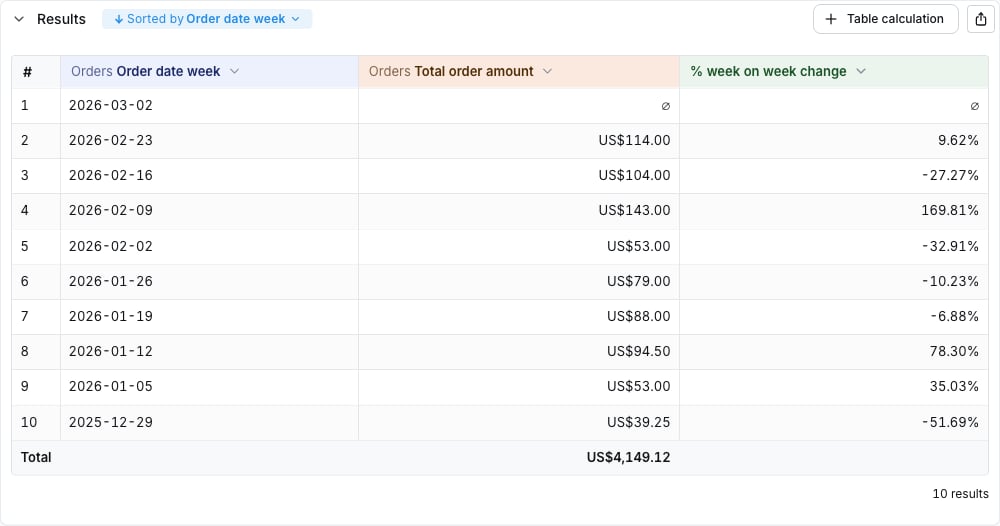
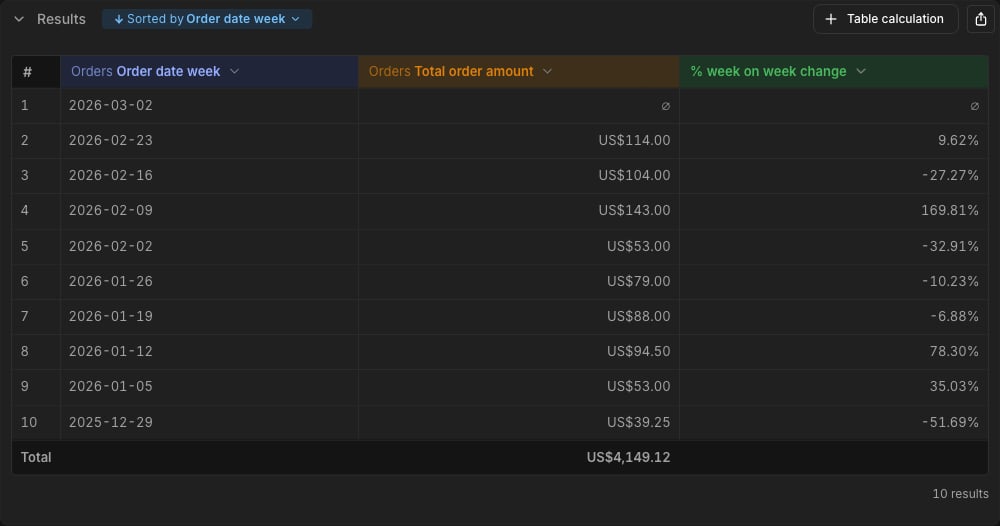 Table calculations can be built in two ways:
* **[Formula](/guides/formula-table-calculations)**: a spreadsheet-style syntax that reads like Google Sheets. The default mode for new table calculations.
* **SQL**: raw SQL.
Both modes are available on every warehouse Lightdash supports. With either mode you can build mathematical, True/False, text, and date-based calculations on top of your results.
## When to use table calculations
The Lightdash semantic layer allows you to define metrics and dimensions that can be reused across your organization. This creates consistency and saves time by establishing standard definitions everyone can rely on. Sometimes the predefined metrics and dimensions aren't quite enough, and you might need to perform additional calculations for specific visualizations, create specialized metrics for particular analyses, or build custom logic to better communicate your insights.
### How Table Calculations Help
Table calculations work as an additional computational layer that builds on top of:
* Semantic layer metrics and dimensions (your standard definitions)
* Custom metrics and dimensions (created at the BI layer)
* Other table calculations (you can even stack them)
Table calculations are useful for specialized, temporary needs, but if you find yourself repeatedly reusing a table calculation, it's a sign to add it to dbt so it's tracked in the semantic layer. This keeps your organization's metrics centralized and consistently defined. You can read more about [adding metrics to your dbt project here](/references/metrics).
## Creating table calculations
Before you create a table calculation, you need to add some dimensions and/or metrics to your results table.
Table calculations work with whatever data you've already pulled into your results table - they can reference the dimensions and metrics you've selected, as well as other table calculations you've built from those same underlying fields. Think of it like building with blocks: you start with your base dimensions and metrics, then you can stack table calculations on top of those, and even build new calculations that reference the ones you've already created.
### Using quick calculations
Quick calculations are shortcuts to the most common table calculations, these are only available to metrics in the contextual menu in the results table.
Table calculations can be built in two ways:
* **[Formula](/guides/formula-table-calculations)**: a spreadsheet-style syntax that reads like Google Sheets. The default mode for new table calculations.
* **SQL**: raw SQL.
Both modes are available on every warehouse Lightdash supports. With either mode you can build mathematical, True/False, text, and date-based calculations on top of your results.
## When to use table calculations
The Lightdash semantic layer allows you to define metrics and dimensions that can be reused across your organization. This creates consistency and saves time by establishing standard definitions everyone can rely on. Sometimes the predefined metrics and dimensions aren't quite enough, and you might need to perform additional calculations for specific visualizations, create specialized metrics for particular analyses, or build custom logic to better communicate your insights.
### How Table Calculations Help
Table calculations work as an additional computational layer that builds on top of:
* Semantic layer metrics and dimensions (your standard definitions)
* Custom metrics and dimensions (created at the BI layer)
* Other table calculations (you can even stack them)
Table calculations are useful for specialized, temporary needs, but if you find yourself repeatedly reusing a table calculation, it's a sign to add it to dbt so it's tracked in the semantic layer. This keeps your organization's metrics centralized and consistently defined. You can read more about [adding metrics to your dbt project here](/references/metrics).
## Creating table calculations
Before you create a table calculation, you need to add some dimensions and/or metrics to your results table.
Table calculations work with whatever data you've already pulled into your results table - they can reference the dimensions and metrics you've selected, as well as other table calculations you've built from those same underlying fields. Think of it like building with blocks: you start with your base dimensions and metrics, then you can stack table calculations on top of those, and even build new calculations that reference the ones you've already created.
### Using quick calculations
Quick calculations are shortcuts to the most common table calculations, these are only available to metrics in the contextual menu in the results table.
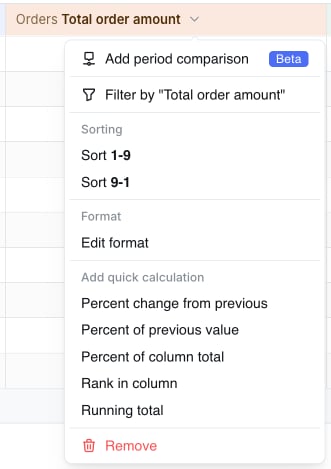
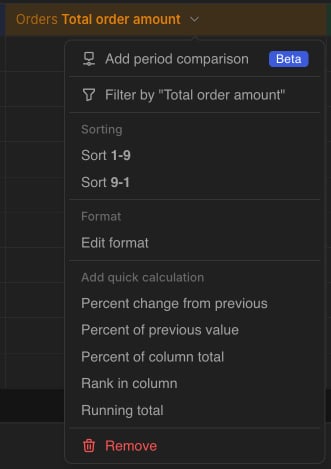 To learn more about what these calculations are doing, check out the docs [here](/guides/table-calculations/sql-templates). Once the table calculation is generated you can edit it to modify the SQL query or update the format.
### Using custom table calculations
Once you've got some data in your results table, you can create a table calculation by clicking on the `+ Table calculation` in the `Results` tab of the Explore view:
To learn more about what these calculations are doing, check out the docs [here](/guides/table-calculations/sql-templates). Once the table calculation is generated you can edit it to modify the SQL query or update the format.
### Using custom table calculations
Once you've got some data in your results table, you can create a table calculation by clicking on the `+ Table calculation` in the `Results` tab of the Explore view:

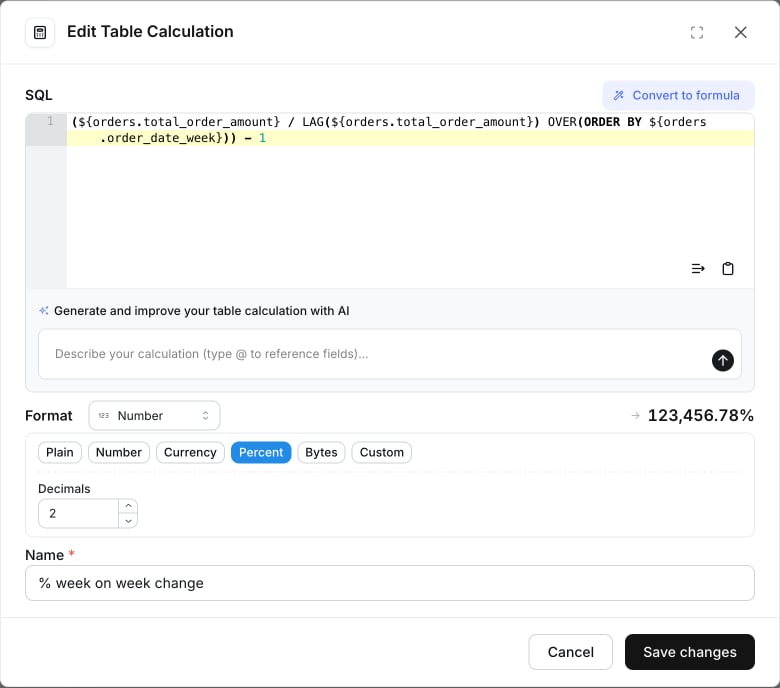
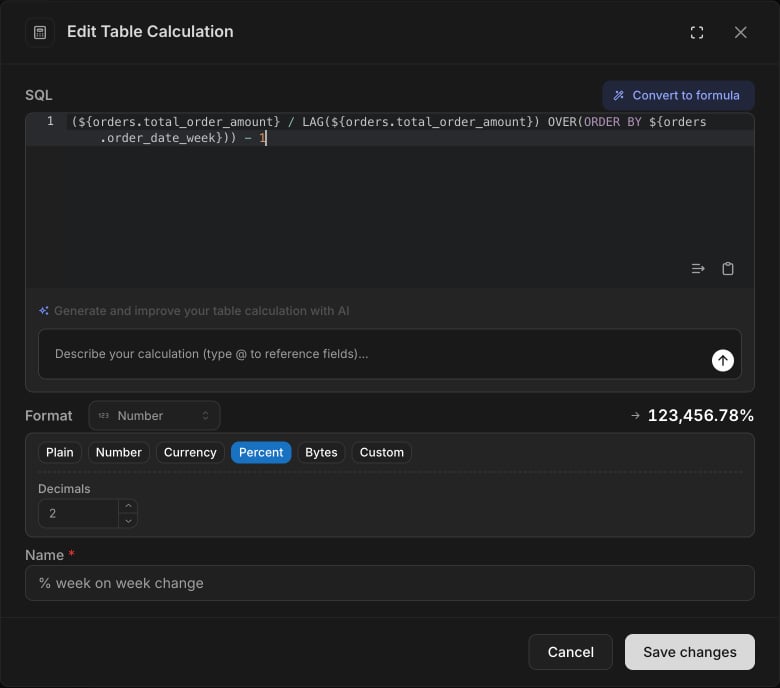
 ##### Write the SQL for your table calculation in the pop-up box
Your table calculation is defined using raw SQL that you write up in this pop up box. If you're not sure what to write here, you can [check out some of our table calculation SQL templates](#table-calculation-functions-and-sql-templates).
To reference the metrics and dimensions in your results table, you can either use the autocomplete, or you can manually write the full field name using the format `${table_name.field_name}`.
##### Write the SQL for your table calculation in the pop-up box
Your table calculation is defined using raw SQL that you write up in this pop up box. If you're not sure what to write here, you can [check out some of our table calculation SQL templates](#table-calculation-functions-and-sql-templates).
To reference the metrics and dimensions in your results table, you can either use the autocomplete, or you can manually write the full field name using the format `${table_name.field_name}`.
 ### Using table calculation functions
In addition to writing raw SQL, you can use built-in functions that simplify common table calculation patterns:
* **[Row functions](/references/table-calculation-functions/row-functions)** — Access values from other rows (e.g., previous row, specific row number, lookups)
* **[Pivot functions](/references/table-calculation-functions/pivot-functions)** — Access values across pivot columns
* **[Aggregate functions](/references/table-calculation-functions/aggregate-functions)** — Reference column totals and row totals
These functions compile to SQL window functions automatically, so you don't need to write `LAG`, `LEAD`, or `ROW_NUMBER` by hand.
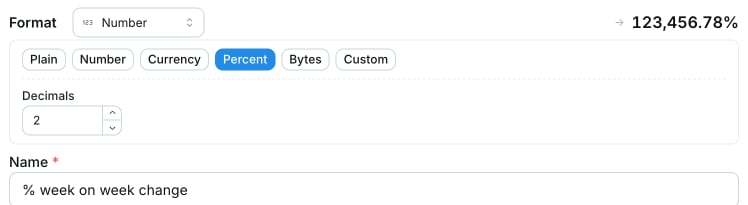
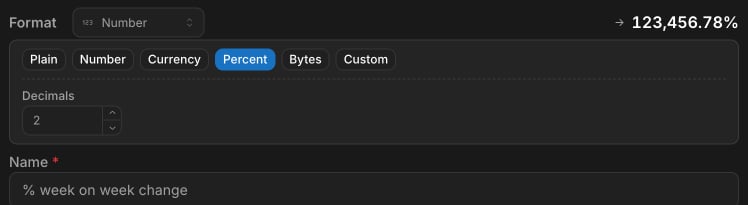
##### Update the format of your table calculation (if needed)
If needed, you can update the format of your table calculation — percent, currency, number with custom prefix/suffix — in the **Format** section of the modal, just below the SQL editor.
### Using table calculation functions
In addition to writing raw SQL, you can use built-in functions that simplify common table calculation patterns:
* **[Row functions](/references/table-calculation-functions/row-functions)** — Access values from other rows (e.g., previous row, specific row number, lookups)
* **[Pivot functions](/references/table-calculation-functions/pivot-functions)** — Access values across pivot columns
* **[Aggregate functions](/references/table-calculation-functions/aggregate-functions)** — Reference column totals and row totals
These functions compile to SQL window functions automatically, so you don't need to write `LAG`, `LEAD`, or `ROW_NUMBER` by hand.
##### Update the format of your table calculation (if needed)
If needed, you can update the format of your table calculation — percent, currency, number with custom prefix/suffix — in the **Format** section of the modal, just below the SQL editor.
 | Format types | Description | Raw value | How it might look like in Lightdash |
| :----------- | :---------------------------------------------- | :-------- | :---------------------------------- |
| Default | Default format for the table calculation result | 0.75 | 0.75 |
| Percent | Converts numbers into a percentage | 0.75 | 75% |
| Currency | Adds currency symbol and default locale format | 1234.1234 | \$ 1234.12 |
| Number | Formats number with prefix and suffix | 123.1234 | Speed: 123.12 km/h |
##### To edit or remove your table calculation, open the column dropdown
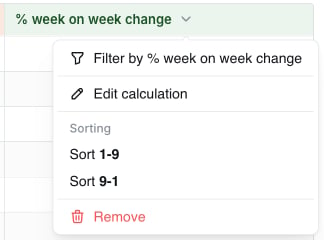
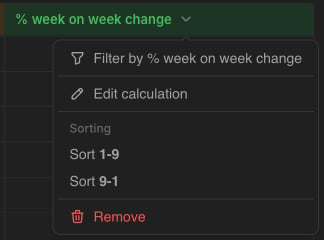
Click the chevron next to the table calculation column header in the results table. From there you can **Edit calculation** to reopen the modal, or **Remove** to drop it.
| Format types | Description | Raw value | How it might look like in Lightdash |
| :----------- | :---------------------------------------------- | :-------- | :---------------------------------- |
| Default | Default format for the table calculation result | 0.75 | 0.75 |
| Percent | Converts numbers into a percentage | 0.75 | 75% |
| Currency | Adds currency symbol and default locale format | 1234.1234 | \$ 1234.12 |
| Number | Formats number with prefix and suffix | 123.1234 | Speed: 123.12 km/h |
##### To edit or remove your table calculation, open the column dropdown
Click the chevron next to the table calculation column header in the results table. From there you can **Edit calculation** to reopen the modal, or **Remove** to drop it.
 ## Table calculation execution and limitations
The processing order:
1. **Raw data filtering happens first** - Dimension and metric filters are applied to your base data.
2. **All table calculations run** - Using this filtered dataset, all calculations are performed.
3. **Table calculation filters apply last** - Only then are rows hidden based on calculated values.
### Key limitations
Since all calculations are performed before filtering, table calculation filters only hide rows without affecting the underlying calculations.
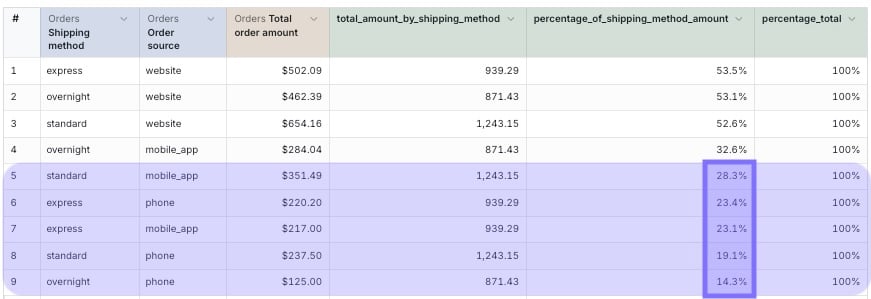
For example: You use table calculations to calculate the `percentage_of_shipping_method_amount`, then filter to hide rows below 30%. The filtered rows (shown in purple) will disappear but the `percentage_total` calculation still shows 100% even though the visible percentages in the `percentage_of_shipping_method_amount` column no longer add up to 100%.
## Table calculation execution and limitations
The processing order:
1. **Raw data filtering happens first** - Dimension and metric filters are applied to your base data.
2. **All table calculations run** - Using this filtered dataset, all calculations are performed.
3. **Table calculation filters apply last** - Only then are rows hidden based on calculated values.
### Key limitations
Since all calculations are performed before filtering, table calculation filters only hide rows without affecting the underlying calculations.
For example: You use table calculations to calculate the `percentage_of_shipping_method_amount`, then filter to hide rows below 30%. The filtered rows (shown in purple) will disappear but the `percentage_total` calculation still shows 100% even though the visible percentages in the `percentage_of_shipping_method_amount` column no longer add up to 100%.
 ## Table calculation functions and SQL templates
If you prefer not to write raw SQL, check out the built-in [row functions](/references/table-calculation-functions/row-functions), [pivot functions](/references/table-calculation-functions/pivot-functions), and [aggregate functions](/references/table-calculation-functions/aggregate-functions) — they handle common patterns like accessing previous rows, row numbering, working across pivot columns, and computing totals.
For more advanced or custom SQL, we also have copy-paste SQL templates to help you get started with common table calculations. You can check out our table calculation SQL templates [here](/guides/table-calculations/sql-templates).
## Table calculation functions and SQL templates
If you prefer not to write raw SQL, check out the built-in [row functions](/references/table-calculation-functions/row-functions), [pivot functions](/references/table-calculation-functions/pivot-functions), and [aggregate functions](/references/table-calculation-functions/aggregate-functions) — they handle common patterns like accessing previous rows, row numbering, working across pivot columns, and computing totals.
For more advanced or custom SQL, we also have copy-paste SQL templates to help you get started with common table calculations. You can check out our table calculation SQL templates [here](/guides/table-calculations/sql-templates).