> ## Documentation Index
> Fetch the complete documentation index at: https://lightdash-mintlify-cccf65ca.mintlify.site/llms.txt
> Use this file to discover all available pages before exploring further.
# Working with timezones in Lightdash
> Configure reports so timezones behave predictably.
This guide is in two parts:
1. [**Setup**](#setup): how to model your warehouse data and configure your project for best results.
2. [Querying](#daily-use): how filters, charts, sharing, and scheduling work once you're set up.
# Timezone Setup
**tl;dr:** store timestamps as timezone-aware types, use `DATE` for calendar values, and set your [project timezone](#configure-your-project-timezone) to the zone you report in.
## Timezone conversion
Lightdash converts the timezones of your data from their **source timezone** to a **report timezone**:
* [**Source timezone**](#configure-your-connection) is the timezone of the raw data. It is defined in your warehouse, data types, modelling, and connection settings.
* [Report timezone](#configure-your-project-timezone) is the timezone you want to see in your results. It is defined by the project/user preferences, and specific chart/dashboard configuration.
## Pick the right column types in your warehouse
Store your event timestamps as **timezone-aware types**. They unambiguously identify a moment in time and require no extra configuration. If you choose a naive timestamp it's timezone will be assumed to be in UTC unless you have configured the [default data timezone](#configure-your-connection).
| | ✅ Use this (timezone-aware) | ❌ Avoid this (timezone naive) |
| :------------- | :--------------------------------------------------------------------------- | :------------------------------------------------------------ |
| Warehouse type | `TIMESTAMPTZ, TIMESTAMP WITH TIME ZONE, `
`TIMESTAMP_LTZ, TIMESTAMP_TZ` | `TIMESTAMP_NTZ, TIMESTAMP WITHOUT TIME ZONE,`
`DATETIME` |
| Timezone | Timezone baked into each timestamp | Timezone assumed from default data timezone (default UTC) |
### Use `DATE` only for calendar values
If a column represents a calendar date rather than a moment in time, store it as `DATE`. Lightdash treats `DATE` columns as fixed calendar dates and never shifts them: `2024-03-15` stays `2024-03-15` regardless of the project timezone.
Use `DATE` for values like:
* A user's date of birth
* A subscription start date
* An anniversary
* A fiscal-period boundary
`DATE` is **not** what you want for event timestamps.
## Configure your connection
For timestamps without timezones (naive timestamps), we assume they follow the default data timezone. You can configure this in your warehouse connection settings:
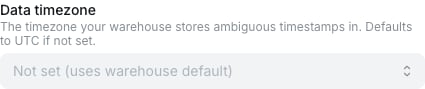
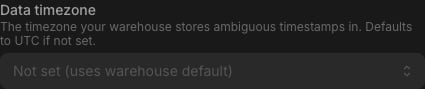 * **If all your naive timestamps are in UTC** (very common, since most ELT pipelines normalize to UTC): leave it as UTC.
* **If your naive timestamps are in a single non-UTC zone** (e.g. an on-prem system that logs in local time): set the data timezone to that zone. Lightdash will interpret naive values as being in that zone.
* **If your naive timestamps have a mix of timezones** - we currently don't support overriding the timezone on a per-column level. Reach out to the team if you have a use case. If it's an option, consider re-modelling your data in a timezone-aware type.
## Configure your project timezone
In **Project settings** → **Timezone**, pick the zone you want reports to use. Lightdash will convert all reports from the raw data timezone into the project timezone. This is the zone in which:
* Timestamps are displayed in tables, on chart axes, and in exports.
* "Today" and "yesterday" are computed in relative date filters.
* Data is bucketed in a per-day grouped bar chart.
* **If all your naive timestamps are in UTC** (very common, since most ELT pipelines normalize to UTC): leave it as UTC.
* **If your naive timestamps are in a single non-UTC zone** (e.g. an on-prem system that logs in local time): set the data timezone to that zone. Lightdash will interpret naive values as being in that zone.
* **If your naive timestamps have a mix of timezones** - we currently don't support overriding the timezone on a per-column level. Reach out to the team if you have a use case. If it's an option, consider re-modelling your data in a timezone-aware type.
## Configure your project timezone
In **Project settings** → **Timezone**, pick the zone you want reports to use. Lightdash will convert all reports from the raw data timezone into the project timezone. This is the zone in which:
* Timestamps are displayed in tables, on chart axes, and in exports.
* "Today" and "yesterday" are computed in relative date filters.
* Data is bucketed in a per-day grouped bar chart.
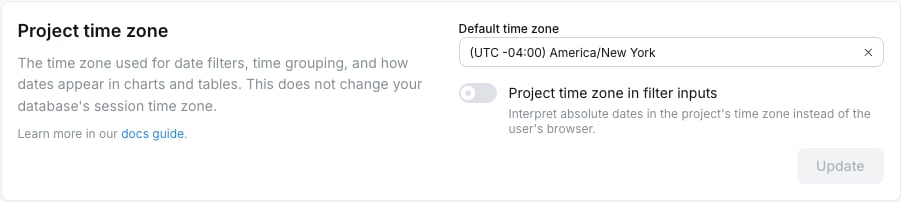
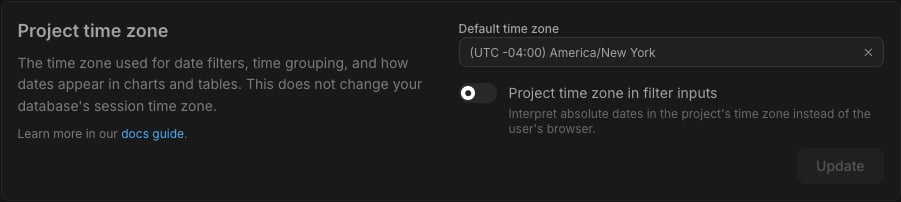 By default the project timezone is UTC, which means all reports in Lightdash default to showing results in UTC. The project timezone can be [customised per chart or user](#report-timezone-resolution).
## Opt a column out of timezone conversion
Most columns don't need annotations. The main exception is system or audit columns where you want the raw stored value displayed, with no shift to the project timezone:
```yaml theme={null}
columns:
- name: created_at_utc
meta:
dimension:
type: timestamp
convert_timezone: false
```
```yaml theme={null}
columns:
- name: created_at_utc
config:
meta:
dimension:
type: timestamp
convert_timezone: false
```
```yaml theme={null}
dimensions:
- name: created_at_utc
type: timestamp
convert_timezone: false
```
Use cases: audit logs, system timestamps, pre-converted values. The column renders exactly what the warehouse stores.
`DATE` columns need no annotation. If you declare a column as `type: date`, Lightdash treats it as a calendar value with no timezone applied, and renders it as-is.
## Naming conventions
Lightdash doesn't enforce naming, but consistent suffixes make a model easier to read:
* `..._at` for timezone-aware timestamps (e.g., `created_at`, `purchased_at`).
* `..._date` for calendar `DATE` columns (e.g., `signup_date`, `effective_date`).
* `..._at_utc` for columns you've explicitly marked `convert_timezone: false`.
## Calendar dates vs timestamps: what shifts
Whether a column moves with the chart's timezone depends on its type, not its name:
* **`TIMESTAMP`** columns identify a moment in time, so they shift into the resolved timezone.
* **`DATE`** columns are calendar values with no clock, so they never shift. `2024-03-15` stays `2024-03-15` for every viewer.
The same rule applies to a time interval built from a column. A day, week, or month grouping of a timestamp produces a calendar value, so its buckets move with the timezone. An hour-or-finer grouping stays a timestamp.
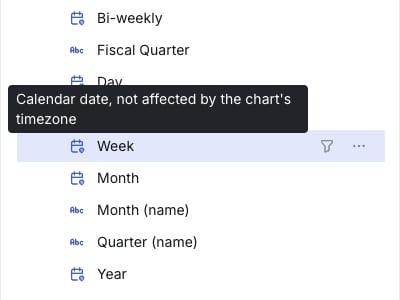
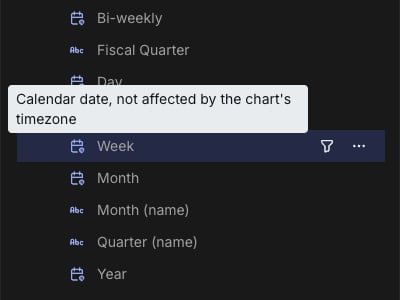
You can see which is which before you build. The dimension list shows an indicator next to each date and time dimension. Hover it for the detail:
| Dimension | Indicator | What it means |
| ---------------------------------------- | ---------------------------------------------------------------------------- | ----------------------------------------- |
| Timestamp | Default icon, "Timestamp, shifts with the chart's timezone" | Renders in the resolved timezone. |
| Day-or-coarser interval of a timestamp | Default icon, "Calendar date, shifts with the chart's timezone" | Bucket boundaries move with the timezone. |
| `DATE` column | Calendar pin, "Calendar date, not affected by the chart's timezone" | Never shifts. |
| Timestamp with `convert_timezone: false` | Clock pin, "Timestamp shown as stored, not affected by the chart's timezone" | Shown exactly as stored. |
By default the project timezone is UTC, which means all reports in Lightdash default to showing results in UTC. The project timezone can be [customised per chart or user](#report-timezone-resolution).
## Opt a column out of timezone conversion
Most columns don't need annotations. The main exception is system or audit columns where you want the raw stored value displayed, with no shift to the project timezone:
```yaml theme={null}
columns:
- name: created_at_utc
meta:
dimension:
type: timestamp
convert_timezone: false
```
```yaml theme={null}
columns:
- name: created_at_utc
config:
meta:
dimension:
type: timestamp
convert_timezone: false
```
```yaml theme={null}
dimensions:
- name: created_at_utc
type: timestamp
convert_timezone: false
```
Use cases: audit logs, system timestamps, pre-converted values. The column renders exactly what the warehouse stores.
`DATE` columns need no annotation. If you declare a column as `type: date`, Lightdash treats it as a calendar value with no timezone applied, and renders it as-is.
## Naming conventions
Lightdash doesn't enforce naming, but consistent suffixes make a model easier to read:
* `..._at` for timezone-aware timestamps (e.g., `created_at`, `purchased_at`).
* `..._date` for calendar `DATE` columns (e.g., `signup_date`, `effective_date`).
* `..._at_utc` for columns you've explicitly marked `convert_timezone: false`.
## Calendar dates vs timestamps: what shifts
Whether a column moves with the chart's timezone depends on its type, not its name:
* **`TIMESTAMP`** columns identify a moment in time, so they shift into the resolved timezone.
* **`DATE`** columns are calendar values with no clock, so they never shift. `2024-03-15` stays `2024-03-15` for every viewer.
The same rule applies to a time interval built from a column. A day, week, or month grouping of a timestamp produces a calendar value, so its buckets move with the timezone. An hour-or-finer grouping stays a timestamp.
You can see which is which before you build. The dimension list shows an indicator next to each date and time dimension. Hover it for the detail:
| Dimension | Indicator | What it means |
| ---------------------------------------- | ---------------------------------------------------------------------------- | ----------------------------------------- |
| Timestamp | Default icon, "Timestamp, shifts with the chart's timezone" | Renders in the resolved timezone. |
| Day-or-coarser interval of a timestamp | Default icon, "Calendar date, shifts with the chart's timezone" | Bucket boundaries move with the timezone. |
| `DATE` column | Calendar pin, "Calendar date, not affected by the chart's timezone" | Never shifts. |
| Timestamp with `convert_timezone: false` | Clock pin, "Timestamp shown as stored, not affected by the chart's timezone" | Shown exactly as stored. |
 ***
# Daily use
## The chart timezone badge
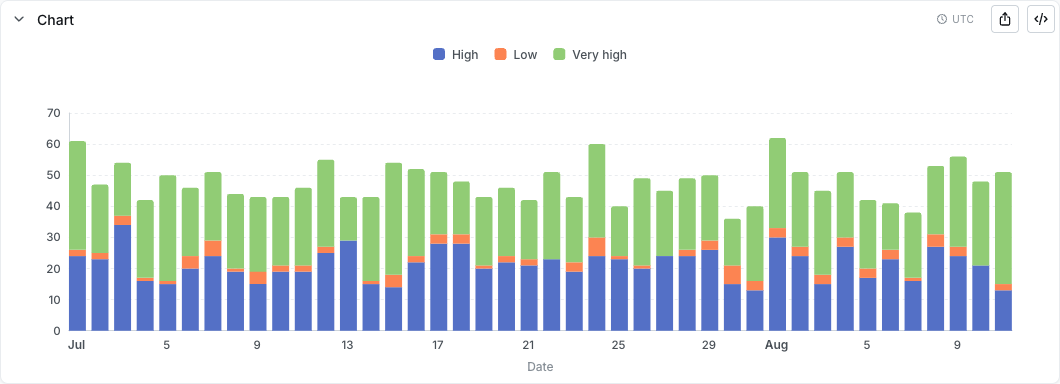
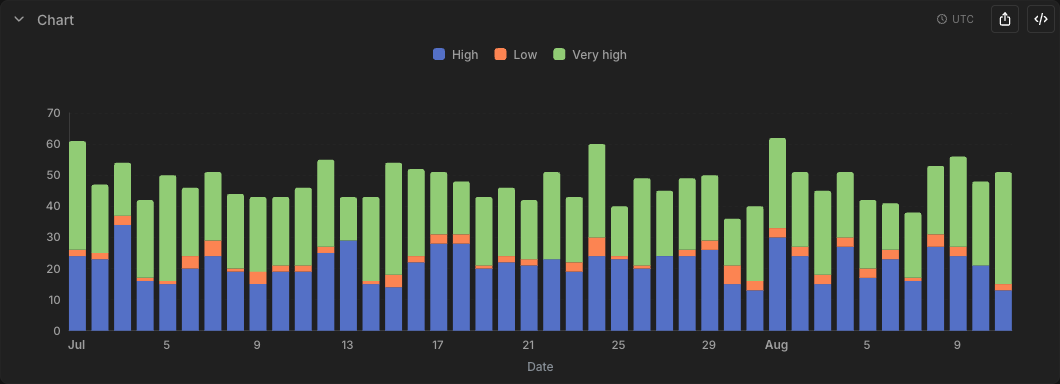
Every chart in Explore and on dashboards shows a small badge with its resolved timezone, for example `(UTC +01:00) Europe/London`. It's the zone the chart's filters, buckets, and values use, resolved by the rules in [below](#report-timezone-resolution).
***
# Daily use
## The chart timezone badge
Every chart in Explore and on dashboards shows a small badge with its resolved timezone, for example `(UTC +01:00) Europe/London`. It's the zone the chart's filters, buckets, and values use, resolved by the rules in [below](#report-timezone-resolution).
 If it's not the zone you expect, change it with the [timezone picker](#choosing-a-chart-timezone).
## Report timezone resolution
A chart's own timezone setting decides what zone it uses, unless an embed overrides it. The zone it ends up using is its **resolved timezone**, the term used throughout this guide. From highest priority:
1. **A direct embed's** `timezone `**URL parameter** (on iframe or shareable-URL embeds only, see [Embedded dashboards](#embedded-dashboards)). This outranks everything.
2. Otherwise, the chart's timezone setting applies:
* **Project timezone** (the default): the project's timezone, for every viewer.
* **User timezone**: the viewer's profile timezone, or the project timezone if they haven't set one.
* **A specific timezone**: that exact zone, the same for everyone.
See [Choosing a chart timezone](#choosing-a-chart-timezone) for how to set this.
## Choosing a chart timezone
Open the **Run query** settings (the dropdown next to the **Run query** button in Explore) and use the **Timezone** picker to choose how the chart resolves its zone. There are three options:
If it's not the zone you expect, change it with the [timezone picker](#choosing-a-chart-timezone).
## Report timezone resolution
A chart's own timezone setting decides what zone it uses, unless an embed overrides it. The zone it ends up using is its **resolved timezone**, the term used throughout this guide. From highest priority:
1. **A direct embed's** `timezone `**URL parameter** (on iframe or shareable-URL embeds only, see [Embedded dashboards](#embedded-dashboards)). This outranks everything.
2. Otherwise, the chart's timezone setting applies:
* **Project timezone** (the default): the project's timezone, for every viewer.
* **User timezone**: the viewer's profile timezone, or the project timezone if they haven't set one.
* **A specific timezone**: that exact zone, the same for everyone.
See [Choosing a chart timezone](#choosing-a-chart-timezone) for how to set this.
## Choosing a chart timezone
Open the **Run query** settings (the dropdown next to the **Run query** button in Explore) and use the **Timezone** picker to choose how the chart resolves its zone. There are three options:
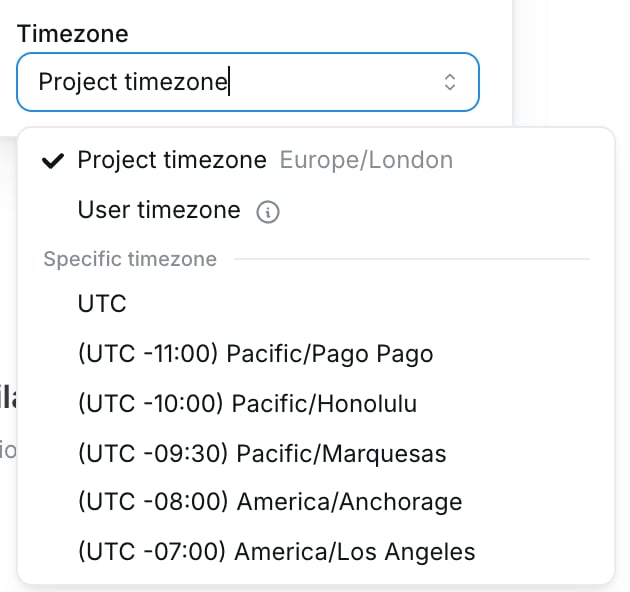
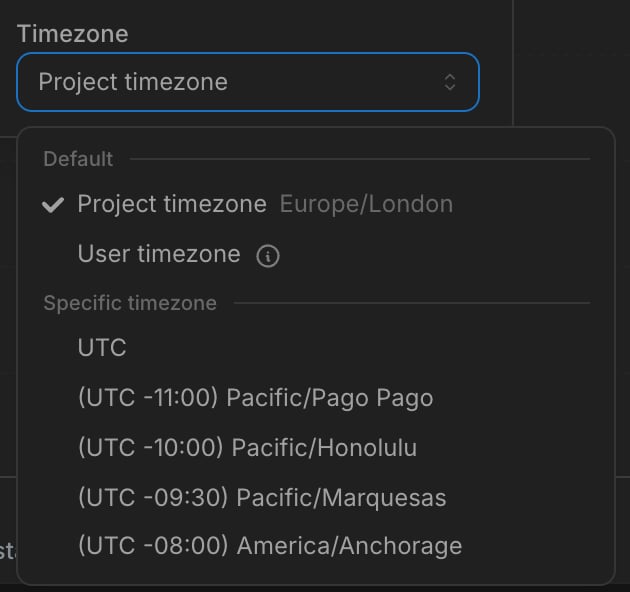 | Option | What viewers see | When to use |
| --------------------------------- | ------------------------------------------------------------------------------------------------------ | --------------------------------------------------------------------------------------------------- |
| **Project timezone**\*(default)\* | Everyone sees the project's timezone. If the project timezone changes later, the chart follows. | Shared reports and dashboards where the numbers should mean the same thing for everyone. |
| **User timezone** | Each viewer sees their own profile timezone, or the project timezone if they haven't set one. | Personal exploration, or internal dashboards where each viewer should see their own day boundaries. |
| **A specific timezone** | A fixed zone (e.g. `America/New_York`), the same for everyone, frozen regardless of project or viewer. | A chart that must always report in one zone, such as a regional report. |
**Project timezone** is the default, and it is not frozen at save time: it always resolves to the current project timezone, so a later change to the project setting flows through to the chart.
## How filters work
### Relative date filters
Relative filters like "yesterday," "last 7 days," and "this month" are computed in the chart's **resolved timezone**. On a chart resolved to America/New\_York, "yesterday" is the day that just ended in New York.
### Absolute date filters
Absolute date filters (a specific date or range) are unambiguous. `2024-03-15` is `2024-03-15`, and behaves the same for every viewer.
Filters that include a time of day (for example "events after 9am on March 15") are more subtle. By default the datetime picker works in each viewer's browser timezone, so the same typed value can resolve to a different moment for different viewers.
To keep these filters consistent, a project admin can turn on **Project time zone in filter inputs** in Project settings → Timezone. Set a project timezone first; the toggle is disabled until one is set.
| Option | What viewers see | When to use |
| --------------------------------- | ------------------------------------------------------------------------------------------------------ | --------------------------------------------------------------------------------------------------- |
| **Project timezone**\*(default)\* | Everyone sees the project's timezone. If the project timezone changes later, the chart follows. | Shared reports and dashboards where the numbers should mean the same thing for everyone. |
| **User timezone** | Each viewer sees their own profile timezone, or the project timezone if they haven't set one. | Personal exploration, or internal dashboards where each viewer should see their own day boundaries. |
| **A specific timezone** | A fixed zone (e.g. `America/New_York`), the same for everyone, frozen regardless of project or viewer. | A chart that must always report in one zone, such as a regional report. |
**Project timezone** is the default, and it is not frozen at save time: it always resolves to the current project timezone, so a later change to the project setting flows through to the chart.
## How filters work
### Relative date filters
Relative filters like "yesterday," "last 7 days," and "this month" are computed in the chart's **resolved timezone**. On a chart resolved to America/New\_York, "yesterday" is the day that just ended in New York.
### Absolute date filters
Absolute date filters (a specific date or range) are unambiguous. `2024-03-15` is `2024-03-15`, and behaves the same for every viewer.
Filters that include a time of day (for example "events after 9am on March 15") are more subtle. By default the datetime picker works in each viewer's browser timezone, so the same typed value can resolve to a different moment for different viewers.
To keep these filters consistent, a project admin can turn on **Project time zone in filter inputs** in Project settings → Timezone. Set a project timezone first; the toggle is disabled until one is set.

 When it's on:
* The picker shows and interprets values in the project timezone, so the same typed value means the same moment for everyone.
* A line under the picker shows the equivalent local time, and a label shows the active timezone.
* Existing saved filters aren't rewritten. They keep the same moment, just shown in the new zone.
If a chart overrides its timezone with the [timezone picker](#choosing-a-chart-timezone), the filter inputs follow that override instead of the project timezone.
When it's on:
* The picker shows and interprets values in the project timezone, so the same typed value means the same moment for everyone.
* A line under the picker shows the equivalent local time, and a label shows the active timezone.
* Existing saved filters aren't rewritten. They keep the same moment, just shown in the new zone.
If a chart overrides its timezone with the [timezone picker](#choosing-a-chart-timezone), the filter inputs follow that override instead of the project timezone.

 ### Cell-click filters
Clicking a bar or cell filters on the value as shown, not the underlying instant. Click "March 2024" and you get March 2024 in the chart's timezone, exactly what you saw.
## Day-grouped vs hour-grouped charts
Day and hour groupings respond to timezone differently, which changes how charts look across viewers.
### Day-or-coarser grouping
A chart grouped by **day, week, month, quarter, or year** buckets data by calendar boundaries, so when the resolved timezone changes (for example on a User-timezone chart) those boundaries move and the same events can land in different bars. Two viewers can then see different numbers on the same daily chart. This is correct, since each sees their own calendar, but it can be surprising. See [Choosing a chart timezone](#choosing-a-chart-timezone) to control it.
### Sub-day grouping
A chart grouped by **hour, minute, or smaller** buckets data by instants. The boundaries are the same for every viewer; only the labels shift (your "9am EDT" is someone else's "2pm BST," but the bar contains the same events).
Sub-day grouping is consistent across viewers. The exception is half-hour and 45-minute offset zones (India, Nepal, parts of Australia), where bucket boundaries don't align with whole-hour zones.
## MIN/MAX date and timestamp metrics
A `min` or `max` metric renders by the type of the column it aggregates, following the same calendar-vs-instant rule as dimensions:
* **`DATE` column** (or a day-or-coarser date interval like `_month`): a plain calendar date at that grain, never shifted.
* **`TIMESTAMP` column**: shifted into the resolved timezone, like a timestamp dimension.
Custom MIN/MAX metrics built in the Explore view pick this up automatically. Metrics defined in dbt or Lightdash YAML need a project recompile (Refresh dbt or `lightdash deploy`) before the new formatting applies.
## Daylight-saving transitions
Lightdash buckets data by local time in the resolved timezone, so daylight-saving transitions show up in your charts.
* On a **daily** chart, the fall-back day spans 25 hours and the spring-forward day spans 23. Each bar still counts exactly the events in that calendar day, and drilling in returns them all.
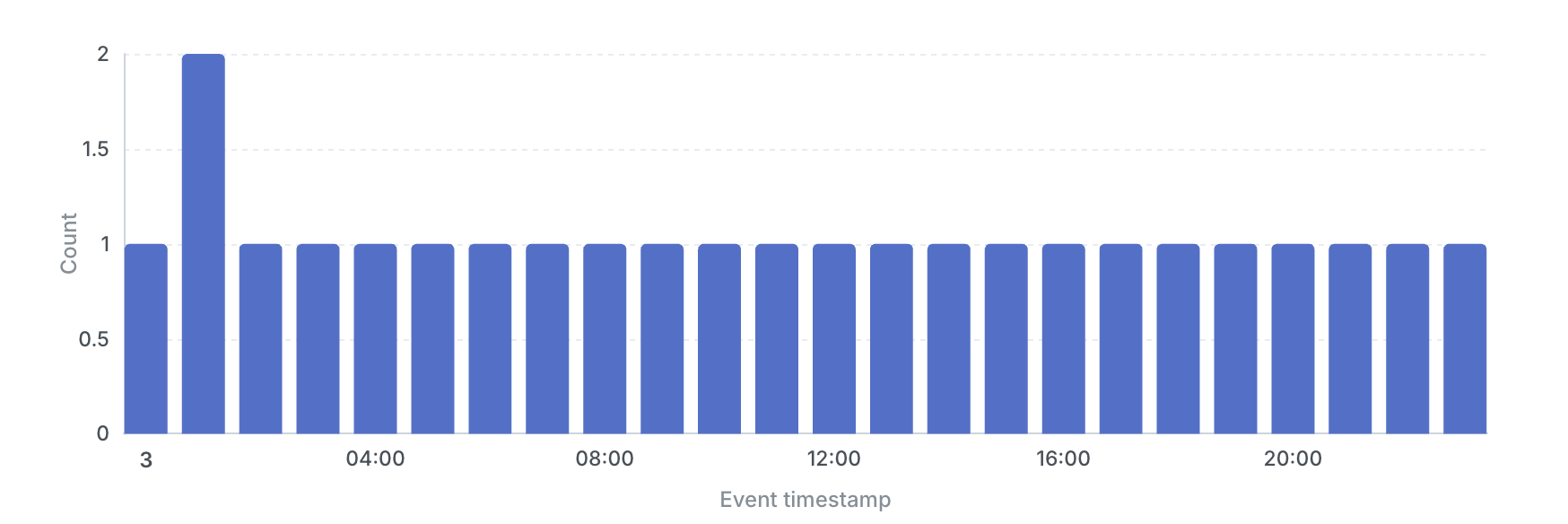
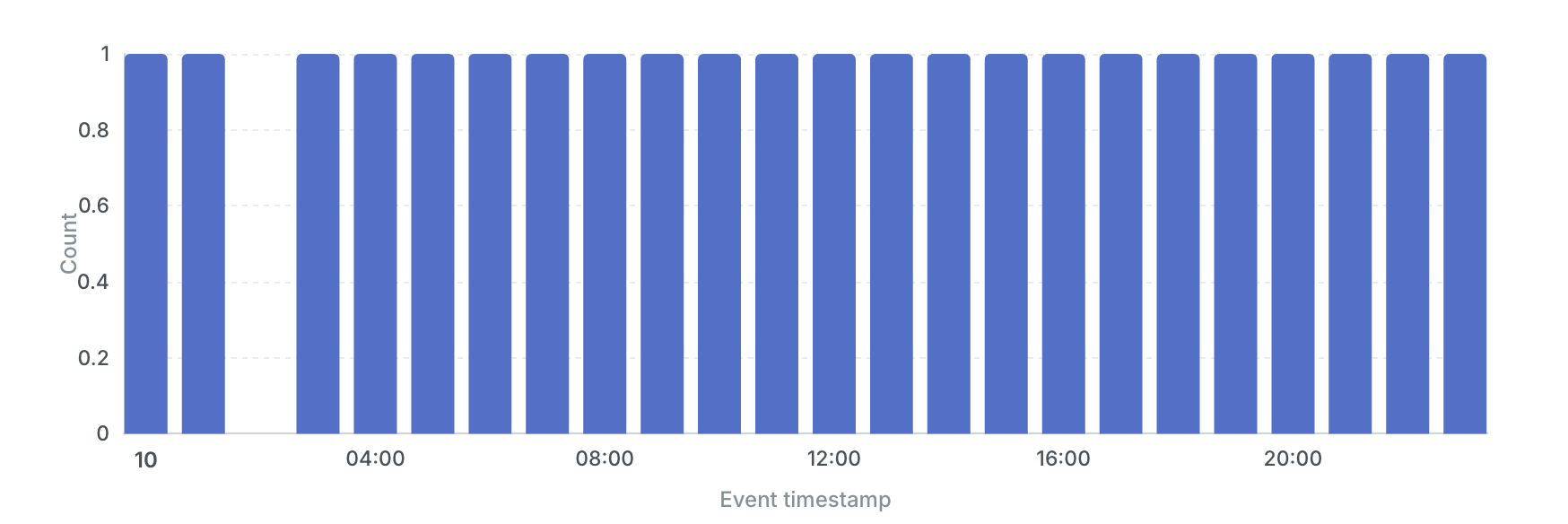
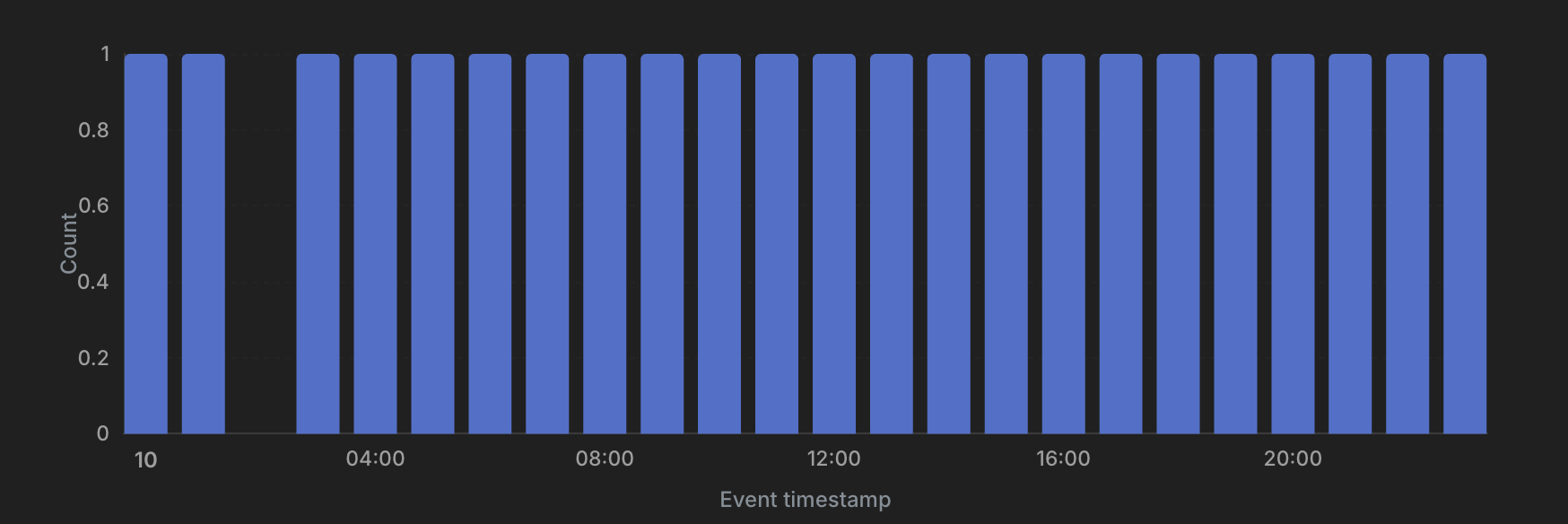
* On an **hourly** chart, the two 1 AM hours on the fall-back day merge into a single bar with double the count, and the missing 2 AM hour on the spring-forward day simply has no bar.
The hourly charts below count one event per hour in America/New\_York. On the fall-back day (3 November), every hour has one event except 1 AM, which holds two: summer-time 1 AM and winter-time 1 AM land in the same bar.
### Cell-click filters
Clicking a bar or cell filters on the value as shown, not the underlying instant. Click "March 2024" and you get March 2024 in the chart's timezone, exactly what you saw.
## Day-grouped vs hour-grouped charts
Day and hour groupings respond to timezone differently, which changes how charts look across viewers.
### Day-or-coarser grouping
A chart grouped by **day, week, month, quarter, or year** buckets data by calendar boundaries, so when the resolved timezone changes (for example on a User-timezone chart) those boundaries move and the same events can land in different bars. Two viewers can then see different numbers on the same daily chart. This is correct, since each sees their own calendar, but it can be surprising. See [Choosing a chart timezone](#choosing-a-chart-timezone) to control it.
### Sub-day grouping
A chart grouped by **hour, minute, or smaller** buckets data by instants. The boundaries are the same for every viewer; only the labels shift (your "9am EDT" is someone else's "2pm BST," but the bar contains the same events).
Sub-day grouping is consistent across viewers. The exception is half-hour and 45-minute offset zones (India, Nepal, parts of Australia), where bucket boundaries don't align with whole-hour zones.
## MIN/MAX date and timestamp metrics
A `min` or `max` metric renders by the type of the column it aggregates, following the same calendar-vs-instant rule as dimensions:
* **`DATE` column** (or a day-or-coarser date interval like `_month`): a plain calendar date at that grain, never shifted.
* **`TIMESTAMP` column**: shifted into the resolved timezone, like a timestamp dimension.
Custom MIN/MAX metrics built in the Explore view pick this up automatically. Metrics defined in dbt or Lightdash YAML need a project recompile (Refresh dbt or `lightdash deploy`) before the new formatting applies.
## Daylight-saving transitions
Lightdash buckets data by local time in the resolved timezone, so daylight-saving transitions show up in your charts.
* On a **daily** chart, the fall-back day spans 25 hours and the spring-forward day spans 23. Each bar still counts exactly the events in that calendar day, and drilling in returns them all.
* On an **hourly** chart, the two 1 AM hours on the fall-back day merge into a single bar with double the count, and the missing 2 AM hour on the spring-forward day simply has no bar.
The hourly charts below count one event per hour in America/New\_York. On the fall-back day (3 November), every hour has one event except 1 AM, which holds two: summer-time 1 AM and winter-time 1 AM land in the same bar.
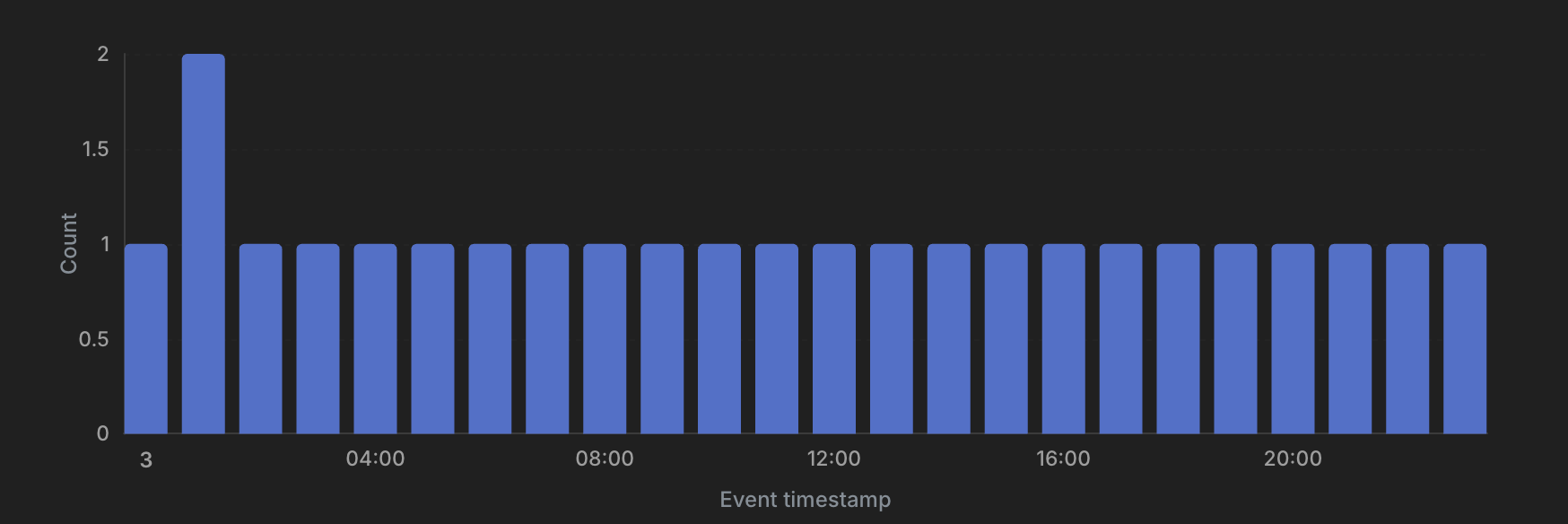 On the spring-forward day (10 March), the clocks jump from 2 AM to 3 AM, so the 2 AM bar is missing entirely.
 ## Your profile timezone
In your Profile settings, you can set a **Default timezone**. It affects only charts set to **User timezone**, which resolve to your profile zone when you view them.
It does **not** affect:
* Charts set to **Project timezone** or to a specific timezone.
* Embedded dashboards (an embed has no viewer profile to read).
If you don't set a profile timezone, charts in User timezone mode fall back to the project timezone.
Scheduled deliveries are the exception to "no viewer": a delivery runs its queries as the person who created it, so a User-timezone chart in a delivery uses the creator's profile timezone, not each recipient's.
## Dashboards
Every chart on a dashboard keeps its own timezone setting, so one dashboard can mix Project-timezone charts (same for everyone) with User-timezone charts (per viewer). Each chart's badge shows the zone it resolved to.
A dashboard date filter sends the same value to every chart, but each chart reads it in its own zone. So a "last 7 days" filter can cover a different window on a Project-timezone chart than on the User-timezone chart next to it.
## Scheduled deliveries
Scheduled reports have two independent timezone settings:
| Setting | Controls | Example |
| ----------------- | ------------------------------------------------- | ----------------------------------------------------- |
| **Delivery time** | When the report fires | "Send at 9am every Monday" uses the delivery timezone |
| **Chart data** | What "yesterday" / "last week" mean in the report | "Last 7 days" uses each chart's resolved timezone |
The two don't have to match. A delivery scheduled for "9am New York" can contain a chart in UTC: the report fires at 9am New York and shows UTC-bucketed data.
For most schedules, the cleanest setup is:
* **Delivery time** in the recipient's working timezone (so the report arrives at a useful hour).
* **Chart data** on the project timezone (so the numbers are consistent and explicable).
## Embedded dashboards
An embedded dashboard has no signed-in viewer, so there's no profile timezone to read. Its zone resolves one of two ways:
* **A `timezone` URL parameter** sets one zone for the whole session and overrides every chart. Available on direct iframe and shareable-URL embeds only, not the React SDK. See [embedding URL parameters](/references/iframe-embedding#timezone).
* **Otherwise**, each chart uses its own setting: the project timezone, or a specific zone if one was pinned. A User-timezone chart falls back to the project, since there's no profile to read.
## When things go wrong
Common symptoms and their usual causes. When something looks off, the chart's badge and the connection's data-timezone preview show exactly what Lightdash is using.
This usually means the chart is on **User timezone**, so each viewer gets their own day boundaries. Check the chart's badge and switch it to **Project timezone** if everyone should match.
The chart could be on **User timezone**, with a viewer further west still inside a day the author has finished. Switch it to **Project timezone** to make it consistent.
The **data timezone** on the connection is probably incorrect. Open Project settings → Connection → Data timezone and use **Preview** to confirm how values are read.
The export may have run with a different chart timezone. Re-export from a chart set to the zone you want.
Your project timezone might be set to a zone where "yesterday" hasn't started yet. Check it under Project settings → Timezone.
This is likely a daylight-saving transition in the period shown. Switch the chart to UTC to confirm it's a DST artifact, not a data problem.
***
# Example: one row, four configurations
Imagine one row in your `orders` table:
| Column | Type | Stored value |
| ------------------ | ----------------- | ------------------------- |
| `order_date` | `DATE` | `2026-05-19` |
| `order_created_at` | `TIMESTAMP` (UTC) | `2026-05-19 02:00:00 UTC` |
Same row, same warehouse. Here's what changes as you layer settings on.
| Configuration | `order_created_at` shows | Grouped by day | `order_date` shows | Same for every viewer? |
| --------------------------------------------------- | ------------------------ | ---------------------- | ------------------ | ---------------------------------------------------- |
| Project timezone `UTC` | `2026-05-19 02:00` | `2026-05-19` | `2026-05-19` | Yes |
| Project timezone `America/New_York` | `2026-05-18 22:00` | `2026-05-18` | `2026-05-19` | Yes |
| One chart pinned to `Asia/Tokyo` (project stays NY) | `2026-05-19 11:00` | `2026-05-19` | `2026-05-19` | Yes on that chart, but the dashboard now mixes zones |
| Chart set to User timezone | the viewer's local time | the viewer's local day | `2026-05-19` | No, each viewer sees their own day |
***
**The pattern.** Timestamp rendering and bucketing shift with the resolved zone. DATE values never shift. But anything derived from "now" (relative filters) always uses the resolved zone, regardless of column type.
## Your profile timezone
In your Profile settings, you can set a **Default timezone**. It affects only charts set to **User timezone**, which resolve to your profile zone when you view them.
It does **not** affect:
* Charts set to **Project timezone** or to a specific timezone.
* Embedded dashboards (an embed has no viewer profile to read).
If you don't set a profile timezone, charts in User timezone mode fall back to the project timezone.
Scheduled deliveries are the exception to "no viewer": a delivery runs its queries as the person who created it, so a User-timezone chart in a delivery uses the creator's profile timezone, not each recipient's.
## Dashboards
Every chart on a dashboard keeps its own timezone setting, so one dashboard can mix Project-timezone charts (same for everyone) with User-timezone charts (per viewer). Each chart's badge shows the zone it resolved to.
A dashboard date filter sends the same value to every chart, but each chart reads it in its own zone. So a "last 7 days" filter can cover a different window on a Project-timezone chart than on the User-timezone chart next to it.
## Scheduled deliveries
Scheduled reports have two independent timezone settings:
| Setting | Controls | Example |
| ----------------- | ------------------------------------------------- | ----------------------------------------------------- |
| **Delivery time** | When the report fires | "Send at 9am every Monday" uses the delivery timezone |
| **Chart data** | What "yesterday" / "last week" mean in the report | "Last 7 days" uses each chart's resolved timezone |
The two don't have to match. A delivery scheduled for "9am New York" can contain a chart in UTC: the report fires at 9am New York and shows UTC-bucketed data.
For most schedules, the cleanest setup is:
* **Delivery time** in the recipient's working timezone (so the report arrives at a useful hour).
* **Chart data** on the project timezone (so the numbers are consistent and explicable).
## Embedded dashboards
An embedded dashboard has no signed-in viewer, so there's no profile timezone to read. Its zone resolves one of two ways:
* **A `timezone` URL parameter** sets one zone for the whole session and overrides every chart. Available on direct iframe and shareable-URL embeds only, not the React SDK. See [embedding URL parameters](/references/iframe-embedding#timezone).
* **Otherwise**, each chart uses its own setting: the project timezone, or a specific zone if one was pinned. A User-timezone chart falls back to the project, since there's no profile to read.
## When things go wrong
Common symptoms and their usual causes. When something looks off, the chart's badge and the connection's data-timezone preview show exactly what Lightdash is using.
This usually means the chart is on **User timezone**, so each viewer gets their own day boundaries. Check the chart's badge and switch it to **Project timezone** if everyone should match.
The chart could be on **User timezone**, with a viewer further west still inside a day the author has finished. Switch it to **Project timezone** to make it consistent.
The **data timezone** on the connection is probably incorrect. Open Project settings → Connection → Data timezone and use **Preview** to confirm how values are read.
The export may have run with a different chart timezone. Re-export from a chart set to the zone you want.
Your project timezone might be set to a zone where "yesterday" hasn't started yet. Check it under Project settings → Timezone.
This is likely a daylight-saving transition in the period shown. Switch the chart to UTC to confirm it's a DST artifact, not a data problem.
***
# Example: one row, four configurations
Imagine one row in your `orders` table:
| Column | Type | Stored value |
| ------------------ | ----------------- | ------------------------- |
| `order_date` | `DATE` | `2026-05-19` |
| `order_created_at` | `TIMESTAMP` (UTC) | `2026-05-19 02:00:00 UTC` |
Same row, same warehouse. Here's what changes as you layer settings on.
| Configuration | `order_created_at` shows | Grouped by day | `order_date` shows | Same for every viewer? |
| --------------------------------------------------- | ------------------------ | ---------------------- | ------------------ | ---------------------------------------------------- |
| Project timezone `UTC` | `2026-05-19 02:00` | `2026-05-19` | `2026-05-19` | Yes |
| Project timezone `America/New_York` | `2026-05-18 22:00` | `2026-05-18` | `2026-05-19` | Yes |
| One chart pinned to `Asia/Tokyo` (project stays NY) | `2026-05-19 11:00` | `2026-05-19` | `2026-05-19` | Yes on that chart, but the dashboard now mixes zones |
| Chart set to User timezone | the viewer's local time | the viewer's local day | `2026-05-19` | No, each viewer sees their own day |
***
**The pattern.** Timestamp rendering and bucketing shift with the resolved zone. DATE values never shift. But anything derived from "now" (relative filters) always uses the resolved zone, regardless of column type.