> ## Documentation Index
> Fetch the complete documentation index at: https://lightdash-mintlify-cccf65ca.mintlify.site/llms.txt
> Use this file to discover all available pages before exploring further.
# Date zoom
> Change the time granularity of charts on your dashboard without editing them
Date zoom lets you change the date granularity of all time-based charts on a dashboard at once. This is useful for zooming in to see daily patterns or zooming out to identify long-term trends—without editing individual charts.
## How date zoom works
When viewing a dashboard, click the **Date Zoom** dropdown to select a granularity (Day, Week, Month, Quarter, Year). All charts with date dimensions will update to show data at that granularity.
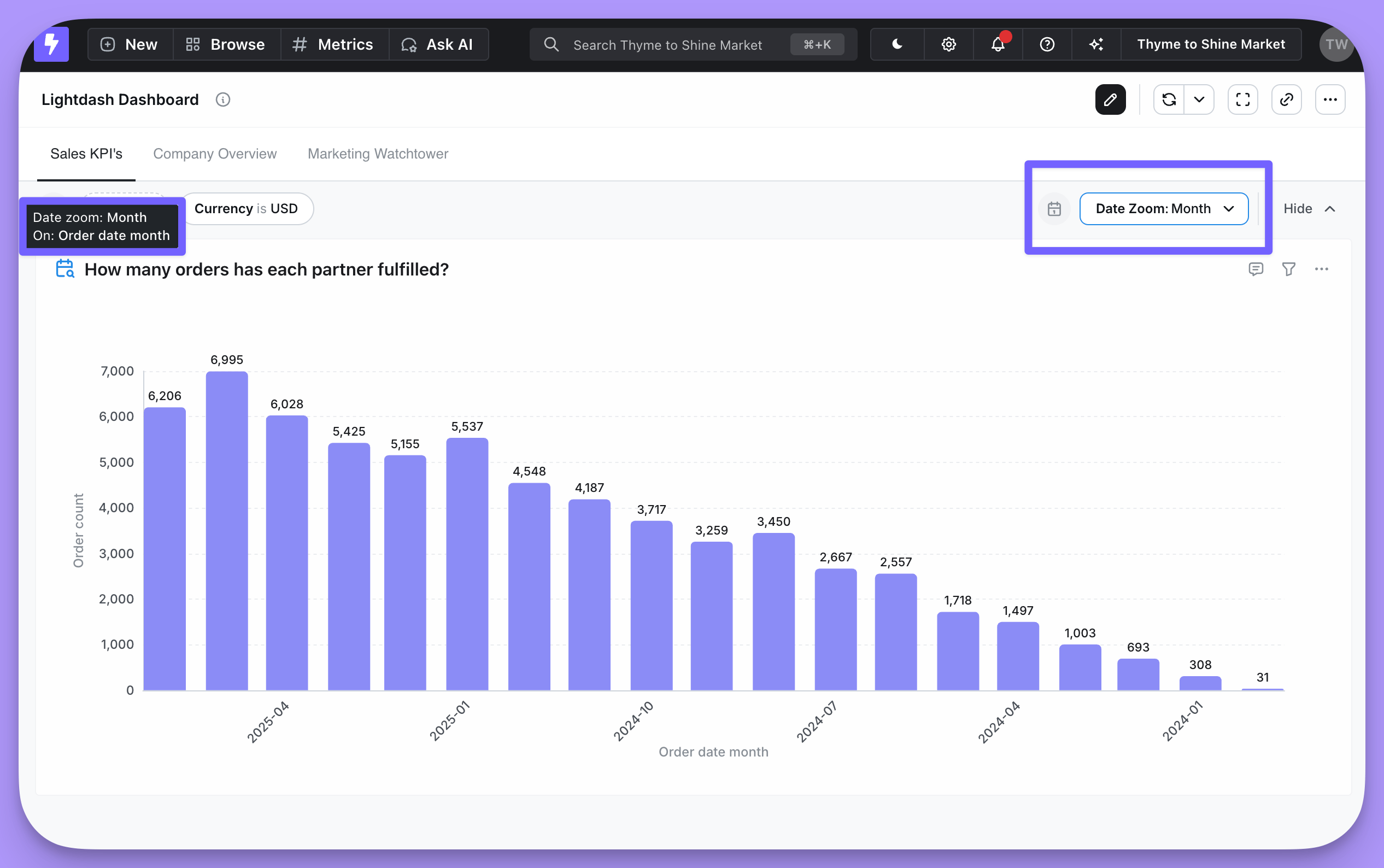 **Key behaviors:**
* Applies to charts with at least one date dimension in the results
* If a chart has multiple date dimensions, date zoom uses the first (left-most) dimension
* Changes are temporary—refreshing the dashboard restores the original granularity
* You can see which dimension was affected by hovering over the indicator on each tile
## Configuring available granularities
Dashboard editors can customize which granularities appear in the date zoom dropdown and set a default.
**Key behaviors:**
* Applies to charts with at least one date dimension in the results
* If a chart has multiple date dimensions, date zoom uses the first (left-most) dimension
* Changes are temporary—refreshing the dashboard restores the original granularity
* You can see which dimension was affected by hovering over the indicator on each tile
## Configuring available granularities
Dashboard editors can customize which granularities appear in the date zoom dropdown and set a default.
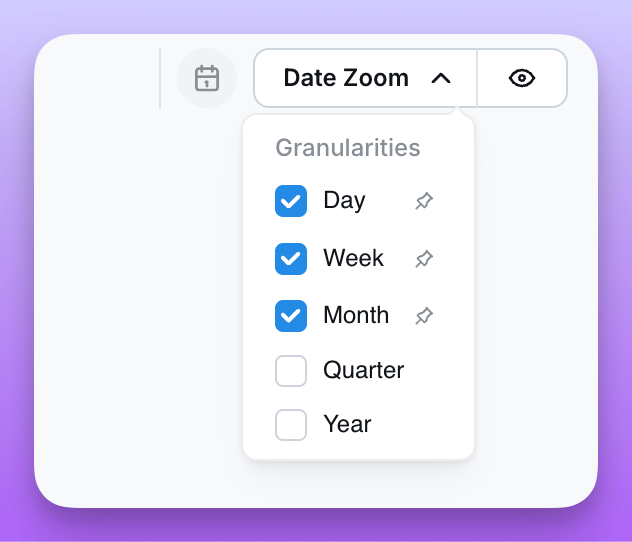 ### Setting available granularities
1. Open the dashboard in edit mode
2. Click the **Date Zoom** dropdown
3. Click the pencil icon to enter edit mode
4. Use the checkboxes to enable or disable granularities
5. At least one granularity must remain enabled
6. Save the dashboard to persist your changes
### Setting a default granularity
You can pin a granularity as the default that's automatically applied when the dashboard loads:
1. In date zoom edit mode, click the pin icon next to a granularity
2. The pinned granularity becomes the default
3. Click the pin again to remove the default
When a default is set, the dashboard automatically applies that granularity on load (unless overridden by a URL parameter).
Default granularities don't apply when the dashboard is loaded with a granularity already specified in the URL.
## Using custom granularities
Custom granularities defined in your `lightdash.config.yml` appear in the date zoom dropdown alongside standard options, below a visual divider. This is useful for business-specific time periods like fiscal quarters or custom week definitions.
See the [dimensions reference](/references/dimensions#using-custom-granularities) for how to create and configure custom granularities.
## Hiding or showing date zoom on a dashboard
You can toggle the visibility of the date zoom control on a dashboard:
1. Open the dashboard in edit mode
2. Click the **eye icon** next to the Date Zoom dropdown to hide or show it
3. Save the dashboard
When hidden, the date zoom control is not visible to dashboard viewers. You can show it again at any time by toggling the eye icon back on in edit mode.
## Referencing the date zoom in custom SQL
The currently selected date zoom granularity is exposed as a built-in [reserved parameter](/guides/developer/using-parameters#reserved-parameters) called `date_zoom`. You can reference it in custom SQL anywhere parameters are supported:
```sql theme={null}
${ld.parameters.date_zoom}
```
It resolves to the granularity name in lowercase (for example `day`, `week`, `month`, `quarter`, `year`, or a [custom granularity](/references/lightdash-config-yml#custom-granularities-configuration) name). When no date zoom is selected, the value is an empty string.
### Setting available granularities
1. Open the dashboard in edit mode
2. Click the **Date Zoom** dropdown
3. Click the pencil icon to enter edit mode
4. Use the checkboxes to enable or disable granularities
5. At least one granularity must remain enabled
6. Save the dashboard to persist your changes
### Setting a default granularity
You can pin a granularity as the default that's automatically applied when the dashboard loads:
1. In date zoom edit mode, click the pin icon next to a granularity
2. The pinned granularity becomes the default
3. Click the pin again to remove the default
When a default is set, the dashboard automatically applies that granularity on load (unless overridden by a URL parameter).
Default granularities don't apply when the dashboard is loaded with a granularity already specified in the URL.
## Using custom granularities
Custom granularities defined in your `lightdash.config.yml` appear in the date zoom dropdown alongside standard options, below a visual divider. This is useful for business-specific time periods like fiscal quarters or custom week definitions.
See the [dimensions reference](/references/dimensions#using-custom-granularities) for how to create and configure custom granularities.
## Hiding or showing date zoom on a dashboard
You can toggle the visibility of the date zoom control on a dashboard:
1. Open the dashboard in edit mode
2. Click the **eye icon** next to the Date Zoom dropdown to hide or show it
3. Save the dashboard
When hidden, the date zoom control is not visible to dashboard viewers. You can show it again at any time by toggling the eye icon back on in edit mode.
## Referencing the date zoom in custom SQL
The currently selected date zoom granularity is exposed as a built-in [reserved parameter](/guides/developer/using-parameters#reserved-parameters) called `date_zoom`. You can reference it in custom SQL anywhere parameters are supported:
```sql theme={null}
${ld.parameters.date_zoom}
```
It resolves to the granularity name in lowercase (for example `day`, `week`, `month`, `quarter`, `year`, or a [custom granularity](/references/lightdash-config-yml#custom-granularities-configuration) name). When no date zoom is selected, the value is an empty string.
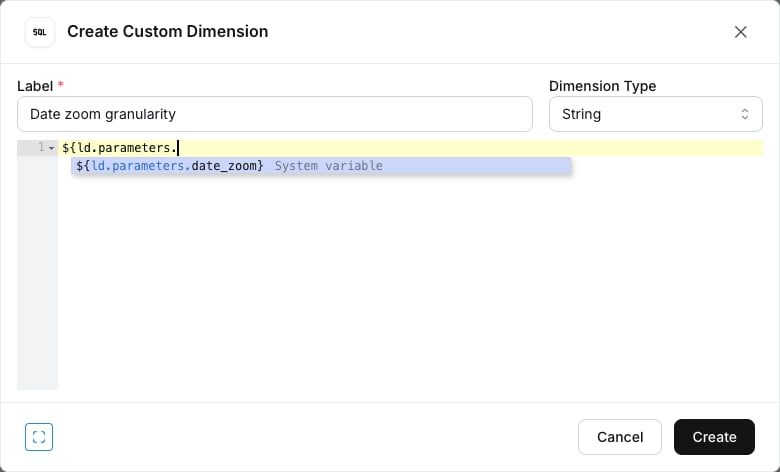
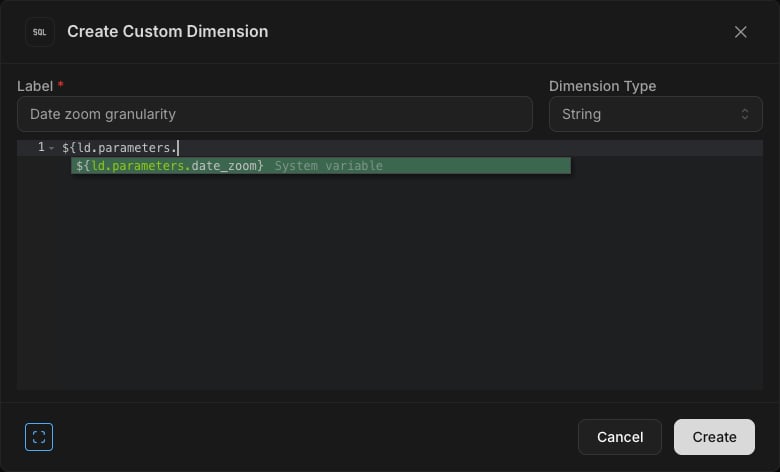 This is useful for adapting your SQL to the granularity the viewer picked on the dashboard, without defining a user parameter:
```sql theme={null}
CASE
WHEN ${ld.parameters.date_zoom} = 'week' THEN 'Weekly'
WHEN ${ld.parameters.date_zoom} = 'month' THEN 'Monthly'
WHEN ${ld.parameters.date_zoom} = '' THEN 'No date zoom applied'
ELSE 'Other'
END
```
See [Reserved parameters](/guides/developer/using-parameters#reserved-parameters) for the full list and behavior.
## Date zoom in embedded dashboards
Date zoom can be enabled or disabled in embedded dashboards using the `canDateZoom` option in your JWT token:
```javascript theme={null}
{
content: {
type: 'dashboard',
dashboardUuid: 'your-dashboard-uuid',
canDateZoom: true, // Enable date zoom in embed
}
}
```
See the [embedding reference](/references/embedding#date-zoom) for complete details.
## Related
Define business-specific time periods
Cross-filtering, drill into, and more
Configure time intervals on dimensions
Embed dashboards with date zoom
This is useful for adapting your SQL to the granularity the viewer picked on the dashboard, without defining a user parameter:
```sql theme={null}
CASE
WHEN ${ld.parameters.date_zoom} = 'week' THEN 'Weekly'
WHEN ${ld.parameters.date_zoom} = 'month' THEN 'Monthly'
WHEN ${ld.parameters.date_zoom} = '' THEN 'No date zoom applied'
ELSE 'Other'
END
```
See [Reserved parameters](/guides/developer/using-parameters#reserved-parameters) for the full list and behavior.
## Date zoom in embedded dashboards
Date zoom can be enabled or disabled in embedded dashboards using the `canDateZoom` option in your JWT token:
```javascript theme={null}
{
content: {
type: 'dashboard',
dashboardUuid: 'your-dashboard-uuid',
canDateZoom: true, // Enable date zoom in embed
}
}
```
See the [embedding reference](/references/embedding#date-zoom) for complete details.
## Related
Define business-specific time periods
Cross-filtering, drill into, and more
Configure time intervals on dimensions
Embed dashboards with date zoom