> ## Documentation Index
> Fetch the complete documentation index at: https://lightdash-mintlify-cccf65ca.mintlify.site/llms.txt
> Use this file to discover all available pages before exploring further.
# Lightdash Validate
> You can check to see if your changes break any of the content in your project using `lightdash validate`. This command will run the validator which will return a list of content in your project that is broken and details about the errors.
You can trigger a validation on a project using the Lightdash CLI so you can check locally if your changes will break anything. You can also add `lightdash validate` to your [GitHub Actions](#configure-github-actions) so changes can't be merged unless they pass the validation.
## Usage
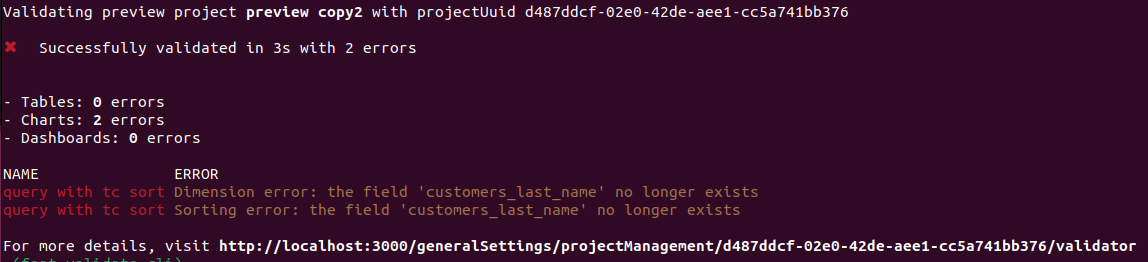 ### Validate your changes against your project by running lightdash validate
You can run `lightdash validate` to check if your changes break any of the content in production. By default, `lightdash validate` will check your changes against the content in the project you've selected on the CLI. You can change your project using `lightdash config set-project`.
```bash theme={null}
lightdash validate
```
Optionally you can use the `--preview` argument to validate your last preview environment created from the CLI.
You will get a list of errors if your local files are going to break some content on your project. These errors will not be reflected on the validation table on Lightdash settings.
### Validate any project using the project UUID
You can run a validation on any project by specifying the project UUID in the `lightdash validate` command.
```bash theme={null}
lightdash validate --project
```
**Note:** you can get your project UUID from the Lightdash URL by selecting the ID after the `projects/`
### Validate your changes against your project by running lightdash validate
You can run `lightdash validate` to check if your changes break any of the content in production. By default, `lightdash validate` will check your changes against the content in the project you've selected on the CLI. You can change your project using `lightdash config set-project`.
```bash theme={null}
lightdash validate
```
Optionally you can use the `--preview` argument to validate your last preview environment created from the CLI.
You will get a list of errors if your local files are going to break some content on your project. These errors will not be reflected on the validation table on Lightdash settings.
### Validate any project using the project UUID
You can run a validation on any project by specifying the project UUID in the `lightdash validate` command.
```bash theme={null}
lightdash validate --project
```
**Note:** you can get your project UUID from the Lightdash URL by selecting the ID after the `projects/`
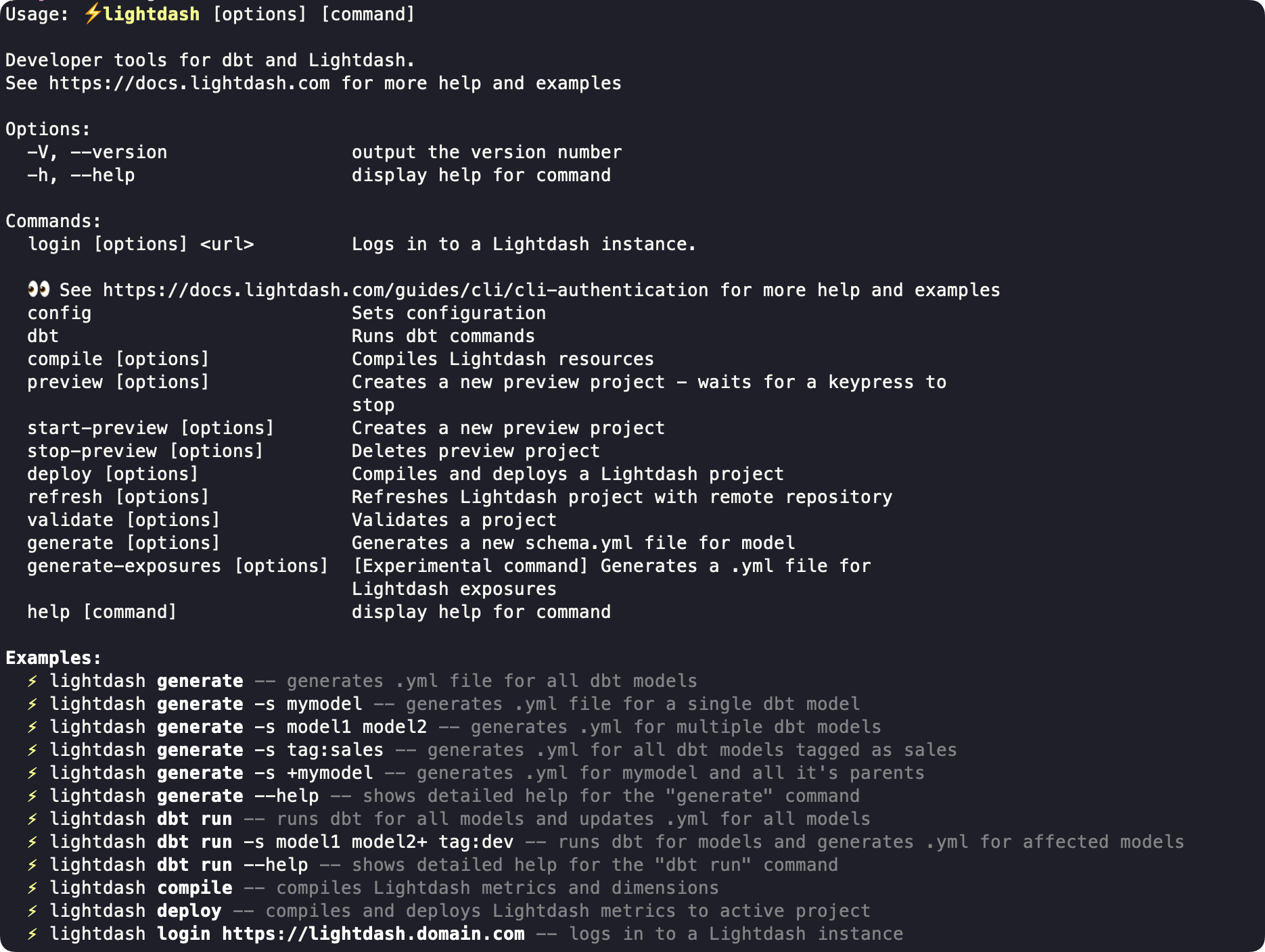 ### Validate only specific elements of your project
You can select which parts of your project you would like to validate using the `--only` argument.
```bash theme={null}
lightdash validate --only tables charts dashboards
```
Available options:
* `tables`
* `charts`
* `dashboards`
## Configure Github actions
This command will create a preview environment, and then validate this preview by specifying `--preview` on the validate command.`lightdash validate` will return an error (return code 1) if there is at least 1 validation error on your project. You can use this output to block a deploy on Github actions like this
```yaml theme={null}
- name: Start preview
run: lightdash start-preview
- name: Validate preview
run: lightdash validate --preview
```
To learn more about setting up GitHub actions for Lightdash, check out the docs [here](/references/integrations/dbt-projects#1-automatically%3A-deploy-your-changes-to-lightdash-using-a-github-action).
### Validate only specific elements of your project
You can select which parts of your project you would like to validate using the `--only` argument.
```bash theme={null}
lightdash validate --only tables charts dashboards
```
Available options:
* `tables`
* `charts`
* `dashboards`
## Configure Github actions
This command will create a preview environment, and then validate this preview by specifying `--preview` on the validate command.`lightdash validate` will return an error (return code 1) if there is at least 1 validation error on your project. You can use this output to block a deploy on Github actions like this
```yaml theme={null}
- name: Start preview
run: lightdash start-preview
- name: Validate preview
run: lightdash validate --preview
```
To learn more about setting up GitHub actions for Lightdash, check out the docs [here](/references/integrations/dbt-projects#1-automatically%3A-deploy-your-changes-to-lightdash-using-a-github-action).