> ## Documentation Index
> Fetch the complete documentation index at: https://lightdash-mintlify-cccf65ca.mintlify.site/llms.txt
> Use this file to discover all available pages before exploring further.
# Automate with CI/CD
> You can use Github actions or other CI/CD tools to automate the CLI workflow
We've used Github actions as an example, since it's most popular with our users, but you can use any CI/CD tool that can run commands in a terminal.
We have included templates for the two most popular automations:
1. [Add Lightdash preview projects to pull requests](#add-previews-to-pull-requests)
2. [Deploy dbt changes to your production Lightdash project](#deploy-changes-to-lightdash)
Both of these workflows will require you to add some secrets to your GitHub repo, so that the CI/CD tool can authenticate with Lightdash and your data warehouse. We'll go through that first.
## Add credentials to Github secrets
We are going to add some secrets and config to GitHub actions, but you don't want those to be public, so the best way to do this is to add them as secrets on Github.
If you already have a GitHub action for Lightdash, then you can use the same Lightdash secrets you created for your other action.
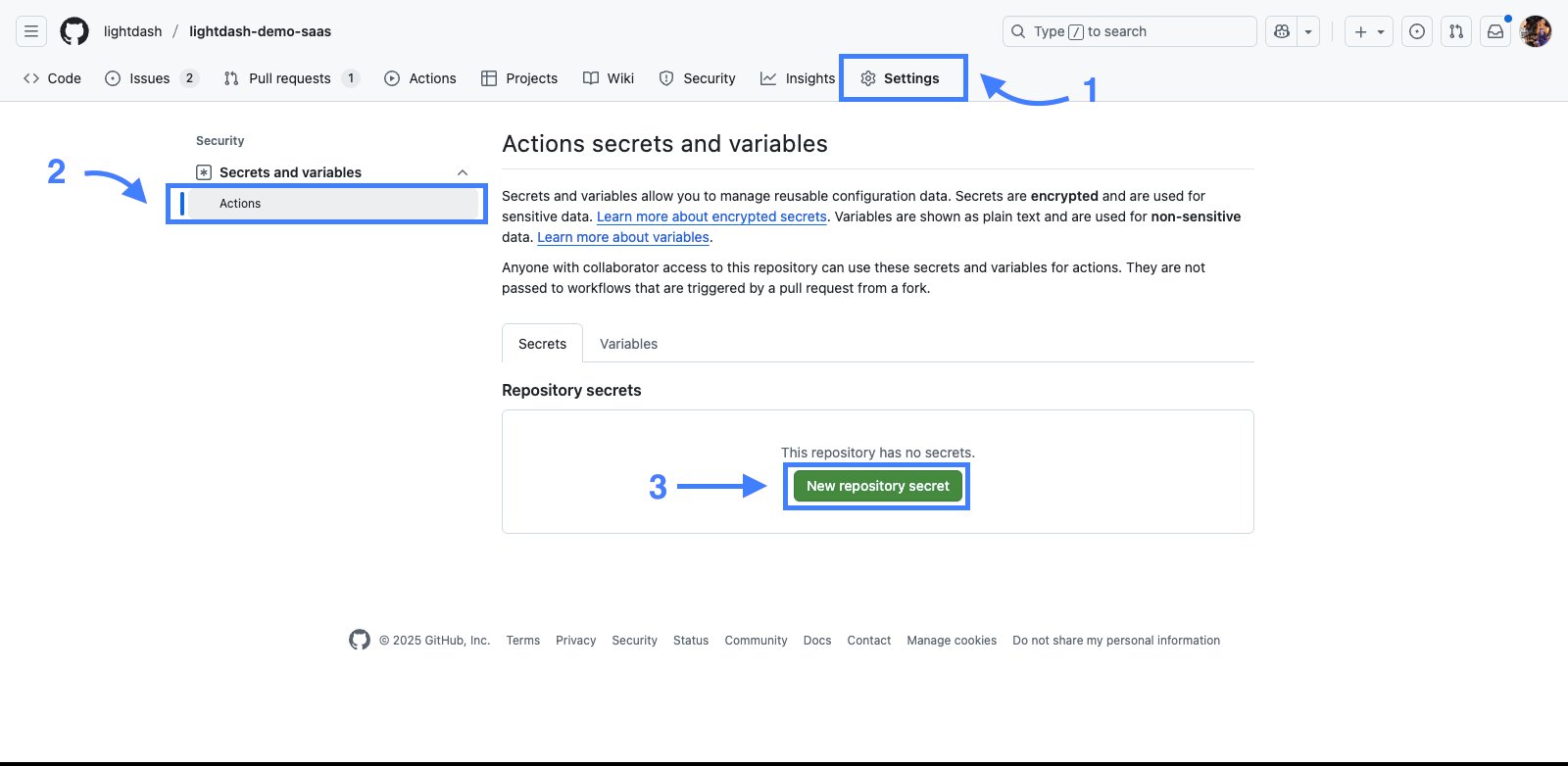
In Github, go to your repo, click on `Settings`, on the left sidebar, click on `Secrets` under `Security`. Now click on the `New repository secret`
 We need to add `LIGHTDASH_API_KEY` as a secret.
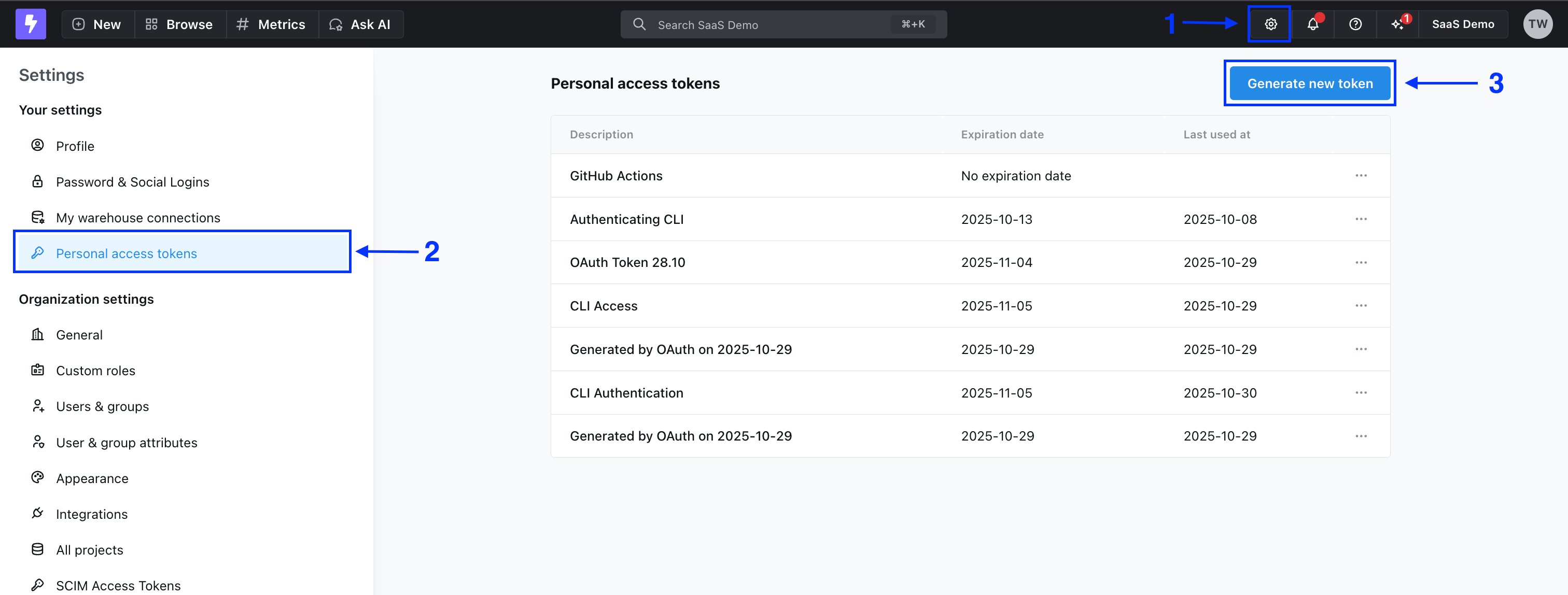
Back in Lightdash, create a new personal access token, by going to `Settings` > `Personal Access Tokens`. This is the token you'll put in for `LIGHTDASH_API_KEY`.
We need to add `LIGHTDASH_API_KEY` as a secret.
Back in Lightdash, create a new personal access token, by going to `Settings` > `Personal Access Tokens`. This is the token you'll put in for `LIGHTDASH_API_KEY`.
 `LIGHTDASH_PROJECT` is the UUID for your project. For example, if your URL looks like `https://app.lightdash.cloud/projects/3538ab33-dc90-aabb-bc00-e50bba3a5f69/tables`, then `3538ab33-dc90-45f0-aabb-e50bba3a5f69` is your `LIGHTDASH_PROJECT`.
`LIGHTDASH_URL` is `https://eu1.lightdash.cloud` or `https://app.lightdash.cloud` for Starter customers, or something like `https://your_company.lightdash.cloud` for dedicated instances. If you self-host, this should be your own custom domain.
`DBT_PROFILES` tips:
* You might be able to copy a bunch of the information from your local `profiles.yml` file. You can see what's in there by typing `cat ~/.dbt/profiles.yml` in your terminal.
* If you have a separate `prod` and `dev` profile, you probably want to use the information from your `prod` profile for your GitHub action.
* If you want to have different connection settings depending on the user that opened the pull request (dev profiles), then [check out this guide](#use-profile-targets).
Find your data warehouse from the list below to get a profiles.yml file template. Fill out this template, and this is your `DBT_PROFILES` secret.
BigQuery OAuth:
Step 1: create a secret called `GOOGLE_APPLICATION_CREDENTIALS`
Create a service account with the role `BigQuery User`. Add the service account credentials (the JSON file) that you want to use for your GitHub action. It should look something like this:
```json theme={null}
{
"type": "service_account",
"project_id": "jaffle_shop",
"private_key_id": "12345",
"private_key": "-----BEGIN PRIVATE KEY----- ... -----END PRIVATE KEY-----\n",
"client_email": "jaffle_shop@jaffle_shop.iam.gserviceaccount.com",
"client_id": "12345",
"auth_uri": "https://accounts.google.com/o/oauth2/auth",
"token_uri": "https://oauth2.googleapis.com/token",
"auth_provider_x509_cert_url": "https://www.googleapis.com/oauth2/v1/certs",
"client_x509_cert_url": "https://www.googleapis.com/robot/v1/metadata/x509/jaffle_shop"
}
```
Step 2: create another secret called `DBT_PROFILES`
Copy-paste this template into the secret and fill out the details.
This will always use this project connection in your GitHub actions. If you want your preview projects to have different connection settings depending on the user that opened the pull request (dev profiles), then see what you need to add to your secret [in this guide](#use-profile-targets).
```yaml theme={null}
[my-bigquery-db]: # this is the name of your project
target: dev
outputs:
dev:
type: bigquery
method: oauth
keyfile: keyfile.json # no need to change this! We'll automatically use the keyfile you created in the last step.
project: [GCP project id]
dataset: [the name of your dbt dataset]
```
More info in dbt's profiles docs: [https://docs.getdbt.com/reference/warehouse-profiles/bigquery-profile#service-account-file](https://docs.getdbt.com/reference/warehouse-profiles/bigquery-profile#service-account-file)
Postgres profile configuration:
```yaml theme={null}
company-name:
target: dev
outputs:
dev:
type: postgres
host: [hostname]
user: [username]
password: [password]
port: [port]
dbname: [database name]
schema: [dbt schema]
threads: [1 or more]
keepalives_idle: 0
connect_timeout: 10
retries: 1
```
More info in dbt's profiles docs: [https://docs.getdbt.com/reference/warehouse-profiles/postgres-profile#profile-configuration](https://docs.getdbt.com/reference/warehouse-profiles/postgres-profile#profile-configuration)
This will always use this project connection in your GitHub actions. If you want your preview projects to have different connection settings depending on the user that opened the pull request (dev profiles), then see what you need to add to your secret [in this guide](#use-profile-targets).
Redshift password-based authentication:
```yaml theme={null}
company-name:
target: dev
outputs:
dev:
type: redshift
host: [hostname.region.redshift.amazonaws.com]
user: [username]
password: [password]
port: 5439
dbname: analytics
schema: analytics
threads: 4
keepalives_idle: 240
connect_timeout: 10
ra3_node: true # enables cross-database sources
```
More info in dbt's profiles docs: [https://docs.getdbt.com/reference/warehouse-profiles/redshift-profile#password-based-authentication](https://docs.getdbt.com/reference/warehouse-profiles/redshift-profile#password-based-authentication)
This will always use this project connection in your GitHub actions. If you want your preview projects to have different connection settings depending on the user that opened the pull request (dev profiles), then see what you need to add to your secret [in this guide](#use-profile-targets).
User / Password authentication:
```yaml theme={null}
my-snowflake-db:
target: dev
outputs:
dev:
type: snowflake
account: [account id]
# User/password auth
user: [username]
password: [password]
role: [user role]
database: [database name]
warehouse: [warehouse name]
schema: [dbt schema]
threads: [1 or more]
client_session_keep_alive: False
query_tag: [anything]
```
More info in dbt's profiles docs: [https://docs.getdbt.com/reference/warehouse-profiles/snowflake-profile#user--password-authentication](https://docs.getdbt.com/reference/warehouse-profiles/snowflake-profile#user--password-authentication)
This will always use this project connection in your GitHub actions. If you want your preview projects to have different connection settings depending on the user that opened the pull request (dev profiles), then see what you need to add to your secret [in this guide](#use-profile-targets).
Set up a DataBricks target:
```yaml theme={null}
your_profile_name:
target: dev
outputs:
dev:
type: databricks
catalog:
[
optional catalog name,
if you are using Unity Catalog,
only available in dbt-databricks>=1.1.1,
]
schema: [schema name]
host: [yourorg.databrickshost.com]
http_path: [/sql/your/http/path]
token: [dapiXXXXXXXXXXXXXXXXXXXXXXX] # Personal Access Token (PAT)
threads: [1 or more]
```
More info in dbt's profiles docs: [https://docs.getdbt.com/reference/warehouse-profiles/bigquery-profile#service-account-json](https://docs.getdbt.com/reference/warehouse-profiles/bigquery-profile#service-account-json)
This will always use this project connection in your GitHub actions. If you want your preview projects to have different connection settings depending on the user that opened the pull request (dev profiles), then see what you need to add to your secret [in this guide](#use-profile-targets).
Now that you have your secrets set up, you can use them in the next two sections to automate your Lightdash CLI workflow.
## Add previews to pull requests
If you've connected Lightdash to GitHub, you can setup a `github action` and get Lightdash to create new dynamic `preview` projects automatically when a new `pull request` is created, and it will automatically delete the `preview` project when the `pull request` is closed or merged.
**Hosted by Lightdash and using GitHub?** Just tell your AI agent "Setup preview deploys for me". The agent will:
* Walk you through the next steps to set up the required environment variables.
* Open a pull request for you to review and merge.
* Once merged, future semantic layer changes will automatically generate a preview environment and get commented on the pull request.
### Create preview workflow
Go to your repo, click on `Actions` menu, and click on `Configure`
`LIGHTDASH_PROJECT` is the UUID for your project. For example, if your URL looks like `https://app.lightdash.cloud/projects/3538ab33-dc90-aabb-bc00-e50bba3a5f69/tables`, then `3538ab33-dc90-45f0-aabb-e50bba3a5f69` is your `LIGHTDASH_PROJECT`.
`LIGHTDASH_URL` is `https://eu1.lightdash.cloud` or `https://app.lightdash.cloud` for Starter customers, or something like `https://your_company.lightdash.cloud` for dedicated instances. If you self-host, this should be your own custom domain.
`DBT_PROFILES` tips:
* You might be able to copy a bunch of the information from your local `profiles.yml` file. You can see what's in there by typing `cat ~/.dbt/profiles.yml` in your terminal.
* If you have a separate `prod` and `dev` profile, you probably want to use the information from your `prod` profile for your GitHub action.
* If you want to have different connection settings depending on the user that opened the pull request (dev profiles), then [check out this guide](#use-profile-targets).
Find your data warehouse from the list below to get a profiles.yml file template. Fill out this template, and this is your `DBT_PROFILES` secret.
BigQuery OAuth:
Step 1: create a secret called `GOOGLE_APPLICATION_CREDENTIALS`
Create a service account with the role `BigQuery User`. Add the service account credentials (the JSON file) that you want to use for your GitHub action. It should look something like this:
```json theme={null}
{
"type": "service_account",
"project_id": "jaffle_shop",
"private_key_id": "12345",
"private_key": "-----BEGIN PRIVATE KEY----- ... -----END PRIVATE KEY-----\n",
"client_email": "jaffle_shop@jaffle_shop.iam.gserviceaccount.com",
"client_id": "12345",
"auth_uri": "https://accounts.google.com/o/oauth2/auth",
"token_uri": "https://oauth2.googleapis.com/token",
"auth_provider_x509_cert_url": "https://www.googleapis.com/oauth2/v1/certs",
"client_x509_cert_url": "https://www.googleapis.com/robot/v1/metadata/x509/jaffle_shop"
}
```
Step 2: create another secret called `DBT_PROFILES`
Copy-paste this template into the secret and fill out the details.
This will always use this project connection in your GitHub actions. If you want your preview projects to have different connection settings depending on the user that opened the pull request (dev profiles), then see what you need to add to your secret [in this guide](#use-profile-targets).
```yaml theme={null}
[my-bigquery-db]: # this is the name of your project
target: dev
outputs:
dev:
type: bigquery
method: oauth
keyfile: keyfile.json # no need to change this! We'll automatically use the keyfile you created in the last step.
project: [GCP project id]
dataset: [the name of your dbt dataset]
```
More info in dbt's profiles docs: [https://docs.getdbt.com/reference/warehouse-profiles/bigquery-profile#service-account-file](https://docs.getdbt.com/reference/warehouse-profiles/bigquery-profile#service-account-file)
Postgres profile configuration:
```yaml theme={null}
company-name:
target: dev
outputs:
dev:
type: postgres
host: [hostname]
user: [username]
password: [password]
port: [port]
dbname: [database name]
schema: [dbt schema]
threads: [1 or more]
keepalives_idle: 0
connect_timeout: 10
retries: 1
```
More info in dbt's profiles docs: [https://docs.getdbt.com/reference/warehouse-profiles/postgres-profile#profile-configuration](https://docs.getdbt.com/reference/warehouse-profiles/postgres-profile#profile-configuration)
This will always use this project connection in your GitHub actions. If you want your preview projects to have different connection settings depending on the user that opened the pull request (dev profiles), then see what you need to add to your secret [in this guide](#use-profile-targets).
Redshift password-based authentication:
```yaml theme={null}
company-name:
target: dev
outputs:
dev:
type: redshift
host: [hostname.region.redshift.amazonaws.com]
user: [username]
password: [password]
port: 5439
dbname: analytics
schema: analytics
threads: 4
keepalives_idle: 240
connect_timeout: 10
ra3_node: true # enables cross-database sources
```
More info in dbt's profiles docs: [https://docs.getdbt.com/reference/warehouse-profiles/redshift-profile#password-based-authentication](https://docs.getdbt.com/reference/warehouse-profiles/redshift-profile#password-based-authentication)
This will always use this project connection in your GitHub actions. If you want your preview projects to have different connection settings depending on the user that opened the pull request (dev profiles), then see what you need to add to your secret [in this guide](#use-profile-targets).
User / Password authentication:
```yaml theme={null}
my-snowflake-db:
target: dev
outputs:
dev:
type: snowflake
account: [account id]
# User/password auth
user: [username]
password: [password]
role: [user role]
database: [database name]
warehouse: [warehouse name]
schema: [dbt schema]
threads: [1 or more]
client_session_keep_alive: False
query_tag: [anything]
```
More info in dbt's profiles docs: [https://docs.getdbt.com/reference/warehouse-profiles/snowflake-profile#user--password-authentication](https://docs.getdbt.com/reference/warehouse-profiles/snowflake-profile#user--password-authentication)
This will always use this project connection in your GitHub actions. If you want your preview projects to have different connection settings depending on the user that opened the pull request (dev profiles), then see what you need to add to your secret [in this guide](#use-profile-targets).
Set up a DataBricks target:
```yaml theme={null}
your_profile_name:
target: dev
outputs:
dev:
type: databricks
catalog:
[
optional catalog name,
if you are using Unity Catalog,
only available in dbt-databricks>=1.1.1,
]
schema: [schema name]
host: [yourorg.databrickshost.com]
http_path: [/sql/your/http/path]
token: [dapiXXXXXXXXXXXXXXXXXXXXXXX] # Personal Access Token (PAT)
threads: [1 or more]
```
More info in dbt's profiles docs: [https://docs.getdbt.com/reference/warehouse-profiles/bigquery-profile#service-account-json](https://docs.getdbt.com/reference/warehouse-profiles/bigquery-profile#service-account-json)
This will always use this project connection in your GitHub actions. If you want your preview projects to have different connection settings depending on the user that opened the pull request (dev profiles), then see what you need to add to your secret [in this guide](#use-profile-targets).
Now that you have your secrets set up, you can use them in the next two sections to automate your Lightdash CLI workflow.
## Add previews to pull requests
If you've connected Lightdash to GitHub, you can setup a `github action` and get Lightdash to create new dynamic `preview` projects automatically when a new `pull request` is created, and it will automatically delete the `preview` project when the `pull request` is closed or merged.
**Hosted by Lightdash and using GitHub?** Just tell your AI agent "Setup preview deploys for me". The agent will:
* Walk you through the next steps to set up the required environment variables.
* Open a pull request for you to review and merge.
* Once merged, future semantic layer changes will automatically generate a preview environment and get commented on the pull request.
### Create preview workflow
Go to your repo, click on `Actions` menu, and click on `Configure`
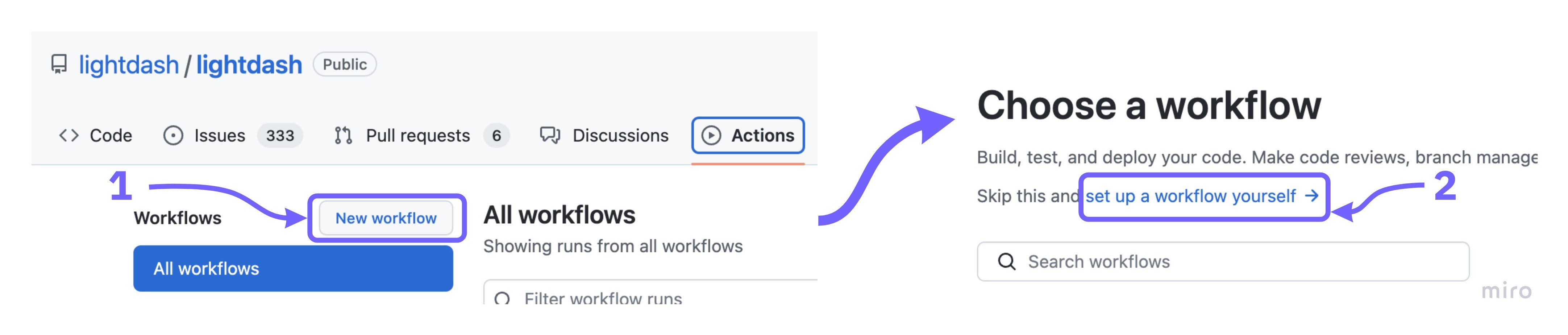
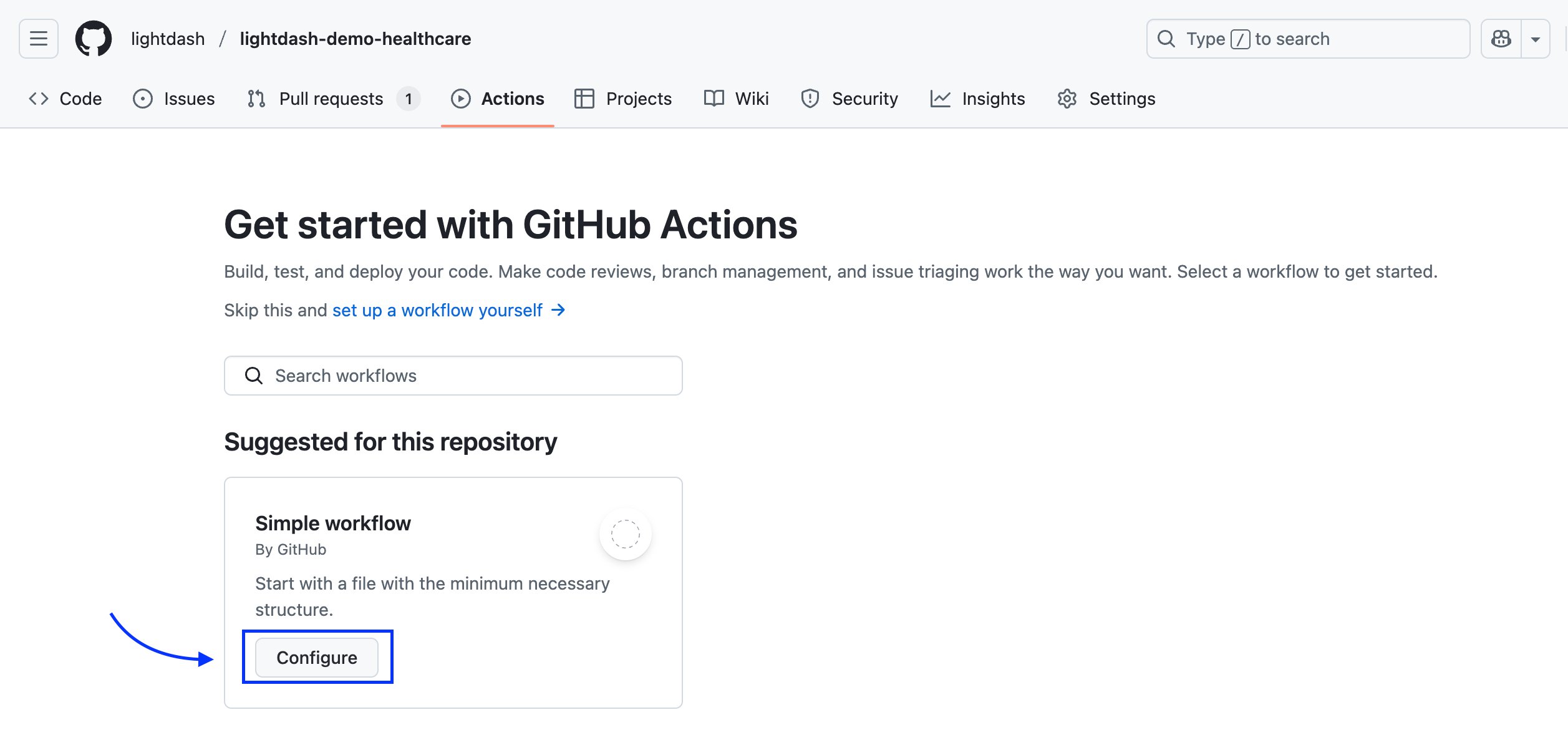 If you have some GitHub actions in your repo already, click on `New workflow`, then select `setup a workflow yourself`.
 Now copy [this start-preview.yml file](https://github.com/lightdash/cli-actions/blob/main/start-preview.yml) from our [cli-actions](https://github.com/lightdash/cli-actions) repo
And save by clicking on `Start commit`
Do the same with [this close-preview.yml file](https://github.com/lightdash/cli-actions/blob/main/close-preview.yml).
#### Use developer credentials
When developing in dbt, you typically have a different set of credentials and dataset/schema than when you are running in production. Here are two options on how to set them up based on the developer that opened the Pull Request.
If you use dbt cloud IDE to create commits and pull requests you need a few extra steps. We need to add a step in the GitHub action to fetch the user that created the pull request.
```yaml theme={null}
- uses: actions/github-script@v6
id: get_pr_creator
with:
script: |
return (
await github.rest.repos.listPullRequestsAssociatedWithCommit({
commit_sha: context.sha,
owner: context.repo.owner,
repo: context.repo.repo,
})
).data[0].user.login;
result-encoding: string
```
When copying the following templates, you should replace `${{ github.actor }}` with `${{steps.get_pr_creator.outputs.result}}`.
#### Use profile targets
Update your `DBT_PROFILES` to have 1 target per developer. The target name should be their GitHub username.
```yaml theme={null}
jaffle_shop:
target: prod
outputs:
prod:
type: bigquery
method: oauth
keyfile: keyfile.json
project: jaffle-shop
dataset: prod
katie: # example developer 1, should be GitHub username
type: bigquery
method: oauth
keyfile: keyfile.json
project: jaffle-shop
dataset: dbt_katie
jose: # example developer 2
type: bigquery
method: oauth
keyfile: keyfile.json
project: jaffle-shop
dataset: dbt_jose
```
Then, update your GitHub action to use the username as the `--target` flag for the `lightdash start-preview` command.
```yaml theme={null}
run: lightdash start-preview --project-dir "$PROJECT_DIR" --profiles-dir . --name ${GITHUB_REF##*/} --target ${{ github.actor }}
```
#### Use Github environments
Setup a [GitHub environment](https://docs.github.com/en/actions/deployment/targeting-different-environments/using-environments-for-deployment) for each developer where the secrets are specifically for them. The environment name should be their GitHub username. Then, update your GitHub action to use the username as the environment.
```yaml theme={null}
jobs:
preview:
runs-on: ubuntu-latest
environment: ${{ github.actor }}
```
#### Use dbt cloud schema
If you are using a [continuous integration job in dbt cloud](https://docs.getdbt.com/docs/deploy/ci-jobs), you can use the schema that is created by dbt cloud (`dbt_cloud_pr__`) for your preview project.
First we need to add an environment variable to your profile.yml file that will be used by dbt to connect to the correct schema.
```yaml theme={null}
schema: "{{ env_var('DBT_SCHEMA') }}"
```
If you are using BigQuery, it should be `dataset` instead of `schema`.
Then we need to add a step in the GitHub action to fetch the pull request id.
```yaml theme={null}
- uses: actions/github-script@v6
id: pr_id
with:
script: |
if (context.issue.number) {
// Return issue number if present
return context.issue.number;
} else {
// Otherwise return issue number from commit
return (
await github.rest.repos.listPullRequestsAssociatedWithCommit({
commit_sha: context.sha,
owner: context.repo.owner,
repo: context.repo.repo,
})
).data[0].number;
}
result-encoding: string
```
After that we need to add a new env variable to the step "Lightdash CLI start preview" which is the schema that dbt cloud will use.
Note that in this example we assume the job id is `1234`. You will need to replace this with the actual job id.
```yaml theme={null}
env:
# ... keep existing env variables
DBT_SCHEMA: 'dbt_cloud_pr_1234_${{steps.pr_id.outputs.result}}'
```
Now dbt will use the correct schema when running in the preview environment.
### You're done!
Everytime you create a new pull request, a Lightdash preview project with your branch name will be created on your organization. You will see this link as a github-actions bot comment in the pull request conversation. Everytime you make a change to that branch, the preview environment will get updated. Once you close or merge your pull request, the preview project will get deleted.
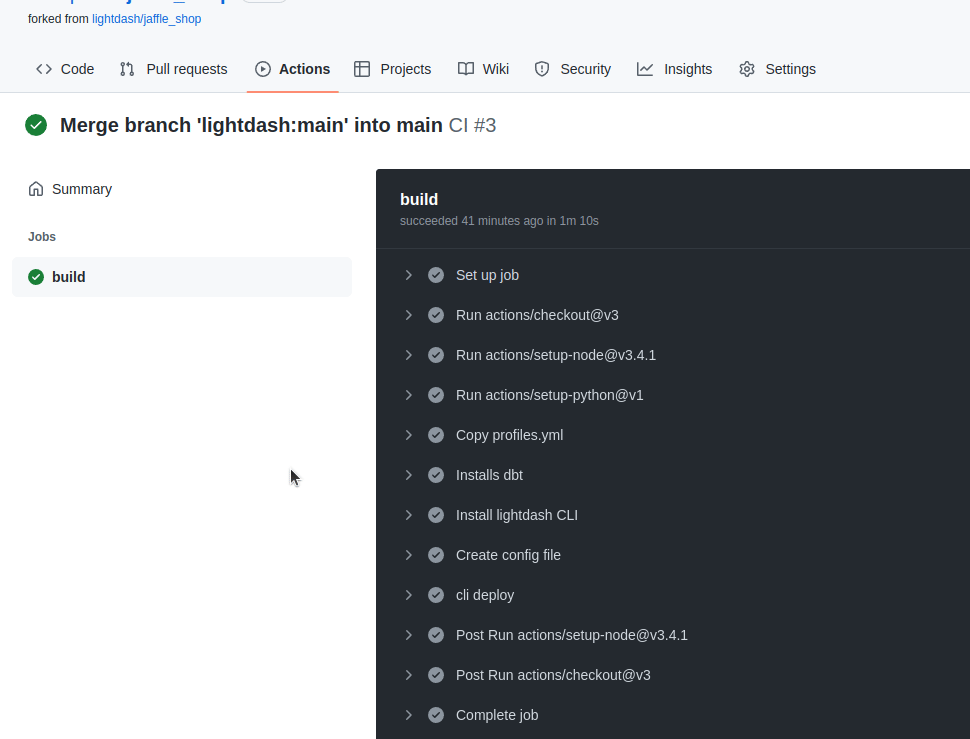
You can see the log on your `Github actions` page:
Now copy [this start-preview.yml file](https://github.com/lightdash/cli-actions/blob/main/start-preview.yml) from our [cli-actions](https://github.com/lightdash/cli-actions) repo
And save by clicking on `Start commit`
Do the same with [this close-preview.yml file](https://github.com/lightdash/cli-actions/blob/main/close-preview.yml).
#### Use developer credentials
When developing in dbt, you typically have a different set of credentials and dataset/schema than when you are running in production. Here are two options on how to set them up based on the developer that opened the Pull Request.
If you use dbt cloud IDE to create commits and pull requests you need a few extra steps. We need to add a step in the GitHub action to fetch the user that created the pull request.
```yaml theme={null}
- uses: actions/github-script@v6
id: get_pr_creator
with:
script: |
return (
await github.rest.repos.listPullRequestsAssociatedWithCommit({
commit_sha: context.sha,
owner: context.repo.owner,
repo: context.repo.repo,
})
).data[0].user.login;
result-encoding: string
```
When copying the following templates, you should replace `${{ github.actor }}` with `${{steps.get_pr_creator.outputs.result}}`.
#### Use profile targets
Update your `DBT_PROFILES` to have 1 target per developer. The target name should be their GitHub username.
```yaml theme={null}
jaffle_shop:
target: prod
outputs:
prod:
type: bigquery
method: oauth
keyfile: keyfile.json
project: jaffle-shop
dataset: prod
katie: # example developer 1, should be GitHub username
type: bigquery
method: oauth
keyfile: keyfile.json
project: jaffle-shop
dataset: dbt_katie
jose: # example developer 2
type: bigquery
method: oauth
keyfile: keyfile.json
project: jaffle-shop
dataset: dbt_jose
```
Then, update your GitHub action to use the username as the `--target` flag for the `lightdash start-preview` command.
```yaml theme={null}
run: lightdash start-preview --project-dir "$PROJECT_DIR" --profiles-dir . --name ${GITHUB_REF##*/} --target ${{ github.actor }}
```
#### Use Github environments
Setup a [GitHub environment](https://docs.github.com/en/actions/deployment/targeting-different-environments/using-environments-for-deployment) for each developer where the secrets are specifically for them. The environment name should be their GitHub username. Then, update your GitHub action to use the username as the environment.
```yaml theme={null}
jobs:
preview:
runs-on: ubuntu-latest
environment: ${{ github.actor }}
```
#### Use dbt cloud schema
If you are using a [continuous integration job in dbt cloud](https://docs.getdbt.com/docs/deploy/ci-jobs), you can use the schema that is created by dbt cloud (`dbt_cloud_pr__`) for your preview project.
First we need to add an environment variable to your profile.yml file that will be used by dbt to connect to the correct schema.
```yaml theme={null}
schema: "{{ env_var('DBT_SCHEMA') }}"
```
If you are using BigQuery, it should be `dataset` instead of `schema`.
Then we need to add a step in the GitHub action to fetch the pull request id.
```yaml theme={null}
- uses: actions/github-script@v6
id: pr_id
with:
script: |
if (context.issue.number) {
// Return issue number if present
return context.issue.number;
} else {
// Otherwise return issue number from commit
return (
await github.rest.repos.listPullRequestsAssociatedWithCommit({
commit_sha: context.sha,
owner: context.repo.owner,
repo: context.repo.repo,
})
).data[0].number;
}
result-encoding: string
```
After that we need to add a new env variable to the step "Lightdash CLI start preview" which is the schema that dbt cloud will use.
Note that in this example we assume the job id is `1234`. You will need to replace this with the actual job id.
```yaml theme={null}
env:
# ... keep existing env variables
DBT_SCHEMA: 'dbt_cloud_pr_1234_${{steps.pr_id.outputs.result}}'
```
Now dbt will use the correct schema when running in the preview environment.
### You're done!
Everytime you create a new pull request, a Lightdash preview project with your branch name will be created on your organization. You will see this link as a github-actions bot comment in the pull request conversation. Everytime you make a change to that branch, the preview environment will get updated. Once you close or merge your pull request, the preview project will get deleted.
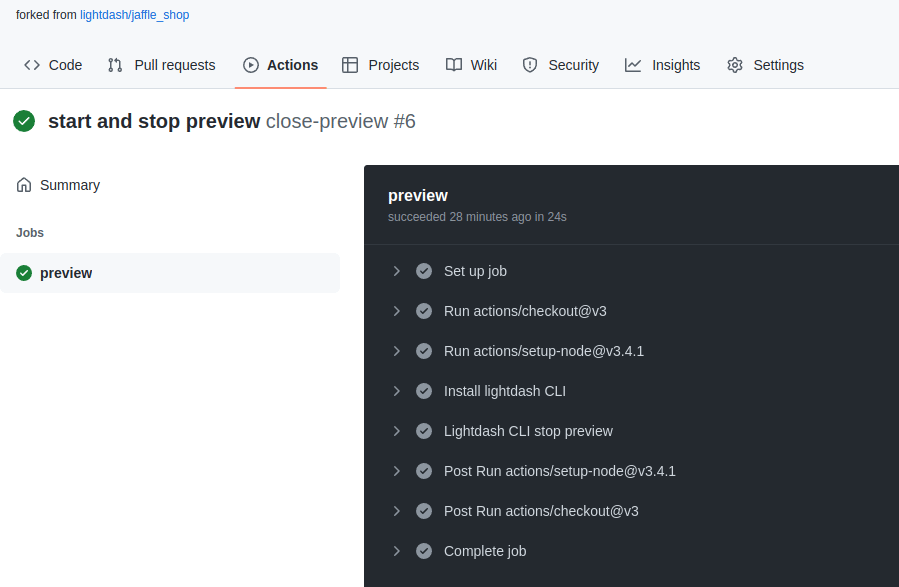
You can see the log on your `Github actions` page:
 ***
## Deploy changes to Lightdash
If you've connected Lightdash to GitHub, you can use a github action to deploy your project automatically whenever new changes get merged to your main branch. This is the easiest way to keep Lightdash in sync with your changes to dbt.
### Create deploy workflow
Go to your repo, click on `Actions` menu.
If you don't have any GitHub actions, you'll just need to click on `Configure`
If you have some GitHub actions in your repo already, click on `New workflow`, then select `setup a workflow yourself`.
Now copy [this deploy.yml file](https://github.com/lightdash/cli-actions/blob/main/deploy.yml) from our [cli-actions](https://github.com/lightdash/cli-actions) repo.
Give it a nice name like `deploy-lightdash.yml`
And commit this to your repo by clicking on `Start commit`.
### You're done!
Everytime you merge a change to your repo, on the `main` branch, it will automatically deploy your new config into your Lightdash projects
You can see the log on the `Github actions` page
***
## Deploy changes to Lightdash
If you've connected Lightdash to GitHub, you can use a github action to deploy your project automatically whenever new changes get merged to your main branch. This is the easiest way to keep Lightdash in sync with your changes to dbt.
### Create deploy workflow
Go to your repo, click on `Actions` menu.
If you don't have any GitHub actions, you'll just need to click on `Configure`
If you have some GitHub actions in your repo already, click on `New workflow`, then select `setup a workflow yourself`.
Now copy [this deploy.yml file](https://github.com/lightdash/cli-actions/blob/main/deploy.yml) from our [cli-actions](https://github.com/lightdash/cli-actions) repo.
Give it a nice name like `deploy-lightdash.yml`
And commit this to your repo by clicking on `Start commit`.
### You're done!
Everytime you merge a change to your repo, on the `main` branch, it will automatically deploy your new config into your Lightdash projects
You can see the log on the `Github actions` page