> ## Documentation Index
> Fetch the complete documentation index at: https://lightdash-mintlify-cccf65ca.mintlify.site/llms.txt
> Use this file to discover all available pages before exploring further.
# Getting started with AI agents
> Learn how to create and configure your first AI agent in Lightdash
Getting started with AI agents is simple - you can begin using them right away on any project in your Lightdash instance.
Organization admins must first enable AI features for users, [follow the guide](#enable-ai-features)
Set up a new AI agent in your Lightdash project, [follow the guide](#create-a-new-agent)
Use tags to control which data the agent can access, [follow the guide](#configure-your-agent).
Enable team collaboration through Slack, [follow the guide](#slack-integration)
## Enable AI features
Before users can see the **Ask AI** button and interact with AI agents, an organization admin must enable AI features. By default, AI features may not be visible to users until this step is completed.
This step requires **Organization Admin** permissions. If you're not an admin, ask your organization admin to enable AI features.
### How to enable AI features
1. Navigate to the **AI Agents Admin Panel** by going to `/ai-agents/admin/agents` in your Lightdash instance
2. In the top-right corner of the admin panel, you'll see a toggle labeled **Enable AI features for users**
3. Turn on the toggle to make AI features visible across your organization
When enabled:
* The **Ask AI** button appears on the homepage and in the navbar
* Users can interact with AI Agents
* Admins can view and manage AI threads
**Free trial available:** New organizations may see a "Free trial" badge next to this toggle, allowing you to try AI features before committing to a paid plan.
### Set an organization default AI model
Admins can choose the default model (and reasoning behavior) used for new AI agent chats across the organization.
1. Go to **Organization settings → Ask AI → General**.
2. Under **Default AI model**, pick a model from the dropdown. Leave it empty to fall back to the system default.
3. If the selected model supports reasoning, toggle **High reasoning by default** to start new chats with high reasoning enabled.
The org default applies to every new chat unless an agent overrides it or the user changes the model in the chat. Existing threads keep the model they were started with.
***
## Creating your first AI agent
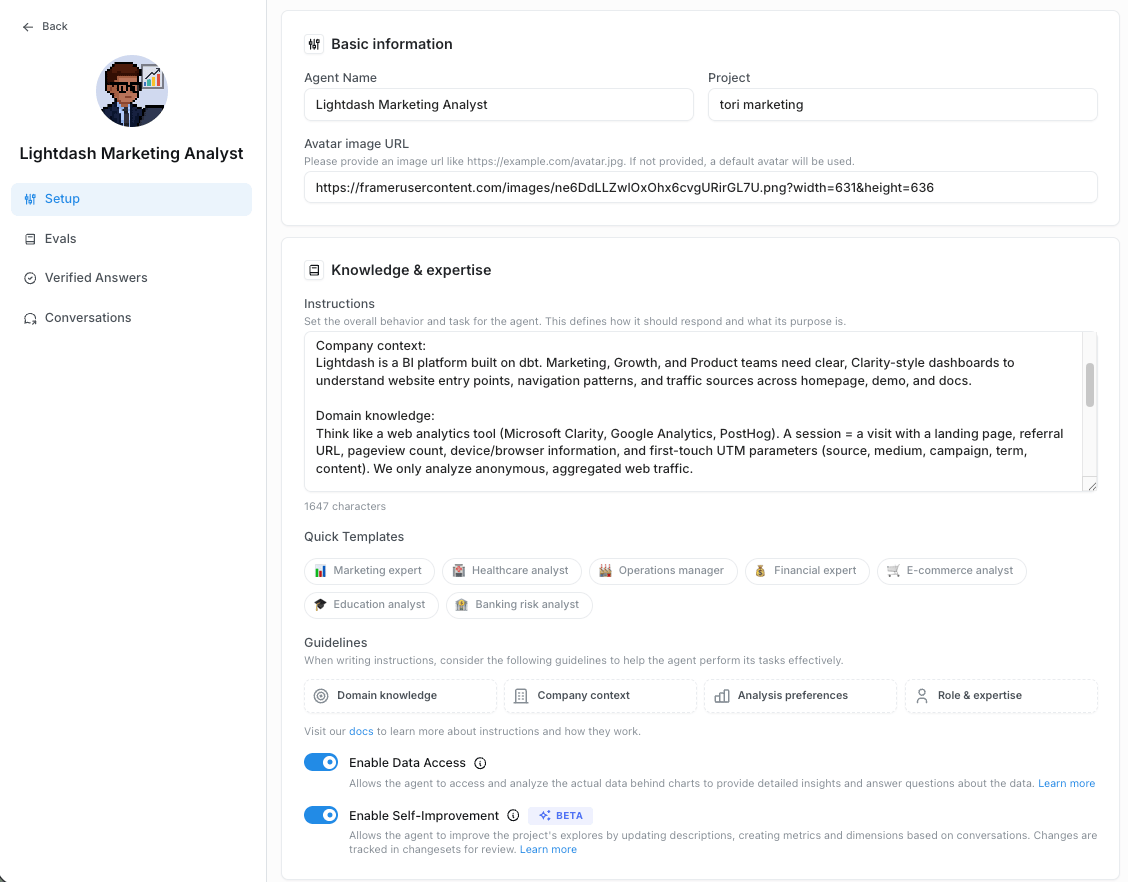 ## Go to Ask AI
This will be your entry point to working with the AI agent
## Go to Ask AI
This will be your entry point to working with the AI agent
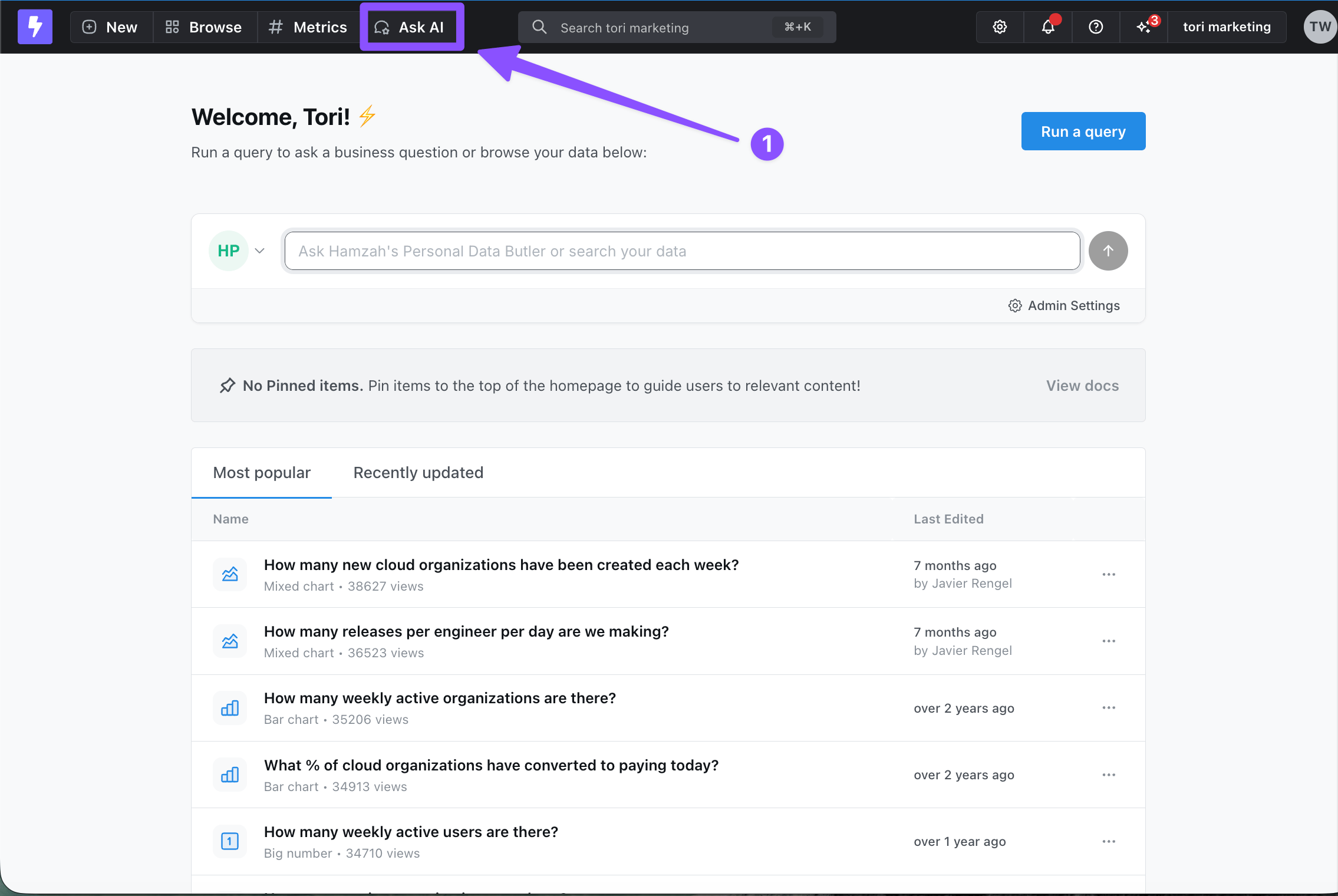 ## Create a new agent
Go to the agent dropdown and click ***Create new agent*** at the bottom
## Create a new agent
Go to the agent dropdown and click ***Create new agent*** at the bottom
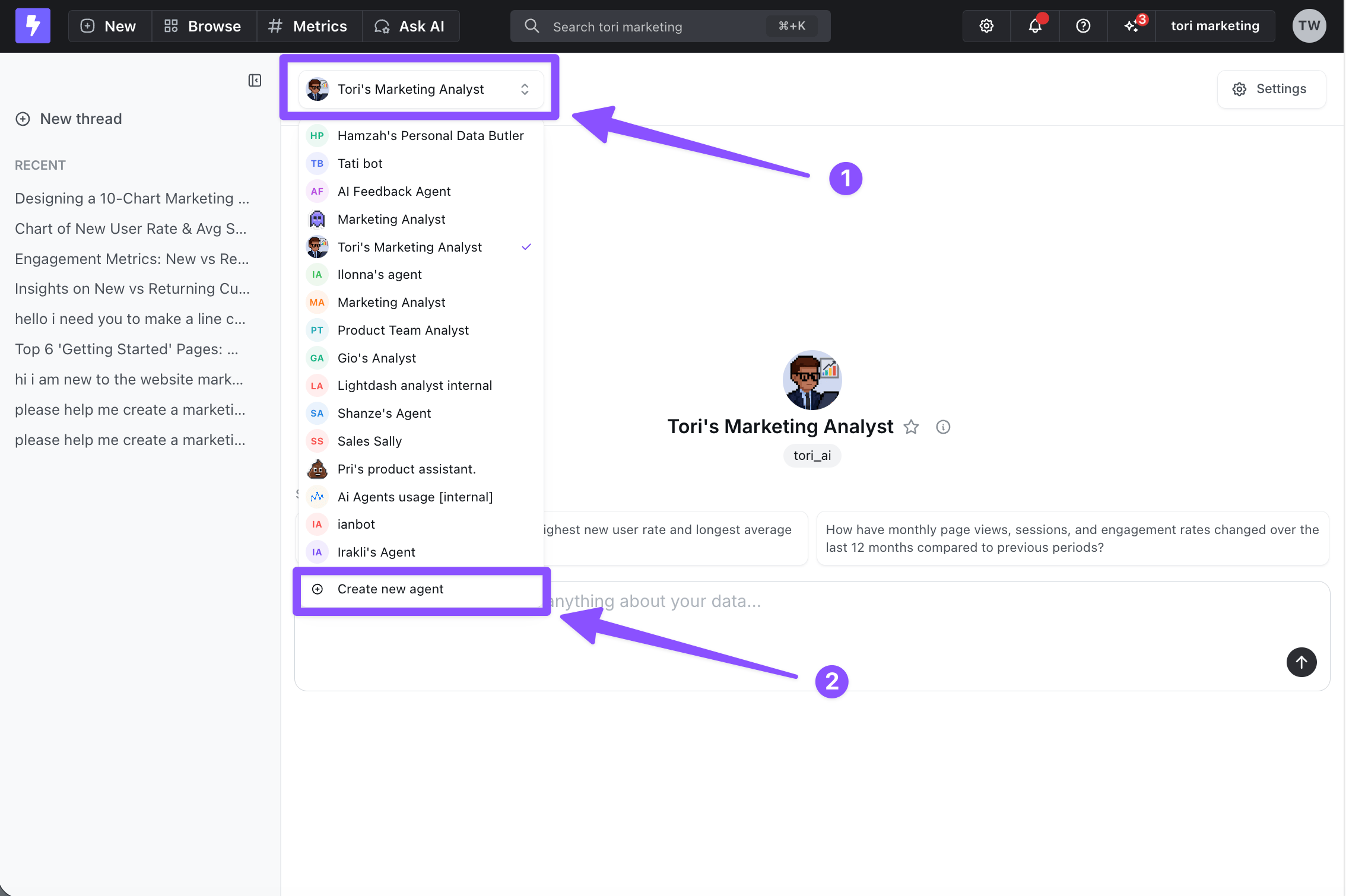 ## Configure your agent
### Name and image
Give your agent a memorable name and visual identity
### Instructions
Provide context to guide your agent’s reasoning and ensure responses match your expectations. Your instructions can include any of the following components. Each one helps the agent understand your data, your business, and how you want insights delivered:
* **Domain knowledge** -
Describe the industry or subject area the AI should think within. Include relevant terminology, methodologies, frameworks, and technical concepts.
* **Company context** -
Explain the business background behind your analysis. Add details about your goals, product, target audience, strategy, or any constraints that influence how insights should be generated.
* **Analysis preferences** -
Clarify how you want the AI to approach analysis. Specify preferred metrics, dimensions, chart types, visualization styles, and reporting formats so results match your expectations.
* **Role & expertise** -
Tell the AI what role it should adopt (e.g., “Senior Marketing Analyst”). Include the communication style, depth of explanation, and level of decision-making authority you expect.
The more context you provide, the more accurate, relevant, and predictable your agent’s responses will be.
### Default model (optional)
Choose the default model and reasoning setting used for new chats with this agent. Leave the model empty to inherit the organization default.
Lightdash resolves the model for a new chat in this order:
1. The user's per-chat selection
2. The agent's default model
3. The [organization default model](#set-an-organization-default-ai-model)
4. The system default
Users can still change the model in each chat, and existing threads continue with the model they were started with.
### Knowledge documents (optional)
Upload reference material — glossaries, metric definitions, business context, internal SOPs — that your agent can consult while answering questions. Use this for the kind of context that doesn't fit neatly into a dbt `ai_hint` or your instructions. See [knowledge documents best practices](/guides/ai-agents/best-practices#knowledge-documents) for guidance on what to upload.
### Data Access
By default, agents have data access enabled so they can analyze actual query results and provide insights based on the data. You can turn it off per agent if you want metadata-only behavior. Learn more in [data access control](/guides/ai-agents/data-access).
### User and Group Access (optional)
By default, your agent is available to everyone in the project. While you're still setting it up, you can keep it to **admins and developers only**, then open it up — to everyone, or to **specific users and groups** — once it's ready. You'll find these options under the agent's access settings.
This controls who can use the agent, which is separate from [data access control](/guides/ai-agents/data-access) (what data the agent can query).
### Tags (optional)
Use tags in the Lightdash metadata to control which metrics and dimensions the agent can access. Tags help you restrict your agent to a specific slice of your semantic layer.
1. Tag your dbt model dimensions and metrics with the tags you want - your agent will only have access to those dimensions or metrics that have matching tags.
```yaml dbt 1.10+ theme={null}
models:
- name: orders
columns:
- name: status
config:
meta:
dimension:
tags: ["ai", "sales"] # <--------- tagging the dimension
- name: location
config:
meta:
dimension:
tags: ["ai", "operations"] # <--------- tagging the dimension
- name: amount
description: Total amount of the order
config:
meta:
metrics:
total_order_amount:
type: sum
format: usd
round: 2
tags: ["ai", "finance"] # <--------- tagging the metric
```
```yaml dbt <=1.9 theme={null}
- name: orders
columns:
- name: status
meta:
dimension:
tags: ['ai', 'sales'] # <--------- tagging the dimension
- name: location
meta:
dimension:
tags: ['ai', 'operations'] # <--------- tagging the dimension
- name: amount
description: Total amount of the order
meta:
metrics:
total_order_amount:
type: sum
format: usd
round: 2
tags: ['ai', 'finance'] # <--------- tagging the metric
```
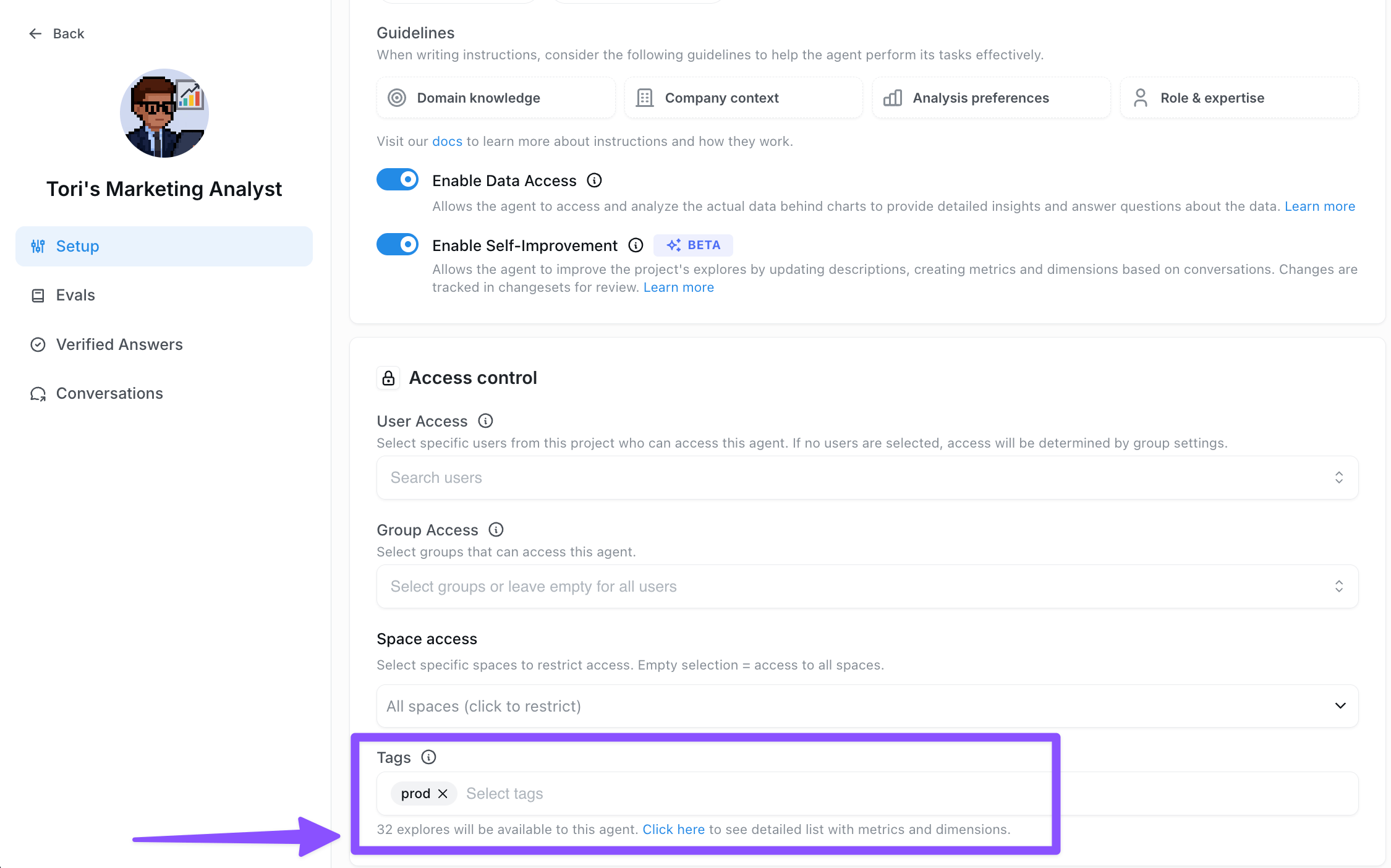
2. Add the corresponding tags to your agent settings under the Tags field. This tells the agent which tagged dimensions and metrics it should access.
## Configure your agent
### Name and image
Give your agent a memorable name and visual identity
### Instructions
Provide context to guide your agent’s reasoning and ensure responses match your expectations. Your instructions can include any of the following components. Each one helps the agent understand your data, your business, and how you want insights delivered:
* **Domain knowledge** -
Describe the industry or subject area the AI should think within. Include relevant terminology, methodologies, frameworks, and technical concepts.
* **Company context** -
Explain the business background behind your analysis. Add details about your goals, product, target audience, strategy, or any constraints that influence how insights should be generated.
* **Analysis preferences** -
Clarify how you want the AI to approach analysis. Specify preferred metrics, dimensions, chart types, visualization styles, and reporting formats so results match your expectations.
* **Role & expertise** -
Tell the AI what role it should adopt (e.g., “Senior Marketing Analyst”). Include the communication style, depth of explanation, and level of decision-making authority you expect.
The more context you provide, the more accurate, relevant, and predictable your agent’s responses will be.
### Default model (optional)
Choose the default model and reasoning setting used for new chats with this agent. Leave the model empty to inherit the organization default.
Lightdash resolves the model for a new chat in this order:
1. The user's per-chat selection
2. The agent's default model
3. The [organization default model](#set-an-organization-default-ai-model)
4. The system default
Users can still change the model in each chat, and existing threads continue with the model they were started with.
### Knowledge documents (optional)
Upload reference material — glossaries, metric definitions, business context, internal SOPs — that your agent can consult while answering questions. Use this for the kind of context that doesn't fit neatly into a dbt `ai_hint` or your instructions. See [knowledge documents best practices](/guides/ai-agents/best-practices#knowledge-documents) for guidance on what to upload.
### Data Access
By default, agents have data access enabled so they can analyze actual query results and provide insights based on the data. You can turn it off per agent if you want metadata-only behavior. Learn more in [data access control](/guides/ai-agents/data-access).
### User and Group Access (optional)
By default, your agent is available to everyone in the project. While you're still setting it up, you can keep it to **admins and developers only**, then open it up — to everyone, or to **specific users and groups** — once it's ready. You'll find these options under the agent's access settings.
This controls who can use the agent, which is separate from [data access control](/guides/ai-agents/data-access) (what data the agent can query).
### Tags (optional)
Use tags in the Lightdash metadata to control which metrics and dimensions the agent can access. Tags help you restrict your agent to a specific slice of your semantic layer.
1. Tag your dbt model dimensions and metrics with the tags you want - your agent will only have access to those dimensions or metrics that have matching tags.
```yaml dbt 1.10+ theme={null}
models:
- name: orders
columns:
- name: status
config:
meta:
dimension:
tags: ["ai", "sales"] # <--------- tagging the dimension
- name: location
config:
meta:
dimension:
tags: ["ai", "operations"] # <--------- tagging the dimension
- name: amount
description: Total amount of the order
config:
meta:
metrics:
total_order_amount:
type: sum
format: usd
round: 2
tags: ["ai", "finance"] # <--------- tagging the metric
```
```yaml dbt <=1.9 theme={null}
- name: orders
columns:
- name: status
meta:
dimension:
tags: ['ai', 'sales'] # <--------- tagging the dimension
- name: location
meta:
dimension:
tags: ['ai', 'operations'] # <--------- tagging the dimension
- name: amount
description: Total amount of the order
meta:
metrics:
total_order_amount:
type: sum
format: usd
round: 2
tags: ['ai', 'finance'] # <--------- tagging the metric
```
2. Add the corresponding tags to your agent settings under the Tags field. This tells the agent which tagged dimensions and metrics it should access.
 3. For more technical users who want to configure tagging rules in more detail - including how tags interact with permissions and schema visibility - see the [Data access control section.](/guides/ai-agents/data-access#limiting-access-to-specific-explores-and-fields)
### Enable AI writeback (optional, Beta)
Allow your agent to edit your dbt project from chat — renaming metrics, adding dimensions, or updating descriptions — and open a pull request with the changes for review. Read more on the [AI writeback (beta)](/guides/ai-agents/ai-writeback) feature.
## Setting up multiple agents
You can create multiple AI agents, each configured for different tasks, tones, languages, or teams. Each agent can have access to different datasets to focus results and give more accurate answers.
## Slack Integration
Connect your agent to Slack channels so users can interact directly from Slack. Check out all the cool ways to integrate your agent into slack [here](/guides/using-slack-integration#using-the-slack-integration)
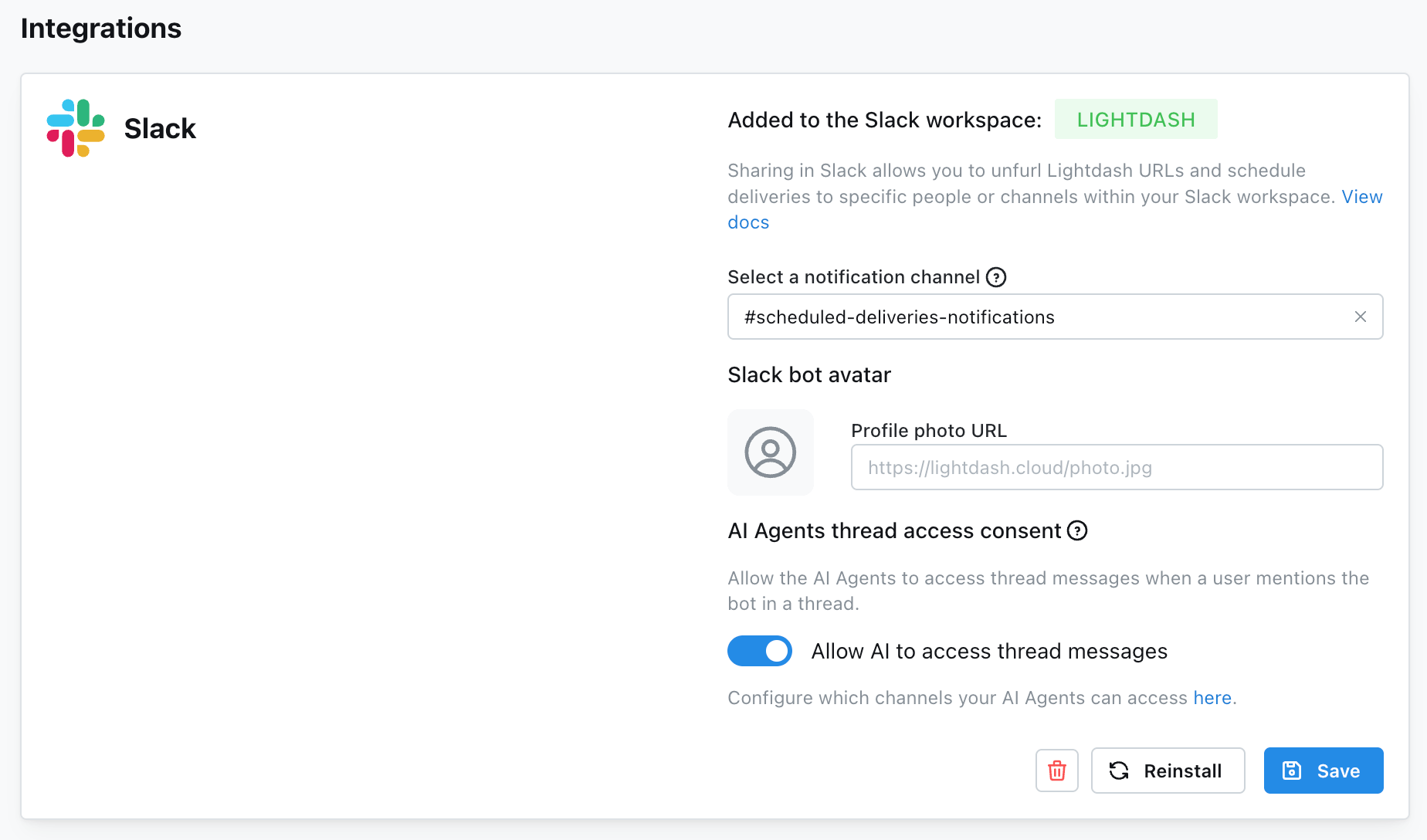
1. Add Slack to your organization in organization settings. An admin needs to complete this step. See the [how-to guide](/references/workspace/adding-slack-integration).
2. Add the desired slack channel to your agent integration settings.
3. For more technical users who want to configure tagging rules in more detail - including how tags interact with permissions and schema visibility - see the [Data access control section.](/guides/ai-agents/data-access#limiting-access-to-specific-explores-and-fields)
### Enable AI writeback (optional, Beta)
Allow your agent to edit your dbt project from chat — renaming metrics, adding dimensions, or updating descriptions — and open a pull request with the changes for review. Read more on the [AI writeback (beta)](/guides/ai-agents/ai-writeback) feature.
## Setting up multiple agents
You can create multiple AI agents, each configured for different tasks, tones, languages, or teams. Each agent can have access to different datasets to focus results and give more accurate answers.
## Slack Integration
Connect your agent to Slack channels so users can interact directly from Slack. Check out all the cool ways to integrate your agent into slack [here](/guides/using-slack-integration#using-the-slack-integration)
1. Add Slack to your organization in organization settings. An admin needs to complete this step. See the [how-to guide](/references/workspace/adding-slack-integration).
2. Add the desired slack channel to your agent integration settings.
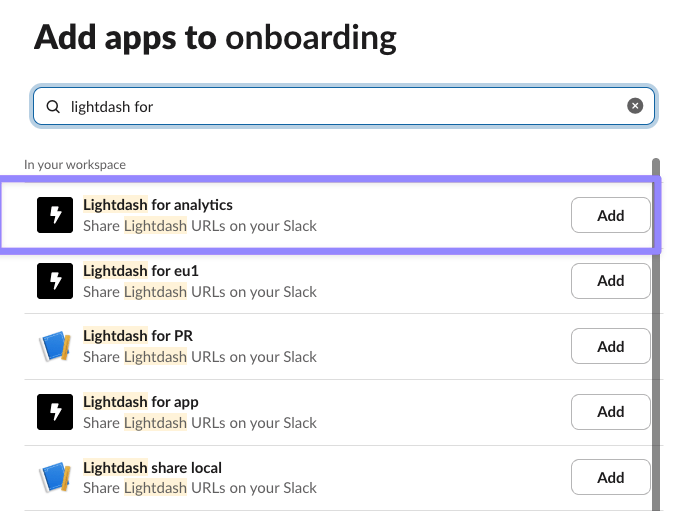
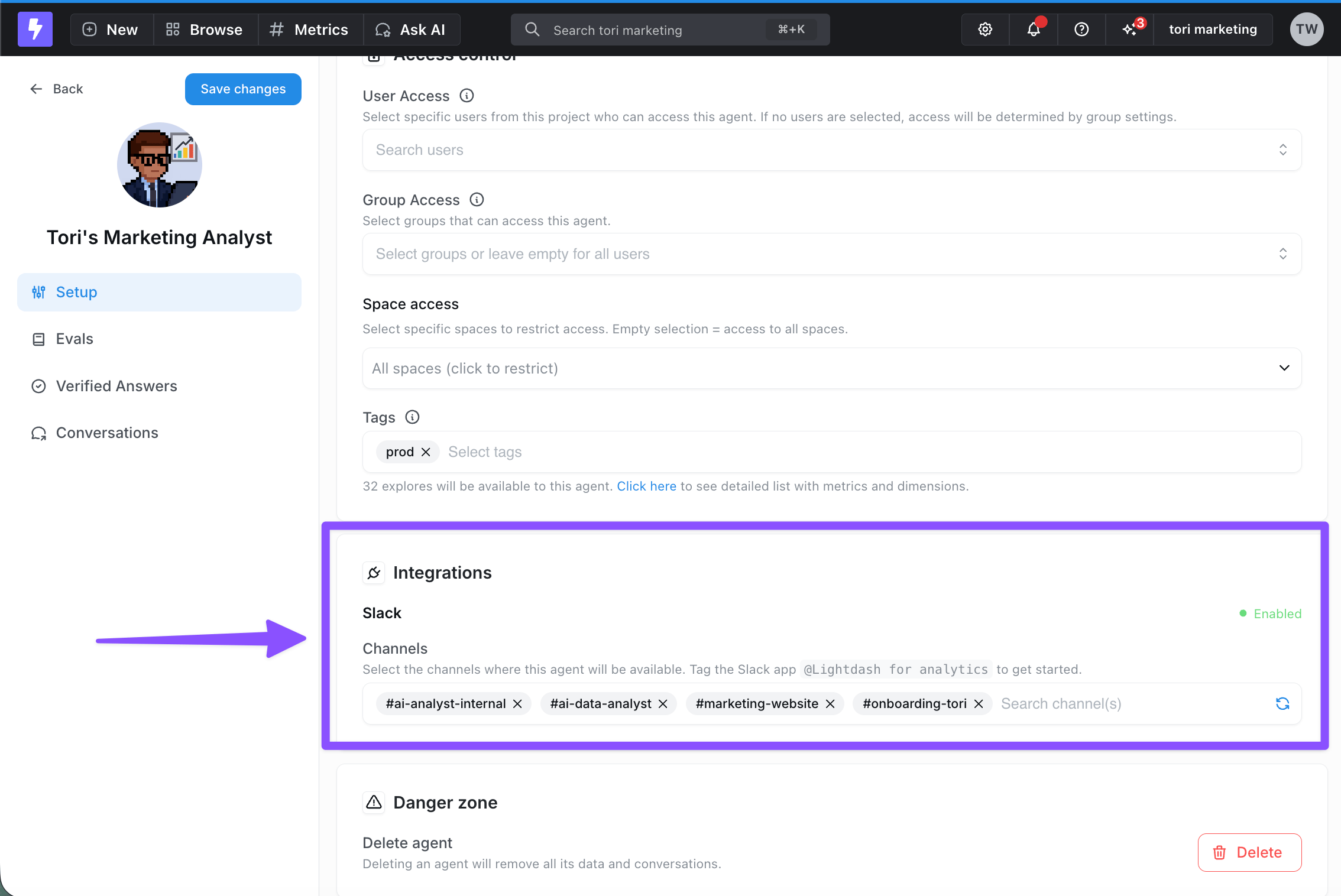 3. Add the `Lightdash for analytics` app to your desired slack channel by going to ***#channel*** --> ***Edit settings*** --> ***Integrations***:
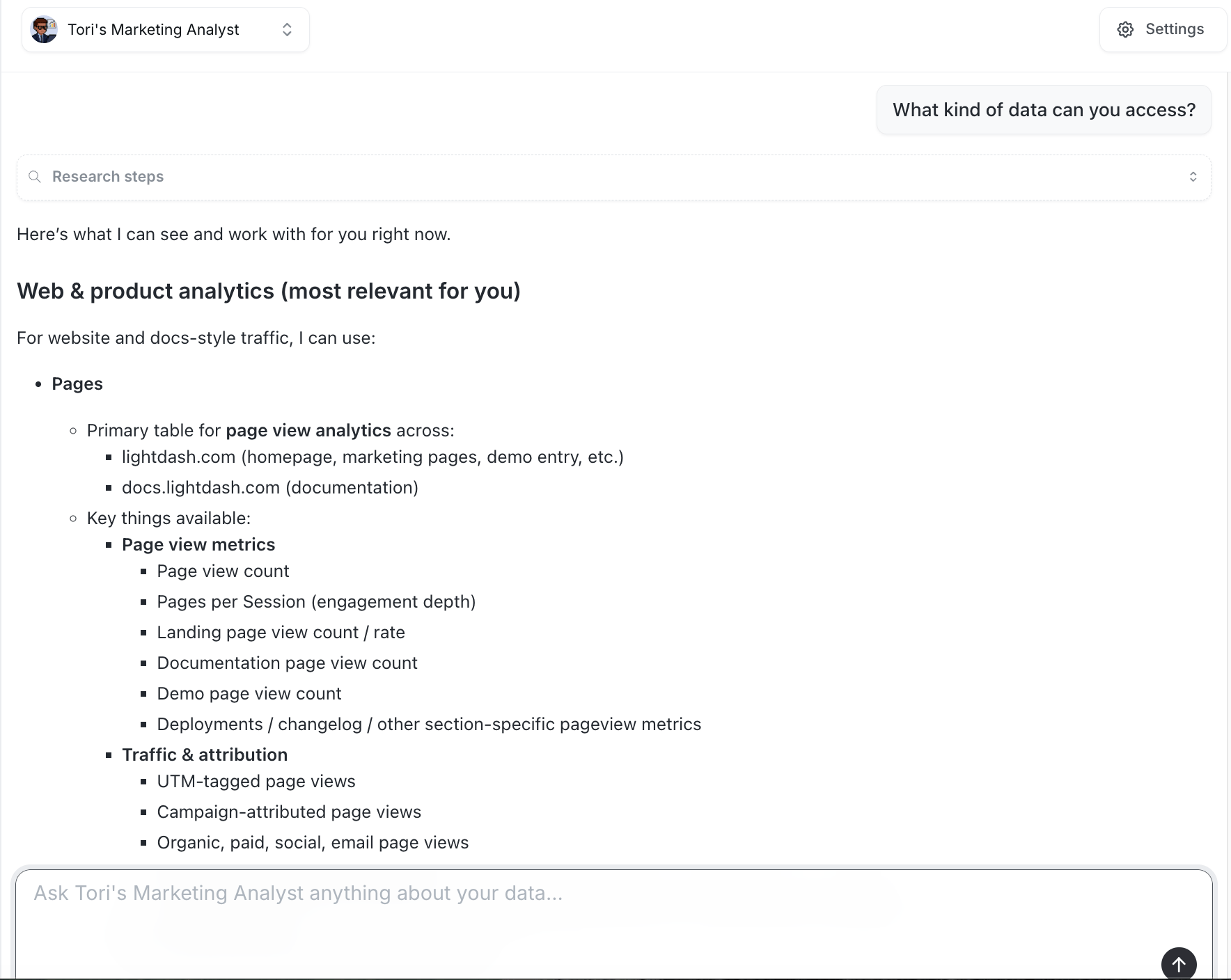
 4. Now you can interact with your AI agent in slack just as you would in the Lightdash UI. Start asking questions like "What kind of data can you access?" or "Show me total order amount over time".
 5. You can also summon the bot on a thread to continue the conversation. In order for the bot to be able to respond, you need to enable this context sharing in your Lightdash Integrations settings.
Once you're set up - whether in the UI or in Slack - you can start asking questions immediately! Try asking "What kind of data can you access?" to get started:
 ### Slack channels: single-agent vs. multi-agent
By default, each AI agent can only be connected to one Slack channel. If you try to configure two agents in the same Slack channel via the per-agent integration path, you'll receive an error.
If you want multiple agents in the same channel, set up a **multi-agent channel** at the organization level instead. In a multi-agent channel, you don't pick which agent to talk to — you interact with the single Lightdash Slack app and the [AI Router](/guides/ai-agents/ai-router) automatically picks the best-fit agent for each question.
How you interact with the app depends on where you're posting:
* **New message in the multi-agent channel** — no `@mention` needed. Lightdash picks up the message automatically and routes it to the best-fit agent.
* **Reply in an existing thread** — `@mention` the Lightdash Slack app. Without the mention, Lightdash will not respond in-thread.
#### Setting up a multi-agent Slack channel
Multi-agent channels are configured at the **organization level**, not per-agent:
1. Go to **Organization Settings → Integrations → Slack**
2. Find the **Multi-agent channel** setting in the AI Agents configuration panel
3. Select the Slack channel you want to designate as the multi-agent channel
4. Click **Save**
Once a channel is designated as the multi-agent channel, all eligible agents in your organization are automatically available in that channel. You do **not** need to add each agent individually via its own **AI Agent → Integrations → Slack** settings.
**Scoping which agents appear:** by default, agents from every project in your organization are eligible. To restrict the channel to agents from specific projects, toggle off **Allow all project agents to appear** and pick the projects you want to include.
If you see the error **"This Slack channel is already assigned to another AI agent"** while trying to attach a second agent via the per-agent integration path, that path only supports single-agent channels. Switch to the org-level multi-agent channel setup described above instead.
### Slack channels: single-agent vs. multi-agent
By default, each AI agent can only be connected to one Slack channel. If you try to configure two agents in the same Slack channel via the per-agent integration path, you'll receive an error.
If you want multiple agents in the same channel, set up a **multi-agent channel** at the organization level instead. In a multi-agent channel, you don't pick which agent to talk to — you interact with the single Lightdash Slack app and the [AI Router](/guides/ai-agents/ai-router) automatically picks the best-fit agent for each question.
How you interact with the app depends on where you're posting:
* **New message in the multi-agent channel** — no `@mention` needed. Lightdash picks up the message automatically and routes it to the best-fit agent.
* **Reply in an existing thread** — `@mention` the Lightdash Slack app. Without the mention, Lightdash will not respond in-thread.
#### Setting up a multi-agent Slack channel
Multi-agent channels are configured at the **organization level**, not per-agent:
1. Go to **Organization Settings → Integrations → Slack**
2. Find the **Multi-agent channel** setting in the AI Agents configuration panel
3. Select the Slack channel you want to designate as the multi-agent channel
4. Click **Save**
Once a channel is designated as the multi-agent channel, all eligible agents in your organization are automatically available in that channel. You do **not** need to add each agent individually via its own **AI Agent → Integrations → Slack** settings.
**Scoping which agents appear:** by default, agents from every project in your organization are eligible. To restrict the channel to agents from specific projects, toggle off **Allow all project agents to appear** and pick the projects you want to include.
If you see the error **"This Slack channel is already assigned to another AI agent"** while trying to attach a second agent via the per-agent integration path, that path only supports single-agent channels. Switch to the org-level multi-agent channel setup described above instead.