> ## Documentation Index
> Fetch the complete documentation index at: https://lightdash-mintlify-cccf65ca.mintlify.site/llms.txt
> Use this file to discover all available pages before exploring further.
# Inviting teammates to your Lightdash project
> You can only share things with people you've invited to your Lightdash project. Users with **Admin** access to your project can invite users.
## Allowing users with certain email domain(s) to join automatically
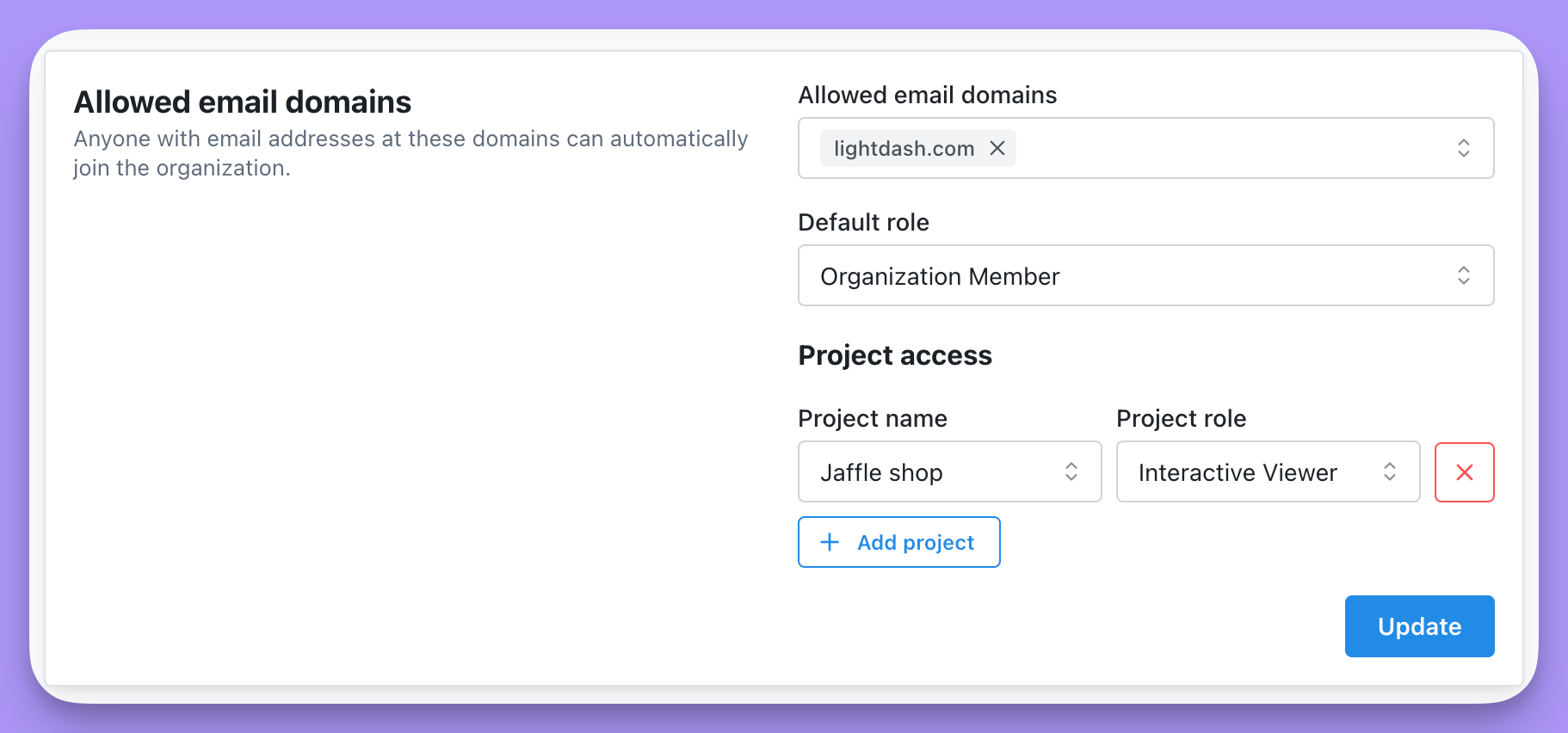
Organization admins can add allowed email domains to their organization settings so that anyone with those email domains can automatically join their organization (without explicitly inviting them).
To update your organization's allowed email domains setting, go to the **General** section of your **Organization settings**.
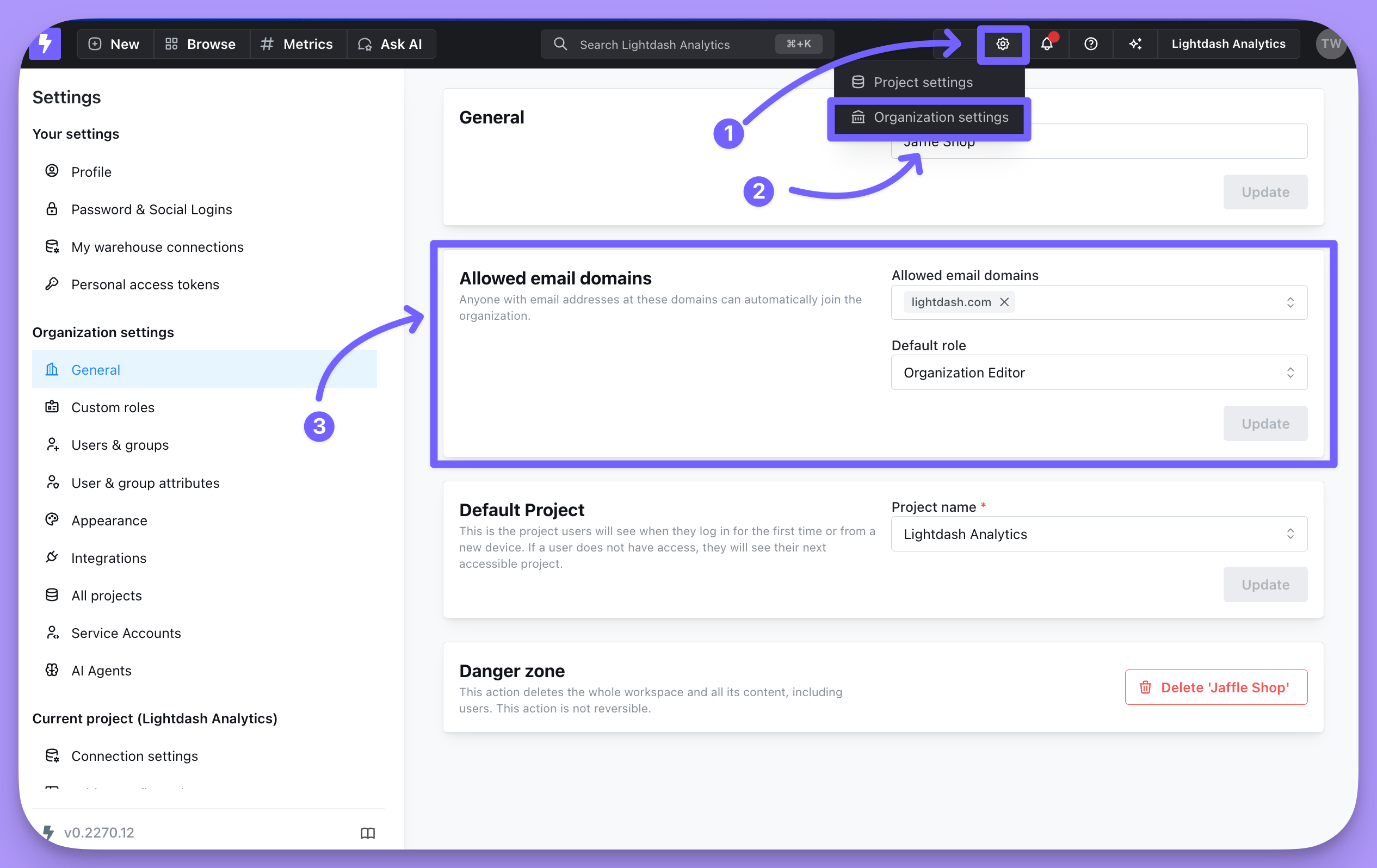 In the **Allowed email domains** panel, enter the email domain(s) you want to be able to automatically join your organization (e.g. here, we've added `lightdash.com`). Generic email domains like `gmail.com` or `hotmail.com` are not accepted.
You can then select the access that you want these users to have by default. The organization **Admin** can always update a user's permissions after they've joined!
In the **Allowed email domains** panel, enter the email domain(s) you want to be able to automatically join your organization (e.g. here, we've added `lightdash.com`). Generic email domains like `gmail.com` or `hotmail.com` are not accepted.
You can then select the access that you want these users to have by default. The organization **Admin** can always update a user's permissions after they've joined!
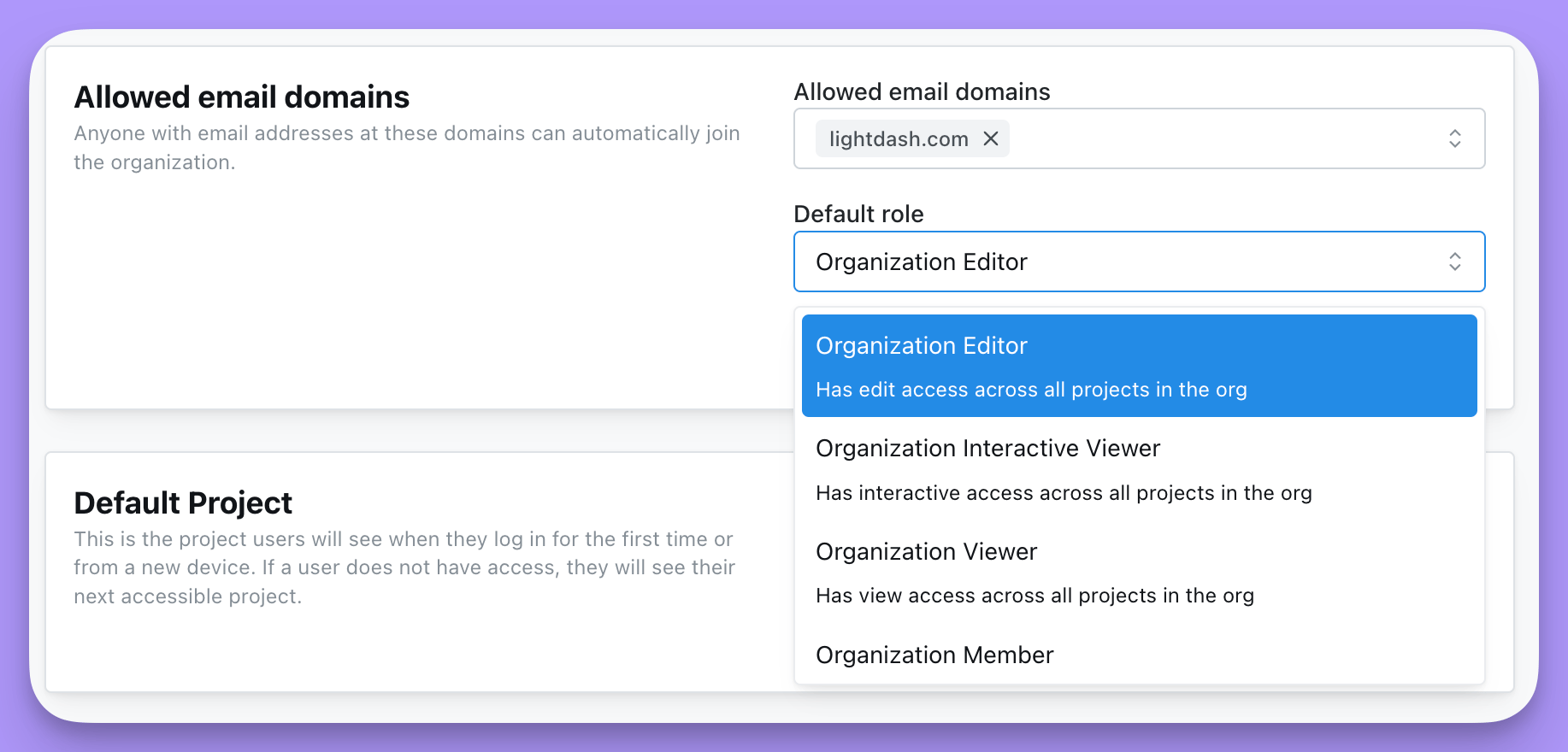 If you want to add default permissions that are different across each project, you can select the organization role of **Organization member**, then set the project access for each project.
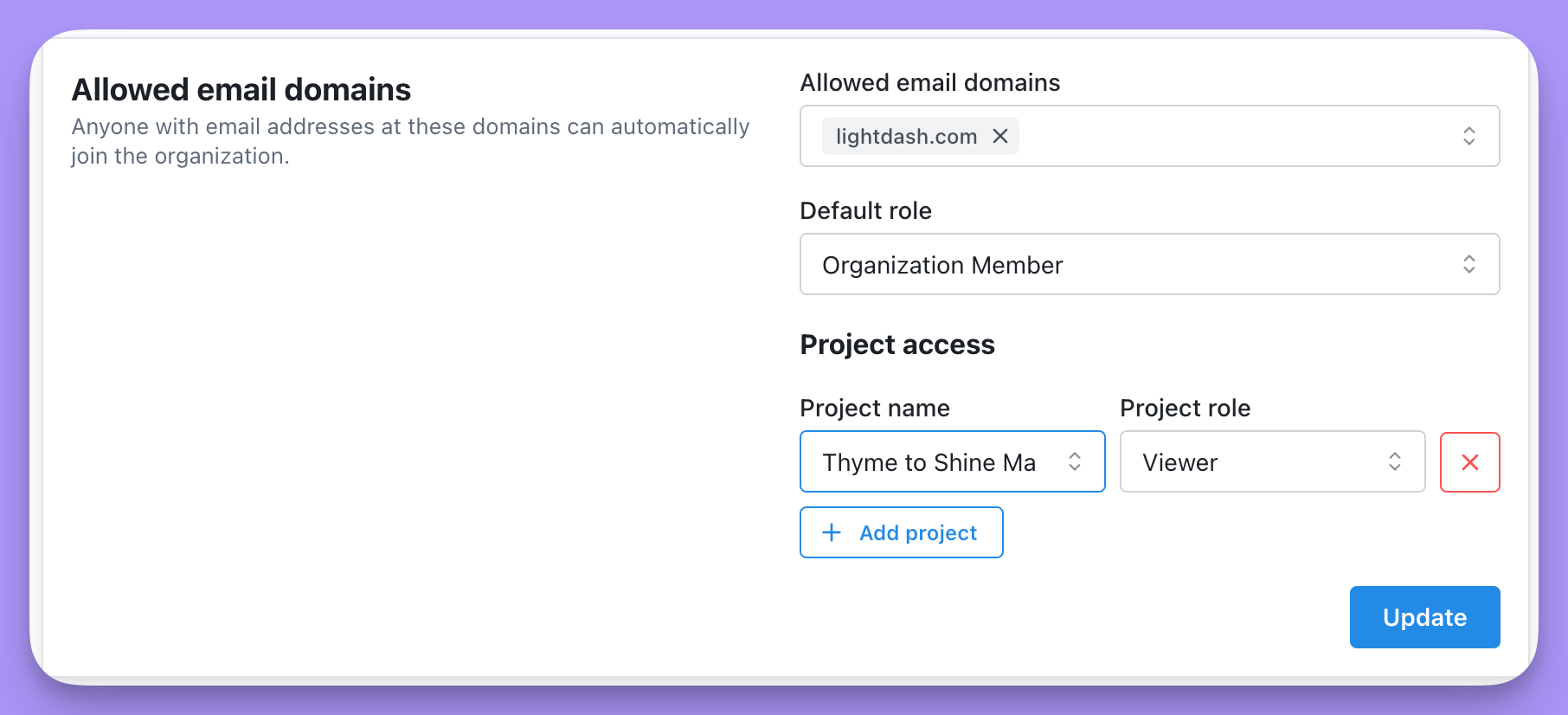 Once you've selected the default roles for your allowed email domains, make sure to click **Update** to save your changes.
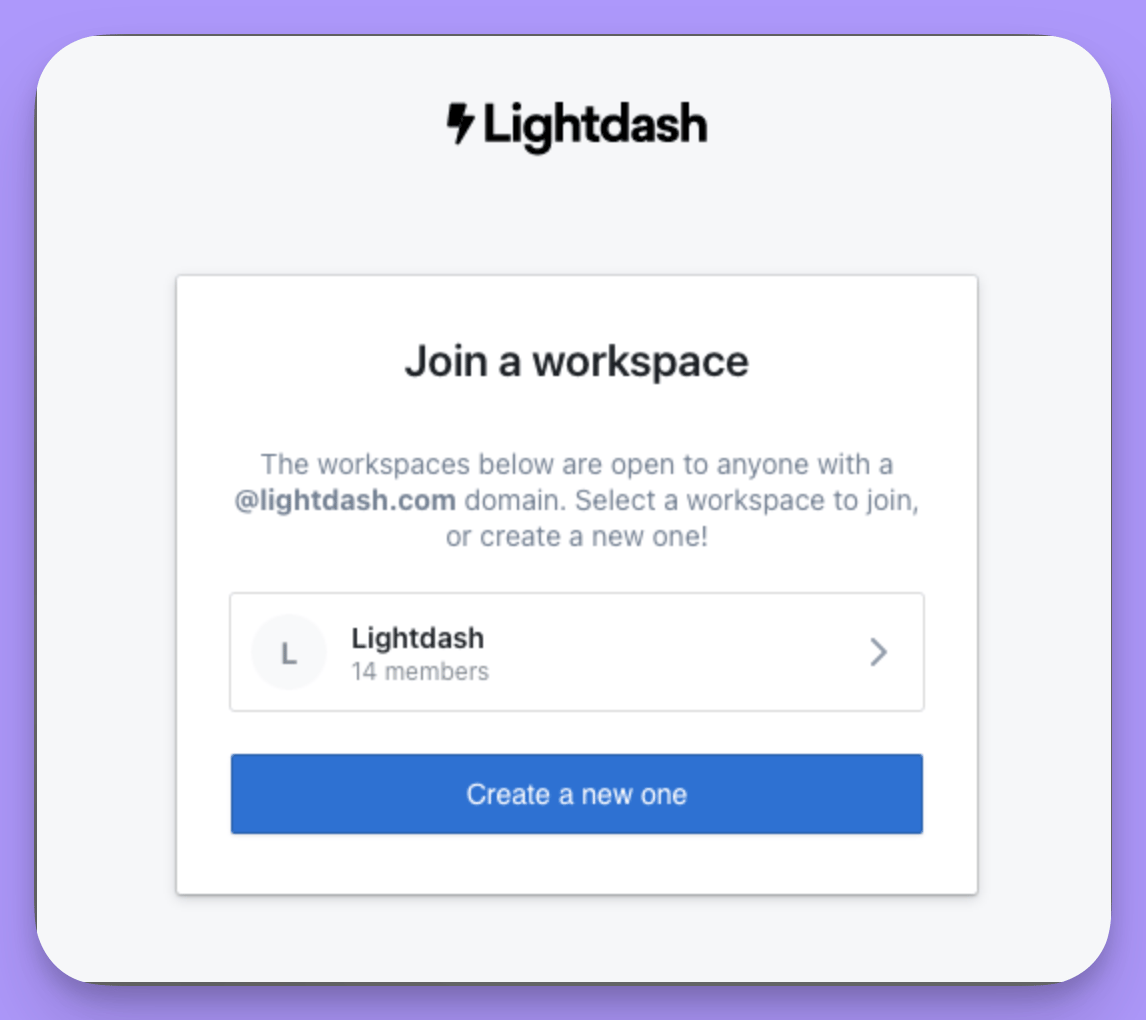
 Now, when a user tries to join Lightdash, they will be prompted to join your workspace if they have one of your allowed email domains.
 ### Setting a Default Project
In the **Organization settings** you can set a default project. This is the project users will see when they log in for the first time or from a new device. If a user does not have access, they will see their next accessible project.
## Inviting new users individually
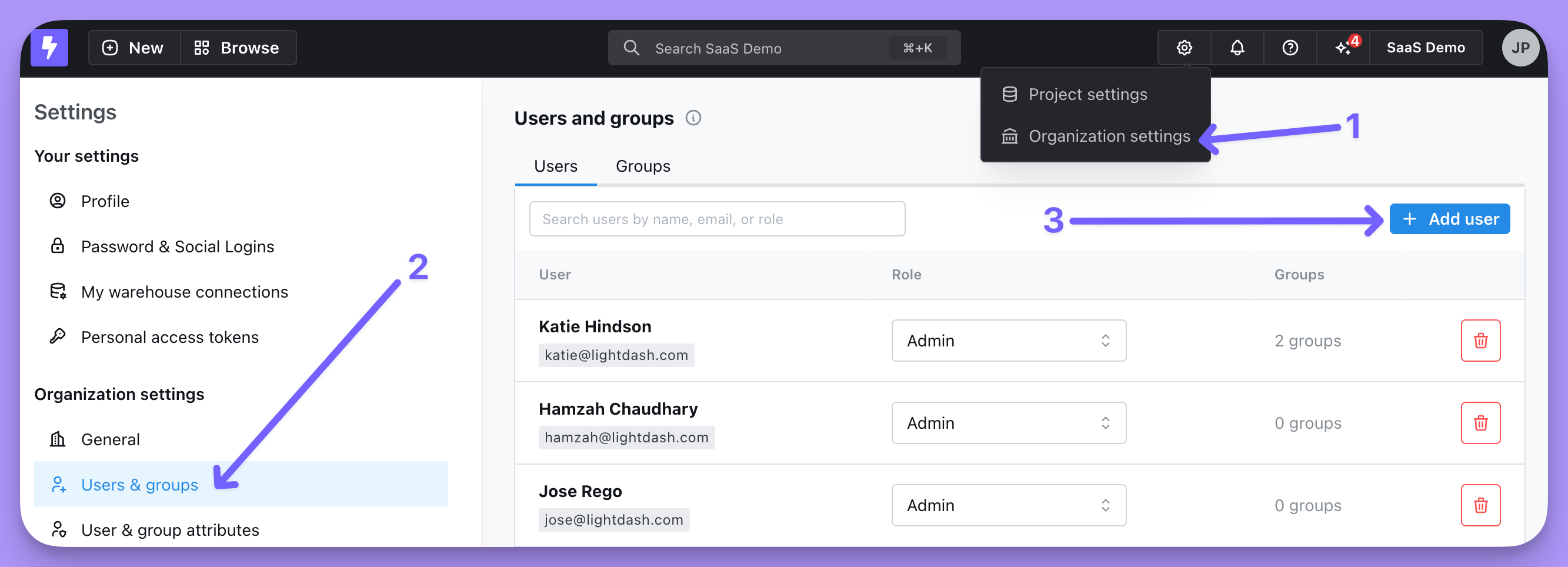
To invite your teammates individually, click on `Organization settings` --> `Users & groups` --> `Add user`.
### Setting a Default Project
In the **Organization settings** you can set a default project. This is the project users will see when they log in for the first time or from a new device. If a user does not have access, they will see their next accessible project.
## Inviting new users individually
To invite your teammates individually, click on `Organization settings` --> `Users & groups` --> `Add user`.
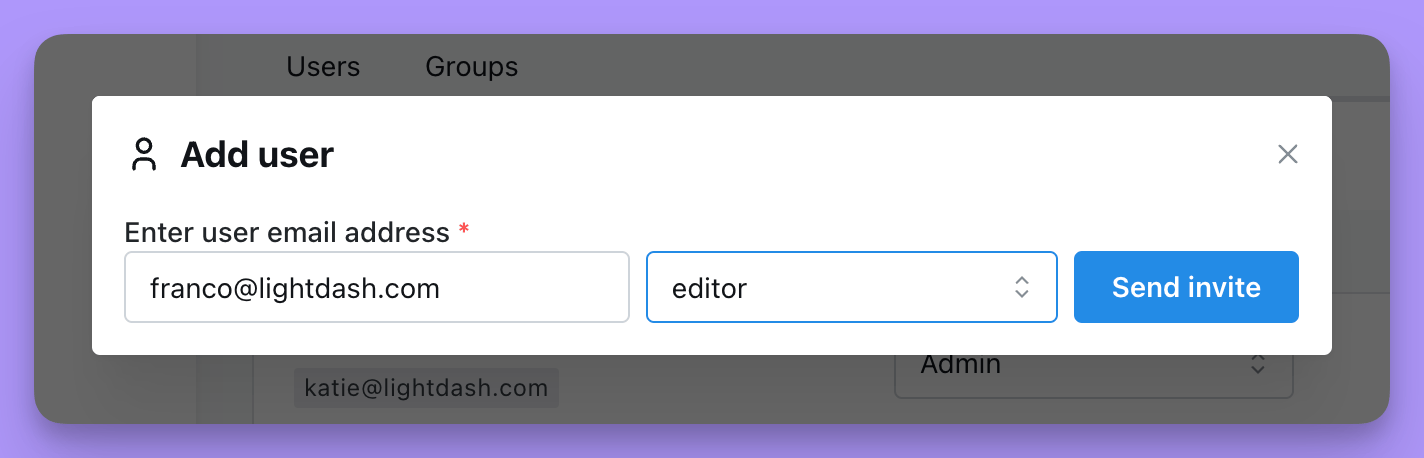
 You then need to input the email address of the user you want to invite and select the role you want to assign them. [Read more about user roles and permissions in Lightdash here](/references/workspace/roles).
Once you hit `Send invite`, we'll send an email to the new user with their invite link.
You then need to input the email address of the user you want to invite and select the role you want to assign them. [Read more about user roles and permissions in Lightdash here](/references/workspace/roles).
Once you hit `Send invite`, we'll send an email to the new user with their invite link.
 Once you're done inviting users, you can head back to the list of users in the `Users & groups` tab, scroll to the bottom and see all of the pending invitations for your project. You can also re-generate an invite link if you need to!