> ## Documentation Index
> Fetch the complete documentation index at: https://lightdash-mintlify-cccf65ca.mintlify.site/llms.txt
> Use this file to discover all available pages before exploring further.
# Create your first project
 In Lightdash, everything you need for BI is written as code in your dbt project. You use dbt to transform all of the data from your data warehouse, then you use Lightdash to explore it.
But, before you hook up your dbt project to Lightdash, we need to make sure we have Tables to explore. **In this setup guide, we'll walk you through the steps of installing + using the Lightdash CLI and creating the first Tables in your project.**
**New to dbt?** If you haven't used dbt before, [follow dbt's getting started guide](https://docs.getdbt.com/tutorial/setting-up) before proceeding with setting up Lightdash.
## What are Tables?
Tables are the starting point to any data exploration in Lightdash - they're the data in Lightdash that you can query. The beauty of Lightdash is that we're pretty well synced with your dbt project. So, in Lightdash, Tables actually come from dbt models that have been defined in your dbt project's `.yml` files.
If your dbt model has been defined in a .yml file, it will appear in Lightdash as a Table.
**Not sure what a .yml file is?** Make sure to [check out dbt's docs](https://docs.getdbt.com/reference/configs-and-properties) to learn more about building .yml files for your dbt project.
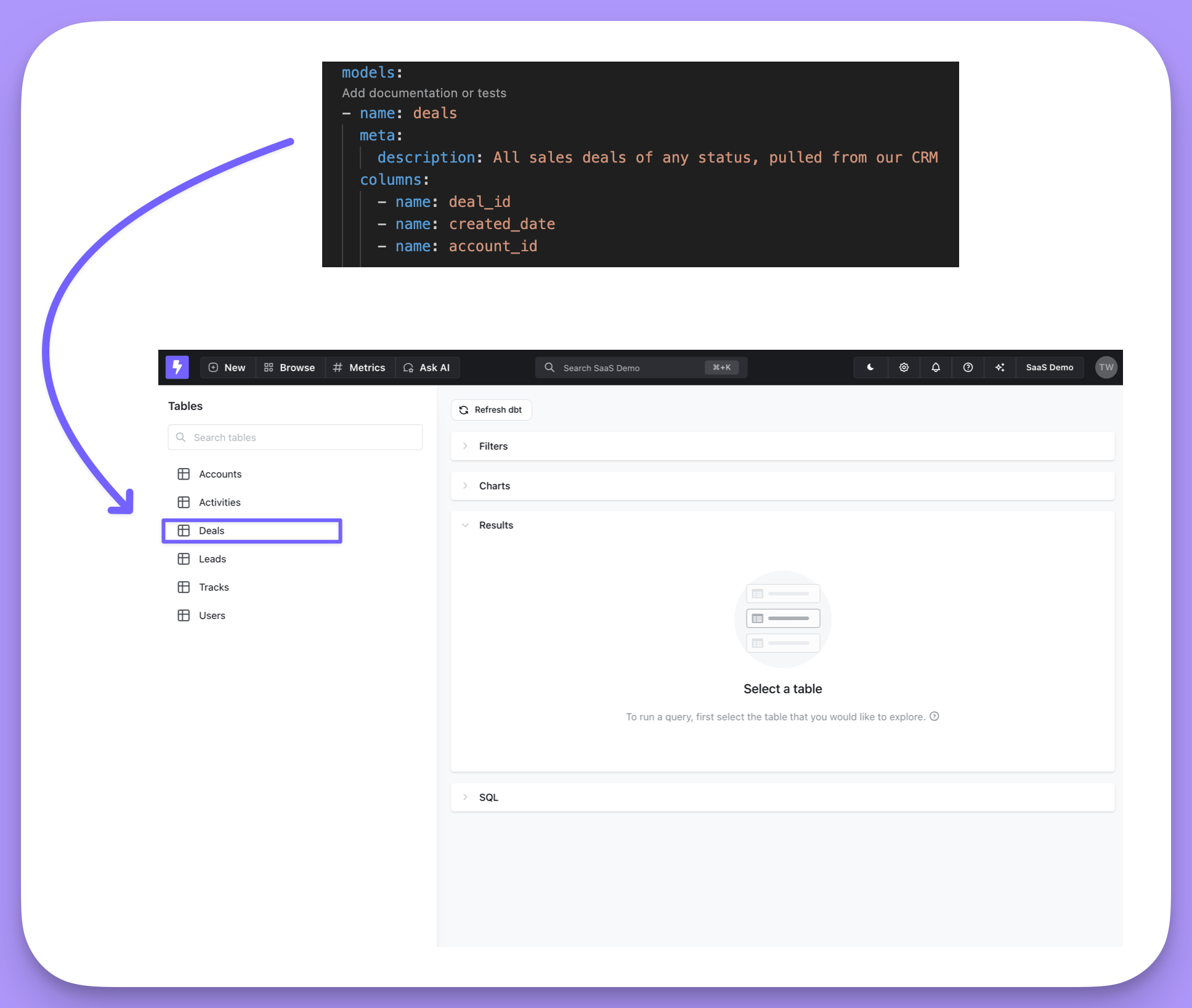
Here's an example of our `deals` model we've defined in dbt. In Lightdash, we can see it in our list of available Tables to explore.
In Lightdash, everything you need for BI is written as code in your dbt project. You use dbt to transform all of the data from your data warehouse, then you use Lightdash to explore it.
But, before you hook up your dbt project to Lightdash, we need to make sure we have Tables to explore. **In this setup guide, we'll walk you through the steps of installing + using the Lightdash CLI and creating the first Tables in your project.**
**New to dbt?** If you haven't used dbt before, [follow dbt's getting started guide](https://docs.getdbt.com/tutorial/setting-up) before proceeding with setting up Lightdash.
## What are Tables?
Tables are the starting point to any data exploration in Lightdash - they're the data in Lightdash that you can query. The beauty of Lightdash is that we're pretty well synced with your dbt project. So, in Lightdash, Tables actually come from dbt models that have been defined in your dbt project's `.yml` files.
If your dbt model has been defined in a .yml file, it will appear in Lightdash as a Table.
**Not sure what a .yml file is?** Make sure to [check out dbt's docs](https://docs.getdbt.com/reference/configs-and-properties) to learn more about building .yml files for your dbt project.
Here's an example of our `deals` model we've defined in dbt. In Lightdash, we can see it in our list of available Tables to explore.
 Now that we know what tables are, let's add some and create our first project!
***
## Step 1: Install the Lightdash CLI tool
The Lightdash CLI is the recommended way to develop your dbt + Lightdash project. It makes development faster and easier, as well as giving you options for building more powerful automation to manage your Lightdash instance.
Before installing Lightdash CLI, you need to have NodeJS/NPM installed on your machine. To check that, run the following command in your terminal:
```bash theme={null}
node -v; npm -v;
# it should print something like:
# v20.8.0
# 8.15.0
```
We recommend installing NodeJS/NPM using [NVM (Node Version Manager)](https://github.com/nvm-sh/nvm#install--update-script) which works for POSIX-compliant shells (sh, dash, ksh, zsh, bash on these platforms: unix, macOS, and windows WSL)
Open your terminal and run the command below to install NVM (Node Version Manager) to your system.
```bash theme={null}
curl -o- https://raw.githubusercontent.com/nvm-sh/nvm/v0.39.2/install.sh | bash
# or
wget -qO- https://raw.githubusercontent.com/nvm-sh/nvm/v0.39.2/install.sh | bash
```
Restart terminal and install NodeJS by running
```bash theme={null}
nvm install --lts
```
Check that NodeJS is installed by running
```bash theme={null}
node -v
```
Running the command above should output something like `20.8.0` which means you've succesfully installed NodeJS/NPM
***
Alternatively, you can [install NodeJS/NPM via your preferred package manager](https://nodejs.org/en/download/package-manager).
Run the following on your terminal to install the Lightdash CLI.
```bash theme={null}
npm install -g @lightdash/cli
```
If you get an `npm ERR! code EACCES` error while installing the Lightdash CLI, [follow this guide](https://docs.npmjs.com/resolving-eacces-permissions-errors-when-installing-packages-globally) to resolve it.
***
## Step 2: Login to the CLI[](#step-2-login-to-the-cli "Direct link to Step 2: Login to the CLI")
We've automatically generated a personal access token that you can use to login to the CLI, so you just need to copy-paste that command in your Terminal.
It's Step 2. and should look something like this:
```bash theme={null}
lightdash login https://{{ lightdash_domain }} --token my-super-secret-token
```
Where `{{ lightdash_domain }}` is `app.lightdash.cloud` for Lightdash Cloud users. Or your own domain if self-hosting. If you want to login using another method, then you [can check out our authentication methods here](/guides/cli/cli-authentication).
***
## Step 3: Add Tables[](#step-3-add-tables "Direct link to Step 3: Add Tables")
If you're using dbt Cloud, you'll need to [clone your repo to your local machine](https://docs.github.com/en/repositories/creating-and-managing-repositories/cloning-a-repository) before completing the next steps.
To get our dbt project Lightdash-ready, we need to define all of the columns in our dbt models that we want to explore in Lightdash. We've made this really easy to do using our CLI tool and the command:
```bash theme={null}
lightdash dbt run
```
This will generate Tables and dimensions for your entire dbt project. It will document all of the columns in your models and these are what we explore in Lightdash as `Dimensions`.
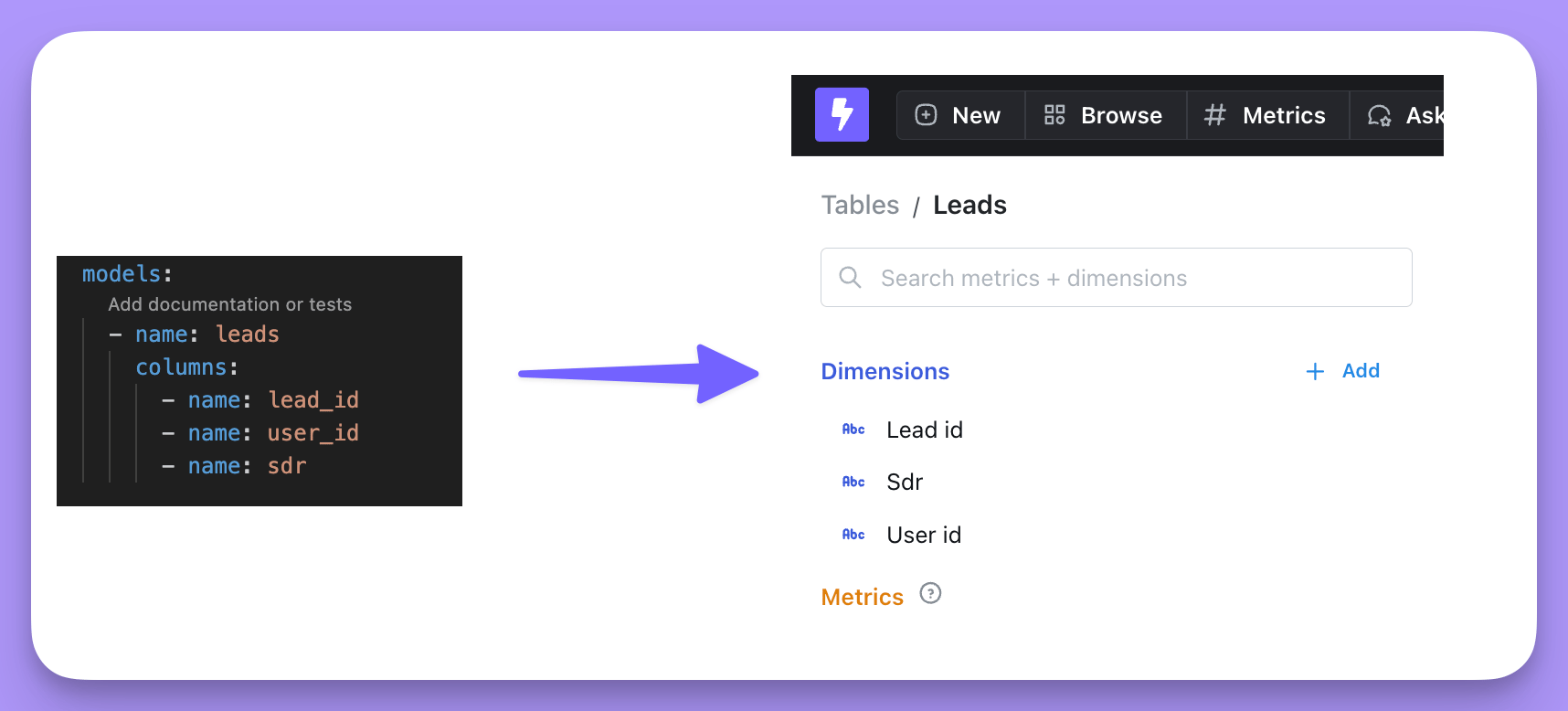
For example, if we have a `leads.yml` file, we'd have a Table called `Leads` and it would have the dimensions: `Lead id`, `User id`, and `sdr`.
Now that we know what tables are, let's add some and create our first project!
***
## Step 1: Install the Lightdash CLI tool
The Lightdash CLI is the recommended way to develop your dbt + Lightdash project. It makes development faster and easier, as well as giving you options for building more powerful automation to manage your Lightdash instance.
Before installing Lightdash CLI, you need to have NodeJS/NPM installed on your machine. To check that, run the following command in your terminal:
```bash theme={null}
node -v; npm -v;
# it should print something like:
# v20.8.0
# 8.15.0
```
We recommend installing NodeJS/NPM using [NVM (Node Version Manager)](https://github.com/nvm-sh/nvm#install--update-script) which works for POSIX-compliant shells (sh, dash, ksh, zsh, bash on these platforms: unix, macOS, and windows WSL)
Open your terminal and run the command below to install NVM (Node Version Manager) to your system.
```bash theme={null}
curl -o- https://raw.githubusercontent.com/nvm-sh/nvm/v0.39.2/install.sh | bash
# or
wget -qO- https://raw.githubusercontent.com/nvm-sh/nvm/v0.39.2/install.sh | bash
```
Restart terminal and install NodeJS by running
```bash theme={null}
nvm install --lts
```
Check that NodeJS is installed by running
```bash theme={null}
node -v
```
Running the command above should output something like `20.8.0` which means you've succesfully installed NodeJS/NPM
***
Alternatively, you can [install NodeJS/NPM via your preferred package manager](https://nodejs.org/en/download/package-manager).
Run the following on your terminal to install the Lightdash CLI.
```bash theme={null}
npm install -g @lightdash/cli
```
If you get an `npm ERR! code EACCES` error while installing the Lightdash CLI, [follow this guide](https://docs.npmjs.com/resolving-eacces-permissions-errors-when-installing-packages-globally) to resolve it.
***
## Step 2: Login to the CLI[](#step-2-login-to-the-cli "Direct link to Step 2: Login to the CLI")
We've automatically generated a personal access token that you can use to login to the CLI, so you just need to copy-paste that command in your Terminal.
It's Step 2. and should look something like this:
```bash theme={null}
lightdash login https://{{ lightdash_domain }} --token my-super-secret-token
```
Where `{{ lightdash_domain }}` is `app.lightdash.cloud` for Lightdash Cloud users. Or your own domain if self-hosting. If you want to login using another method, then you [can check out our authentication methods here](/guides/cli/cli-authentication).
***
## Step 3: Add Tables[](#step-3-add-tables "Direct link to Step 3: Add Tables")
If you're using dbt Cloud, you'll need to [clone your repo to your local machine](https://docs.github.com/en/repositories/creating-and-managing-repositories/cloning-a-repository) before completing the next steps.
To get our dbt project Lightdash-ready, we need to define all of the columns in our dbt models that we want to explore in Lightdash. We've made this really easy to do using our CLI tool and the command:
```bash theme={null}
lightdash dbt run
```
This will generate Tables and dimensions for your entire dbt project. It will document all of the columns in your models and these are what we explore in Lightdash as `Dimensions`.
For example, if we have a `leads.yml` file, we'd have a Table called `Leads` and it would have the dimensions: `Lead id`, `User id`, and `sdr`.
 If you're getting an error: `Error: Not a dbt project (or any of the parent directories). Missing dbt\_project.yml file`
Make sure that you're in your dbt project folder (i.e. where your `dbt_project.yml` file is) before you try doing `lightdash dbt run`
### Generate Tables and dimensions for some of the models in my dbt project:
There may be a specific set of models that you want to start out with as Tables in Lightdash. If this is the case, we recommend using dbt's
If you're getting an error: `Error: Not a dbt project (or any of the parent directories). Missing dbt\_project.yml file`
Make sure that you're in your dbt project folder (i.e. where your `dbt_project.yml` file is) before you try doing `lightdash dbt run`
### Generate Tables and dimensions for some of the models in my dbt project:
There may be a specific set of models that you want to start out with as Tables in Lightdash. If this is the case, we recommend using dbt's tags to tag these models. You can use sets of existing tags, or you can create a new Lightdash-specific tag. Something like this:
```bash theme={null}
{{
config(
materialized='table',
tags=['lightdash']
)
}}
```
The `lightdash dbt run` command supports dbt model selection syntax to generate .yml files for a group of models. This means you can use tags or other model selection syntax to specify which models you want to generate dimensions for in your dbt project.
```bash theme={null}
lightdash dbt run -s tag:lightdash # all models with the lightdash tag
lightdash dbt run -s payments # just payments
lightdash dbt run -s payments+ # payments and all children
lightdash dbt run -s +payments # payments and all parents
lightdash dbt run -s payments+ +customers tag:lightdash # mix and match
```
***
## Step 4: Create your project
Now, your dbt project is Lightdash-ready! Just run this command and follow the link to start exploring your data:
```bash theme={null}
lightdash deploy --create
```
***
## Next steps: Update your project connection settings
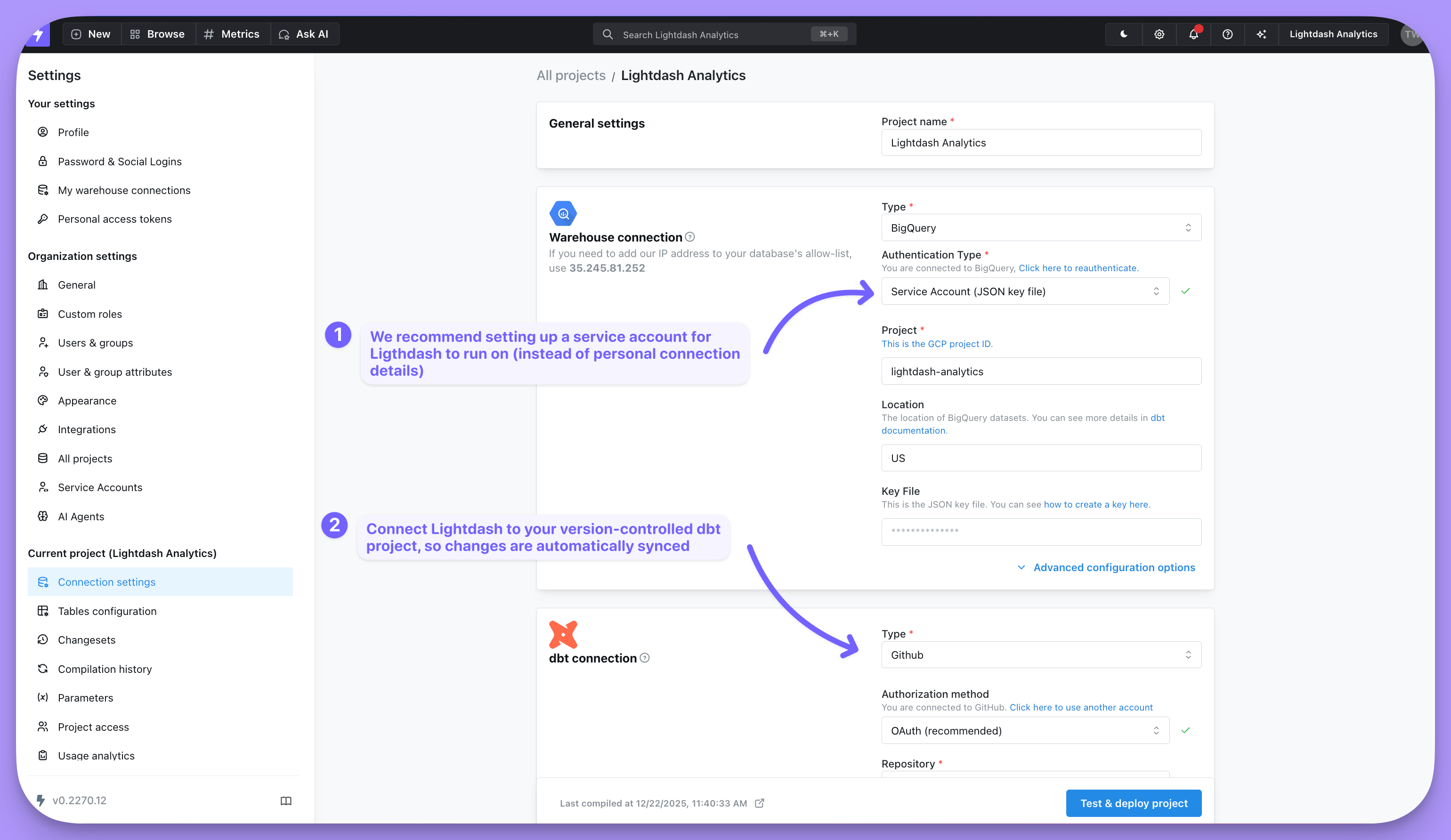
We create your first project using your local dbt `profiles.yml` file. So, you might want to update your connection settings to:
1. Set up a service account for Lightdash to run on (instead of using your personal connection details)
2. Connect Lightdash to your version controlled dbt project so changes are automatically synced.
Check out details on [updating your connection settings here](/get-started/setup-lightdash/connect-project).