> ## Documentation Index
> Fetch the complete documentation index at: https://lightdash-mintlify-cccf65ca.mintlify.site/llms.txt
> Use this file to discover all available pages before exploring further.
# Using dashboards
## Viewing the underlying data for a point on a chart
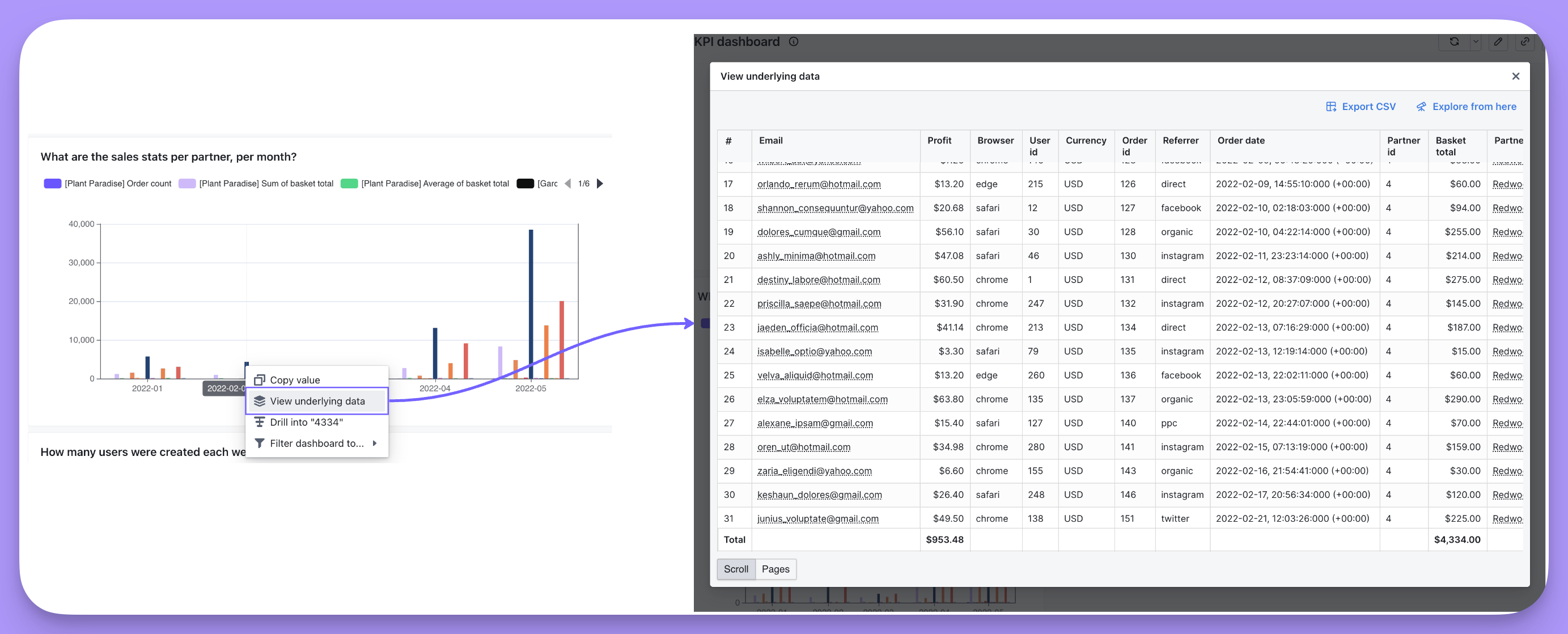
You can click on any point on a chart and view the records which make up that data point.
For example, I can find out what the underlying data is for the \$4,334.0 in my `What are the sales stats per partner, per month?` chart, by clicking on the bar for that month, and then clicking `View underlying data` in the action menu. I'd see all of the rows in the underlying table that make up that total.
 After viewing the underlying data, I can also:
* Export this data as a CSV
* Explore from this underlying data, which will take me to a new chart with the underlying data as the starting point
## Using a chart to filter your dashboard (a.k.a. cross-filtering)
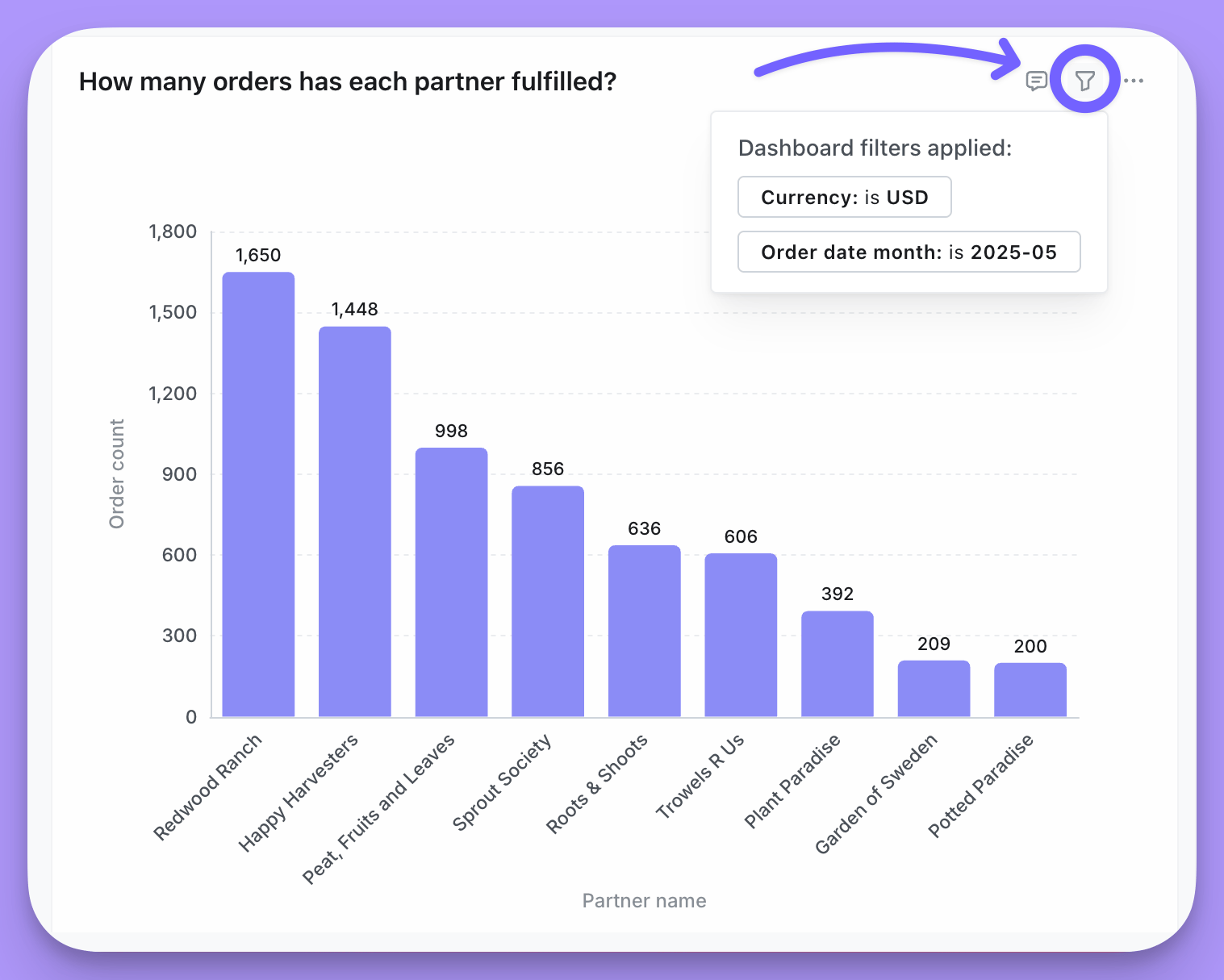
When you click on the value in a chart (e.g. a bar in your bar chart), you can choose to filter on that value and update all of the other relevant charts in the dashboard. This type of chart-to-dashboard filtering is sometimes called `cross-filtering`.
After viewing the underlying data, I can also:
* Export this data as a CSV
* Explore from this underlying data, which will take me to a new chart with the underlying data as the starting point
## Using a chart to filter your dashboard (a.k.a. cross-filtering)
When you click on the value in a chart (e.g. a bar in your bar chart), you can choose to filter on that value and update all of the other relevant charts in the dashboard. This type of chart-to-dashboard filtering is sometimes called `cross-filtering`.
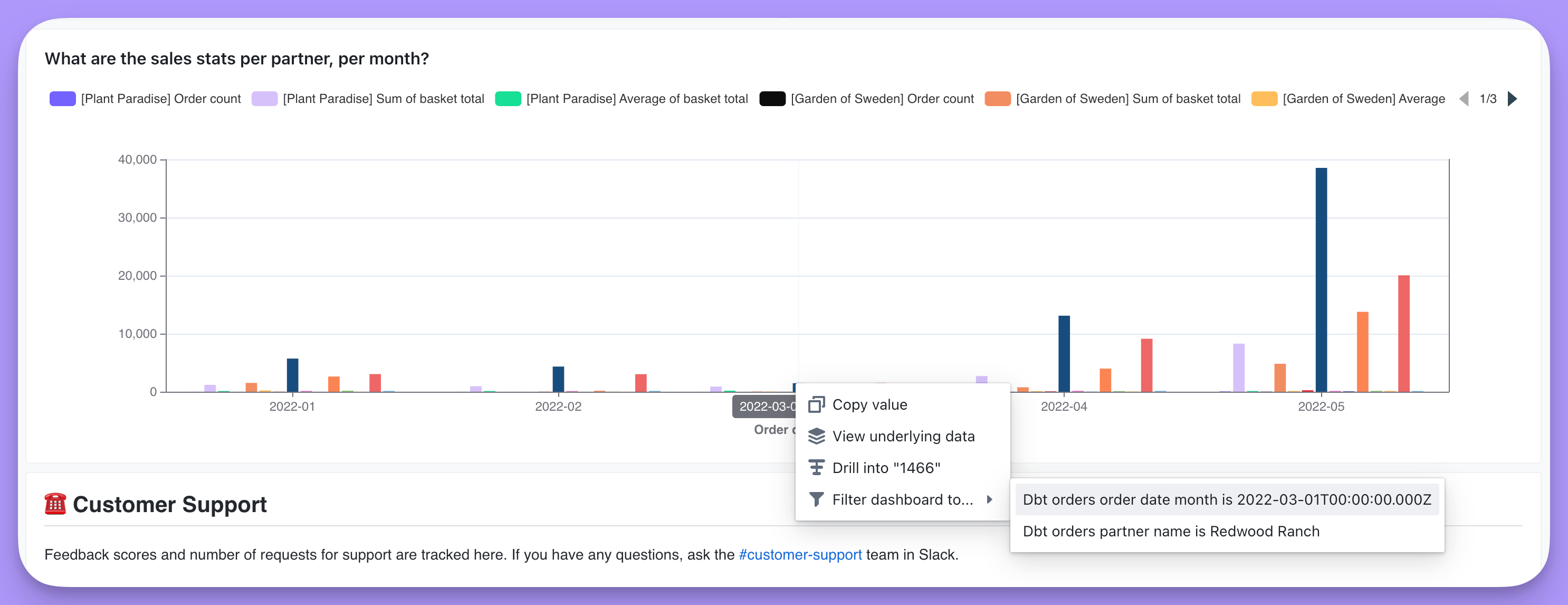 ### You can see which tiles had the filter applied by hovering over the `dashboard filter applied` text on your chart tile.
Once you've clicked on your filter, all of the tiles in your dashboard with the filter field will be filtered to the value you selected.
You can see which tiles had the filter applied by hovering over the tile and then on the funnel icon to see the filter that was applied.
### You can see which tiles had the filter applied by hovering over the `dashboard filter applied` text on your chart tile.
Once you've clicked on your filter, all of the tiles in your dashboard with the filter field will be filtered to the value you selected.
You can see which tiles had the filter applied by hovering over the tile and then on the funnel icon to see the filter that was applied.
 ## Date zoom
Date zoom lets you change the date granularity (Day, Week, Month, etc.) of all time-based charts on a dashboard at once—without editing individual charts.
## Date zoom
Date zoom lets you change the date granularity (Day, Week, Month, etc.) of all time-based charts on a dashboard at once—without editing individual charts.
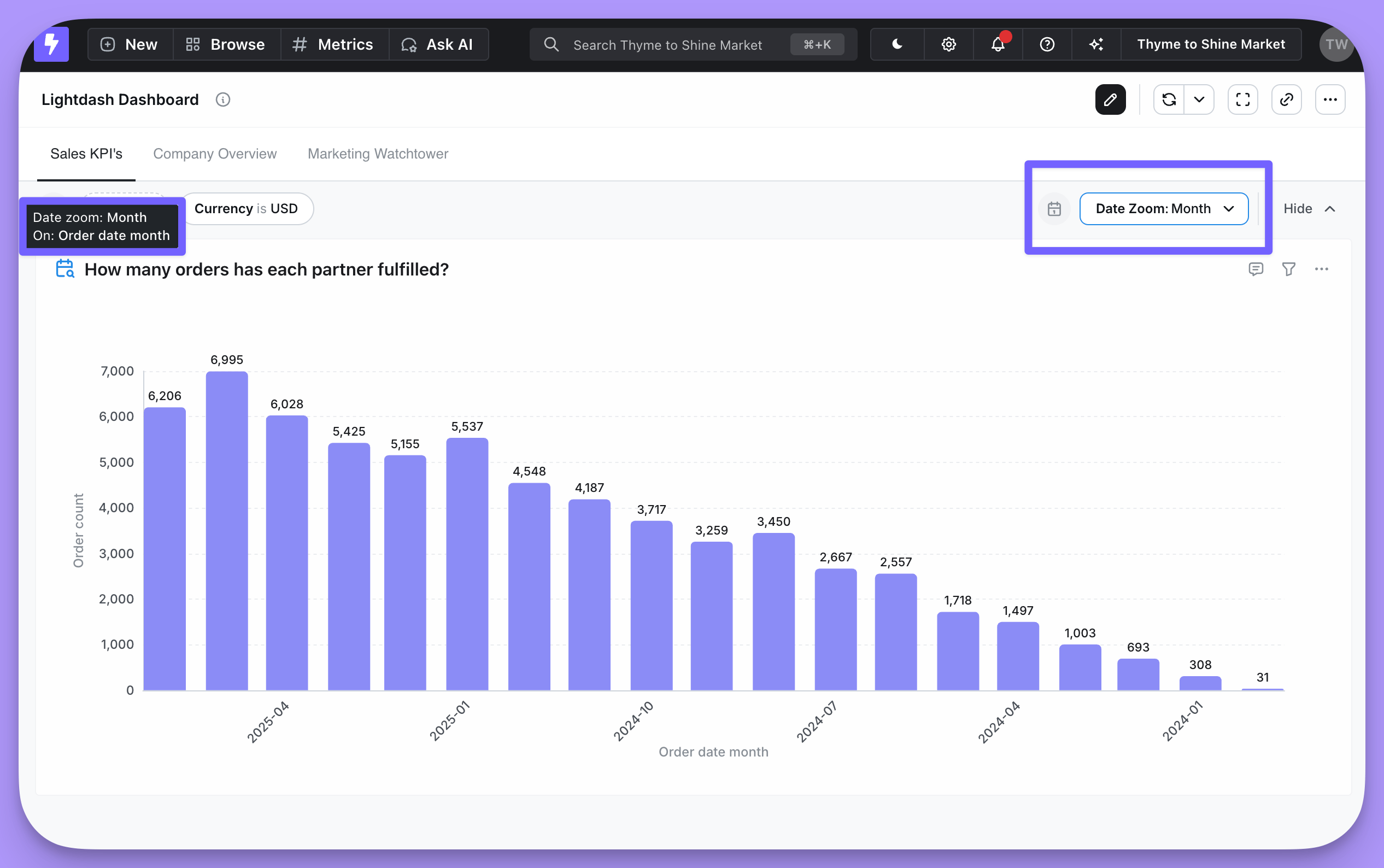 See the [Date zoom guide](/guides/date-zoom) for complete documentation, including how to configure available granularities, set defaults, and use custom granularities.
You're only temporarily changing the dates in the tiles on your dashboard. If you refresh the dashboard, the affected tiles will go back to their default saved state.
If you want to restrict access to this feature, you can hide the Date Zoom control on a dashboard by heading to edit mode and toggling the **eye icon** next to the Date Zoom dropdown.
## Drill into a metric in a chart or your results table using `Drill into`
You can drill into a Metric in your chart or results table to better understand a point in your chart. Selecting `Drill into` lets you group your Metric by a Dimension, like revenue segmented by (or grouped by) product type. Note that `Drill into` only works for Metrics, not for Dimensions or Table Calculations.
##### Here's an example of Drill into
I have a chart with **Sum of basket total** (a Metric) per Partner, per month. As you can see, there's a high spike in sales for one of the partners in the month of May. I want to understand why this spike happened.
To do this, I click on the data point in my chart, then click `Drill into` in the action menu:
See the [Date zoom guide](/guides/date-zoom) for complete documentation, including how to configure available granularities, set defaults, and use custom granularities.
You're only temporarily changing the dates in the tiles on your dashboard. If you refresh the dashboard, the affected tiles will go back to their default saved state.
If you want to restrict access to this feature, you can hide the Date Zoom control on a dashboard by heading to edit mode and toggling the **eye icon** next to the Date Zoom dropdown.
## Drill into a metric in a chart or your results table using `Drill into`
You can drill into a Metric in your chart or results table to better understand a point in your chart. Selecting `Drill into` lets you group your Metric by a Dimension, like revenue segmented by (or grouped by) product type. Note that `Drill into` only works for Metrics, not for Dimensions or Table Calculations.
##### Here's an example of Drill into
I have a chart with **Sum of basket total** (a Metric) per Partner, per month. As you can see, there's a high spike in sales for one of the partners in the month of May. I want to understand why this spike happened.
To do this, I click on the data point in my chart, then click `Drill into` in the action menu:
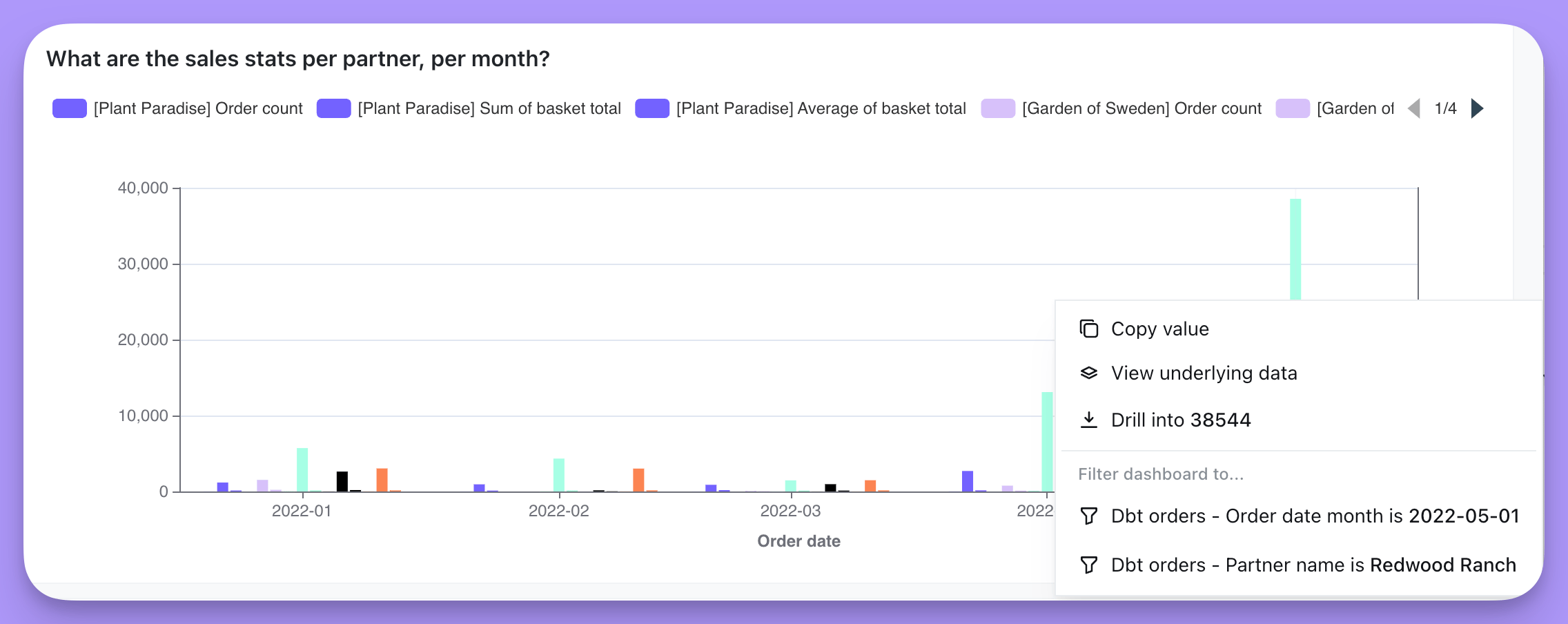 I then select the Dimension I want to segment my metric by (or "drill into"). In this example, I'm interested to see what Shipping country the orders were coming from, so I select **Shipping country**:
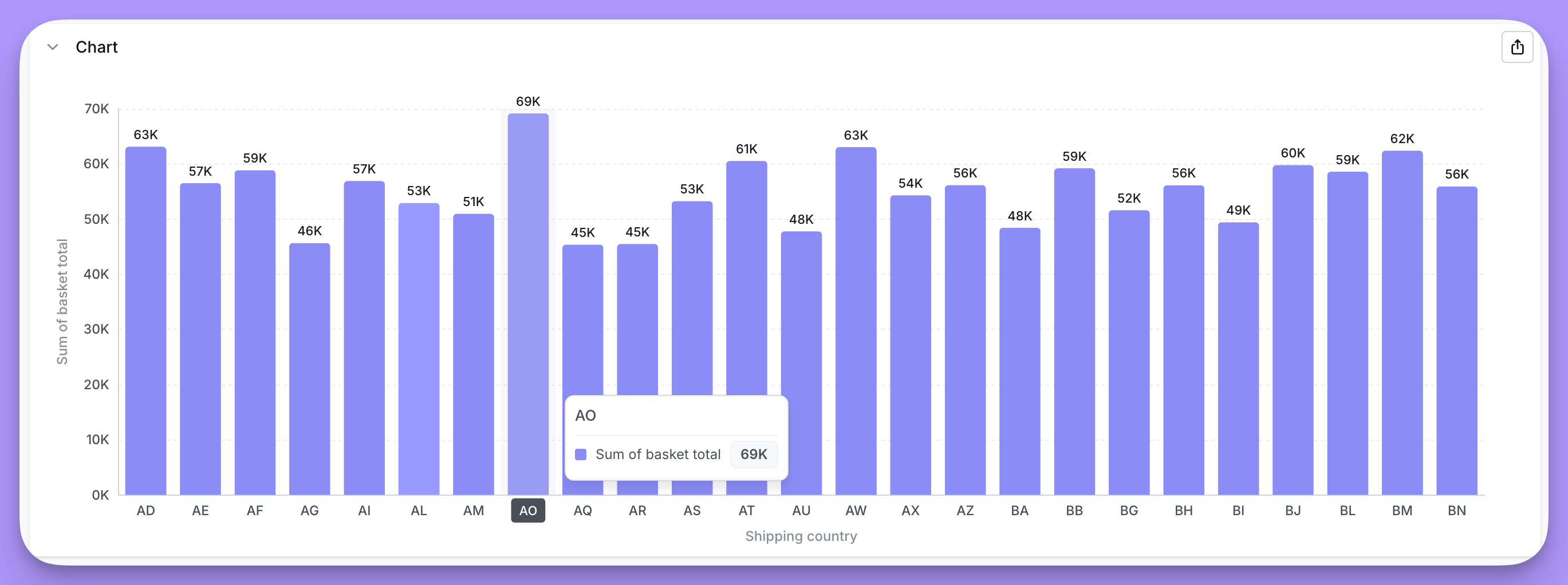
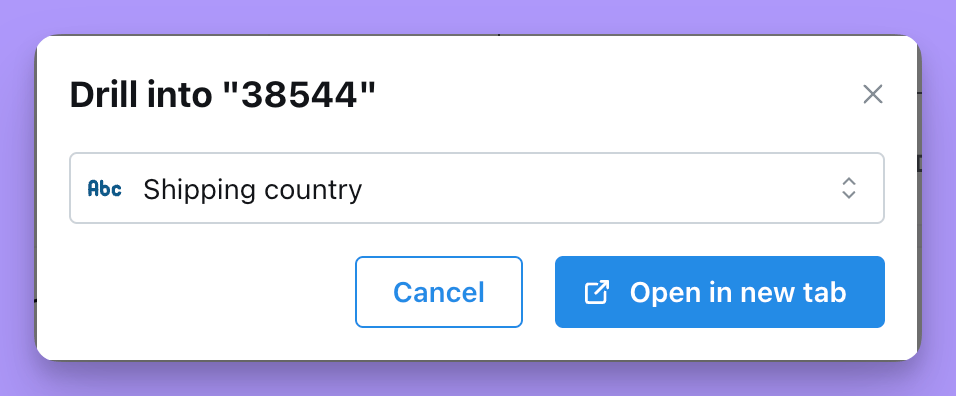 Once I've selected the Dimension I want to group by, I click `Open in new tab` and see a chart with my Metric, grouped by `Shipping country`. Now I can uncover where this spike in sales is coming from